Important
デバイス メタデータは非推奨となり、Windows の今後のリリースで削除される予定です。 この機能の置き換えについては、「 ドライバー パッケージ コンテナー メタデータ」を参照してください。
Windows 8.1 では、UWP デバイス アプリを使用すると、プリンターの製造元は、印刷の詳細設定を表示するポップアップをカスタマイズできます。 このトピックでは、印刷設定の詳細設定ポップアップについて説明し、C# バージョンの 印刷設定と印刷通知 のサンプルで既定のポップアップをカスタム ポップアップに置き換える方法について説明します。 UWP デバイス アプリ全般の詳細については、「UWP デバイス アプリを使用する」を参照してください。
印刷設定と印刷通知のサンプルの C# バージョンでは、Preferences.xaml ページを使用して、印刷の詳細設定用のカスタム ポップアップの UI を示します。 印刷ヘルパー クラスを使用して、デバイス コンテキスト (IPrinterExtensionContext) を作成し、デバイス クエリを実行します。 The PrinterHelperClass.cs file is in the DeviceAppForPrintersLibrary project and uses APIs defined in the PrinterExtensionLibrary project. プリンター拡張ライブラリは、v4 印刷ドライバーのプリンター拡張インターフェイスにアクセスするための便利な方法を提供します。 詳細については、 プリンター拡張ライブラリの概要を参照してください。
Note
このトピックに示すコード例は、C# バージョンの 印刷設定と印刷通知の サンプルに基づいています。 このサンプルは、JavaScript と C++ でも使用できます。 C++ は COM に直接アクセスできるため、C++ バージョンのサンプルにはコード ライブラリ プロジェクトが含まれていないことに注意してください。 サンプルをダウンロードして、最新バージョンのコードを確認します。
印刷の詳細設定
印刷設定の詳細設定エクスペリエンスは、ユーザーが [印刷] ウィンドウで提供されていない印刷設定を選択する場合にプリンターが提供する機能です。 It is accessible through the More settings link in the Print window. これは全画面表示のエクスペリエンスではありませんが、ポップアップ内に表示されます。これは、ユーザーがクリックまたはタップしたときに閉じる、軽量でコンテキストに応じたユーザー インターフェイスを表示するためのコントロールです。
このエクスペリエンスを使用すると、文書ページに透かしを適用する機能、安全な印刷オプションを提供する機能、画像の強化オプションなど、プリンターの差別化された機能を強調できます。
プリンターに UWP デバイス アプリがインストールされていない場合、Windows では既定の印刷設定エクスペリエンスが提供されます。 プリンター用に UWP デバイス アプリがインストールされていること、およびアプリが windows.printTaskSettings 拡張機能にオプトインしたことが Windows によって検出された場合、アプリは Windows によって提供される既定のエクスペリエンスに置き換えられます。
印刷の詳細設定のポップアップを呼び出すには:
印刷をサポートする UWP アプリを開く
画面の右側でスワイプして (または Windows ロゴ キー + C を使用して) チャームにアクセスする
Tap the Devices charm
Tap Print
プリンターをタップする
The Print window opens
Click the More settings link on the Print window
印刷設定の詳細設定ポップアップが開きます
The default flyout appears when no UWP device app for the printer is installed
A custom flyout appears when a UWP device app for the printer is installed

Prerequisites
開始する前に、以下の操作を行います。
v4 プリンター ドライバーを使用してプリンターがインストールされていることを確認します。 詳細については、「 v4 印刷ドライバーの開発」を参照してください。
開発用 PC をセットアップします。 See Getting started for info about downloading the tools and creating a developer account.
アプリをストアに関連付けます。 詳細については、「 UWP デバイス アプリの作成 」を参照してください。
プリンターをアプリに関連付けるプリンターのデバイス メタデータを作成します。 詳細については、「 デバイス メタデータの作成 」を参照してください。
アプリのメイン ページの UI をビルドします。 すべての UWP デバイス アプリはスタート画面から起動でき、全画面表示で表示されます。 スタート エクスペリエンスを使用して、デバイスの特定のブランドと機能に一致する方法で製品またはサービスを強調表示します。 使用できる UI コントロールの種類に特別な制限はありません。 全画面表示エクスペリエンスの設計を開始するには、 Microsoft Store の設計原則を参照してください。
If you're writing your app with C# or JavaScript, add the PrinterExtensionLibrary and DeviceAppForPrintersLibrary projects to your UWP device app solution. これらの各プロジェクトは、 印刷設定と印刷通知の サンプルで確認できます。
Note
C++ は COM に直接アクセスできるため、C++ アプリでは、COM ベースのプリンター デバイス コンテキストを操作するために別のライブラリは必要ありません。
手順 1: 拡張機能を登録する
Windows がアプリが詳細印刷設定用のカスタム ポップアップを提供できることを認識するには、印刷タスク設定拡張機能を登録する必要があります。 この拡張機能は、 Extension 要素で宣言され、 Category 属性は windows.printTaskSettings の値に設定されます。 C# と C++ のサンプルでは、 Executable 属性は $targetnametoken$.exe に設定され、 EntryPoint 属性は DeviceAppForPrinters.App に設定されます。
You can add the print task settings extension on the Declarations tab of the Manifest Designer in Microsoft Visual Studio. XML (テキスト) エディターを使用して、アプリ パッケージ マニフェスト XML を手動で編集することもできます。 Right-click the Package.appxmanifest file in Solution Explorer for editing options.
This example shows the print task settings extension in the Extension element, as it appears in the app package manifest file, Package.appxmanifest.
<?xml version="1.0" encoding="utf-8"?>
<Package xmlns="http://schemas.microsoft.com/appx/2010/manifest">
  <Identity Name="Microsoft.SDKSamples.DeviceAppForPrinters.CS" Publisher="CN=Microsoft Corporation, O=Microsoft Corporation, L=Redmond, S=Washington, C=US" Version="1.0.0.0" />
  <Properties>
    <DisplayName>Device App For Printers C# sample</DisplayName>
    <PublisherDisplayName>Microsoft Corporation</PublisherDisplayName>
    <Logo>Assets\storeLogo-sdk.png</Logo>
  </Properties>
  <Prerequisites>
    <OSMinVersion>6.3.0</OSMinVersion>
    <OSMaxVersionTested>6.3.0</OSMaxVersionTested>
  </Prerequisites>
  <Resources>
    <Resource Language="x-generate" />
  </Resources>
  <Applications>
    <Application Id="DeviceAppForPrinters" Executable="$targetnametoken$.exe" EntryPoint="DeviceAppForPrinters.App">
      <VisualElements DisplayName="Device App For Printers C# sample" Logo="Assets\squareTile-sdk.png" SmallLogo="Assets\smallTile-sdk.png" Description="DeviceAppForPrinters C# sample" ForegroundText="light" BackgroundColor="#00b2f0" ToastCapable="true">
<DefaultTile ShowName="allLogos" ShortName="App4PrinterCS" WideLogo="Assets\tile-sdk.png" />
<SplashScreen Image="Assets\splash-sdk.png" BackgroundColor="#00b2f0" />
      </VisualElements>
      <Extensions>
<Extension Category="windows.backgroundTasks" EntryPoint="BackgroundTask.PrintBackgroundTask">
  <BackgroundTasks>
    <Task Type="systemEvent" />
  </BackgroundTasks>
</Extension>
<Extension Category="windows.printTaskSettings" Executable="$targetnametoken$.exe" EntryPoint="DeviceAppForPrinters.App" />
      </Extensions>
    </Application>
  </Applications>
</Package>
手順 2: UI をビルドする
アプリをビルドする前に、デザイナーやマーケティング チームと協力してユーザー エクスペリエンスを設計する必要があります。 ユーザー エクスペリエンスは、会社のブランド化の側面を投影し、ユーザーとの接続を構築するのに役立ちます。
Design guidelines
カスタム ポップアップを設計する前に 、UWP アプリのポップアップ ガイドライン を確認することが重要です。 このガイドラインは、ポップアップが他の UWP アプリと一貫性のある直感的なエクスペリエンスを提供するのに役立ちます。
アプリのメイン ページでは、Windows 8.1 で複数のアプリをさまざまなサイズで 1 つのモニターに表示できることに注意してください。 画面サイズ、ウィンドウ サイズ、向きの間でアプリを適切にリフローする方法の詳細については、次のガイドラインを参照してください。
Flyout dimensions
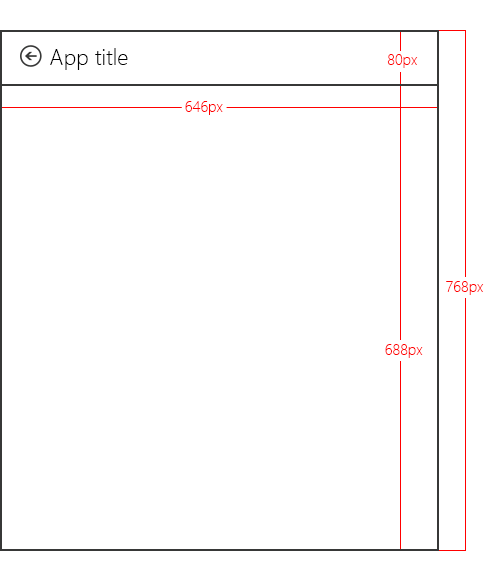
詳細な印刷設定を表示するポップアップは、幅 646 ピクセル、高さ 768 ピクセル以上です (実際の高さはユーザーの画面の解像度によって異なります)。 ポップアップのタイトル領域の [戻る] ボタンは、Windows によって提供されます。 "アプリ タイトル" テキストは、アプリ マニフェストのアプリ タイトルです。 タイトル領域の高さは 80 ピクセルで、カスタム ポップアップの表示可能領域は 688 ピクセルです。
Note
カスタム ポップアップの高さが 688 ピクセルを超える場合、ユーザーはスライドまたはスクロールして、表示可能領域の上または下にあるポップアップの一部を表示できます。
アプリのタイトルの色とアイコンの定義
カスタム ポップアップのタイトル、背景色、テキストの色、および小さなロゴは、アプリ パッケージ マニフェスト ファイルの VisualElements 要素から取得されます。
This example shows the title and icon, as defined in the VisualElements element, in the app package manifest file (Package.appxmanifest).
      <VisualElements DisplayName="Device App For Printers C# sample" Logo="Assets\squareTile-sdk.png" SmallLogo="Assets\smallTile-sdk.png" Description="DeviceAppForPrinters C# sample" ForegroundText="light" BackgroundColor="#00b2f0" ToastCapable="true">
        <DefaultTile ShowName="allLogos" ShortName="App4PrinterCS" WideLogo="Assets\tile-sdk.png" />
        <SplashScreen Image="Assets\splash-sdk.png" BackgroundColor="#00b2f0" />
      </VisualElements>
Best practices
外観は同じにしてください。 フォント、色、コントロールなどの要素を含め、カスタム ポップアップをスタート 画面 (アプリのメイン ページ) のデザインに合わせます。 アプリは、呼び出しの場所に関係なく、ユーザーになじみのあるものにする必要があります。
操作をシンプルに保ちます。 時間や複雑な操作を避けます。 ほとんどの場合、プリンターのセットアップ、状態の表示、インクの注文、トラブルシューティングなどのアクションは、スタート エクスペリエンス内で行うのが最適です。
ナビゲーションを最小限に抑えます。 ユーザーがカスタム ポップアップ内の複数のページ間を行ったり来たりしないようにします。 代わりに、プログレッシブ開示コントロール、ドロップダウン、インライン エラー メッセージなどの垂直スクロールまたはインライン コントロールを使用します。
簡易無視ポップアップは使用しないでください。 印刷エクスペリエンスでは、軽い無視ポップアップが既に使用されています。 カスタム ポップアップに別の簡易無視要素を含めると、ユーザーが混乱する可能性があります。
ユーザーを印刷エクスペリエンスから遠ざけるリンクを無効にします。 ユーザーがコンテンツを印刷する場合は、ユーザーが印刷コンテキストに残っていることを確認する手順を実行する必要があります。 たとえば、アプリの他の領域 (ホーム ページやインクを購入するためのページなど) につながるリンクがアプリにある場合は、ユーザーが印刷の詳細設定エクスペリエンスを誤って終了しないように、それらを無効にする必要があります。
手順 3: アクティベーションを処理する
アプリが印刷タスク設定拡張機能を宣言している場合は、アプリのアクティブ化イベントを処理するために OnActivated メソッドを実装する必要があります。 アプリのアクティブ化は、アプリの起動時に起動するページをアプリが選択できる場合です。 印刷タスク設定拡張機能を宣言したアプリの場合、Windows は、アクティブ化されたイベント引数 Windows.ApplicationModel.Activation.IActivatedEventArgs で印刷タスク拡張機能コンテキストを渡します。
A UWP device app can determine that the activation is intended for advanced print settings (that someone just tapped More options on the print settings dialog) when the event argument's kind property is equal to Windows.ApplicationModel.Activation.ActivationKind.printTaskSettings.
Note
場合によっては、起動直後にユーザーがアプリを閉じると、アクティブ化ハンドラー内で例外がスローされることがあります。 これを回避するには、アクティブ化ハンドラーが効率的に完了し、リソースを大量に消費する処理を行わないようにします。
This example shows the activation event handler in the OnActivated method, as it appears in the Constants.cs file. イベント引数は、Windows.ApplicationModel.Activation.PrintTaskSettingsActivatedEventArgs としてキャストされます。 Although the sample includes this code in the Constants.cs file, it's actually part of the App class that is also defined in the App.xaml.cs file.
partial class App : Application
{
    protected override void OnActivated(IActivatedEventArgs args)
    {
        if (args.Kind == ActivationKind.PrintTaskSettings)
        {
            Frame rootFrame = new Frame();
            if (null == Window.Current.Content)
            {
                rootFrame.Navigate(typeof(MainPage));
                Window.Current.Content = rootFrame;
            }
            Window.Current.Activate();

            MainPage mainPage = (MainPage)rootFrame.Content;

            // Load advanced printer preferences scenario
            mainPage.LoadAdvancedPrintSettingsContext((PrintTaskSettingsActivatedEventArgs)args);
        }
    }
}
手順 4: 設定を表示する
LoadAdvancedPrintSettingsContext メソッドが呼び出されると、印刷タスク構成コンテキストが MainPage クラスの変数に割り当てられます。 これにより、ユーザー設定のポップアップが起動時に印刷設定にアクセスできるようになります。
LoadAdvancedPrintSettingsContext メソッドに渡されるイベント引数は、プリンターにアクセスして制御するためのプロパティを公開します。
- The args.configuration property provides an object of type Windows.Devices.Printers.Extensions.PrintTaskConfiguration. このオブジェクトは、印刷タスク拡張機能コンテキストへのアクセスを提供し、印刷チケットを更新するイベント ハンドラーを追加することもできます。
- The args.configuration.printerExtensionContext property provides an object of type Windows.Devices.Printers.Extensions.PrinterExtensionContext. このオブジェクトは、印刷スキーマ、PrintTicket、および印刷キュー情報の PrinterExtensionLibrary インターフェイスへのポインターです。 インターフェイスが公開されていない場合は null になります。 詳細については、「 プリンター拡張ライブラリの概要」を参照してください。
This example shows the LoadAdvancedPrintSettingsContext method, as it appears in the Constants.cs file.
public PrintTaskConfiguration Config;
public Object Context;

public void LoadAdvancedPrintSettingsContext(PrintTaskSettingsActivatedEventArgs args)
{
    Config = args.Configuration;
    Context = Config.PrinterExtensionContext;
    LoadScenario(typeof(DeviceAppForPrinters.Preferences));
}
On the custom flyout page, Preferences.xaml.cs, a class named rootPage acts as a pointer to the MainPage class so that the print task extension context and the printer device context can be accessed from the flyout.
This example shows the pointer in a portion of Preferences class, from the Preferences.xaml.cs file. 完全なコードを表示するには、 印刷設定と印刷通知の サンプルをダウンロードします。
public sealed partial class Preferences : SDKTemplate.Common.LayoutAwarePage
{
    // A pointer back to the main page.
    MainPage rootPage = MainPage.Current;

    // To listen for save requests.
    PrintTaskConfiguration configuration;

    // To create the printer device context.
    Object printerExtensionContext;
    PrintHelperClass printHelper;

    // The features in this sample were chosen because they're available on a wide range of printer drivers.
    private string[] features = { "PageOrientation", "PageOutputColor", "PageMediaSize", "PageMediaType" };
    private string[] selections = { null, null, null, null };

    // . . .
    // . . .
    // . . .
When the page constructor for Preferences.xaml.cs is called, objects are created for the print task extension context (a PrintTaskConfiguration object named configuration) and the printer device context (a PrintHelperClass object named printHelper).
これらのオブジェクトが作成された後、プリンター デバイス コンテキストは、TextBlocks と ComboBoxes を読み込む DisplaySettings メソッドで使用されます。 JavaScript とは異なり、選択の変更はアプリの残りの部分と同じスレッドでは発生しないことに注意してください。 後で使用するために、ユーザー選択のローカル キャッシュを維持する必要があります。
This example shows the custom flyout page constructor, DisplaySettings, and other helper methods in the Preferences.xaml.cs file.
public Preferences()
{
    this.InitializeComponent();

    configuration = rootPage.Config;
    printerExtensionContext = rootPage.Context;
    printHelper = new PrintHelperClass(printerExtensionContext);

    // Disable scenario navigation by hiding the scenario list UI elements
    ((UIElement)rootPage.FindName("Scenarios")).Visibility = Windows.UI.Xaml.Visibility.Collapsed;
    ((UIElement)rootPage.FindName("ScenarioListLabel")).Visibility = Windows.UI.Xaml.Visibility.Collapsed;
    ((UIElement)rootPage.FindName("DescriptionText")).Visibility = Windows.UI.Xaml.Visibility.Collapsed;

    DisplaySettings();
}


private void DisplaySettings(bool constraints=false)
{
    PrintOptions.Visibility = Windows.UI.Xaml.Visibility.Visible;
    WaitPanel.Visibility = Windows.UI.Xaml.Visibility.Collapsed;

    // Fill in the drop-down select controls for some common printing features.
    TextBlock[] featureLabels = { PageOrientationLabel, PageOutputColorLabel, PageMediaSizeLabel, PageMediaTypeLabel };
    ComboBox[] featureBoxes = { PageOrientationBox, PageOutputColorBox, PageMediaSizeBox, PageMediaTypeBox };

    for (int i = 0; i < features.Length; i++)
    {
        // Only display a feature if it exists
        featureLabels[i].Visibility = Windows.UI.Xaml.Visibility.Collapsed;
        featureBoxes[i].Visibility = Windows.UI.Xaml.Visibility.Collapsed;

        string feature = features[i];

        // Check whether the currently selected printer's capabilities include this feature.
        if (!printHelper.FeatureExists(feature))
        {
            continue;
        }

        // Fill in the labels so that they display the display name of each feature.
        featureLabels[i].Text = printHelper.GetFeatureDisplayName(feature);
        string[] index = printHelper.GetOptionInfo(feature, "Index");
        string[] displayName = printHelper.GetOptionInfo(feature, "DisplayName");
        string selectedOption = printHelper.GetSelectedOptionIndex(feature);

        // Unless specified, do not get constraints
        bool[] constrainedList = constraints ? printHelper.GetOptionConstraints(feature) : new bool[index.Length];

        // Populate the combo box with the options for the current feature.
        PopulateBox(featureBoxes[i], index, displayName, selectedOption, constrainedList);
        selections[i] = selectedOption;

        // Every time the selection for a feature changes, we update our local cached set of selections.
        featureBoxes[i].SelectionChanged += OnFeatureOptionsChanged;

        // Show existing features
        featureLabels[i].Visibility = Windows.UI.Xaml.Visibility.Visible;
        featureBoxes[i].Visibility = Windows.UI.Xaml.Visibility.Visible;
    }
}

void PopulateBox(ComboBox box, string[] index, string[] displayName, string selectedOption, bool[] constrainedList)
{
    // Clear the combobox of any options from previous UI refresh before repopulating it.
    box.SelectionChanged -= OnFeatureOptionsChanged;
    box.Items.Clear();
    // There should be only one displayName for each possible option.
    if (index.Length == displayName.Length)
    {
        for (int i = 0; i < index.Length; i++)
        {
            // Create a new DisplayItem so the user will see the friendly displayName instead of the index.
            ComboBoxItem newItem = new ComboBoxItem();
            newItem.Content = displayName[i];
            newItem.DataContext = index[i];
            newItem.Foreground = constrainedList[i] ? new SolidColorBrush(Colors.Red) : new SolidColorBrush(Colors.Black);
            box.Items.Add(newItem);

            // Display current selected option as selected in the combo box.
            if (selectedOption == index[i])
            {
                box.SelectedIndex = i;
                box.Foreground = newItem.Foreground;
            }
        }
    }
}

private void OnFeatureOptionsChanged(object sender, SelectionChangedEventArgs args)
{
    ComboBox comboBox = sender as ComboBox;

    for (int i = 0; i < features.Length; i++)
    {
        if (features[i] + "Box" == comboBox.Name)
        {
            selections[i] = (comboBox.SelectedItem as ComboBoxItem).DataContext as string;
        }
    }
}
手順 5: 設定を保存する
When the user has finished setting advanced print settings, the Microsoft Store device app needs to save the changes before the user goes back to the Print window. To do that, the app needs to listen for when the user taps the Back button (from the custom flyout page). その場合、印刷タスク拡張コンテキスト (configuration オブジェクト) のSaveRequested イベントがトリガーされます。
This example shows the event listener for SaveRequested, being added in the OnNavigatedTo event handler of the custom flyout, in the Preferences.xaml.cs file. When the SaveRequested event is triggered, the OnSaveRequested method will be invoked (that method is also in the Preferences.xaml.cs file).
protected override void OnNavigatedTo(NavigationEventArgs e)
{
    if (null == configuration)
    {
        rootPage.NotifyUser("Configuration arguments cannot be null", NotifyType.ErrorMessage);
        return;
    }

    // Add an event listener for saverequested (the back button of the flyout is pressed).
    configuration.SaveRequested += OnSaveRequested;
}
OnSaveRequestedメソッドでは、アプリは最初にprintHelper オブジェクトを使用して、プリンター拡張機能コンテキストの各機能に対して現在選択されているオプションを設定します。 次に、OnSaveRequested メソッドに引数として渡されるrequest オブジェクトに対してSave メソッドを呼び出します。 Windows.Devices.Printers.Extensions.PrintTaskConfigurationSaveRequest クラスの Save メソッドは、プリンター拡張コンテキストを使用して印刷チケットを検証し、印刷タスクの構成を保存します。
Important
印刷チケットが何らかの方法で無効な場合、 Save メソッドはアプリで処理する必要がある例外をスローします。 アプリが例外を処理しない場合、フローは停止され、ユーザーはフライアウトを軽く閉じ、印刷フローを再起動する必要があります。
This example shows the OnSaveRequested method in the Preferences.xaml.cs file.
SaveRequested イベントは UI スレッドで発生しないため、Windows.UI.Core.CoreDispatcher を使用して UI スレッドにメッセージを投稿し、チケットの検証と保存中に適切なメッセージを表示する必要があります。
async private void OnSaveRequested(object sender, PrintTaskConfigurationSaveRequestedEventArgs args)
{
    if (null == printHelper || null == printerExtensionContext || null == args)
    {
        await Dispatcher.RunAsync(Windows.UI.Core.CoreDispatcherPriority.Normal, () =>
        {
            rootPage.NotifyUser("onSaveRequested: args, printHelper, and context cannot be null", NotifyType.ErrorMessage);
        });
        return;
    }

    // Get the request object, which has the save method that allows saving updated print settings.
    PrintTaskConfigurationSaveRequest request = args.Request;

    if (null == request)
    {
        await Dispatcher.RunAsync(Windows.UI.Core.CoreDispatcherPriority.Normal, () =>
        {
            rootPage.NotifyUser("onSaveRequested: request cannot be null", NotifyType.ErrorMessage);
        });
        return;
    }

    PrintTaskConfigurationSaveRequestedDeferral deferral = request.GetDeferral();

    // Two separate messages are dispatched to:
    // 1) put up a popup panel,
    // 2) set the each options to the print ticket and attempt to save it,
    // 3) tear down the popup panel if the print ticket could not be saved.
    await Dispatcher.RunAsync(Windows.UI.Core.CoreDispatcherPriority.Normal, () =>
    {
        PrintOptions.Visibility = Windows.UI.Xaml.Visibility.Collapsed;
        WaitPanel.Visibility = Windows.UI.Xaml.Visibility.Visible;
    });

    // Go through all the feature select elements, look up the selected
    // option name, and update the context
    // for each feature
    for (var i = 0; i < features.Length; i++)
    {
        // Set the feature's selected option in the context's print ticket.
        // The printerExtensionContext object is updated with each iteration of this loop
        printHelper.SetFeatureOption(features[i], selections[i]);
    }

    bool ticketSaved;
    try
    {
        // This save request will throw an exception if ticket validation fails.
        // When the exception is thrown, the app flyout will remain.
        // If you want the flyout to remain regardless of outcome, you can call
        // request.Cancel(). This should be used sparingly, however, as it could
        // disrupt the entire the print flow and will force the user to
        // light dismiss to restart the entire experience.
        request.Save(printerExtensionContext);

        if (configuration != null)
        {
            configuration.SaveRequested -= OnSaveRequested;
        }
        ticketSaved = true;
    }
    catch (Exception exp)
    {
        // Check if the HResult from the exception is from an invalid ticket, otherwise rethrow the exception
        if (exp.HResult.Equals(unchecked((int)0x8007000D))) // E_INVALID_DATA
        {
            ticketSaved = false;
        }
        else
        {
            throw;
        }
    }

    // If ticket isn't saved, refresh UI and notify user
    if (!ticketSaved)
    {
        await Dispatcher.RunAsync(Windows.UI.Core.CoreDispatcherPriority.Normal, () =>
        {
            rootPage.NotifyUser("Failed to save the print ticket", NotifyType.ErrorMessage);
            DisplaySettings(true);
        });
    }
    deferral.Complete();
}
ユーザー入力を必要とするオプションの保存
印刷設定と印刷通知のサンプルでは、ほとんどの印刷オプションを対象に定義された機能を設定する方法を示します。 ただし、一部のオプションでは、ユーザー指定の値を取得するためにカスタム UI が必要です。 たとえば、アプリで印刷の詳細設定を使用してカスタム ページ サイズを指定した場合、ユーザー指定の値を保存するには、次の手順を実行します。
アプリのアクティブ化中に印刷チケットを取得します。 印刷設定のアプリのアクティブ化については、「 手順 3: アクティブ化を処理する」で前述しました。
ページ サイズ オプションが指定されているかどうかを確認します。 C# または JS アプリでは、印刷ヘルパー クラスでこのオプションを確認できます。 C++ アプリで、IPrintSchemaOption で QueryInterface を呼び出して IPrintSchemaPageMediaSizeOption を取得します。
この例では、ページ サイズ オプションが指定されているかどうかを確認する印刷ヘルパー クラスのメソッドを示します。
public bool ShouldShowCustomUI(string index)
{
    if (null != index)
    {
        string feature = "PageMediaSize";
        int i = int.Parse(index);
        IPrintSchemaOption selectedOption = GetCachedFeatureOptions(feature)[i];
        if (selectedOption.Name.Equals("CustomMediaSize", StringComparison.CurrentCulture)
            || selectedOption.Name.Equals("PSCustomMediaSize", StringComparison.CurrentCulture))
        {
            return true;
        }
    }
    return false;
}
カスタム ポップアップで、ページの高さと幅をユーザーに求めるカスタム UI を表示し、IPrintSchemaPageMediaSizeOption からユーザー指定の高さと幅を取得します。
この例では、ページの高さと幅をユーザーに求めるカスタム ポップアップのメソッドを示します。
private void ShowCustomPageMediaSizeUI(string index, bool keepValue) { //Hide custom media size UI unless needed if (IsCustomSizeSelected(index)) { if (keepValue && (!customWidth.Equals("")) && (!customHeight.Equals(""))) { CustomWidthBox.Text = customWidth; CustomHeightBox.Text = customHeight; } else { // Use a helper function from the WinRT helper component CustomWidthBox.Text = printHelper.GetCustomWidth(index); CustomHeightBox.Text = printHelper.GetCustomHeight(index); } CustomUIPanel.Visibility = Windows.UI.Xaml.Visibility.Visible; CustomWidthBox.KeyDown += OnCustomValueEntered; CustomHeightBox.KeyDown += OnCustomValueEntered; } else { CustomUIPanel.Visibility = Windows.UI.Xaml.Visibility.Collapsed; CustomWidthBox.KeyDown -= OnCustomValueEntered; CustomHeightBox.KeyDown -= OnCustomValueEntered; } }IPrintSchemaPageMediaSizeOptionオブジェクトをユーザー指定の値で更新し、高さと幅がユーザー指定の値と一致することを検証します。この例は、プリンター ヘルパー クラスの
IPrintSchemaPageMediaSizeOptionオブジェクトを更新するためのヘルパー メソッドです。 カスタム ポップアップのOnSaveRequestedハンドラーは、カスタム ページ サイズ オプションが要求されたと判断した場合に、この関数を呼び出します。public void SetCustomMediaSizeDimensions(string width, string height) { if ((null == width) && (null == height) && (null == Capabilities)) { return; } try { CheckSizeValidity(width, height); } catch (FormatException e) { throw new ArgumentException(e.Message); } catch (OverflowException e) { throw new ArgumentException(e.Message); } // The context is retrieved during app activation. IPrintSchemaTicket ticket = context.Ticket; // // Input XML as Stream // XElement ticketRootXElement = null; using (Stream ticketReadStream = ticket.GetReadStream()) { ticketRootXElement = XElement.Load(ticketReadStream); } XNamespace psfNs = PrintSchemaConstants.FrameworkNamespaceUri; XNamespace pskNs = PrintSchemaConstants.KeywordsNamespaceUri; string pskPrefix = ticketRootXElement.GetPrefixOfNamespace(pskNs); // Modify the MediaSizeHeight and MediaSizeWidth IEnumerable<XElement> parameterInitCollection = from c in ticketRootXElement.Elements(psfNs + "ParameterInit") select c; foreach (XElement parameterInit in parameterInitCollection) { if (0 == String.Compare((string)parameterInit.Attribute("name"), pskPrefix + ":PageMediaSizePSWidth")) { IEnumerable<XElement> valueCollection = from c in parameterInit.Elements(psfNs + "Value") select c; valueCollection.ElementAt(0).Value = width; } else if (0 == String.Compare((string)parameterInit.Attribute("name"), pskPrefix + ":PageMediaSizePSHeight")) { IEnumerable<XElement> valueCollection = from c in parameterInit.Elements(psfNs + "Value") select c; valueCollection.ElementAt(0).Value = height; } } // // Write XLinq changes back to DOM // using (Stream ticketWriteStream = ticket.GetWriteStream()) { ticketRootXElement.Save(ticketWriteStream); } }
Testing
UWP デバイス アプリをテストする前に、デバイス メタデータを使用してプリンターにリンクする必要があります。
デバイス アプリ情報をプリンターに追加するには、プリンターのデバイス メタデータ パッケージのコピーが必要です。 デバイス メタデータがない場合は、「UWP デバイス アプリのデバイス メタデータを作成する」のトピックの説明に従って、デバイス メタデータ作成ウィザードを使用して作成できます。
Note
デバイス メタデータ作成ウィザードを使用するには、このトピックの手順を完了する前に、Microsoft Visual Studio Professional、Microsoft Visual Studio Ultimate、または Windows 8.1 用スタンドアロン SDK をインストールする必要があります。 Microsoft Visual Studio Express for Windows をインストールすると、ウィザードを含まないバージョンの SDK がインストールされます。
次の手順では、アプリをビルドし、デバイス メタデータをインストールします。
テスト署名を有効にします。
%ProgramFiles(x86)%\Windows Kits\8.1\bin\x86 から、DeviceMetadataWizard.exe をダブルクリックしてデバイス メタデータ作成ウィザードを起動してください。
From the Tools menu, select Enable Test Signing.
コンピューターを再起動する
ソリューション (.sln) ファイルを開いてソリューションをビルドします。 F7 キーを押すか、サンプルが読み込まれた後、上部のメニューから Build->Build ソリューション に移動します。
プリンターを取り外してアンインストールします。 この手順は、次回デバイスが検出されるときに更新されたデバイス メタデータを Windows が読み取るようにする必要があります。
デバイス メタデータを編集して保存します。 デバイス アプリをデバイスにリンクするには、デバイス アプリをデバイスに関連付ける必要があります
Note
デバイス メタデータをまだ作成していない場合は、「 UWP デバイス アプリのデバイス メタデータを作成する」を参照してください。
デバイス メタデータ作成ウィザードがまだ開いていない場合は、DeviceMetadataWizard.exeをダブルクリックして、%ProgramFiles(x86)%\Windows Kits\8.1\bin\x86 から起動します。
[ デバイス メタデータの編集] をクリックします。 これにより、既存のデバイス メタデータ パッケージを編集できます。
In the Open dialog box, locate the device metadata package associated with your UWP device app. (It has a devicemetadata-ms file extension.)
[ UWP デバイス アプリ情報の指定 ] ページで、[ UWP デバイス アプリ] ボックスに Microsoft Store アプリ情報を入力します。 「インポート UWP アプリ マニフェスト ファイル をクリックすると、パッケージ名、発行元名、および UWP アプリ ID が自動的に入力されます。」
If your app is registering for printer notifications, fill out the Notification handlers box. In Event ID, enter the name of the print event handler. In Event Asset, enter the name of the file where that code resides.
When you're done, click Next until you get to the Finish page.
[ デバイス メタデータ パッケージの確認 ] ページで、すべての設定が正しいことを確認し、[ ローカル コンピューター上のメタデータ ストアにデバイス メタデータ パッケージをコピー する] チェック ボックスをオンにします。 Then click Save.
デバイスが接続されたときに Windows が更新されたデバイス メタデータを読み取るようにプリンターを再接続します。
Troubleshooting
問題: 印刷の詳細設定で、カスタム ポップアップではなく既定のポップアップが表示される
高度な印刷設定ポップアップに、アプリが実装するカスタム ポップアップではなく、既定のポップアップが表示される場合。...
Possible cause: Test signing is not turned on. 有効にする方法については、このトピックの「デバッグ」セクションを参照してください。
Possible cause: The app is not querying for the right Package Family Name. コードでパッケージ ファミリ名を確認します。 Open up package.appxmanifest in Visual Studio and make sure that the package family name you are querying for matches the one in the Packaging tab, in the Package Family Name field.
Possible cause: The device metadata is not associated with the Package Family Name. デバイス メタデータ作成ウィザードを使用してデバイス メタデータを開き、パッケージ ファミリ名を確認します。 Start the wizard from %ProgramFiles(x86)%\Windows Kits\8.1\bin\x86, by double-clicking DeviceMetadataWizard.exe.
問題: アプリがポップアップで起動された後、すぐに無視される
高度な印刷設定のカスタム ポップアップが起動直後に消える場合....
- Possible cause: In Windows 8, there is a known issue that within a flyout, UWP apps will be dismissed under the debugger. アクティブ化が機能することがわかっている場合は、デバッグをオフにします。 印刷チケットの保存をデバッグする必要がある場合は、アクティブ化後にデバッガーをアタッチします。