コマンド パレットには、Windows ターミナル内で実行できるアクションが表示されます。 アクションの定義方法の詳細については、「 アクション」ページを参照してください。
コマンド パレットの呼び出し
Ctrl + Shift + P キーを押してコマンド パレットを開きます。
commandPalette コマンドをキー バインドに追加することで、このショートカットをカスタマイズできます。
{ "command": "commandPalette", "keys": "ctrl+shift+p" }
コマンド ライン モード
コマンド パレットに wt コマンドを入力する場合は、テキスト ボックスの > 文字を削除します。 このアクションは、現在のウィンドウで wt コマンドを実行します。
wtコマンドの詳細については、「コマンド ライン引数」ページを参照してください。
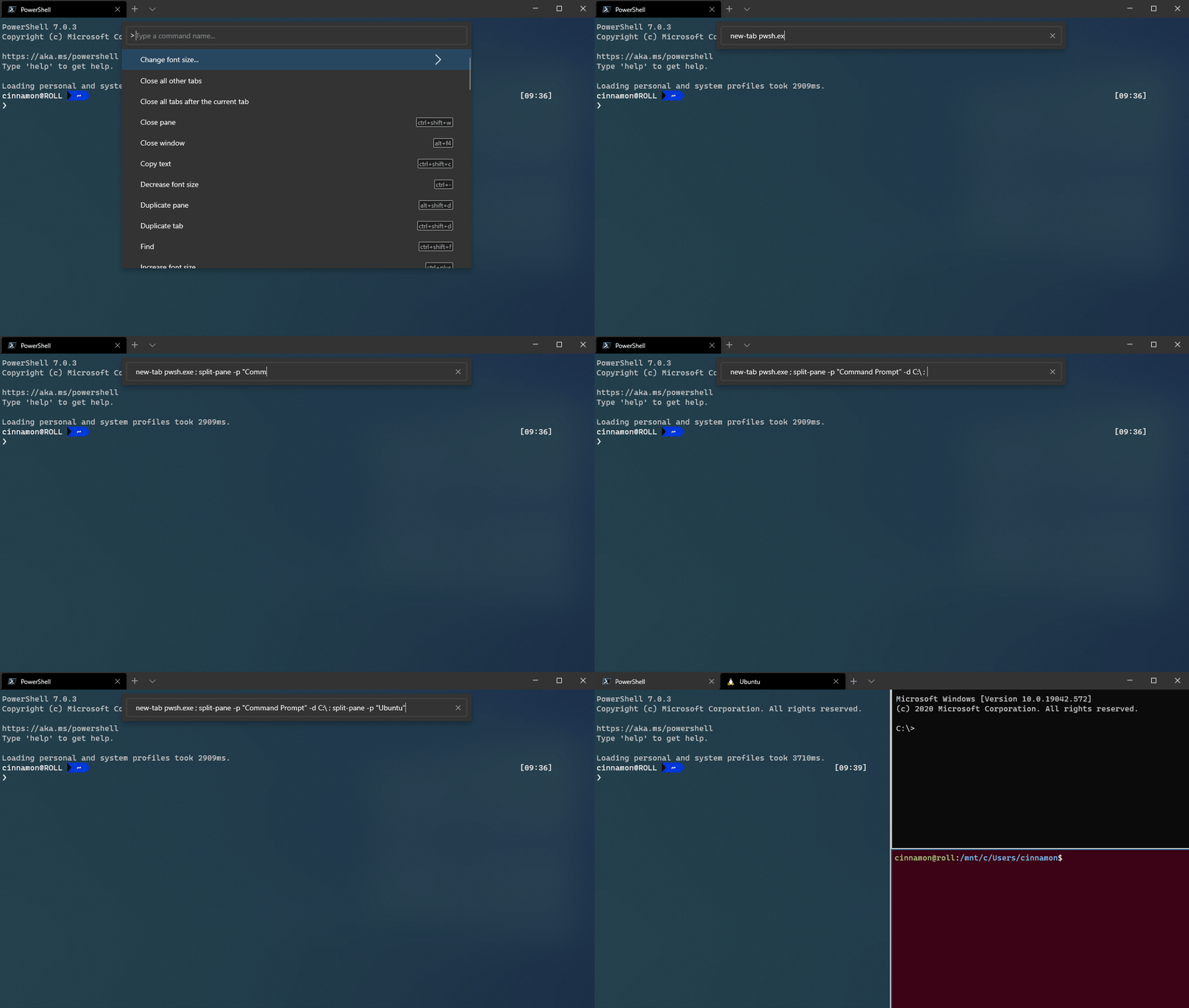
コマンド ライン モードでコマンド パレットを直接呼び出すためのカスタム キー バインドを追加できます。
{ "command": "commandPalette", "launchMode": "commandLine", "keys": "" }
コマンドへのアイコンの追加
コマンド パレットに表示される settings.json で定義されているコマンドにアイコンを追加できます。
icon プロパティをアクションに追加します。 アイコンには、画像へのパス、 Segoe MDL2 アセットのシンボル、または絵文字を含む任意の文字を指定できます。
{ "icon": "C:\\Images\\my-icon.png", "name": "New tab", "command": "newTab", "keys": "ctrl+shift+t" },
{ "icon": "\uE756", "name": "New tab", "command": "newTab", "keys": "ctrl+shift+t" },
{ "icon": "⚡", "name": "New tab", "command": "newTab", "keys": "ctrl+shift+t" }
注
Windows ターミナル 1.24 の時点で、 icon は settings.json ファイルに隣接するコンテンツを参照できます。
入れ子になったコマンド
入れ子になったコマンドを使用すると、コマンド パレットの 1 つの項目の下に複数のコマンドをグループ化できます。 次の使用例は、[フォント サイズの変更]... という 1 つのコマンド パレット項目の下に フォント サイズ変更コマンドをグループ化します。
{
    "name": "Change font size...",
    "commands": [
        { "command": { "action": "adjustFontSize", "delta": 1 } },
        { "command": { "action": "adjustFontSize", "delta": -1 } },
        { "command": "resetFontSize" },
    ]
}

Iterable コマンド
Iterable コマンドを使用すると、設定で定義されている他のオブジェクトから生成された複数のコマンドを同時に作成できます。 現時点では、プロファイルと配色に対応する iterable コマンドを作成できます。 実行時に、これらのコマンドは、指定された型のオブジェクトごとに 1 つのコマンドに展開されます。
現在、次のプロパティを反復処理できます。
iterateOn |
プロパティ | プロパティの構文 |
|---|---|---|
profiles |
name |
"name": "${profile.name}" |
profiles |
icon |
"icon": "${profile.icon}" |
schemes |
name |
"name": "${scheme.name}" |
Example
プロファイルごとに新しいタブ コマンドを作成します。
{
    "iterateOn": "profiles",
    "icon": "${profile.icon}",
    "name": "${profile.name}",
    "command": { "action": "newTab", "profile": "${profile.name}" }
}
前の例の場合:
-
"iterateOn": "profiles"では、プロファイルごとにコマンドが生成されます。 - 実行時に、ターミナルは
${profile.icon}を各プロファイルのアイコンに置き換え、${profile.name}を各プロファイルの名前に置き換えます。
3 つのプロファイルがある場合:
"profiles": [
	{ "name": "Command Prompt", "icon": null },
	{ "name": "PowerShell", "icon": "C:\\path\\to\\icon.png" },
	{ "name": "Ubuntu", "icon": null },
]
上記のコマンドは、次の 3 つのコマンドのように動作します。
{
    "icon": null,
    "name": "Command Prompt",
    "command": { "action": "newTab", "profile": "Command Prompt" }
},
{
    "icon": "C:\\path\\to\\icon",
    "name": "PowerShell",
    "command": { "action": "newTab", "profile": "PowerShell" }
},
{
    "icon": null,
    "name": "Ubuntu",
    "command": { "action": "newTab", "profile": "Ubuntu" }
}
入れ子になったコマンドと iterable コマンドを組み合わせることもできます。 たとえば、前の例の 3 つの "新しいタブ" コマンドを、前の図に示すように、コマンド パレットの 1 つの "新しいタブ" エントリの下に組み合わせることができます。
{
    "name": "New tab",
    "commands": [
        {
            "iterateOn": "profiles",
            "icon": "${profile.icon}",
            "name": "${profile.name}",
            "command": { "action": "newTab", "profile": "${profile.name}" }
        }
    ]
}

コマンドを非表示にする
キー バインドリストにコマンドを保持するが、コマンド パレットに表示したくない場合は、その name を nullに設定します。 次の使用例は、コマンド パレットの [新しいタブ] アクションを非表示にします。
{ "name": null, "command": "newTab", "keys": "ctrl+shift+t" }
GitHub で Microsoft と共同作業する
このコンテンツのソースは GitHub にあります。そこで、issue や pull request を作成および確認することもできます。 詳細については、共同作成者ガイドを参照してください。

Windows Terminal