Python 도구를 사용하면 프롬프트 흐름에서 사용자 지정된 코드 조각을 자체 포함 실행 노드로 만들 수 있습니다. Python 도구를 쉽게 만들고, 코드를 편집하고, 결과를 확인할 수 있습니다.
Inputs
| Name | Type | Description | Required |
|---|---|---|---|
| Code | string | Python 코드 조각 | Yes |
| Inputs | - | 도구 함수 매개 변수 및 해당 할당 목록 | - |
Types
| Type | Python example | Description |
|---|---|---|
| int | param: int | Integer type |
| bool | param: bool | Boolean type |
| string | param: str | String type |
| double | param: float | Double type |
| list | param: list 또는 param: List[T] | List type |
| object | param: dict 또는 param: Dict[K, V] | Object type |
| Connection | param: CustomConnection | 연결 형식은 특별히 처리됩니다. |
형식 주석이 있는 Connection 매개 변수는 연결 입력으로 처리됩니다. 즉, 다음을 의미합니다.
- 프롬프트 흐름 확장에는 연결을 선택하는 선택기가 표시됩니다.
- 실행하는 동안 프롬프트 흐름은 전달된 매개 변수 값에서 동일한 이름의 연결을 찾으려고 시도합니다.
Note
The Union[...] type annotation is supported only for the connection type, for example, param: Union[CustomConnection, OpenAIConnection].
Outputs
출력은 Python 도구 함수의 반환 값입니다.
Python 도구를 사용하여 쓰기
Python 도구를 사용하여 작성할 때 다음 지침을 사용합니다.
Guidelines
Python 도구 코드는 필요한 모듈 가져오기를 포함하여 전체 Python 코드로 구성되어야 합니다.
Python 도구 코드는 실행의 진입점 역할을 하는 (도구 함수)로 데코레이팅된
@tool함수를 포함해야 합니다.@tool코드 조각 내에서 한 번만 데코레이터를 적용합니다.다음 샘플에서는 로 데코레이팅되는
@toolPython 도구를my_python_tool정의합니다.Python 도구 함수 매개 변수는
Inputs섹션에 할당되어야 합니다.다음 샘플에서는 입력
message을 정의하고 할당합니다world.Python 도구 함수에는 반환 값이 있어야 합니다.
다음 샘플에서는 연결된 문자열을 반환합니다.
Code
다음 코드 조각은 도구 함수의 기본 구조를 보여줍니다. 프롬프트 흐름은 함수를 읽고 함수 매개 변수 및 형식 주석에서 입력을 추출합니다.
from promptflow import tool
from promptflow.connections import CustomConnection

# The inputs section will change based on the arguments of the tool function, after you save the code
# Adding type to arguments and return value will help the system show the types properly
# Please update the function name/signature per need
@tool
def my_python_tool(message: str, my_conn: CustomConnection) -> str:
    my_conn_dict = dict(my_conn)
    # Do some function call with my_conn_dict...
    return 'hello ' + message
Inputs
| Name | Type | 흐름 YAML의 샘플 값 | 함수에 전달된 값 |
|---|---|---|---|
| message | string | world |
world |
| my_conn | CustomConnection |
my_conn |
CustomConnection 개체 |
프롬프트 흐름은 실행 중에 명명된 my_conn 연결을 찾으려고 시도합니다.
Outputs
"hello world"
Python 도구에서 추론 모델 호출
LLM 노드가 지원하지 않는 추론 모델을 호출해야 하는 경우 Python 도구를 사용하여 모델을 직접 호출할 수 있습니다. 다음 예제에서는 Python 도구에서 추론 모델을 호출하는 방법을 보여줍니다.
from promptflow import tool
from promptflow.connections import AzureOpenAIConnection
from openai import AzureOpenAI

@tool
def my_python_tool(
    OpenAIConnection: AzureOpenAIConnection,
    scope_reply: str
):
    model_name = "o3-mini"
    deployment = "o3-mini"
    print(OpenAIConnection['api_base'])
    endpoint = OpenAIConnection['api_base'] #"https://<your endpoint>.openai.azure.com/"
    model_name = "o3-mini" #your model name
    deployment = "o3-mini" #your deployment name

    subscription_key = OpenAIConnection['api_key']
    api_version = "2024-12-01-preview" #Supply an API version that supports reasoning models.

    client = AzureOpenAI(
        api_version=api_version,
        azure_endpoint=endpoint,
        api_key=subscription_key,
    )

    response = client.chat.completions.create(
        messages=[
            {
                "role": "system",
                "content": "You are a helpful assistant.",
            },
            {
                "role": "user",
                "content": "I am going to Paris, what should I see?",
            }
        ],
        max_completion_tokens=100000,
        model=deployment
    )
    return response.choices[0].message.content
Python 도구의 사용자 지정 연결
인증을 사용하여 외부 서비스를 호출해야 하는 Python 도구를 개발하는 경우 프롬프트 흐름에서 사용자 지정 연결을 사용합니다. 이를 사용하여 액세스 키를 안전하게 저장한 다음 Python 코드에서 검색할 수 있습니다.
사용자 지정 연결 만들기
모든 큰 언어 모델 API 키 또는 기타 필수 자격 증명을 저장하는 사용자 지정 연결을 만듭니다.
Go to prompt flow in your workspace, and then select the Connections tab.
Select Create>Custom.

오른쪽 창에서 연결 이름을 정의할 수 있습니다. 키-값 쌍 추가를 선택하여 여러 키-값 쌍을 추가하여 자격 증명과 키를 저장할 수 있습니다.


Note
To set one key-value pair as secret, select the is secret checkbox. 이 옵션은 키 값을 암호화하고 저장합니다. 하나 이상의 키-값 쌍이 비밀로 설정되어 있는지 확인합니다. 그렇지 않으면 연결이 성공적으로 만들어지지 않습니다.
Python에서 사용자 지정 연결 사용
Python 코드에서 사용자 지정 연결을 사용하려면 다음을 수행합니다.
Python 노드의 코드 섹션에서 사용자 지정 연결 라이브러리
from promptflow.connections import CustomConnection을 가져옵니다. 도구 함수에서CustomConnection형식의 입력 매개 변수를 정의합니다.
Parse the input to the input section, and then select your target custom connection in the Value dropdown.
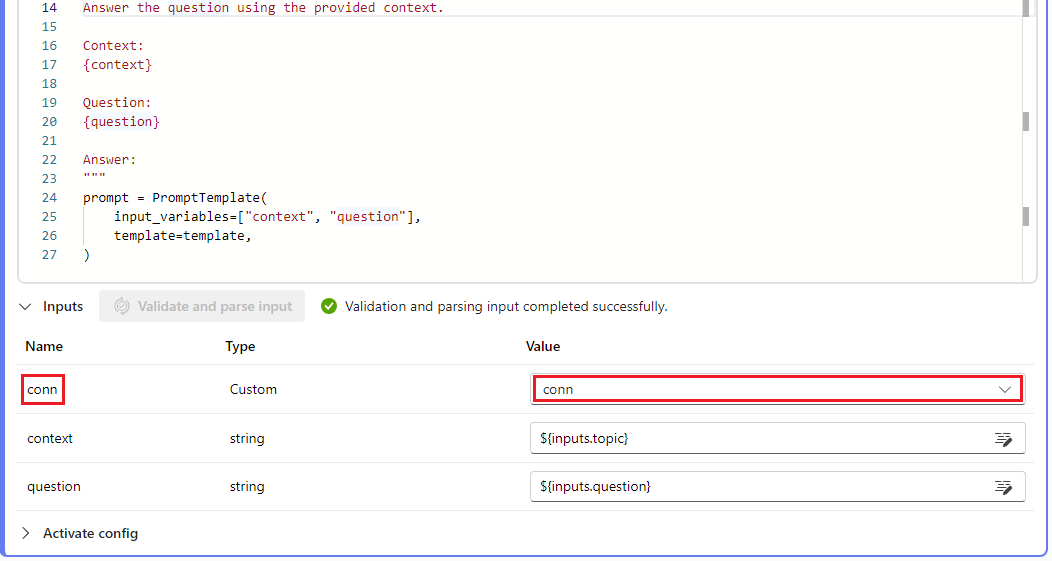

For example:
from promptflow import tool
from promptflow.connections import CustomConnection

@tool
def my_python_tool(message: str, myconn: CustomConnection) -> str:
    # Get authentication key-values from the custom connection
    connection_key1_value = myconn.key1
    connection_key2_value = myconn.key2