개요
<add> 컬렉션의 <authorization> 요소는 지정된 사용자, 그룹, 익명 사용자 또는 모든 사용자에 대한 액세스를 허용하거나 거부하는 권한 부여 규칙을 정의합니다.
accessType 특성은 다음 두 가지 유형의 권한 부여 규칙 중 하나를 지정합니다.
- 허용 규칙을 사용하면 사이트, URL 또는 서버의 모든 사이트에 액세스할 수 있는 사용자 계정 또는 사용자 그룹을 정의할 수 있습니다.
- 거부 규칙을 사용하면 서버의 사이트, URL 또는 모든 사이트에 액세스할 수 없는 사용자 계정 또는 사용자 그룹을 정의할 수 있습니다.
호환성
| 버전 | 참고 |
|---|---|
| IIS 10.0 |
<add> 요소가 IIS 10.0에서 수정되지 않았습니다. |
| IIS 8.5 |
<add> 요소가 IIS 8.5에서 수정되지 않았습니다. |
| IIS 8.0 |
<add> 요소가 IIS 8.0에서 수정되지 않았습니다. |
| IIS 7.5 |
<add> 요소의 <authorization> 요소는 IIS 7.5의 기능으로 제공됩니다. |
| IIS 7.0 |
<add> 요소의 <authorization> 요소는 IIS 7.0에 대한 별도의 다운로드인 FTP 7.0에서 도입되었습니다. |
| IIS 6.0 |
<system.ftpServer> 요소와 해당 자식 요소는 LM/MSFTPSVC 메타베이스 경로에 있던 IIS 6.0 FTP 설정을 대체합니다. |
참고
FTP 7.0 및 FTP 7.5 서비스는 IIS 7.0용 대역 외 서비스를 제공했으며, 다음 URL에서 모듈을 다운로드하고 설치해야 했습니다.
Windows 7 및 Windows Server 2008 R2에서는 FTP 7.5 서비스가 IIS 7.5의 기능으로 제공됩니다. 따라서 FTP 서비스를 더 이상 다운로드할 필요가 없습니다.
설치 프로그램
웹 서버에 대한 FTP 게시를 지원하려면 FTP 서비스를 설치해야 합니다. 이렇게 하려면 다음 단계를 수행합니다.
Windows Server 2012 또는 Windows Server 2012 R2
작업 표시줄에서 서버 관리자를 클릭합니다.
서버 관리자관리 메뉴를 클릭한 다음 역할 및 기능 추가를 클릭합니다.
역할 및 기능 추가 마법사에서 다음을 클릭합니다. 설치 유형을 선택하고 다음을 클릭합니다. 대상 서버를 선택하고 다음을 클릭합니다.
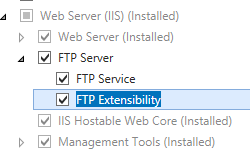
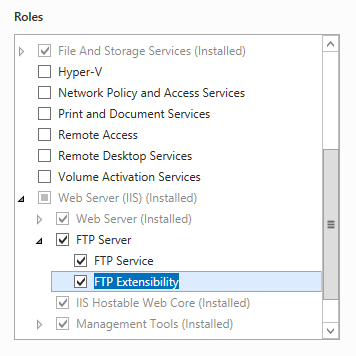
서버 역할 페이지에서 웹 서버(IIS)를 확장한 다음 FTP 서버를 선택합니다.
참고
ASP를 지원합니다. FTP 서비스에 대한 멤버 자격 인증 또는 IIS 관리자 인증은 FTP 서비스 외에도 FTP 확장성을 선택해야 합니다.
 .
.다음을 클릭한 다음 기능 선택 페이지에서 다음을 다시 클릭합니다.
설치 선택 확인 페이지에서 설치를 클릭합니다.
Results(결과) 페이지에서 Close(닫기)를 클릭합니다.
Windows 8 또는 Windows 8.1
시작 화면에서 포인터를 왼쪽 아래 모서리로 이동하고 시작 단추를 마우스 오른쪽 단추로 클릭한 다음 제어판 클릭합니다.
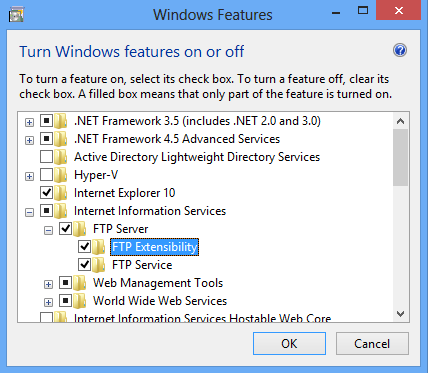
제어판프로그램 및 기능을 클릭한 다음 Windows 기능 켜기 또는 끄기를 클릭합니다.
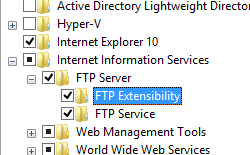
인터넷 정보 서비스를 확장한 다음 FTP 서버를 선택합니다.
참고
ASP를 지원합니다. FTP 서비스에 대한 멤버 자격 인증 또는 IIS 관리자 인증도 FTP 확장성을 선택해야 합니다.
확인을 클릭합니다.
닫기를 클릭합니다.
Windows Server 2008 R2
작업 표시줄에서 시작을 클릭하고 관리 도구를 가리킨 다음 서버 관리자 클릭합니다.
서버 관리자 계층 창에서 역할을 확장한 다음 웹 서버(IIS)를 클릭합니다.
웹 서버(IIS) 창에서 역할 서비스 섹션으로 스크롤한 다음 역할 서비스 추가를 클릭합니다.
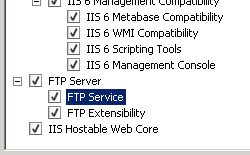
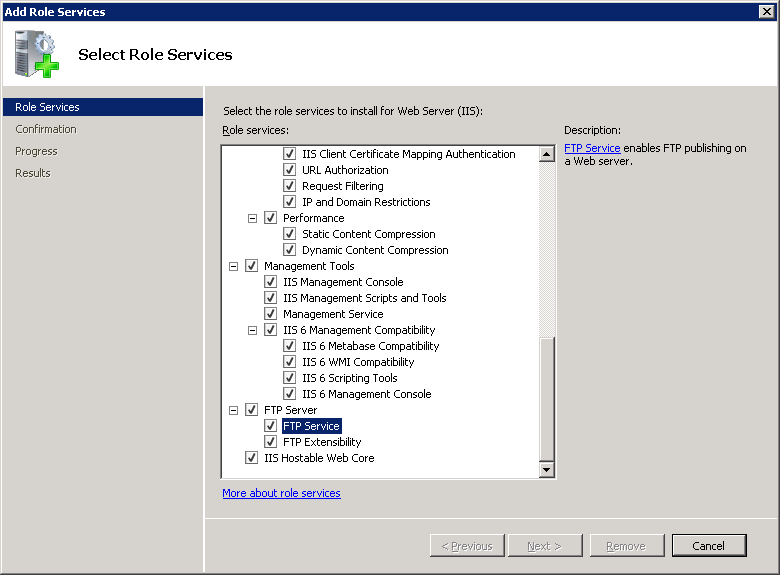
역할 서비스 추가 마법사의 역할 서비스 선택 페이지에서 FTP 서버를 확장합니다.
FTP 서비스를 선택합니다.
참고
ASP를 지원합니다. FTP 서비스에 대한 멤버 자격 인증 또는 IIS 관리자 인증도 FTP 확장성을 선택해야 합니다.
다음을 클릭합니다.
설치 선택 확인 페이지에서 설치를 클릭합니다.
Results(결과) 페이지에서 Close(닫기)를 클릭합니다.
Windows 7
작업 표시줄에서 시작을 클릭한 다음 제어판 클릭합니다.
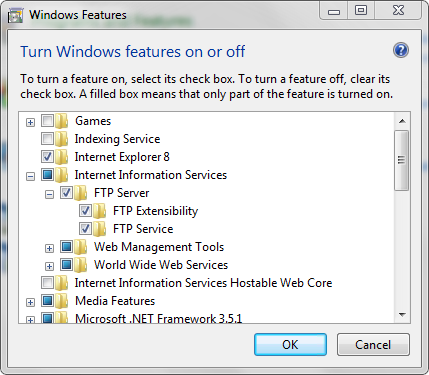
제어판프로그램 및 기능을 클릭한 다음 Windows 기능 켜기 또는 끄기를 클릭합니다.
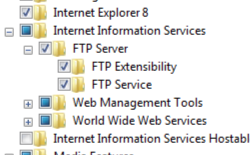
인터넷 정보 서비스를 확장한 다음 FTP 서버를 확장합니다.
FTP 서비스를 선택합니다.
참고
ASP를 지원합니다. FTP 서비스에 대한 멤버 자격 인증 또는 IIS 관리자 인증도 FTP 확장성을 선택해야 합니다.
확인을 클릭합니다.
Windows Server 2008 또는 Windows Vista
다음 URL에서 설치 패키지를 다운로드합니다.
다음 연습의 지침에 따라 FTP 서비스를 설치합니다.
방법
FTP 권한 부여 규칙을 추가하는 방법
IIS(인터넷 정보 서비스) 관리자를 엽니다.
Windows Server 2012 또는 Windows Server 2012 R2를 사용하는 경우:
- 작업 표시줄에서 서버 관리자 클릭하고 도구를 클릭한 다음 IIS(인터넷 정보 서비스) 관리자를 클릭합니다.
Windows 8 또는 Windows 8.1 사용하는 경우:
- Windows 키를 누른 채로 문자 X를 누른 다음 제어판 클릭합니다.
- 관리 도구를 클릭한 다음 IIS(인터넷 정보 서비스) 관리자를 두 번 클릭합니다.
Windows Server 2008 또는 Windows Server 2008 R2를 사용하는 경우:
- 작업 표시줄에서 시작을 클릭하고 관리 도구를 가리킨 다음 IIS(인터넷 정보 서비스) 관리자를 클릭합니다.
Windows Vista 또는 Windows 7을 사용하는 경우:
- 작업 표시줄에서 시작을 클릭한 다음 제어판 클릭합니다.
- 관리 도구를 두 번 클릭한 다음 IIS(인터넷 정보 서비스) 관리자를 두 번 클릭합니다.
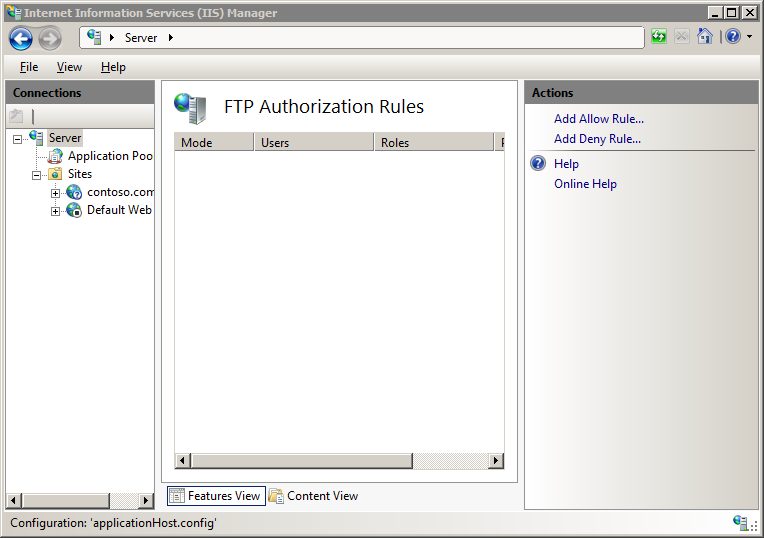
연결 창에서 서버 이름을 확장하고 사이트를 확장한 다음 권한 부여를 구성할 사이트 또는 URL로 이동합니다.
홈 창에서 권한 부여 규칙을 두 번 클릭합니다.

새 권한 부여 규칙을 추가하려면 작업 창에서 허용 규칙 추가... 또는 거부 규칙 추가...를 클릭합니다.
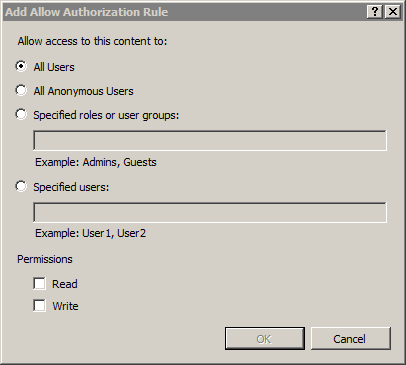
사이트 또는 애플리케이션에 필요한 권한 부여 설정을 적용합니다. 고려해야 할 두 가지 섹션이 있습니다.
이 콘텐츠에 대한 액세스 허용: 라디오 단추를 사용하여 액세스 규칙이 적용되도록 지정합니다.
- 모든 사용자
- 모든 익명 사용자
- 지정된 역할 또는 사용자 그룹 (여러 그룹/역할을 쉼표로 구분할 수 있음)
- 지정된 사용자 (여러 사용자를 쉼표로 구분할 수 있습니다).
사용 권한: 검사 상자를 사용하여 규칙에 대한 읽기 또는 쓰기 권한을 지정합니다.
확인을 클릭합니다.
구성
요소는 <add> 서버, 사이트 또는 URL 수준에서 구성됩니다.
특성
| attribute | Description | ||||||
|---|---|---|---|---|---|---|---|
accessType |
필수 열거형 특성입니다. accessType 특성은 다음과 같은 가능한 값 중 하나일 수 있습니다.
|
||||||
roles |
선택적 문자열 특성입니다. 권한 부여 규칙에 대한 역할 또는 그룹을 지정합니다. |
||||||
users |
선택적 문자열 특성입니다. 권한 부여 규칙에 대한 사용자를 지정합니다. 여러 사용자를 쉼표로 구분된 목록에 추가할 수 있습니다. 또한 다음과 같은 특수 식별자가 정의되었습니다.
|
||||||
permissions |
선택적 flags 특성입니다. 규칙에 대한 액세스 권한을 지정합니다.
|
자식 요소
없음
구성 샘플
다음 샘플에서는 FTP 사이트의 요소에 있는 <system.ftpServer> 몇 가지 보안 관련 구성 설정을 보여 줍니다. 더 구체적으로, 이 예제의 설정은 <location> 다음을 하는 방법을 보여 줍니다.
- 관리자 그룹에 대한 읽기 및 쓰기 액세스에 대한 FTP 권한 부여 규칙을 지정합니다.
- *.exe, *.bat 및 *.cmd 파일을 거부하는 FTP 요청 필터링 옵션을 지정합니다.
- 최대 콘텐츠 길이 1000000바이트 및 최대 URL 길이 1024바이트에 대한 FTP 요청 제한을 지정합니다.
- FrontPage 서버 확장과 함께 사용되는 _vti_bin 가상 디렉터리에 대한 FTP 액세스를 차단합니다.
- 127.0.0.1에서 액세스를 허용하고 169.254.0.0/255.255.0.0 IP 주소 범위에서 액세스를 거부하는 FTP IP 필터링 옵션을 지정합니다.
<location path="ftp.example.com">
  <system.ftpServer>
    <security>
      <authorization>
        <add accessType="Allow" roles="administrators" permissions="Read, Write" />
      </authorization>
      <requestFiltering>
        <fileExtensions allowUnlisted="true">
          <add fileExtension=".exe" allowed="false" />
          <add fileExtension=".bat" allowed="false" />
          <add fileExtension=".cmd" allowed="false" />
        </fileExtensions>
        <requestLimits maxAllowedContentLength="1000000" maxUrl="1024" />
        <hiddenSegments>
          <add segment="_vti_bin" />
        </hiddenSegments>
      </requestFiltering>
      <ipSecurity enableReverseDns="false" allowUnlisted="true">
        <add ipAddress="127.0.0.1" allowed="true" />
        <add ipAddress="169.254.0.0" subnetMask="255.255.0.0" allowed="false" />
      </ipSecurity>
    </security>
  </system.ftpServer>
</location>
샘플 코드
다음 예제에서는 기본 웹 사이트에 대해 두 개의 FTP 권한 부여 규칙을 추가합니다. 첫 번째 규칙은 관리자 그룹에 대한 읽기 및 쓰기 액세스를 허용하고 두 번째 규칙은 게스트 계정에 대한 읽기 및 쓰기 액세스를 거부합니다.
AppCmd.exe
appcmd.exe set config "Default Web Site" -section:system.ftpServer/security/authorization /+"[accessType='Allow',roles='administrators',permissions='Read, Write']" /commit:apphost

appcmd.exe set config "Default Web Site" -section:system.ftpServer/security/authorization /+"[accessType='Deny',users='guest',permissions='Read, Write']" /commit:apphost
참고
AppCmd.exe 사용하여 이러한 설정을 구성할 때 커밋 매개 변수 apphost 를 로 설정해야 합니다. 그러면 구성 설정이 ApplicationHost.config 파일의 적절한 위치 섹션에 커밋됩니다.
C#
using System;
using System.Text;
using Microsoft.Web.Administration;

internal static class Sample
{
   private static void Main()
   {
      using (ServerManager serverManager = new ServerManager())
      {
         Configuration config = serverManager.GetApplicationHostConfiguration();
         ConfigurationSection authorizationSection = config.GetSection("system.ftpServer/security/authorization", "Default Web Site");
         ConfigurationElementCollection authorizationCollection = authorizationSection.GetCollection();

         ConfigurationElement addElement = authorizationCollection.CreateElement("add");
         addElement["accessType"] = @"Allow";
         addElement["roles"] = @"administrators";
         addElement["permissions"] = @"Read, Write";
         authorizationCollection.Add(addElement);

         ConfigurationElement addElement1 = authorizationCollection.CreateElement("add");
         addElement1["accessType"] = @"Deny";
         addElement1["users"] = @"guest";
         addElement1["permissions"] = @"Read, Write";
         authorizationCollection.Add(addElement1);

         serverManager.CommitChanges();
      }
   }
}
VB.NET
Imports System
Imports System.Text
Imports Microsoft.Web.Administration

Module Sample
   Sub Main()
      Dim serverManager As ServerManager = New ServerManager
      Dim config As Configuration = serverManager.GetApplicationHostConfiguration
      Dim authorizationSection As ConfigurationSection = config.GetSection("system.ftpServer/security/authorization", "Default Web Site")
      Dim authorizationCollection As ConfigurationElementCollection = authorizationSection.GetCollection

      Dim addElement As ConfigurationElement = authorizationCollection.CreateElement("add")
      addElement("accessType") = "Allow"
      addElement("roles") = "administrators"
      addElement("permissions") = "Read, Write"
      authorizationCollection.Add(addElement)

      Dim addElement1 As ConfigurationElement = authorizationCollection.CreateElement("add")
      addElement1("accessType") = "Deny"
      addElement1("users") = "guest"
      addElement1("permissions") = "Read, Write"
      authorizationCollection.Add(addElement1)

      serverManager.CommitChanges()
   End Sub
End Module
JavaScript
var adminManager = new ActiveXObject('Microsoft.ApplicationHost.WritableAdminManager');
adminManager.CommitPath = "MACHINE/WEBROOT/APPHOST";
var authorizationSection = adminManager.GetAdminSection("system.ftpServer/security/authorization", "MACHINE/WEBROOT/APPHOST/Default Web Site");
var authorizationCollection = authorizationSection.Collection;

var addElement = authorizationCollection.CreateNewElement("add");
addElement.Properties.Item("accessType").Value = "Allow";
addElement.Properties.Item("roles").Value = "administrators";
addElement.Properties.Item("permissions").Value = "Read, Write";
authorizationCollection.AddElement(addElement);

var addElement1 = authorizationCollection.CreateNewElement("add");
addElement1.Properties.Item("accessType").Value = "Deny";
addElement1.Properties.Item("users").Value = "guest";
addElement1.Properties.Item("permissions").Value = "Read, Write";
authorizationCollection.AddElement(addElement1);

adminManager.CommitChanges();
VBScript
Set adminManager = createObject("Microsoft.ApplicationHost.WritableAdminManager")
adminManager.CommitPath = "MACHINE/WEBROOT/APPHOST"

Set authorizationSection = adminManager.GetAdminSection("system.ftpServer/security/authorization", "MACHINE/WEBROOT/APPHOST/Default Web Site")
Set authorizationCollection = authorizationSection.Collection

Set addElement = authorizationCollection.CreateNewElement("add")
addElement.Properties.Item("accessType").Value = "Allow"
addElement.Properties.Item("roles").Value = "administrators"
addElement.Properties.Item("permissions").Value = "Read, Write"
authorizationCollection.AddElement(addElement)

Set addElement1 = authorizationCollection.CreateNewElement("add")
addElement1.Properties.Item("accessType").Value = "Deny"
addElement1.Properties.Item("users").Value = "guest"
addElement1.Properties.Item("permissions").Value = "Read, Write"
authorizationCollection.AddElement(addElement1)

adminManager.CommitChanges()