PendingUpdate 사용하여 토스트 알림에서 여러 단계의 상호 작용을 만들 수 있습니다. 예를 들어, 아래와 같이 각 토스트의 응답에 따라 후속 토스트가 결정되는 일련의 토스트를 만들 수 있습니다.
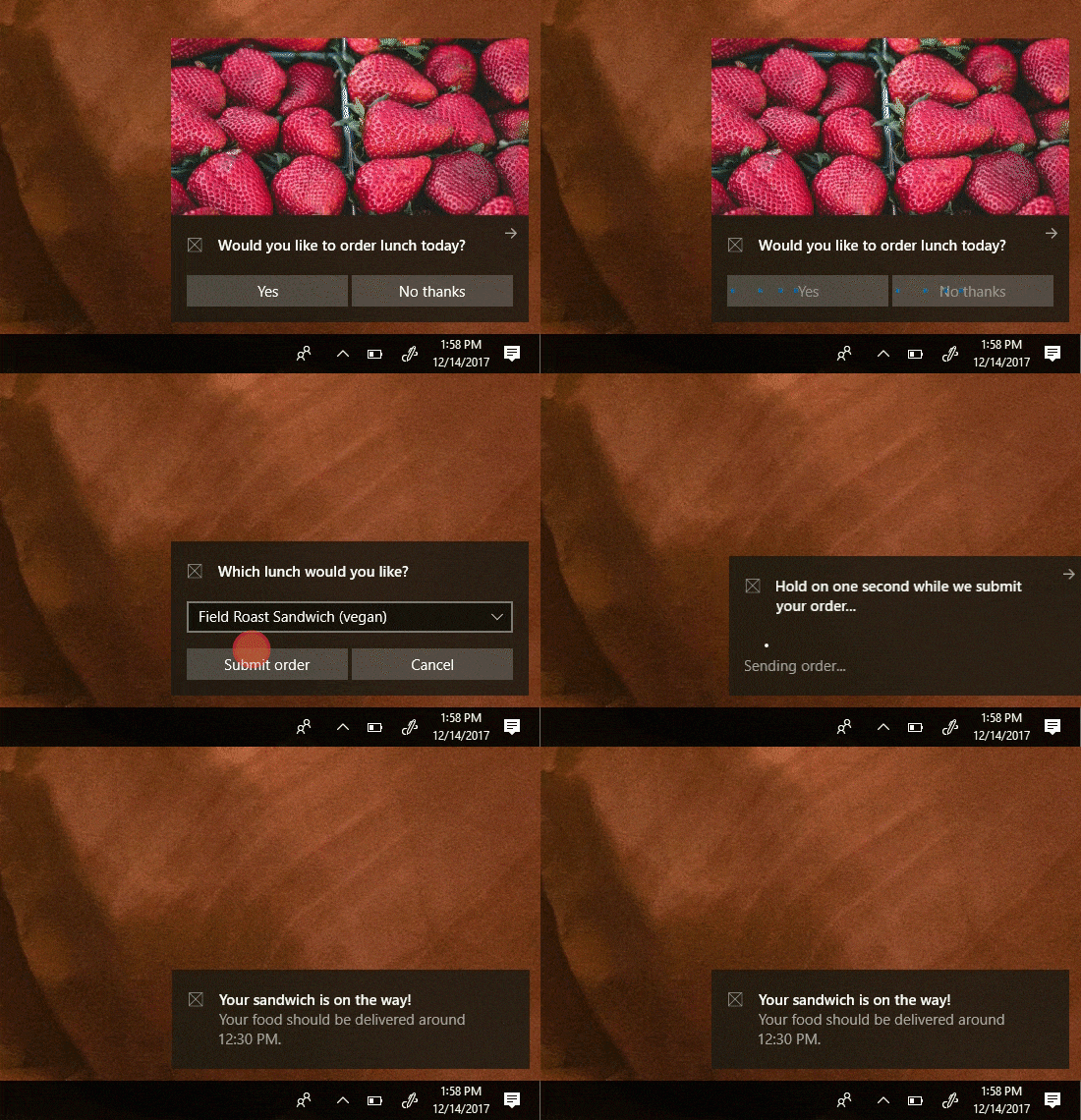
Important
데스크톱용 Fall Creators Update 및 알림 라이브러리 2.0.0 필요: 보류 중인 업데이트 작업을 보려면 데스크톱 빌드 16299 이상을 실행해야 합니다. 버튼에 PendingUpdate를 할당하려면 UWP 커뮤니티 툴킷 알림 NuGet 라이브러리 버전 2.0.0 이상을 사용해야 합니다. PendingUpdate 는 데스크톱에서만 지원되며 다른 디바이스에서는 무시됩니다.
Prerequisites
이 문서에서는 ...에 대한 실무 지식을 가정합니다.
Overview
보류 중인 업데이트를 활성화 후 동작으로 설정한 토스트 메시지를 구현하려면...
토스트 알림 백그라운드 활성화 버튼에서 AfterActivationBehavior으로 PendingUpdate를 지정합니다.
알림을 전송할 때 태그 (선택적으로 그룹)을 할당하세요.
사용자가 버튼을 클릭하면 백그라운드 작업이 활성화되고 토스트가 보류 중인 업데이트 상태로 화면에 유지됩니다.
백그라운드 작업에서 동일한 태그 및 그룹을(를) 사용하여 새 콘텐츠로 새로운 토스트 알림을 보냅니다.
Assign PendingUpdate
백그라운드 활성화 버튼에서 AfterActivationBehavior을 PendingUpdate로 설정합니다. ActivationType과 Background가 있는 단추에만 적용됩니다.
new ToastContentBuilder()

    .AddText("Would you like to order lunch today?")

    .AddButton(new ToastButton("Yes", "action=orderLunch")
    {
        ActivationType = ToastActivationType.Background,

        ActivationOptions = new ToastActivationOptions()
        {
            AfterActivationBehavior = ToastAfterActivationBehavior.PendingUpdate
        }
    });
알림에 태그 사용
나중에 알림을 바꾸려면 알림에 태그 (및 선택적으로 그룹)를 할당해야 합니다.
// Create the notification
var notif = new ToastNotification(content.GetXml())
{
    Tag = "lunch"
};

// And show it
ToastNotificationManager.CreateToastNotifier().Show(notif);
토스트를 새 콘텐츠로 바꾸기
사용자 버튼 클릭에 대한 응답으로, 백그라운드 작업이 시작되며, 토스트 알림을 새로운 콘텐츠로 교체해야 합니다. 새로운 토스트 알림을 동일한 태그 및 그룹으로 전송하여 기존 알림을 교체합니다.
사용자가 이미 알림과 상호 작용하고 있으므로 단추 클릭에 대한 응답으로 교체할 때 오디오를 자동 설정하는
// Generate new content
ToastContent content = new ToastContent()
{
    ...

    // We disable audio on all subsequent toasts since they appear right after the user
    // clicked something, so the user's attention is already captured
    Audio = new ToastAudio() { Silent = true }
};

// Create the new notification
var notif = new ToastNotification(content.GetXml())
{
    Tag = "lunch"
};

// And replace the old one with this one
ToastNotificationManager.CreateToastNotifier().Show(notif);
Related topics
GitHub에서 Microsoft와 공동 작업
이 콘텐츠의 원본은 GitHub에서 찾을 수 있으며, 여기서 문제와 끌어오기 요청을 만들고 검토할 수도 있습니다. 자세한 내용은 참여자 가이드를 참조하세요.

Windows developer