Nuta
Dostęp do tej strony wymaga autoryzacji. Możesz spróbować się zalogować lub zmienić katalog.
Dostęp do tej strony wymaga autoryzacji. Możesz spróbować zmienić katalogi.
The Adobe Experience Manager (AEM) Assets Copilot connector integrates AEM Assets content into the Microsoft 365 ecosystem, enabling Copilot and Microsoft Search to surface published assets. This article describes the steps to deploy and customize the connector.
Prerequisites
Before you deploy the Adobe Experience Manager Assets connector, make sure that you meet the following prerequisites:
- You must be the search admin for your organization's Microsoft 365 tenant.
- You have your organization's Adobe Experience Cloud instance author environment URL and publish environment URL:
- Author URL format:
https://author-p<PROGRAM_ID>-e<ENVIRONMENT_ID>.<REGION>.adobeaemcloud.com - Publish URL format:
https://publish-p<PROGRAM_ID>-e<ENVIRONMENT_ID>.<REGION>.adobeaemcloud.com
- Author URL format:
- You have a technical account for Adobe Experience Manager Assets with credentials to access published assets and metadata. This account is a secure, service-based account for external access. For details, see Generating access tokens for server-side APIs.
Deploy the connector
To add the Adobe Experience Manager Assets connector for your organization:
- In the Microsoft 365 admin center, in the left pane, choose Copilot > Connectors.
- Go to the Connectors tab, and in the left pane, choose Gallery.
- From the list of available connectors, choose Adobe Experience Manager Assets.
Set display name
The display name identifies references in Copilot responses and acts as a content source filter. You can accept the default display name or customize it to a name that users in your organization recognize.
For more information, see Enhance Copilot discovery of connector content.
Set instance URL
Provide both the author and publish environment URLs for your Adobe Experience Manager Assets instance.
Choose authentication type
The connector supports technical account authentication for Adobe Experience Cloud. Configure the technical account as described in Generate access tokens for server-side APIs.
Roll out
To validate the connector before deployment, use a staged rollout. To roll out to a limited audience, choose the toggle next to Rollout to limited audience and specify the users and groups to roll the connector out to. For more information, see Staged rollout for Copilot connectors.
Choose Create to deploy the connection. The connector starts indexing published assets immediately.
The following table lists the default values that are set.
| Category | Default value |
|---|---|
| Users | All published assets indexed using the connector are visible to all Microsoft 365 users in your tenant. |
| Content | All published assets are selected by default. |
| Sync | Incremental crawl: every 15 minutes; Full crawl: every day. |
To customize these values, choose Custom setup. For more information, see Customize settings.
After you create your connection, you can review the status in the Connectors section of the Microsoft 365 admin center.
Customize settings (optional)
You can customize the default values for the Adobe Experience Manager Assets connector settings. To customize settings, on the connector page in the admin center, choose Custom setup.
Customize user settings
Access permissions
Currently, only published assets from your AEM Assets are indexed. All data indexed using the Adobe Experience Manager Assets Copilot connector is visible to all Microsoft 365 users in your tenant, from Microsoft Search or Copilot.
User identity mapping
The connector maps Adobe Experience Cloud user accounts to Microsoft 365 (Microsoft Entra ID) identities. If Adobe Experience Cloud users' emails match their Entra ID user principal names (UPNs), this mapping is automatic. If they differ, you can provide a mapping rule to map identities in Adobe Experience Cloud to identities in Microsoft 365. Mapping rules ensure that the system provides appropriate activity signal to Adobe Experience Cloud content in responses.
Customize content settings
Content ingestion filters
Content ingestion filters allow you to control which assets are indexed by defining inclusion and exclusion rules based on paths and metadata properties.
You can choose to include or exclude certain content paths.
Content paths that should be fetched
Only exact paths are supported. A valid content path must contain at least two levels, with /content as the root path.
Content paths that should not be fetched Only support input Java regular expression for paths. Excluded paths take priority over included paths.
You can also set ingestion filters based on the value of metadata properties, including both standard and custom metadata properties:
- Input the JSON path of the property.
- Select an Operator from the dropdown (
=,!=,In,Not In). - Enter the target value.
To find and verify the property path, see Query builder API.
Open the query builder debugger at
http://<host>:<port>/libs/cq/search/content/querydebug.html.Input the following query.
p.limit=10
p.guessTotal=true
p.hits=full
type=dam:Asset
p.nodedepth=2
property=jcr:content/cq:lastReplicationAction
property.value=Activate
Choose search.
After the results are returned, choose JSON query builder link to see the JSON content with all properties.
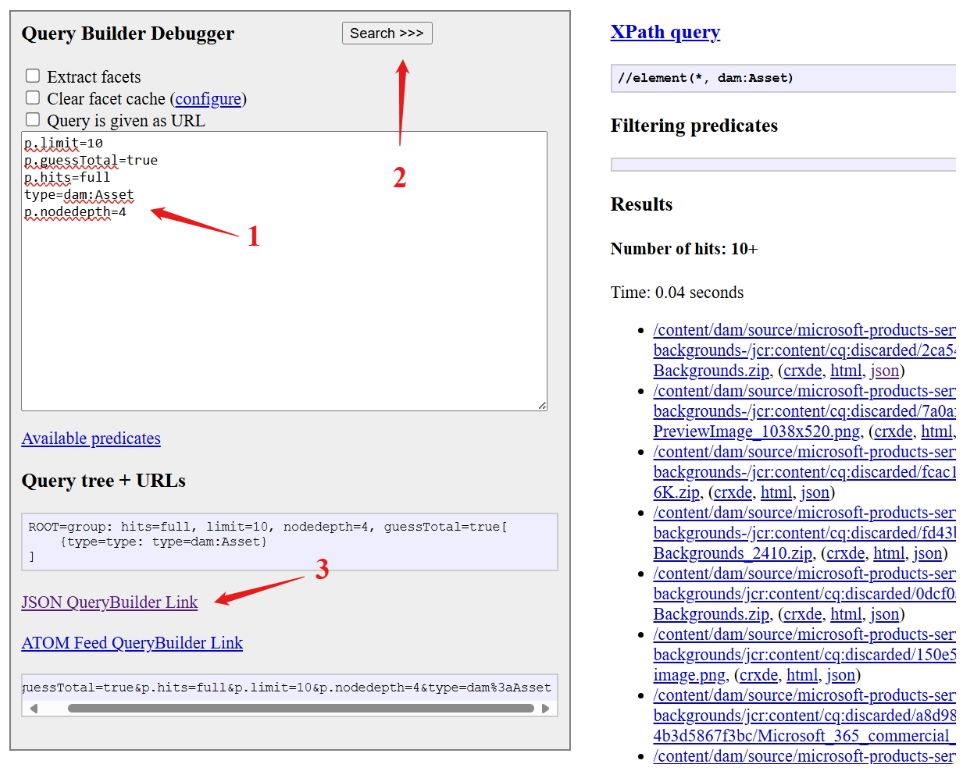
Find the property and JSON path of the property. For example, the JSON path of the property
dc:formatishits.jcr:content.metadata.dc:format.
Operators
The operator defines the type of comparison applied to a property during content filtering. The supported operators are:
=: Equals!=: Not EqualsIn: Matches any value in a listNot In: Excludes any value in a list
Target values
Target values specify what the property should match.
| Source property | Semantic label | Description |
|---|---|---|
| IconUrl | IconUrl | URL of the icon |
| ItemPath | ItemPath | The path of the item in the data source represented by / separated values. Holds the display value of each level in the hierarchy separated by /. |
| LastModifiedBy | Last modified by | Name of the person who most recently edited the item in the data source |
| Length | None | Image Length |
| Link | URL | The target URL of the item in the data source |
| ModifiedTime | Last modified date time | Date and time the item was last modified in the data source |
| PublishedBy | None | Name of the person who published the item in the data source |
| PublishedTime | None | Date and time the item was published in the data source |
| title | None | The title of the items |
| Width | None | Width |
| Tags | None | Tags defined in Adobe Experience Manager Assets metadata. In Adobe Experience Manager, tags are organized hierarchically. |
Manage properties
To check available standard properties from your Adobe Experience Manager Assets, assign a schema to the property (define whether a property is searchable, queryable, retrievable, or refinable), change the semantic label, and add an alias to the property. The following standard properties are indexed by default.
| Source property | Semantic label | Description |
|---|---|---|
| AltText | None | The Alt Text field in Adobe Experience Manager Assets metadata. |
| AssetType | None | The file type of the asset (for example, Image, Multimedia, Document). |
| Content | Content | The content of documents, not available for images. |
| CreatedBy | Created by | Date and time that the item was created in the data source. |
| CreatedTime | Created date time | Date and time that the item was created in the data source. |
| Description | Description | A brief summary of the asset's content. |
| FileExtension | File extension | the suffix at the end of a file name, for example, .txt, .jpg, .exe. |
| FileName | Title | The file name of the asset. |
| IconUrl | IconUrl | URL of the icon. |
| ItemPath | ItemPath | The path of the item in the data source represented by / separated values. Holds the display value of each level in the hierarchy separated by /. |
| LastModifiedBy | Last modified by | Name of the person who most recently edited the item in the data source. |
| Length | None | Image length. |
| Link | URL | The target URL of the item in the data source. |
| ModifiedTime | Last modified date time | Date and time the item was last modified in the data source. |
| PublishedBy | None | Name of the person who published the item in the data source. |
| PublishedTime | None | Date and time the item was published in the data source. |
| title | None | The title of the items. |
| Width | None | Width. |
| Tags | None | Tags defined in Adobe Experience Manager Assets metadata. In Adobe Experience Manager, tags are organized hierarchically. |
To add more custom properties:
- Select Add property.
- Fill in the following fields: a. Property name b. Type c. JSON path
- Define the schema (searchable, queryable, retrievable, or refinable).

Customize sync intervals
The refresh interval determines how often your data is synchronized between the data source and the Adobe Experience Manager Assets connector index. Copilot connectors use two types of refresh intervals:
- Full crawl: Default value is every day.
- Incremental crawl: Default value is every 15 minutes.
You can change the default values of the refresh intervals. For more information, see Guidelines for sync settings.