Nuta
Dostęp do tej strony wymaga autoryzacji. Możesz spróbować się zalogować lub zmienić katalog.
Dostęp do tej strony wymaga autoryzacji. Możesz spróbować zmienić katalogi.
To access and manage your Microsoft 365 Copilot connectors, you must be designated as a search administrator for your tenant. Contact your tenant administrator to provision your account for the search administrator role.
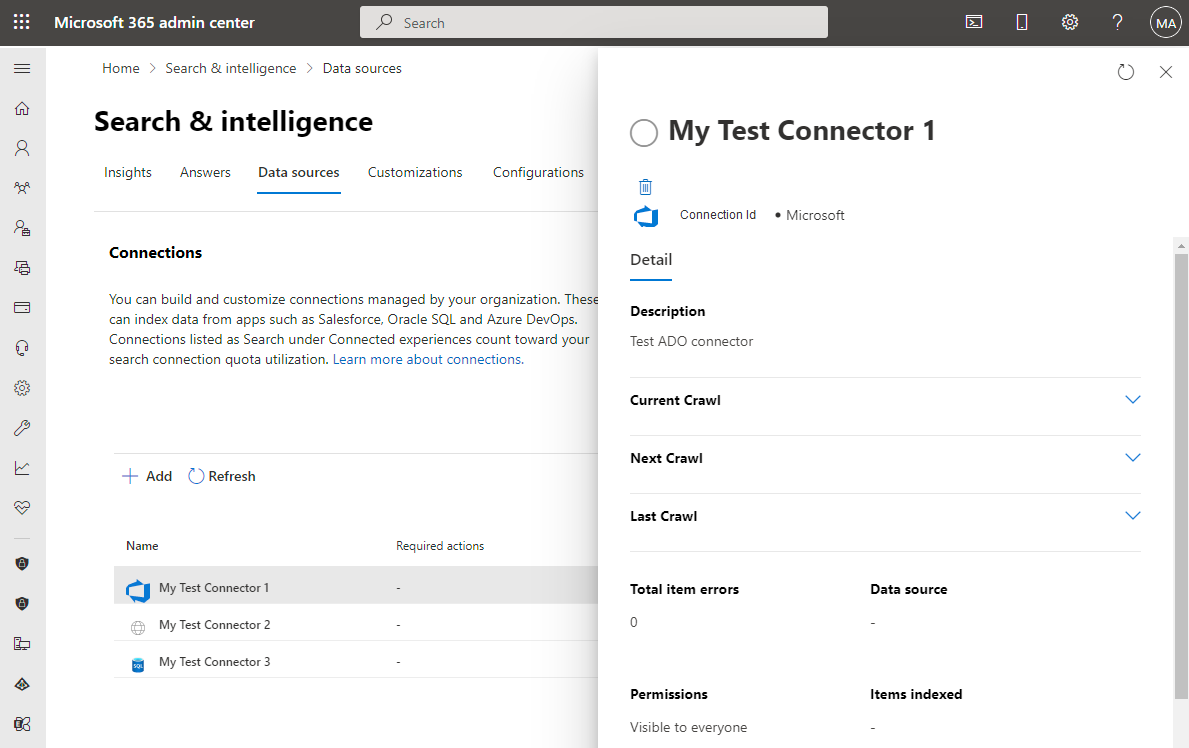
To see your connections in the Microsoft 365 admin center, go to the Data sources tab.
You can view the connection details and errors by selecting the connection.
View connection statistics
Connection statistics help you get overall information on what is happening to the data after the first full crawl is completed successfully.
This section includes the data about the total number of items discovered, successfully indexed, or failed across all crawls. The data updates after every crawl and provides a cumulative perspective on the sync between the data source and the Microsoft 365 Copilot connector index. With this information, you can swiftly identify discrepancies and ensure that their connection is up to date. The key perspective at this point is to understand that the sync between the data source and the index is at a cumulative level and not just the last crawl.
An item is indexed with the following information - content, properties (default + custom), and access.
- We consider an item as completely indexed when all 3 parts of the item are indexed successfully.
- We consider an item as partially indexed when some part of the data is indexed however, some part is missing. The item is still searchable with the remaining properties. E.g. For an item we could index all the content but could not index some properties.
How to read the data in connection statistics:
| Sr. No | Section | Meaning |
|---|---|---|
| 1. | Total number of discovered items | Total items discovered in the data source during crawling. This is the number of items that the admin credentials have access to against the data source. |
| 2. | Items currently in index | All the items that could be indexed, partially or completely. |
| 2.a | Completely indexed items | Total items successfully indexed with complete information attached to it, including content, access, and properties. |
| 2.b | Partially indexed items | Items which are partially indexed a) Partially indexed with incomplete ACL b) Partially indexed with incomplete Data c) Partially indexed with incomplete Properties . |
| 2.c | Items in the index but out of sync | All items that were not updated with the latest information from the data source. This is attempted again in the next crawl. |
| 3. | Items failed to index | Items that were discovered but were not processed due to any error. Further details of each error can be seen on the errors tab. |
View index status
During the initial setup, the index displays real-time progress, including the number of items indexed and the number of users at any given moment. You can use the Refresh action to retrieve the latest counts. Post-setup, the index continues to reflect the current number of searchable items, ensuring visibility into indexing completeness and availability at any point in time.
The following values are available in the index for each connection:
| Value | Description |
|---|---|
| Updated at | Date and time when the data was last updated. |
| Items | Number of items that have been successfully ingested. |
| Users | Number of users successfully mapped. |
| Item Errors | Number of items that produced an error and failed to ingest. |
| User & group Errors | Number of user and group mapping failures. |