Nuta
Dostęp do tej strony wymaga autoryzacji. Możesz spróbować się zalogować lub zmienić katalog.
Dostęp do tej strony wymaga autoryzacji. Możesz spróbować zmienić katalogi.
Notatka
W przypadku aplikacji w systemie Windows 10 zalecamy używanie interfejsów API Windows.UI.Composition zamiast DirectComposition. Aby uzyskać więcej informacji, zobacz Modernizuj aplikację pulpitową przy użyciu warstwy wizualnej.
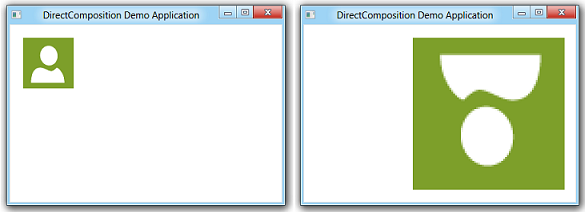
W tym temacie przedstawiono sposób stosowania przekształceń 2D do wizualizacji przy użyciu funkcji Microsoft DirectComposition. Przykład w tym temacie stosuje grupę przekształceń, które:
- Obróć wizualizację o 180 stopni.
- Powiększ obraz do trzykrotności jego oryginalnego rozmiaru.
- Przenieś element wizualny o 150 pikseli w prawo od jego oryginalnej pozycji.
Poniższe zrzuty ekranu pokazują wizualizację przed i po zastosowaniu przekształceń 2D.
Co musisz wiedzieć
Technologie
Warunki wstępne
- C/C++
- Microsoft Win32
- Model obiektów składników (COM)
Instrukcje
Krok 1. Inicjowanie obiektów DirectComposition
- Utwórz obiekt urządzenia i obiekt docelowy kompozycji.
- Utwórz wizualizację, ustaw jej zawartość i dodaj ją do drzewa wizualizacji.
Aby uzyskać więcej informacji, zobacz How to initialize DirectComposition.
Krok 2. Tworzenie tablicy grup przekształceń
IDCompositionTransform *pTransforms[3];
Krok 3. Tworzenie obiektów przekształcania, ustawianie ich właściwości i dodawanie ich do tablicy grup przekształceń
- Użyj metod IDCompositionDevice::CreateRotateTransform, ::CreateScaleTransformoraz ::CreateTranslateTransform, aby utworzyć obiekty przekształceń.
- Użyj funkcji składowych IDCompositionRotateTransform, IDCompositionScaleTransformi IDCompositionTranslateTransform interfejsów, aby ustawić właściwości przekształceń.
- Skopiuj wskaźniki interfejsu przekształcania do tablicy grup przekształceń.
IDCompositionRotateTransform *pRotateTransform = nullptr;
IDCompositionScaleTransform *pScaleTransform = nullptr;
IDCompositionTranslateTransform *pTranslateTransform = nullptr;
IDCompositionTransform *pTransformGroup = nullptr;

// Create the rotate transform.
hr = pDevice->CreateRotateTransform(&pRotateTransform);

if (SUCCEEDED(hr))
{
    // Set the center of rotation to the center point of the visual.
    hr = pRotateTransform->SetCenterX(BITMAP_WIDTH/2.0f);

    if (SUCCEEDED(hr)) {
        hr = pRotateTransform->SetCenterY(BITMAP_HEIGHT/2.0f);
    }

    // Set the rotate angle to 180 degrees.
    if (SUCCEEDED(hr)) {
        hr = pRotateTransform->SetAngle(180.0f);
    }

    // Add the rotate transform to the transform group array.
    pTransforms[0] = pRotateTransform;

    // Create the scale transform.
    if (SUCCEEDED(hr)) {
        hr = pDevice->CreateScaleTransform(&pScaleTransform);
    }
}

if (SUCCEEDED(hr))
{
    // Set the scaling origin to the upper-right corner of the visual.
    hr = pScaleTransform->SetCenterX(0.0f);
    if (SUCCEEDED(hr)) {
        hr = pScaleTransform->SetCenterY(0.0f);
    }

    // Set the scaling factor to three for both the width and height.
    if (SUCCEEDED(hr)) {
        hr = pScaleTransform->SetScaleX(3.0f);
    }
    if (SUCCEEDED(hr)) {
        hr = pScaleTransform->SetScaleY(3.0f);
    }

    // Add the scale transform to the transform group array.
    pTransforms[1] = pScaleTransform;

    // Create the translate transform.
    if (SUCCEEDED(hr)) {
        hr = pDevice->CreateTranslateTransform(&pTranslateTransform);
    }
}

if (SUCCEEDED(hr))
{
    // Move the visual 150 pixels to the right.
    hr = pTranslateTransform->SetOffsetX(150.0f);
    if (SUCCEEDED(hr)) {
        hr = pTranslateTransform->SetOffsetY(0.0f);
    }

    // Add the translate transform to the transform group array.
    pTransforms[2] = pTranslateTransform;
}
Krok 4. Tworzenie obiektu grupy przekształceń
Wywołaj metodę IDCompositionDevice::CreateTransformGroup, aby utworzyć obiekt grupy transform.
if (SUCCEEDED(hr))
{
    // Create the transform group.
    hr = pDevice->CreateTransformGroup(pTransforms, 3, &pTransformGroup);
}
Krok 5: Zastosuj obiekt grupy przekształcenia do obiektu wizualnego
Użyj metody IDCompositionVisual::SetTransform, aby skojarzyć właściwość Transform wizualizacji z obiektem grupy przekształcania.
if (SUCCEEDED(hr))
{
    // Apply the transform group to the visual.
    hr = pVisual->SetTransform(pTransformGroup);
}
Krok 6. Zatwierdzanie kompozycji
Wywołaj metodę IDCompositionDevice::Commit, aby zatwierdzić aktualizacje wizualizacji do funkcji DirectComposition na potrzeby przetwarzania. Wynik zastosowania grupy przekształceń 2D pojawia się w oknie docelowym.
if (SUCCEEDED(hr))
{
    // Commit the composition.
    hr = pDevice->Commit();
}
Krok 7. Zwolnij obiekty DirectComposition
Pamiętaj, aby zwolnić grupę obiektów transformacji 2D, kiedy nie będą już potrzebne. Poniższy przykład wywołuje makro zdefiniowane przez aplikację SafeRelease, aby zwolnić obiekty przekształcania.
// Release the transform objects.
for (int i = 0; i < 3; i++)
{
    SafeRelease(&pTransforms[i]);
}
Pamiętaj również, aby zwolnić obiekt urządzenia, obiekt docelowy kompozycji oraz obiekty wizualne przed zamknięciem aplikacji.
Kompletny przykład
#define BITMAP_WIDTH  80.0
#define BITMAP_HEIGHT 80.0

HRESULT DemoApp::ApplyTransformGroup(IDCompositionDevice *pDevice,
                                     IDCompositionVisual *pVisual)
{
    HRESULT hr = S_OK;

    if (pDevice == nullptr || pVisual == nullptr)
        return E_INVALIDARG;

    IDCompositionTransform *pTransforms[3];

    IDCompositionRotateTransform *pRotateTransform = nullptr;
    IDCompositionScaleTransform *pScaleTransform = nullptr;
    IDCompositionTranslateTransform *pTranslateTransform = nullptr;
    IDCompositionTransform *pTransformGroup = nullptr;

    // Create the rotate transform.
    hr = pDevice->CreateRotateTransform(&pRotateTransform);

    if (SUCCEEDED(hr))
    {
        // Set the center of rotation to the center point of the visual.
        hr = pRotateTransform->SetCenterX(BITMAP_WIDTH/2.0f);

        if (SUCCEEDED(hr)) {
            hr = pRotateTransform->SetCenterY(BITMAP_HEIGHT/2.0f);
        }

        // Set the rotate angle to 180 degrees.
        if (SUCCEEDED(hr)) {
            hr = pRotateTransform->SetAngle(180.0f);
        }

        // Add the rotate transform to the transform group array.
        pTransforms[0] = pRotateTransform;

        // Create the scale transform.
        if (SUCCEEDED(hr)) {
            hr = pDevice->CreateScaleTransform(&pScaleTransform);
        }
    }

    if (SUCCEEDED(hr))
    {
        // Set the scaling origin to the upper-right corner of the visual.
        hr = pScaleTransform->SetCenterX(0.0f);
        if (SUCCEEDED(hr)) {
            hr = pScaleTransform->SetCenterY(0.0f);
        }

        // Set the scaling factor to three for both the width and height.
        if (SUCCEEDED(hr)) {
            hr = pScaleTransform->SetScaleX(3.0f);
        }
        if (SUCCEEDED(hr)) {
            hr = pScaleTransform->SetScaleY(3.0f);
        }

        // Add the scale transform to the transform group array.
        pTransforms[1] = pScaleTransform;

        // Create the translate transform.
        if (SUCCEEDED(hr)) {
            hr = pDevice->CreateTranslateTransform(&pTranslateTransform);
        }
    }

    if (SUCCEEDED(hr))
    {
        // Move the visual 150 pixels to the right.
        hr = pTranslateTransform->SetOffsetX(150.0f);
        if (SUCCEEDED(hr)) {
            hr = pTranslateTransform->SetOffsetY(0.0f);
        }

        // Add the translate transform to the transform group array.
        pTransforms[2] = pTranslateTransform;
    }

    if (SUCCEEDED(hr))
    {
        // Create the transform group.
        hr = pDevice->CreateTransformGroup(pTransforms, 3, &pTransformGroup);
    }

    if (SUCCEEDED(hr))
    {
        // Apply the transform group to the visual.
        hr = pVisual->SetTransform(pTransformGroup);
    }

    if (SUCCEEDED(hr))
    {
        // Commit the composition.
        hr = pDevice->Commit();
    }

    // Release the transform objects.
    for (int i = 0; i < 3; i++)
    {
        SafeRelease(&pTransforms[i]);
    }

    // Release the transform group pointer.
    SafeRelease(&pTransformGroup);

    return hr;
}
Tematy pokrewne