Nota
O acesso a esta página requer autorização. Podes tentar iniciar sessão ou mudar de diretório.
O acesso a esta página requer autorização. Podes tentar mudar de diretório.
A validação de dados ajuda o utilizador a garantir a consistência numa folha de cálculo. Utilize estas funcionalidades para limitar o que pode ser introduzido numa célula e fornecer avisos ou erros aos utilizadores quando essas condições não forem cumpridas. Para saber mais sobre a validação de dados no Excel, veja Aplicar validação de dados a células.
Observação
Execute estes exemplos diretamente a partir do Editor de Código de Scripts do Office. Para abrir o Editor de Código, aceda a Automatizar>a Criação de Novo Script>no Editor de Código. Substitua o código predefinido pelo código de exemplo que pretende executar e, em seguida, selecione Executar.
Criar uma lista pendente com a validação de dados
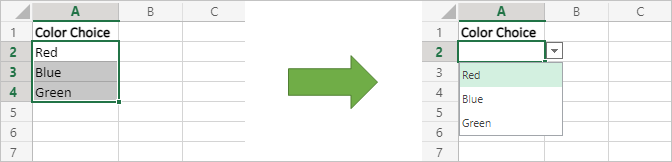
O exemplo seguinte cria uma lista de seleção pendente para uma célula. Utiliza os valores existentes do intervalo selecionado como as opções para a lista.
function main(workbook: ExcelScript.Workbook) {
  // Get the values for data validation.
  const selectedRange = workbook.getSelectedRange();
  const rangeValues = selectedRange.getValues();

  // Convert the values into a comma-delimited string.
  let dataValidationListString = "";
  rangeValues.forEach((rangeValueRow) => {
    rangeValueRow.forEach((value) => {
      dataValidationListString += value + ",";
    });
  });

  // Clear the old range.
  selectedRange.clear(ExcelScript.ClearApplyTo.contents);

  // Apply the data validation to the first cell in the selected range.
  const targetCell = selectedRange.getCell(0,0);
  const dataValidation = targetCell.getDataValidation();

  // Set the content of the dropdown list.
  dataValidation.setRule({
      list: {
        inCellDropDown: true,
        source: dataValidationListString
      }
    });
}
Adicionar um pedido a um intervalo
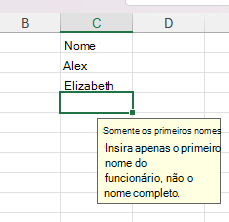
Este exemplo cria uma nota de aviso que é apresentada quando um utilizador introduz as células especificadas. Isto é utilizado para lembrar os utilizadores sobre os requisitos de entrada, sem imposição rigorosa.
/**
 * This script creates a text prompt that's shown in C2:C8 when a user enters the cell.
 */
function main(workbook: ExcelScript.Workbook) {
    // Get the data validation object for C2:C8 in the current worksheet.
    const selectedSheet = workbook.getActiveWorksheet();
    const dataValidation = selectedSheet.getRange("C2:C8").getDataValidation();

    // Clear any previous validation to avoid conflicts.
    dataValidation.clear();

    // Create a prompt to remind users to only enter first names in this column.
    const prompt: ExcelScript.DataValidationPrompt = {
      showPrompt: true,
      title: "First names only",
      message: "Only enter the first name of the employee, not the full name."
    }
    dataValidation.setPrompt(prompt);
}
Alertar o utilizador quando forem introduzidos dados inválidos
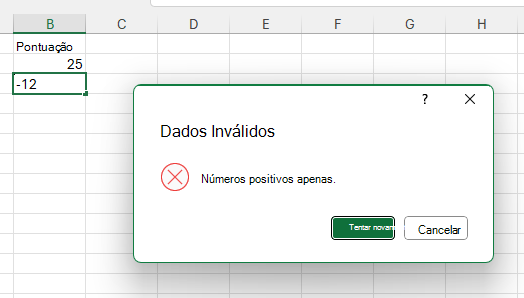
O seguinte script de exemplo impede que o utilizador introduza qualquer outra coisa que não números positivos num intervalo. Se tentarem colocar mais alguma coisa, é apresentada uma mensagem de erro que indica o problema.
/**
 * This script creates a data validation rule for the range B2:B5.
 * All values in that range must be a positive number.
 * Attempts to enter other values are blocked and an error message appears.
 */
function main(workbook: ExcelScript.Workbook) {
    // Get the range B2:B5 in the active worksheet.
    const currentSheet = workbook.getActiveWorksheet();
    const positiveNumberOnlyCells = currentSheet.getRange("B2:B5");

    // Create a data validation rule to only allow positive numbers.
    const positiveNumberValidation: ExcelScript.BasicDataValidation = {
        formula1: "0",
        operator: ExcelScript.DataValidationOperator.greaterThan
    };
    const positiveNumberOnlyRule: ExcelScript.DataValidationRule = {
      wholeNumber: positiveNumberValidation
    };

    // Set the rule on the range.
    const rangeDataValidation = positiveNumberOnlyCells.getDataValidation();
    rangeDataValidation.setRule(positiveNumberOnlyRule);

    // Create an alert to appear when data other than positive numbers are entered.
    const positiveNumberOnlyAlert: ExcelScript.DataValidationErrorAlert = {
        message: "Positive numbers only.",
        showAlert: true,
        style: ExcelScript.DataValidationAlertStyle.stop,
        title: "Invalid data"
    };
    rangeDataValidation.setErrorAlert(positiveNumberOnlyAlert);
}
Colabore connosco no GitHub
A fonte deste conteúdo pode ser encontrada no GitHub, onde também pode criar e rever issues e pull requests. Para mais informações, consulte o nosso guia para colaboradores.