Nota
O acesso a esta página requer autorização. Podes tentar iniciar sessão ou mudar de diretório.
O acesso a esta página requer autorização. Podes tentar mudar de diretório.
A ideia do cenário e o script utilizados neste exemplo foram contribuídos pelo membro da comunidade dos Scripts do Office, Brian Gonzalez.
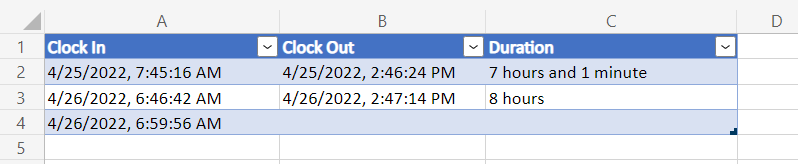
Neste cenário, irá criar uma folha de horas para um funcionário que lhe permite gravar as horas de início e de fim com um botão. Com base no que foi gravado anteriormente, selecionar o botão irá iniciar o dia (relógio em) ou terminar o dia (sair).

Instruções de configuração
Transfira o livro de exemplo para o seu OneDrive.
Abra a pasta de trabalho no Excel.
No separador Automatizar , selecione Novo Script>Criar no Editor de Código. Cole o seguinte script no editor.
/**
 * This script records either the start or end time of a shift,
 * depending on what is filled out in the table.
 * It is intended to be used with a Script Button.
 */
function main(workbook: ExcelScript.Workbook) {
  // Get the first table in the timesheet.
  const timeSheet = workbook.getWorksheet("MyTimeSheet");
  const timeTable = timeSheet.getTables()[0];

  // Get the appropriate table columns.
  const clockInColumn = timeTable.getColumnByName("Clock In");
  const clockOutColumn = timeTable.getColumnByName("Clock Out");
  const durationColumn = timeTable.getColumnByName("Duration");

  // Get the last rows for the Clock In and Clock Out columns.
  let clockInLastRow = clockInColumn.getRangeBetweenHeaderAndTotal().getLastRow();
  let clockOutLastRow = clockOutColumn.getRangeBetweenHeaderAndTotal().getLastRow();

  // Get the current date to use as the start or end time.
  let date: Date = new Date();

  // Add the current time to a column based on the state of the table.
  if (clockInLastRow.getValue() as string === "") {
    // If the Clock In column has an empty value in the table, add a start time.
    clockInLastRow.setValue(date.toLocaleString());
  } else if (clockOutLastRow.getValue() as string === "") {
    // If the Clock Out column has an empty value in the table,
    // add an end time and calculate the shift duration.
    clockOutLastRow.setValue(date.toLocaleString());
    const clockInTime = new Date(clockInLastRow.getValue() as string);
    const clockOutTime  = new Date(clockOutLastRow.getValue() as string);
    const clockDuration = Math.abs((clockOutTime.getTime() - clockInTime.getTime()));

    let durationString = getDurationMessage(clockDuration);
    durationColumn.getRangeBetweenHeaderAndTotal().getLastRow().setValue(durationString);
  } else {
    // If both columns are full, add a new row, then add a start time.
    timeTable.addRow()
    clockInLastRow.getOffsetRange(1, 0).setValue(date.toLocaleString());
  }
}

/**
 * A function to write a time duration as a string.
 */
function getDurationMessage(delta: number) {
  // Adapted from here:
  // https://stackoverflow.com/questions/13903897/javascript-return-number-of-days-hours-minutes-seconds-between-two-dates

  delta = delta / 1000;
  let durationString = "";

  let days = Math.floor(delta / 86400);
  delta -= days * 86400;

  let hours = Math.floor(delta / 3600) % 24;
  delta -= hours * 3600;

  let minutes = Math.floor(delta / 60) % 60;

  if (days >= 1) {
    durationString += days;
    durationString += (days > 1 ? " days" : " day");

    if (hours >= 1 && minutes >= 1) {
      durationString += ", ";
    }
    else if (hours >= 1 || minutes > 1) {
      durationString += " and ";
    }
  }

  if (hours >= 1) {
    durationString += hours;
    durationString += (hours > 1 ? " hours" : " hour");
    if (minutes >= 1) {
      durationString += " and ";
    }
  }

  if (minutes >= 1) {
    durationString += minutes;
    durationString += (minutes > 1 ? " minutes" : " minute");
  }

  return durationString;
}
Mude o nome do script para "Punch clock".
Guarde o script.
No livro, selecione a célula E2.
Adicionar um botão de script. Aceda ao menu Mais opções (...) na página Detalhes do script e selecione Adicionar no livro.
Guarde o livro.
Executar o script
Selecione o botão Desativar relógio para executar o script. Regista a hora atual em "Clock In" ou "Clock Out", consoante o que foi introduzido anteriormente.
Observação
A duração só é registada se for superior a um minuto. Edite manualmente o tempo "Clock In" para testar durações maiores.
Colabore connosco no GitHub
A fonte deste conteúdo pode ser encontrada no GitHub, onde também pode criar e rever issues e pull requests. Para mais informações, consulte o nosso guia para colaboradores.