หมายเหตุ
การเข้าถึงหน้านี้ต้องได้รับการอนุญาต คุณสามารถลอง ลงชื่อเข้าใช้หรือเปลี่ยนไดเรกทอรีได้
การเข้าถึงหน้านี้ต้องได้รับการอนุญาต คุณสามารถลองเปลี่ยนไดเรกทอรีได้
In this quickstart, learn how to use the Azure portal to upload a firmware image for security analysis and view the results.
If you don't have an Azure subscription, you can create an account for free.
Prerequisites
Note
The firmware analysis feature is automatically available if you currently access Defender for IoT using the Security Admin, Contributor, or Owner role. If you only have the Security Reader role or want to use firmware analysis as a standalone feature, your Admin must assign the Firmware Analysis Admin role. For additional information, please see Firmware analysis Azure RBAC.
Onboard your subscription
- Sign in to the Azure portal and search for firmware analysis. Select the blue Get started button or go to the Firmware workspaces tab.

- Select Create a workspace.
- In the Create a workspace pane:
- Choose your subscription.
- Select or create a resource group.
- Enter a workspace name.
- Choose a region.
- Select Onboard to complete the setup.

Upload a firmware image
- In the Azure portal, go to firmware analysis > Firmware workspaces, and select your workspace.
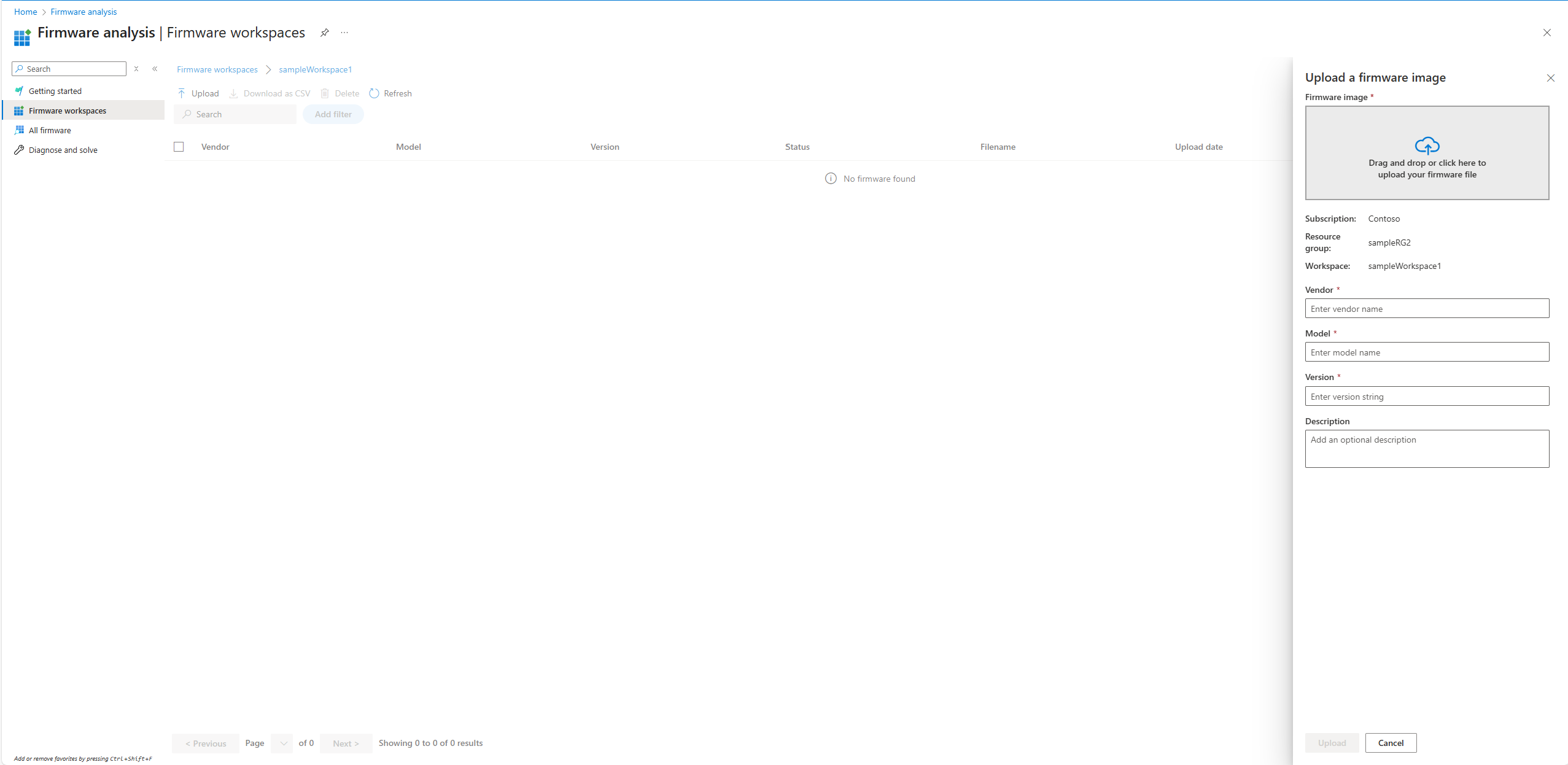
- Select Upload.
- In the Upload a firmware image pane:
- Drag and drop your firmware image or browse to select it.
- Enter the firmware's vendor, model, version, and an optional description.
- Select Upload.
Your firmware will appear in the All firmware grid.
View analysis results
- In the Azure portal, go to firmware analysis > All firmware, or navigate to your workspace.
- Select the firmware row to open the Firmware overview pane.
- Select View results to see detailed analysis.
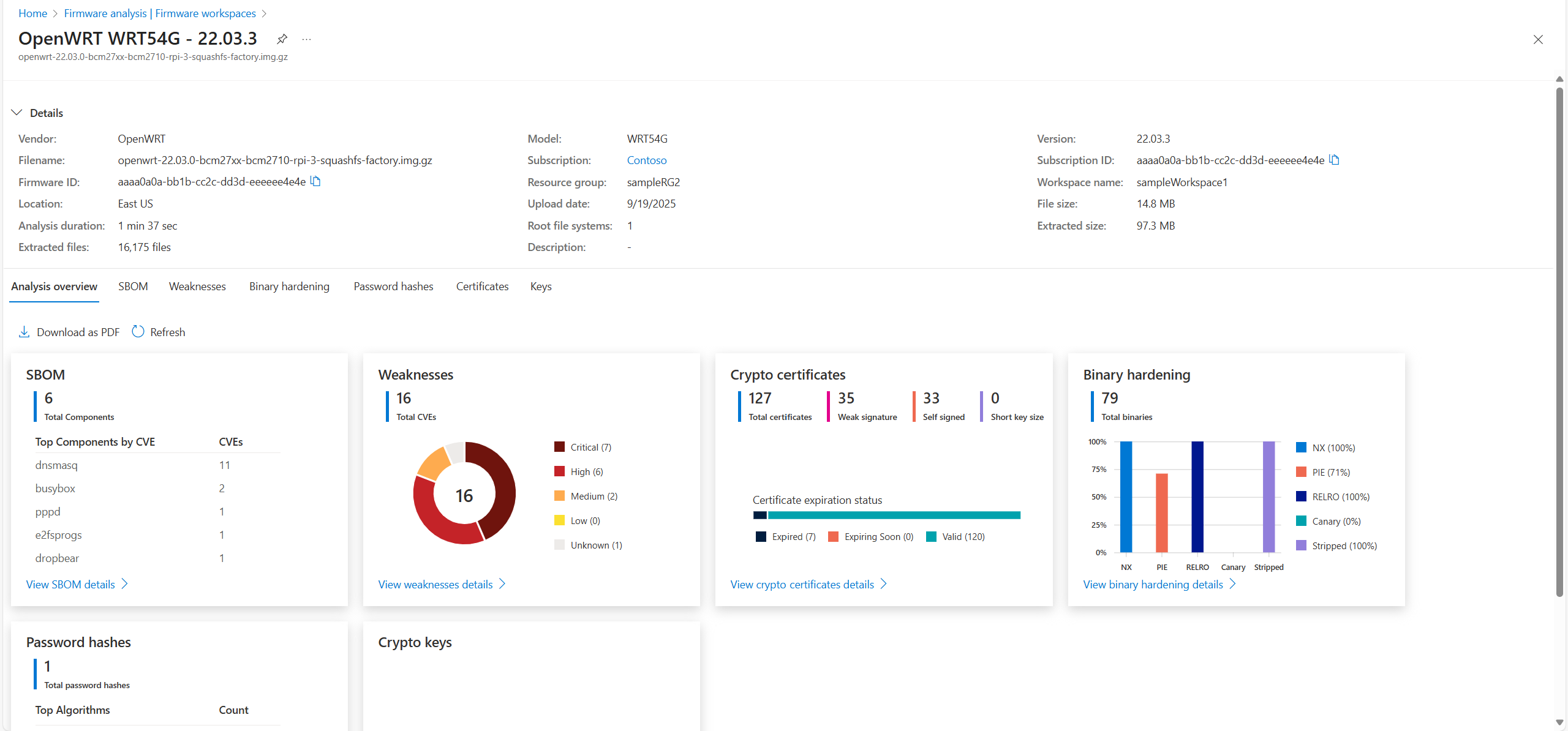
The results include:
| Tab | Description |
|---|---|
| Analysis overview | Summary of analysis results. |
| SBOM | Software bill of materials, including open source components, versions, licenses, and executable paths. |
| Weaknesses | List of CVEs. Select a CVE for details. |
| Binary hardening | Security settings used in compiled binaries (NX, PIE, RELRO, CANARY, STRIPPED). |
| Password hashes | Embedded accounts and password hashes. |
| Certificates | TLS/SSL certificates found. |
| Keys | Public and private cryptographic keys found. |
Delete a firmware image
To delete an image and its results:
- Select the checkbox next to the firmware image.
- Select Delete.
Warning
Deletion is permanent. To view results again, you must re-upload the image.