หมายเหตุ
การเข้าถึงหน้านี้ต้องได้รับการอนุญาต คุณสามารถลอง ลงชื่อเข้าใช้หรือเปลี่ยนไดเรกทอรีได้
การเข้าถึงหน้านี้ต้องได้รับการอนุญาต คุณสามารถลองเปลี่ยนไดเรกทอรีได้
Note
Community interest groups have now moved from Yammer to Microsoft Viva Engage. To join a Viva Engage community and take part in the latest discussions, fill out the Request access to Finance and Operations Viva Engage Community form and choose the community you want to join.
This tutorial shows you how to model aggregate data.
Prerequisites
This tutorial requires you to access the environment by using Remote Desktop and be provisioned as an administrator. For more information, see Deploy and access development environments.
Key concepts
- Aggregate measurements, similar to perspectives and Cubes from earlier versions, enable you to model and consume aggregate data.
- Key Performance Indicators (KPIs) are a form of analytic controls that track organizational performance against the current status. KPIs are represented as tiles in a workspace or the dashboard. In this tutorial, you model a KPI in Visual Studio.
- You can modify KPIs that you model in Visual Studio in the client. A user can also model new KPIs by using the client.
- A workspace is an overview page that's specific to a particular subject area. All users share workspaces.
- The dashboard is the default home page for each user.
- Tiles are securable objects that you can pin to a workspace or the dashboard. You can secure KPIs and aggregate data that show on the dashboard or a workspace by using menu items.
- You can consume aggregate data in building charts and other controls. By using the model driven approach, you can create data entities by directly referencing aggregate measurements and aggregate dimensions. These entities are referred to as Aggregate data entities. Aggregate data entities are read-only data entities used for reporting purposes.
- The aggregate programming model enables a developer to consume aggregate data programmatically by using either X++ or C# code. You can use data retrieved by using the aggregate programming model as a data source in forms.
- Method expressions enable a developer to build rich expressions by using aggregate data. Method expressions are an X++ class. By using method expressions, you can model KPIs, thereby eliminating the need to build MDX expressions.
- Contextual BI refers to providing required insights as part of the user experience such that the user has relevant insights to not only achieve the task at hand, but be highly-productive during the day.
- Embedded BI refers to analytic content being embedded within the user experience. Contextual BI and embedded BI teams are closely related. Contextual BI implies the added notion that the context of analytic context revolves around the data or the task.
- Self-service BI refers to enabling a user to tweak existing and/or create new analytic content such as reports, KPIs, and dashboards.
Set up
If this tutorial is the first tutorial you're working on, make sure you configure the administrator user if you're running on a local VM.
Import the tutorial project
If you already imported the Fleet management tutorial project, go to the next section. In Visual Studio, on the Dynamics 365 menu, select Import Project.
- Download the Fleet Management sample from https://github.com/Microsoft/FMLab, save it to c:\, and unzip it.
- In the Import Project window, next to the Filename text box, select the ellipsis button.
- In the Select the file to import window, browse to the location of the FMLab folder, select FMTutorialDataModel.axpp, and then select Open.
- In the Project file location text box, enter C:\FMLab.
- Select the Overwrite Elements check box, and then select OK.
Open the tutorial project
- In Visual Studio, open the FMTutorial project. On the File menu, point to Open, and then select Project/Solution.
- In the Open Project dialog box, browse to C:\FMLab\FMTutorial, and then select FMTutorial. Select Open. The FMTutorial project appears in Solution Explorer.
- Use the FMTDataHelper class to load data for the Fleet Management tutorial. In Solution Explorer, in the FMTutorial project, expand Classes. Right-click FMTDataHelper, and then select Set as Startup Object.
- On the Build menu, select Rebuild Solution. Use the rebuild to update the timestamps of the imported artifacts. You can view the build progress in the Output window.
- Press Ctrl+F5 to run the project and load the data.
Model an aggregate measurement for rental charges
Often, when a user asks for additional information, you get a request for one or more new reports. Imagine that the manager of a rental car company calls and asks for a report. The manager is interested in finding out how the rental business is performing. The manager wants a report that shows rental revenue by month. You soon find out that the manager is interested in a breakdown of rental revenues. The manager wants to know whether the rental revenue is high in cases where they sold additional services, such as car seats, GPS, refueling, as opposed to the base rental charge. As it turns out, the manager suspects that specific customer groups are driving up revenue, and this is why the manager wanted the report in the first place. The manager insists on adding Customer group to the report. Because the revenue must be considered in relation to the number of rentals, the manager doesn't want a few large corporate rentals to skew the analysis. You both agree that the number of rentals needs to be shown along with revenue. You could represent this requirement as a set of business questions using a matrix. Rows indicate the measures (or numbers) and the columns indicate the dimensions (or slicers). An "X" in the intersection between a measure and a dimension indicates that the measure needs to be "grouped by" the dimension.
| Item | Rental date | Customer group | Rental charge type |
|---|---|---|---|
| Revenue | X | X | X |
| Number of rentals | X | X | X |
Next, model an aggregate measurement to answer this business question.
Add a measure group for rental charges by using an existing view
In this section, you add a new measure group to an existing aggregate measurement.
In Solution Explorer, expand the Analytics folder of the project, and then double-click the aggregate measurement, FMTAggregateMeasurement. The aggregate measurement opens in the designer. Notice that the existing aggregate measurement contains two measure groups related to vehicle inventory and rental details. You create a new measure group related to rental charges.

In Solution Explorer, expand the Views folder of the project, and then select the FMTRentalChargeExtendedView view.
Drag and drop the FMTRentalChargeExtendedView into the root node of the FMTAggregateMeasurement aggregate measurement in the designer. A new measure group is created and the values of properties are applied as follows.
Property Value Name FMRentalChargeExtendedView Table FMRentalChargeExtendedView In Solution Explorer, double-click the FMRentalChargeExtendedView view. When the designer form opens, expand the Fields node.
Select the ExtendedAmount and RentalID fields, and then drag and drop the two fields onto the Measures node of the newly created FMAggregateMeasurement measure group called FMRentalChargeExtendedView. As you drag the fields, hover your cursor over the FMAggregateMeasurement tab to access the Measures node. By default, when you drag and drop the fields, the system assumes that you want counts of the measures. In this case, you need to modify default properties for the ExtendedAmount and RentalId measures as follows:
Property (ExtendedAmount) Value Default Aggregate Sum Field ExtendedAmount (no change required) Name Revenue Property (RentalId) Value Default Aggregate DistinctCount Field RentalId (no change required) Name NumRentals Next, create another measure that calculates Revenue per Rental by copying an existing measure. Select the TotalRevenue measure. Right-click and select Copy from the Context menu.
Select the FMRentalDetails measure group. Right-click and select paste. Rename the newly created measure to RevenuePerRental. Modify the aggregation function to Average.

Model an aggregate dimension charge type
To analyze rental revenue by the different charge types, you need to be able to slice revenue by the charge type. For this purpose, model a charge type dimension.
In Solution Explorer, under FMTutorial, right-click Analytics, point to Add, and then select New Item.
Select Dynamics 365 Artifacts > Analytics > Aggregate Dimension from the list of items.
In the Name property, enter FMTChargeType. This name is the aggregate dimension that you create. It must be unique. Select Add. The new dimension appears in Visual Studio.
In Application Explorer, expand the AOT and select Data Model > Tables. Drag and drop the FMTChargeType table from Application Explorer onto the root node of the newly created FMTChargeType dimension in the designer. The AutoReport field group of the table adds dimension attributes and corresponding keys.
Expand the Attributes node of the new dimension. Several attributes are created by default. The system also creates a dimension key based on unique indexes of the table. You can add extra fields by dragging and dropping them into the Fields node.

Save the new dimension.
You might get a warning that asks you to rename the field name Description to avoid the MDX reserved word. Even though you might not deploy the aggregate dimension to SSAS in this aggregate measurement, it's possible that this dimension might be used by an aggregate measurement deployed to SSAS in the future. To avoid potential problems, rename the field name Description to ChargeDescription.

Model dimension references for customer profile and charge type dimensions
Next, create dimension references to new and existing dimensions so that you can slice revenue by customer and charge type.
In Solution Explorer, double-click FMTAggregateMeasurement or, if you have it open, navigate to it in the designer.
In Solution Explorer, select the dimensions FMTChargeType and FMTCustomerProfile.
Drag and drop these dimensions into the Dimensions node of the FMTRentalChargeExtendedView measure group. Notice that you create dimension references along with relations.
Save changes to FMTAggregateMeasurement. Review the property sheet for the dimension relation and notice that the Use Table relations property is set to Yes. Notice that the drag-and-drop operation created relationships between the measure group dimensions FMTRentalChargeExtendedView and FMTChargeType, FMTCustomerProfile. Review the property sheet for the dimension relation and notice that the Use Table relations property is set to Yes.

Note
In platform update 1611 and later, the UseTableRelations property is removed. When you create a new dimension reference, the system defaults existing relationships. You can continue to provide an explicit relationship by changing the relationship field that was defaulted. Providing an explicit relationship is equal to setting UseTableRelationship to No.
Expand the Dimension relations node for the FMTCustomerProfile dimension. Notice that the UseTableRelations property is set to No. In this case, the system can't find a suitable relationship between the measure group and dimension. You need to specify one manually.
Expand the FMTCustomerProfile dimension reference if you didn't already. Select the node FMTCustomerExtendedView. Right-click and see the property sheet.
Select CustomerID as the value for property DimensionAttribute. Select the relationship shown in the following image. Select Customer for the property value RelatedField.
Save changes to FMTAggregateMeasurement.
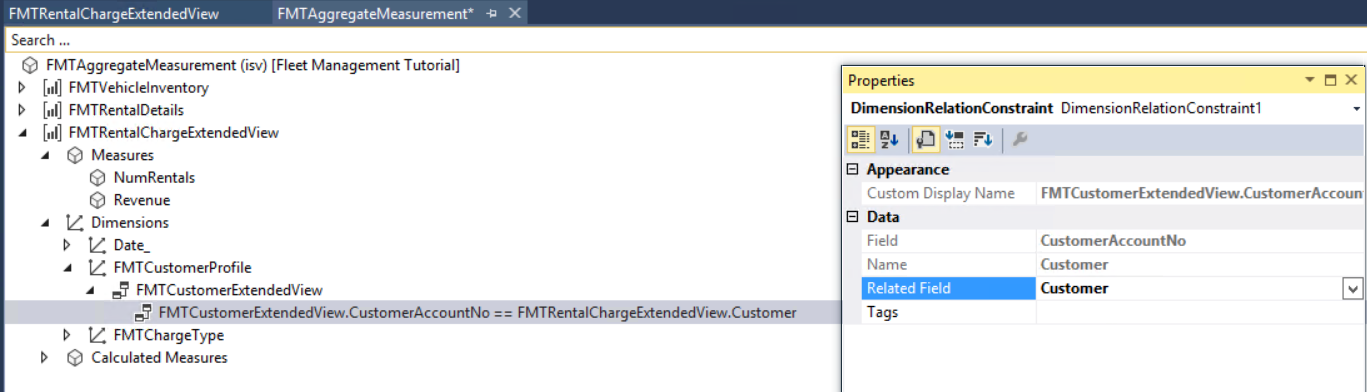
In this scenario, you specify a relationship because the system was unable to find one. You can also specify a different relationship if you want to override the system choice by setting Use Table Relations property to No.

Model dimension references for the date dimension's rental start date and transaction date
Assume that for analysis purposes, you want to enable slicing by the start date of the rental. But for accounting purposes, you want to enable slicing by the transaction date for each of the charges. To do this, you need to associate the rental charges measure group with two date dimensions. In the BI world, this pattern is known as Role Playing dimensions. By default, a date dimension is added to the measure group. You can rename the default name appropriately and add new date dimensions as required.
Expand the Dimensions node of the FMTRentalChargeExtendedView measure group. Notice that the Date_ dimension is already included as dimension slicers.
Note
If the table or the view used to model the measure group is a Company-specific table, for example it contains DATAAREAID as part of the key, a Company dimension relation is created by default. In this case, the view you used isn't a company specific one.
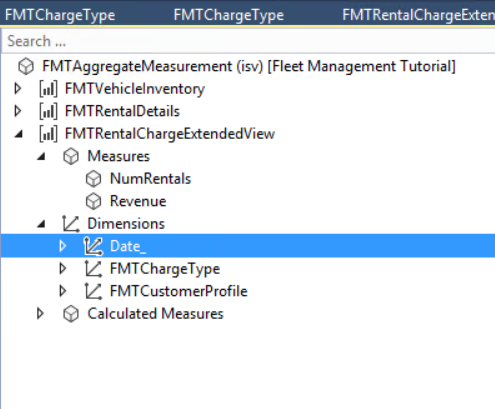
Select the Date dimension and specify the following properties.
Property Value Name RentalStartDate Use Table Relations No (This is the default – no need to change) Define the table relationship. Expand RentalStartDate, and then expand the Date node.
Select the Relationship shown. Right-click and select the property sheet. Select StartDate for the value of Related field property.
The relationship you defined should look like the following screenshot.

Next, enable slicing of measures by the TransactionDate dimension. TransactionDate is also a date dimension, so add another reference to the date dimension and associate that reference with the corresponding field that contains the transaction date. When you use more than one date dimension as a slicer, each date dimension is known as a Role playing date dimension.
Under the FMTRentalChargeExtendedView measure group, right-click the Dimensions node, and then select New Dimension. A new dimension is added to the list of dimension references.
Specify the following properties for the new dimension reference.
Property Value Dimension Name Date_ NOTE: If you select the Dimension Name in the wrong order, it resets the other values you already set. Name TransactionDate Use table relations No Tags RolePlayingDate; Fleet Notice the new property called Tags. This property enables the discovery of patterns within code and metadata from within the Visual Studio environment. You can enter any number of tags and they can be searched by using the hot keys or the Dynamics 365 menu in Visual Studio.
Define the table relationship. Right-click TransactionDate, and then select New Relation. You don't need to specify any properties in the DimensionsRelation at this point.
Expand BIDateDimensionValue, and then select the Relationship Constraint. Right-click and select the property sheet.
Specify the following properties for the BIDateDimensionsView relation constraint.
Property Value Field Date Related Field TranDate The relationship you defined should look like the following screenshot.

Save the aggregate measurement.

Deploy the newly generated aggregate measurement
After modeling the aggregate measurement, deploy it so you can continue building KPIs and visualizations. You have two deployment choices:
| Option | Considerations |
|---|---|
| In-memory real-time | Use this option to apply the in-memory column store indexes of the SQL Server database for deploying aggregate measurements. Use this option when the aggregate measurement supports embedded analytics within the client and you need real-time analytics. For an overview of concepts on real-time analytics, see Analytics, aggregate measurements, and KPI modeling. |
| Stage in Entity Store | Use this option to apply the entity store, the operational data store that enables near real-time PowerBI reporting. If you choose this option, you can deploy the aggregate measurement to the entity store and schedule the data to be refreshed periodically. For an overview of this approach, see Power BI integration with Entity Store in Dynamics AX 7 May Update. |
Note
The SSAS Cube option is no longer supported when modeling aggregate measurements.
Select the FMTAggregateMeasurement node. Right-click and select Properties. Select InMemoryRealTime as the value for the property Usage.

Deploy InMemoryRealTime aggregate models to SQL Server by using Non-Clustered Column Store Index (NCCI) technology. NCCIs is an in-memory technology that enables analytical and operational workloads to be served from SQL server database. Define NCCI indexes on tables similar to any other index. While you can define NCCI indexes manually, the framework can analyze index requirements and add them to underlying tables where necessary.
Right-click FMAggregateMeasurement in Solution Explorer, and then select Add Column store indices option. You add several new indexes.
Save and build the project.
InMemoryRealTime aggregate models don't require data processing because the models are queried real-time. If you didn't enable database synchronization along with the build, manually synchronize the database.

Model a KPI to show revenue per rental
Model a KPI in Visual Studio
Model a KPI definition in Visual Studio by using the aggregate measurement you defined earlier.
In Solution Explorer, right-click FMTutorial, point to Add, and then select New Item.
Select Dynamics 365 Artifacts > Analytics > Key Performance Indicator. Enter
FMTRevenuePerRentalas the name of the KPI, and then select Add. The name must be unique across KPIs. The KPI is created.Select FMTRevenuePerRental, and specify the Measurement. Leave the default values for the other properties.
Property Value Measurement FMTAggregateMeasurement Bad Threshold 0 Good Threshold 0 Scoring Pattern MoreIsBetter Show Goal Yes Show Status and Trend Yes Threshold Type Value Define the expression for the KPI value. Under FMTRevenuePerRental, select Value, and specify the following properties.
Note
Enter the values in the order they appear in the table:
Property Value Value Type BasedOnMeasure Measure Group FMTRentalChargeExtendedView Measure RevenuePerRental Define the expression for the KPI Goal. Select Goal, and specify the following properties.
Property Value Goal Type BasedOnValue Value 250 Note
You can define a goal based on an aggregate measure as well. In this case, define a number as the goal.
Save the KPI definition.
Preview KPI in client
Next, preview the KPI definition in the client.
Right-click FMTutorial, and then select Re-Build. When the build finishes, select the Synchronize ... database option.
Open Microsoft Edge, and go to your Rainier instance base URL.
Go to the Reservation Management workspace under App links > Fleet Management > Workspaces > Reservation Management.
Select the KPI tile Total Revenue. The KPI details page for the Total Revenue KPI appears.
To go to the newly defined KPI, select the Show list icon on the top left. From the list of KPIs, select FMTRevenuePerRental.
The KPI details page for the new KPI, FMTRevenuePerRental appears. Even though you didn't define trend charts, the system created a set of charts based on the limited metadata you defined. Users can modify KPI definitions and create new ones in the client. Next, modify the newly defined KPI.
To demonstrate this capability, change the KPI goal. Select the Edit button on the top left, and enter 900 as the goal value.
Modify the threshold properties as follows:
Property Value Threshold Type Percentage Red if less than 90 Green if more than 110 Select Save on the bottom left to save changes. The KPI status color changes in the KPI tile.