หมายเหตุ
การเข้าถึงหน้านี้ต้องได้รับการอนุญาต คุณสามารถลอง ลงชื่อเข้าใช้หรือเปลี่ยนไดเรกทอรีได้
การเข้าถึงหน้านี้ต้องได้รับการอนุญาต คุณสามารถลองเปลี่ยนไดเรกทอรีได้
Note
Community interest groups have now moved from Yammer to Microsoft Viva Engage. To join a Viva Engage community and take part in the latest discussions, fill out the Request access to Finance and Operations Viva Engage Community form and choose the community you want to join.
Cancel a batch job
Note
You can't cancel system jobs.
If you need to cancel a running batch job, change its status to Canceling. The batch job stops picking up new tasks. The status of tasks in the batch job that didn't start changes to Didn't run, and the status of tasks that started changes to Canceling. The status of a task doesn't change until the task terminates gracefully (that is, it either completes or errors out).
To cancel a running batch job, follow these steps:
- On the Batch job page, on the Action Pane, select Change status.
- In the Select new status dialog box, under Select new status, select Canceling.
- Select OK.

The following illustration shows an example of a batch job and its tasks after the batch job is canceled.

Abort the tasks in a batch job
Sometimes, the tasks in a batch job can't terminate gracefully. Therefore, the status of the batch job remains Canceling while the system waits for the graceful termination. In these cases, the system administrator or batch job manager can abort all the tasks that are in Canceling status for a batch job. The Abort command forces the tasks in the batch job to immediately stop execution.
Important
- Aborting a running process is inherently unsafe, and therefore should be used with caution. It can cause data corruption that can, in turn, cause either orphaned or incomplete data. Use this action only to mitigate other problems that the running tasks cause.
- This action can't stop the execution of tasks that are stuck in an unmanaged wait. Examples include tasks that are stuck because of SQL deadlocks or DIXF-related tasks. In such cases, tasks are aborted after they're no longer in an unmanaged wait.
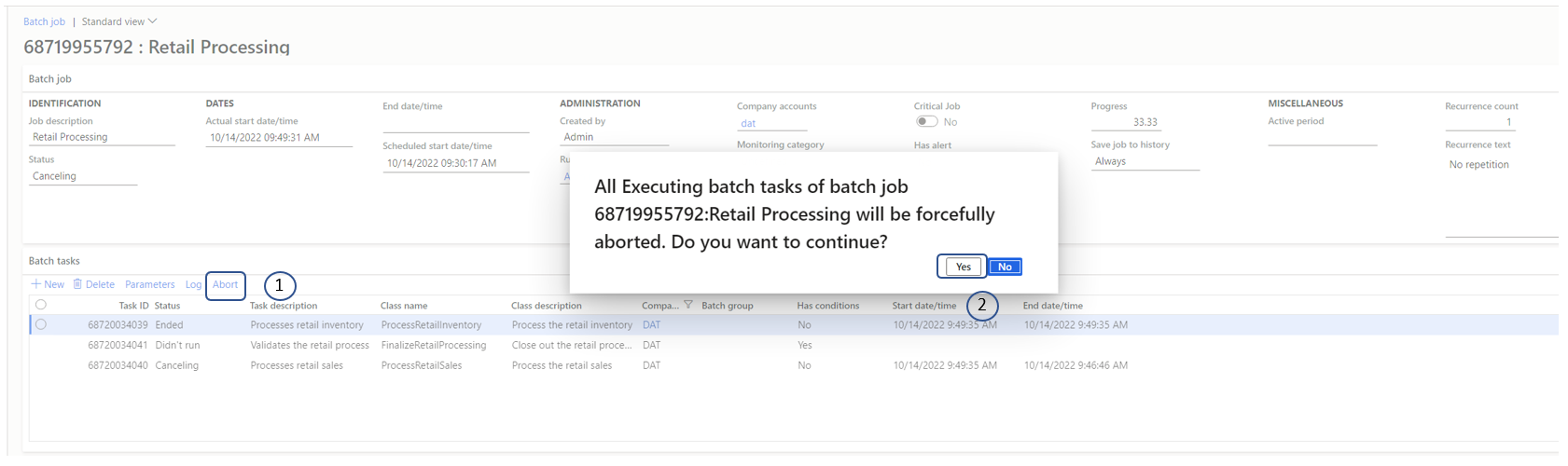
To abort all the tasks that are in Canceling status for a batch job, follow these steps:
- On the Batch job page, on the Batch tasks FastTab, select Abort.
- A message box prompts you to confirm that you want to abort all running tasks for the batch job. Select Yes.
Enhanced batch abort feature
Important
- In release 10.0.31, a drain period was added. The appropriate batch servers won't pick up new tasks for up to 15 minutes after you use the Enhanced batch abort feature. This drain period gives other tasks that are in an Executing state on the batch servers time to complete correctly. When either no more tasks in an Executing state remain on those servers or 15 minutes pass, the batch servers restart.
- This feature is enabled by default starting 10.0.38 (PU 62).
- This feature is mandatory starting 10.0.39 (PU 63).
To use the Enhanced batch abort feature, enable it in the Feature management workspace. After you enable this feature, the Abort command restarts all the batch servers that are currently running tasks of the batch job that you're trying to abort. Other tasks might also be running on those servers. The restart interrupts those tasks.
Because the servers restart, the Enhanced batch abort feature makes the functionality more resilient to the limitations of the Abort command. It also ensures that the tasks of the batch job that you're trying to cancel are truly interrupted.
To abort all the tasks that are in Canceling status for a batch job when the Enhanced batch abort feature is enabled, follow these steps:
- On the Batch job page, on the Batch tasks FastTab, select Abort.
- The Abort batch job dialog box lists other batch jobs that might be disrupted if you continue. To confirm that you want to continue, select Yes.

If you don't want to cancel other running batch tasks on the batch servers, and you prefer the old behavior where only the tasks of the batch job are canceled instead of all running jobs, disable the Enhanced batch abort feature in the Feature management workspace. Then try to abort a batch job again.