Page components
After you create a page, add components to build the layout and include static and dynamic content. This simple design approach adds the corresponding HTML, CSS, or code to the page without requiring you to know the structure or syntax of these languages.
To add a section, select any existing section on the page, select the plus sign (+) or Add a section, and then choose from one of the available section layouts.
Tip
You can change the section layout later.

To add a component, select either an empty section or an existing element where you'd like to place the component. Use the plus sign (+) or the overflow button (...) to display all available components, and then select a component to insert.

There are two types of components:
Standard components create the page layout and static content.
Connected to data components display dynamic and interactive content based on Dataverse data.
All sections and components support in-context editing. You can edit any section or component directly from the canvas. When you select a section or a component, a context menu appears. You can adjust properties of the selected element, such as alignment, style, color, size, and more. For more information, see Customize webpages for more details about available components and their properties.
Source code
Often, you need elements that aren't available as design studio components. A page might need a more complex layout and formatting, or it might need more CSS or JavaScript. You can create these requirements in Visual Studio Code for the Web. Makers and pro developers can use this editor to view and modify the source code of the page and associated CSS and JavaScript.
To view the source code of the page, select Edit code in the command bar.
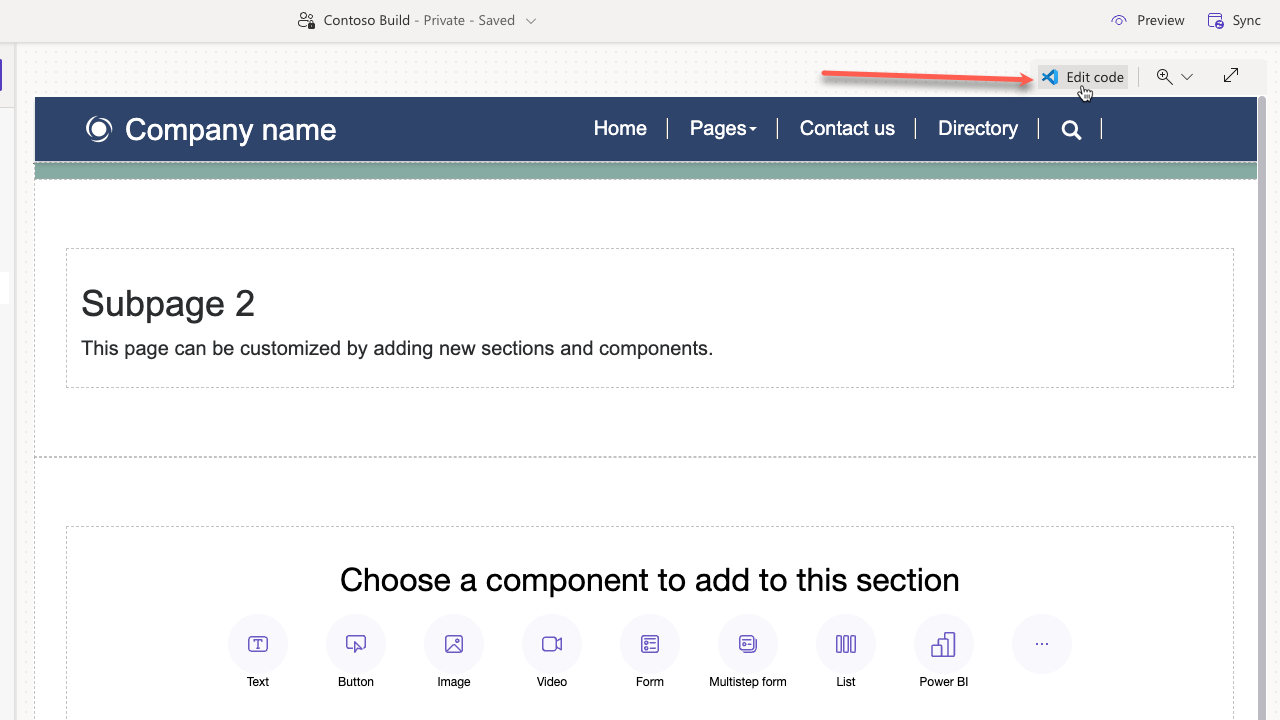
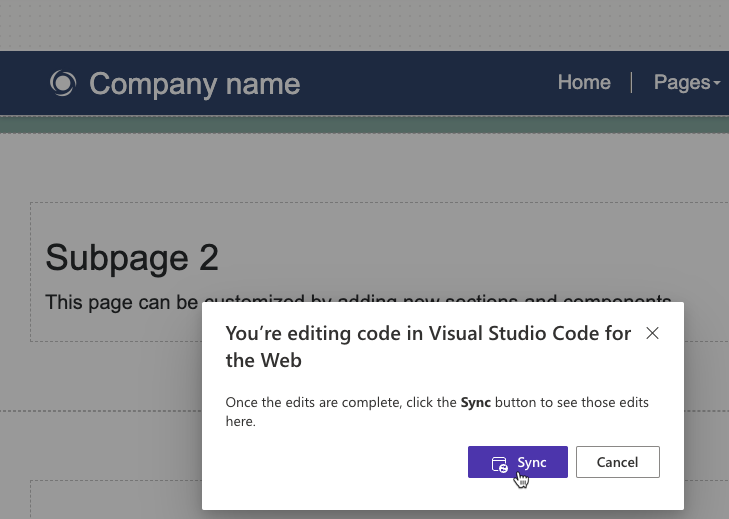
When you select Edit code, you're redirected to Visual Studio Code for the Web to make your edits to the page HTML, CSS, or JavaScript. After you save the source code, the changes synchronize and appear on the canvas.
Warning
You can potentially damage the layout of your page by entering incorrect syntax in the source code. Create a copy of the original code before making any significant changes.