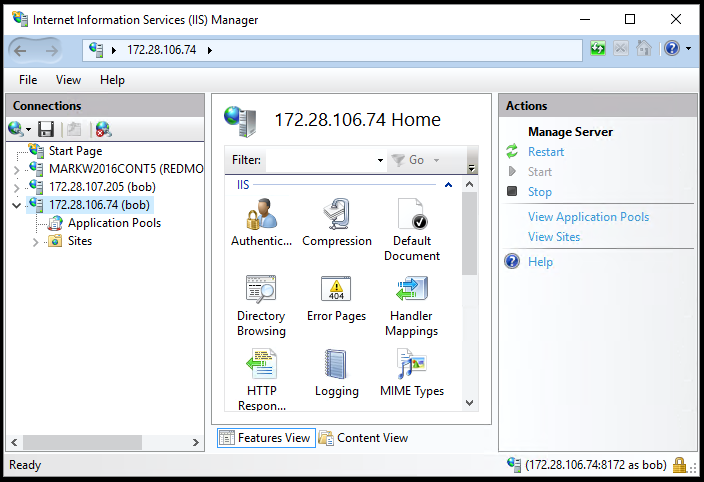
Many legacy apps are based on IIS and ship with documentation which describes deployment and management operations primarily via the IIS Manager. This console is a GUI. Windows Containers do not support any form of GUI, so all ‘local’ operations must be performed via a command line interface. We will demonstrate how to prepare containers for IIS administration via a remote instance of the IIS Manager.
Step by Step
In this step-by-step we will:
- create a container based on an image with IIS already installed
- add remote IIS admin support to the container
- connect to the IIS admin console on the container host to the IIS Admin Service service the container
On the container host:
- Open a PowerShell admin session
- Start interactive container
- With .net 3.5 -
docker run -it --name frame35 cd\-v c:\shared:c:\shared microsoft/dotnet-framework:3.5
- with .net 4.6.2 -
docker run -it --name frame46 -v c:\shared:c:\shared microsoft/dotnet-framework:4.6.2
- or start detached and then attach to container -
docker run --name <name> -d=true -v c:\shared:c:\shared microsoft/windowsservercore:latestdocker attach <name>
Note: To add Active Directory support to any container, add --security-opt "credentialspec=file://<CredentialSpecName>.json" to the docker run command line. See <ref> for more details.
i.e. docker run -it --name frame46 -v c:\shared:c:\shared --security-opt "credentialspec=file://adoncontt1.json" microsoft/dotnet-framework:4.6.2
This will switch the console from container host to container. This is now the 'container console'.
From container console:
Start Admin PowerShell
Powershell
- Install IIS + IIS Management
Install-WindowsFeature -name Web-Server -IncludeManagementTools
- Install IIS Management Service
Dism /online /enable-feature /featurename:IIS-ManagementService /all
- Enable remote access
New-ItemProperty -Path HKLM:\software\microsoft\WebManagement\Server -Name EnableRemoteManagement -Value 1 -Force
--- optional - add any or all of these features ----------------------------
Import-Module DismEnable-WindowsOptionalFeature -Online -FeatureName IIS-WebServerRole Enable-WindowsOptionalFeature -Online -FeatureName IIS-WebServer Enable-WindowsOptionalFeature -Online -FeatureName IIS-CommonHttpFeatures Enable-WindowsOptionalFeature -Online -FeatureName IIS-HttpErrors Enable-WindowsOptionalFeature -Online -FeatureName IIS-HttpRedirect Enable-WindowsOptionalFeature -Online -FeatureName IIS-ApplicationDevelopment Enable-WindowsOptionalFeature -Online -FeatureName IIS-NetFxExtensibility Enable-WindowsOptionalFeature -Online -FeatureName IIS-NetFxExtensibility45 Enable-WindowsOptionalFeature -Online -FeatureName IIS-HealthAndDiagnostics Enable-WindowsOptionalFeature -Online -FeatureName IIS-HttpLogging Enable-WindowsOptionalFeature -Online -FeatureName IIS-LoggingLibraries Enable-WindowsOptionalFeature -Online -FeatureName IIS-RequestMonitor Enable-WindowsOptionalFeature -Online -FeatureName IIS-HttpTracing Enable-WindowsOptionalFeature -Online -FeatureName IIS-Security Enable-WindowsOptionalFeature -Online -FeatureName IIS-URLAuthorization Enable-WindowsOptionalFeature -Online -FeatureName IIS-RequestFiltering Enable-WindowsOptionalFeature -Online -FeatureName IIS-IPSecurity Enable-WindowsOptionalFeature -Online -FeatureName IIS-Performance Enable-WindowsOptionalFeature -Online -FeatureName IIS-HttpCompressionDynamic Enable-WindowsOptionalFeature -Online -FeatureName IIS-WebServerManagementTools Enable-WindowsOptionalFeature -Online -FeatureName IIS-ManagementScriptingTools Enable-WindowsOptionalFeature -Online -FeatureName IIS-IIS6ManagementCompatibility Enable-WindowsOptionalFeature -Online -FeatureName IIS-Metabase Enable-WindowsOptionalFeature -Online -FeatureName IIS-HostableWebCore Enable-WindowsOptionalFeature -Online -FeatureName IIS-CertProvider Enable-WindowsOptionalFeature -Online -FeatureName IIS-WindowsAuthentication Enable-WindowsOptionalFeature -Online -FeatureName IIS-DigestAuthentication Enable-WindowsOptionalFeature -Online -FeatureName IIS-ClientCertificateMappingAuthentication Enable-WindowsOptionalFeature -Online -FeatureName IIS-IISCertificateMappingAuthentication Enable-WindowsOptionalFeature -Online -FeatureName IIS-ODBCLogging Enable-WindowsOptionalFeature -Online -FeatureName IIS-StaticContent Enable-WindowsOptionalFeature -Online -FeatureName IIS-DefaultDocument Enable-WindowsOptionalFeature -Online -FeatureName IIS-DirectoryBrowsing Enable-WindowsOptionalFeature -Online -FeatureName IIS-WebDAV Enable-WindowsOptionalFeature -Online -FeatureName IIS-WebSockets Enable-WindowsOptionalFeature -Online -FeatureName IIS-ApplicationInit Enable-WindowsOptionalFeature -Online -FeatureName IIS-ASPNET Enable-WindowsOptionalFeature -Online -FeatureName IIS-ASPNET45 Enable-WindowsOptionalFeature -Online -FeatureName IIS-ASP Enable-WindowsOptionalFeature -Online -FeatureName IIS-CGI Enable-WindowsOptionalFeature -Online -FeatureName IIS-ISAPIExtensions Enable-WindowsOptionalFeature -Online -FeatureName IIS-ISAPIFilter Enable-WindowsOptionalFeature -Online -FeatureName IIS-ServerSideIncludes Enable-WindowsOptionalFeature -Online -FeatureName IIS-CustomLogging Enable-WindowsOptionalFeature -Online -FeatureName IIS-BasicAuthentication Enable-WindowsOptionalFeature -Online -FeatureName IIS-HttpCompressionStatic Enable-WindowsOptionalFeature -Online -FeatureName IIS-ManagementConsole Enable-WindowsOptionalFeature -Online -FeatureName IIS-ManagementService Enable-WindowsOptionalFeature -Online -FeatureName IIS-WMICompatibility Enable-WindowsOptionalFeature -Online -FeatureName IIS-LegacyScripts Enable-WindowsOptionalFeature -Online -FeatureName IIS-LegacySnapIn Enable-WindowsOptionalFeature -Online -FeatureName IIS-FTPServer Enable-WindowsOptionalFeature -Online -FeatureName IIS-FTPSvc Enable-WindowsOptionalFeature -Online -FeatureName IIS-FTPExtensibility
---------------------------------
- Stop Services
net stop Iisadmin net stop W3svc net stop wmsvc
- Start Services
net start Iisadmin net start W3svc net start wmsvc
- add admin user
net user <username> <password> /ADD net localgroup administrators <username> /add
Open another PS admin session on the container host, this will be the new 'container host console'
From container host console:
- List containers
Docker ps
- Note containerID
- Find container IP address
docker inspect -f "{{ .NetworkSettings.Networks.nat.IPAddress }}" <container id>
This will display the container IP address, copy it.
From container host desktop:
- Start IIS manager console
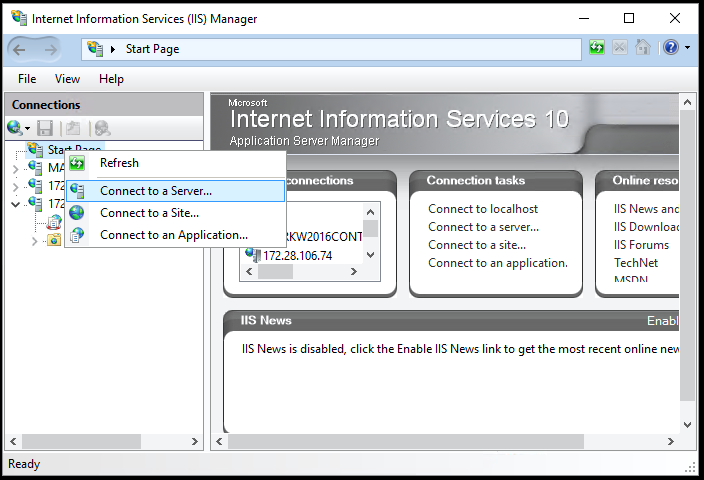
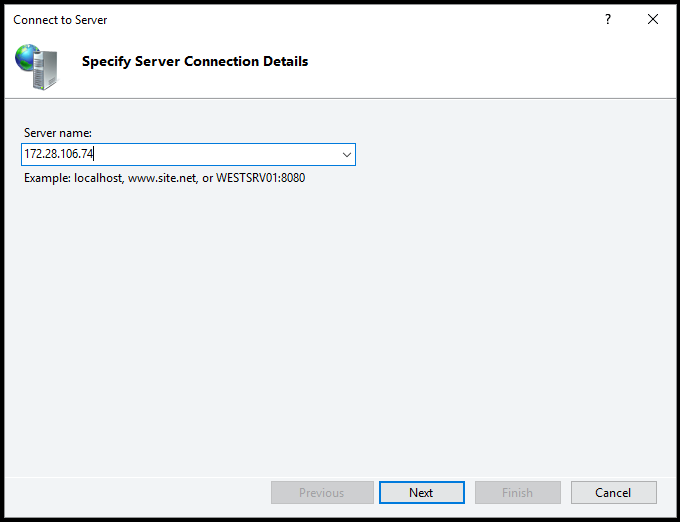
- Select 'Connect to a Server', Connect to container IP address
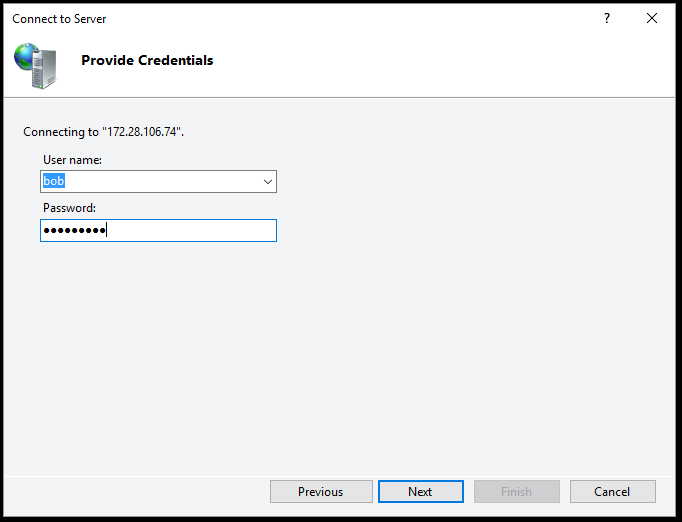
- Provide the <name> and <password> provided above in [net user <username> <password> /ADD]
- Click on Next. You will get a certificate error dialog
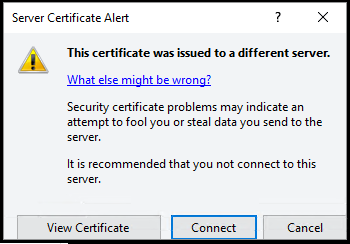
- Click 'View Certificate'. You will get a 'Certificate' Dialog
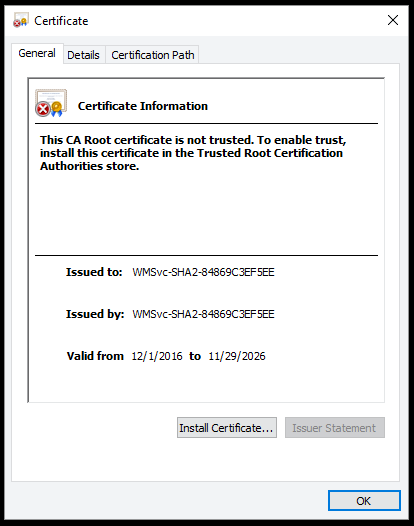
- Click 'Install Certificate'. You will get a certificate import wizard
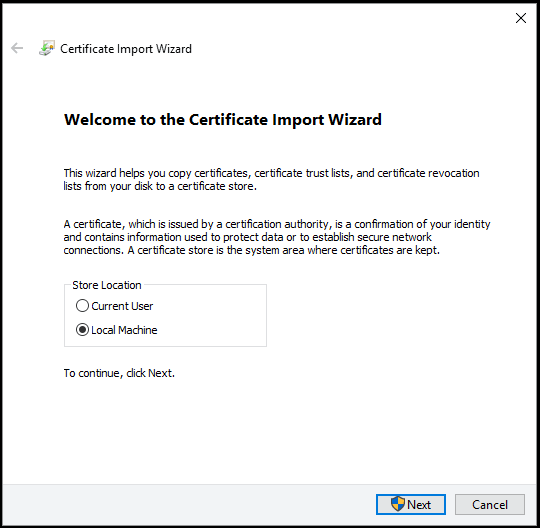
- Select 'Local Machine', click 'Next'
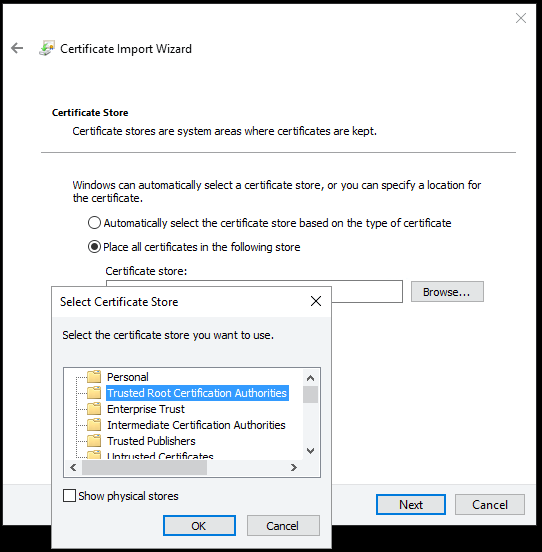
- Select 'Place all certificates in the following store', click 'Browse', select 'Trusted Root Certification Authorities', click 'OK', nick 'Next'
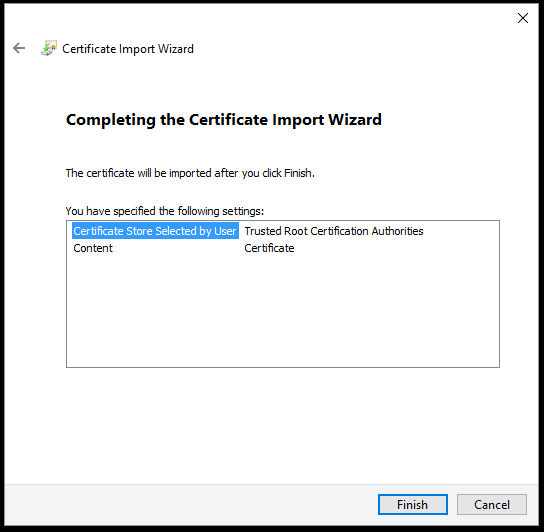
Click 'Finish'
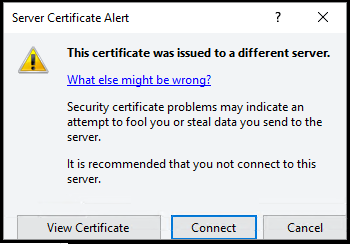
- Click 'Cancel'
- Click 'Next'. The screen below indicates success. Others screens may indicate error.
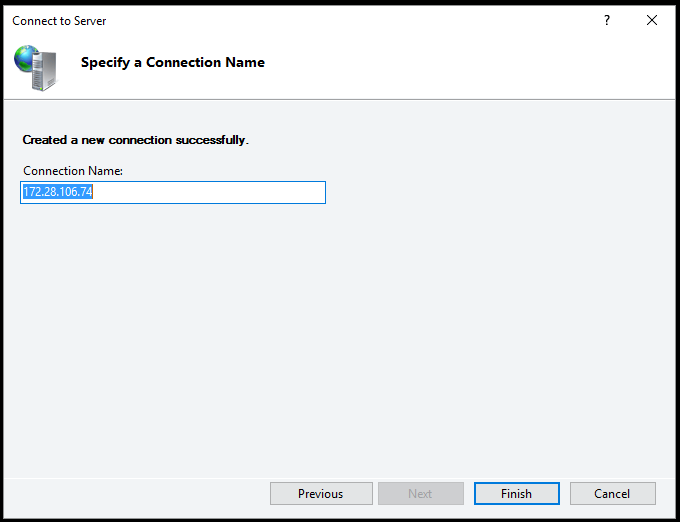
- You may now administer the IIS service running on the container from the IIS admin console running on the container host.