重要
本文中的某些信息与预发行的产品有关,该产品在商业发布之前可能有重大修改。 Microsoft 对此处所提供的信息不作任何明示或默示的保证。
Microsoft Sentinel 模型上下文协议 (MCP) 服务器中的代理创建工具集合使开发人员能够使用自然语言在所选的与 MCP 兼容的 IDE 中生成Security Copilot代理。
在本入门中,你将了解如何:
设置 MCP 服务器并对其进行身份验证
启用GitHub Copilot代理模式
管理 MCP 工具的上下文
先决条件
若要使用 Microsoft Sentinel MCP 服务器并访问这些工具,必须载入Microsoft Sentinel 数据湖。 有关详细信息,请参阅载入到 Microsoft Sentinel 数据湖 和 Microsoft Sentinel 图形 (预览) 。
支持的代码编辑器
Microsoft Sentinel 对 Security Copilot 代理创建 MCP 工具的支持可用于以下 AI 支持的代码编辑器:
设置 MCP 服务器并对其进行身份验证
安装 MCP 服务器的步骤如下:
启动Visual Studio Code (VS Code) 。
在 VS Code 中添加 MCP 服务器连接。 键入“按”
Ctrl + Shift + P打开命令面板。 键入符号>,后跟文本MCP: Add server。
选择
HTTP (HTTP or Server-Sent Events)。
键入以下服务器 URL,然后选择 Enter。 此 URL 区分大小写。
https://sentinel.microsoft.com/mcp/security-copilot-agent-creation输入友好的服务器 ID。

系统会提示 你信任 服务器。

当系统提示对服务器定义进行身份验证时,选择“ 允许 ”。

选择是使服务器在所有 VS Code 工作区中可用,还是仅在当前工作区中可用。

经过身份验证后,服务器应开始 运行 ,你应该会看到一个名为
mcp.json的文件,用于检查 VS Code 工作区中的 MCP 服务器配置。


启用GitHub Copilot代理模式
打开 VS Code 的聊天 >“视图 ”菜单 >“聊天 ”或按
CRTL + ALT + I。将聊天设置为“代理”模式。

选择提示栏中的工具图标。
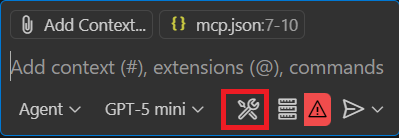
可以看到GitHub Copilot正在使用的工具列表。 展开刚添加的 MCP 服务器的行,查看用于生成代理的五种工具:
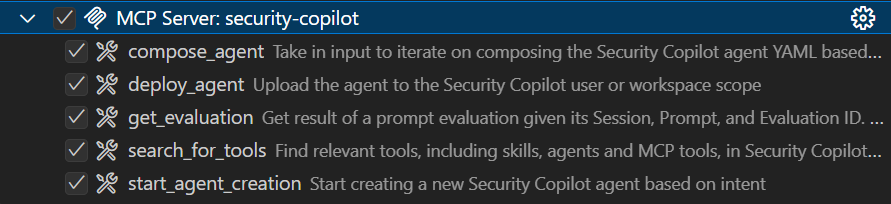

管理 MCP 工具的上下文
通过提供正确的上下文,可以从 VS Code 中的 AI 获取帮助,以提供相关且准确的响应。 本部分介绍两个选项,用于管理上下文并确保 AI 助手按预期使用 MCP 工具,并且具有更高的一致性。
可以从以下选项之一中选择来管理上下文:
自定义说明
使用自定义说明,可以在 Markdown 文件中定义通用准则或规则,以描述应如何执行任务。 无需在每个聊天提示中手动包括上下文,而是在 Markdown 文件中指定自定义说明,以确保与项目要求一致的 AI 响应。
可以将自定义说明配置为自动应用于所有聊天请求或仅应用于特定文件。
使用自定义说明文件
在工作区根目录的单个 .github/copilot-instructions.md Markdown 文件中定义自定义指令。 VS Code 会自动将此文件中的说明应用于此工作区中的所有聊天请求。
使用 .github/copilot-instructions.md 文件的步骤:
启用设置
github.copilot.chat.codeGeneration.useInstructionFiles。.github/copilot-instructions.md在工作区的根目录中创建文件。 如果需要,请先创建一个.github目录。
使用自然语言和 Markdown 格式描述说明。
若要开始,请将上下文文件
scp-mcp-context.md的内容复制到 文件中copilot-instructions.md。 请参阅 MCP 上下文。

添加上下文文件
若要帮助确保 AI 助手能够按预期使用 MCP 工具,并且具有更高的一致性,请将此上下文文件添加到 IDE。 确保 AI 助手在提示时引用此文件。
将上下文
scp-mcp-context.md添加到 VS Code 或直接粘贴到工作区。 使用上下文文件,请参阅 MCP 上下文。 工作区如下所示:
在提示栏中选择“ 添加上下文 ”,然后选择上下文文件。


MCP 工具的上下文文件
scp-mcp-context.md复制 以与快速入门一起使用。
# MCP Tools Available for Agent Building
    1. **start_agent_creation**
        - **Purpose**: Creates a new Security Copilot session and starts the agent building process.
        - The userQuery input will be the user's problem statement (what they want the agent to do).
        - The output of the tool should be returned IN FULL WITHOUT EDITS.
        - The tool will return an initial agent YAML definition.
    2. **compose_agent**
        - **Purpose**: Continues the session and agent building process created by *start_agent_creation*. Outputs agent definition YAML or can ask clarifying questions to the user.
        - The sessionId input is obtained from the output of *start_agent_creation*
        - The existingDefinition input is optional. If an agent definition YAML has not been created yet, this should be blank (can be an empty string).
    3. **search_for_tools**
        - **Purpose: Discover relevant skills (tools) based on the user's query
        - This will create a new Security Copilot session, but it should not be included in the start_agent/continue_agent flow.
          - A user might want to know about Security Copilot skills they have access to without wanting to create an agent
          - The session ID created should NOT be reused in any capacity
    4. **get_evaluation**
        - **Purpose: Get the results of the evaluations triggered by each of the above tools. You MUST repeatedly activate this tool until the property of the result "state" is equal to "Completed" in order to get the fully processed result. The "state" may equal "Created" or "Running" but again, you must repeat the process until the state is "Completed". There is NO MAXIMUM amount of times you might call this tool in a row.
    5. **deploy_agent**
        - **Purpose: Deploy an agent to Security Copilot.
        - The user must provide the scope as either "User" or "Workspace".
        - Unless they already have an AGENT definition yaml provided, *start_agent_creation* must be run before to generate an agentDefinition
        - "agentSkillsetName" should be COPIED EXACTLY from the value of "Descriptor: Name:" in the agent definition YAML, including any special characters like ".". This will NOT work if the two do not match EXACTLY.
        - DO NOT use *get_evaluation* after this tool.

# Agent Building Execution Flow

## Step 1: Problem Statement Check
- If the user did **not** provide a problem statement, prompt them to do so.
- If the user **did** provide a problem statement, proceed to Step 2.

## Step 2: Start Agent Creation
- Use the `start_agent_creation` tool with `userQuery = <problem statement>`.
  - **DO NOT** include any quotation marks in the userQuery
- Then, use `get_evaluation` to retrieve the initial response.
  - **DO** repeatedly call `get_evaluation` until the `"state"` property of the result equals `"Completed"`.
  - **DO NOT** require the user to ask again to get the results.
  - **DO NOT** edit or reword the response content.

## Step 2.5: Output Handling
- **DO NOT** reformat, summarize, or describe the YAML output.
- **DO** return the YAML output **verbatim**.
- **DO** return the output in **AGENT FORMAT**.

## Step 3: Agent Refinement
- Ask the user if they would like to edit the agent or if they would like to deploy the agent. If they want to deploy, skip to **Step 4**.
- If the user wants to edit the agent definition:
  - If they respond with edits directly, use `compose_agent` with:
    - `sessionId` from `start_agent_creation`
    - `existingDefinition = <previous AGENT YAML>`
      - `\n` MUST be rewritten as `\\n`
    - `userQuery = <user’s new input>`
      - **DO NOT** include any quotation marks in the userQuery
  - If they attach a manually edited YAML file to the context, use the file content as `existingDefinition`.
    - **DO NOT** edit the file directly, you MUST use `compose_agent`
    - `\n` MUST be rewritten as `\\n`

## Step 4: Agent Deployment
- If the user asks to deploy the agent, use `deploy_agent`.
  - You **must confirm the scope**: either `"User"` or `"Workspace"`.
    - If not provided, ask the user to specify.
  - `agentSkillsetName` must **exactly match** the value of `Descriptor: Name:` in the YAML.
    - This includes any special characters.
  - Leave existing instances of `\n` inside `agentDefinition` as-is
- **DO NOT** run `get_evaluation` after deployment.
- **DO** include all of these things in the tool response to the user:
    1. Confirm successful deployment to the user
    2. Direct the user to the Security Copilot portal to test and view the agent with this link: https://securitycopilot.microsoft.com/agents
    3. Direct the user to read more on how to test their agent in Security Copilot with this link: https://learn.microsoft.com/en-us/copilot/security/developer/mcp-quickstart#test-agent

## Step 5: Further Agent Refinement and Redeployment
- After deployment, the user may still want to **edit the agent definition**.
  - If so, you must support calling `compose_agent` again.
  - Follow the same process as described in **Step 3**:
    - If the user asks for edits directly, use the previous AGENT YAML as `existingDefinition`.
    - If the user uploads a manually edited YAML file, use the file content as `existingDefinition`.
- The user may also want to **redeploy the agent** after making refinements.
  - You must run `deploy_agent` again using the updated YAML.
  - Ensure the `agentSkillsetName` matches **exactly** the value of `Descriptor: Name:` in the latest YAML, including any special characters.
  - Leave existing instances of `\n` inside `agentDefinition` as-is
  - Confirm the deployment scope: either `"User"` or `"Workspace"`.
    - If the scope is not provided, prompt the user to specify.
  - Do **not** run `get_evaluation` after deployment.
  - Confirm successful redeployment to the user.
- Alternatively, the user may want to **create a new agent**.
  - Restart the procedure from **Step 1**.
  - When using `start_agent_creation`, a new session ID will be created.
  - **DO** keep track of which session IDs correspond to which problem statements or agents so the user can return to previous sessions if needed.

## Additional Rules
- Only call `compose_agent` **after** the user has provided a response. Do not proceed automatically.
- Agent creation must remain **user-driven**. Do not initiate steps without explicit user input.
- Wait for the user to respond before continuing to the next step.
- Tool responses must be returned **directly to the user** in full.
  - Do **not** alter, reformat, summarize, or reword the content of any tool response.
  - This applies specifically to the `"result": "content"` field in the JSON returned by tool executions.
  - LEAVE OUT any "Grounding Notes"

## Error Handling
- If any tool call fails:
  - Inform the user of the failure.
  - If it is a client error, make an attempt to retry the tools, rewriting inputs based on the error message.
    - Example: If the error indicates invalid JSON characters, escape or remove those characters from the input and retry. Always attempt escaping first.