转换

通过转换,可以使用云同步更改将特性与 Microsoft Entra ID 同步的默认行为。

若要执行此任务,需要编辑架构,然后通过 Web 请求重新提交该架构。

有关云同步属性的详细信息,请参阅 了解 Microsoft Entra 架构

检索架构

若要检索架构,请按照 “查看同步架构”中的步骤作。

自定义属性映射

若要添加自定义属性映射,请执行以下步骤。

  1. 将架构复制到文本或代码编辑器(如 Visual Studio Code)中。

  2. 找到要在架构中更新的对象。

    架构中对象的屏幕截图。

  3. 在用户对象中找到 ExtensionAttribute3 的代码。

                            {
                                "defaultValue": null,
                                "exportMissingReferences": false,
                                "flowBehavior": "FlowWhenChanged",
                                "flowType": "Always",
                                "matchingPriority": 0,
                                "targetAttributeName": "ExtensionAttribute3",
                                "source": {
                                    "expression": "Trim([extensionAttribute3])",
                                    "name": "Trim",
                                    "type": "Function",
                                    "parameters": [
                                        {
                                            "key": "source",
                                            "value": {
                                                "expression": "[extensionAttribute3]",
                                                "name": "extensionAttribute3",
                                                "type": "Attribute",
                                                "parameters": []
                                            }
                                        }
                                    ]
                                }
                            },
    
  4. 编辑代码,以便将公司属性映射到 ExtensionAttribute3

                                     {
                                         "defaultValue": null,
                                         "exportMissingReferences": false,
                                         "flowBehavior": "FlowWhenChanged",
                                         "flowType": "Always",
                                         "matchingPriority": 0,
                                         "targetAttributeName": "ExtensionAttribute3",
                                         "source": {
                                             "expression": "Trim([company])",
                                             "name": "Trim",
                                             "type": "Function",
                                             "parameters": [
                                                 {
                                                     "key": "source",
                                                     "value": {
                                                         "expression": "[company]",
                                                         "name": "company",
                                                         "type": "Attribute",
                                                         "parameters": []
                                                     }
                                                 }
                                             ]
                                         }
                                     },
    
  5. 将架构复制回 Graph 资源管理器,将 请求类型 更改为 PUT,然后选择“ 运行查询”。

    运行查询

  6. 现在,在门户中,转到云同步配置,然后选择 “重启预配”。

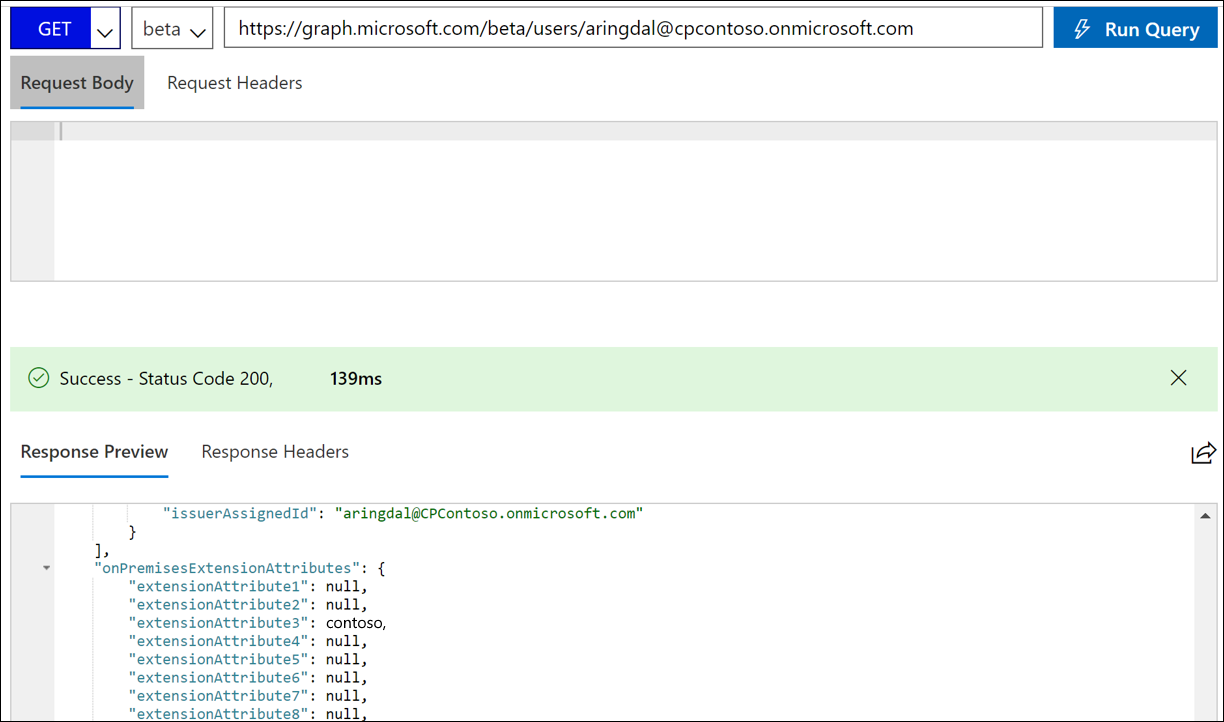
  7. 一段时间后,通过在 Graph 资源管理器中运行以下查询来验证属性是否已填充: https://graph.microsoft.com/beta/users/{Azure AD user UPN}

  8. 现在应看到如下值。

    显示值

使用函数自定义属性映射

对于更高级的映射,可以使用函数来处理数据,并为属性创建对应的值,以满足组织的需求。

若要执行此任务,请按照前面的步骤作,然后编辑用于构造最终值的函数。

有关表达式的语法和示例的信息,请参阅 在 Microsoft Entra ID 中编写属性映射的表达式

后续步骤