PowerPoint 加载项可以绑定到形状,以便通过标识符一致地访问它们。 加载项通过调用 BindingCollection.add 并分配唯一标识符来建立绑定。 随时使用该标识符来引用形状并访问其属性。 创建绑定可为加载项提供以下值。
- 在外接程序与文档中的形状之间建立关系。 绑定将保留在文档中,可在以后访问。
- 允许访问形状属性以读取或更新,而无需用户选择任何形状。
下图显示了加载项如何绑定到幻灯片上的两个形状。 每个形状都有一个由加载项创建的绑定 ID: star 和 pie。 使用绑定 ID,加载项可以访问所需的形状来更新属性。
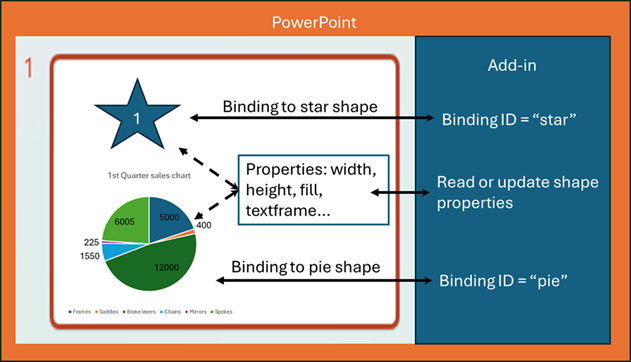
方案:使用绑定与数据源同步
使用绑定的常见方案是使形状与数据源保持最新。 通常,在创建演示文稿时,用户会将图像从数据源复制并粘贴到演示文稿中。 随着时间的推移,为了使图像保持最新,它们将手动复制并粘贴数据源中的最新图像。 加载项可以通过代表用户从数据源中检索最新图像来帮助自动完成此过程。 当形状填充需要更新时,外接程序使用绑定来查找正确的形状,并使用较新的图像更新形状填充。
在常规实现中,在 PowerPoint 中绑定形状并使用数据源中的新图像更新形状时,需要考虑两个组件。
- 数据源。 这是任何数据源或资产库,例如 Microsoft SharePoint 或 Microsoft OneDrive。
- PowerPoint 加载项。 外接程序根据用户需要从数据源获取数据。 它将数据转换为 Base64 编码的图像。 这是绑定形状可以接受的唯一填充类型。 它会根据用户的请求插入一个形状,并使用唯一标识符将其绑定。 然后,它根据原始数据源使用 Base64 图像填充形状。 形状会根据用户的请求进行更新,加载项使用绑定标识符查找形状,并使用上次保存的 Base64 图像更新图像。
注意
你决定如何从数据源同步更新以及如何获取或创建映像的实现详细信息。 本文仅介绍如何在外接程序中使用 Office JS API 绑定形状并使用最新图像更新形状。
在 PowerPoint 中创建绑定形状
PowerPoint.BindingCollection.add()使用演示文稿的 方法创建引用特定形状的绑定。

以下示例演示如何在第一张所选幻灯片上创建形状。
await PowerPoint.run(async (context) => {
    const slides = context.presentation.getSelectedSlides();

    // Insert new shape on first selected slide.
    const myShape = slides
        .getItemAt(0)
        .shapes.addGeometricShape(PowerPoint.GeometricShapeType.rectangle, {
            top: 100,
            left: 30,
            width: 200,
            height: 200
        });

    // Fill shape with a Base64-encoded image.
    // Note: The image is typically created from a data source request.
    const productsImage = "...Base64 image data...";
    myShape.fill.setImage(productsImage);
});
调用 BindingCollection.add 以将绑定添加到 PowerPoint 中的绑定集合。 以下示例演示如何将形状的新绑定添加到绑定集合。
// Create a binding ID to track the shape for later updates.
const bindingId = "productChart";
// Create binding by adding the new shape to the bindings collection.
context.presentation.bindings.add(myShape, PowerPoint.BindingType.shape, bindingId);
使用更新的数据刷新绑定的形状
更新图像数据后,通过绑定标识符查找形状图像来刷新形状图像。 下面的代码示例演示如何查找带有标识符的绑定形状,并使用更新的图像填充它。 映像由加载项根据数据源请求更新,或由数据源直接提供。
async function updateBinding(bindingId, image) {
    await PowerPoint.run(async (context) => {
        try {
            // Get the shape based on binding ID.
            const myShape = context.presentation.bindings
                .getItem(bindingId)
                .getShape();

            // Update the shape to latest image.
            myShape.fill.setImage(image);
            await context.sync();

        } catch (err) {
            console.error(err);
        }
    });
}
删除绑定
以下示例演示如何通过从绑定集合中删除绑定来删除绑定。
async function deleteBinding(bindingId) {
    await PowerPoint.run(async (context) => {
        context.presentation.bindings.getItemAt(bindingId).delete();
        await context.sync();
    });
}
加载绑定
当用户打开演示文稿并且外接程序首次加载时,你可以加载所有绑定以继续使用它们。 以下代码演示如何加载演示文稿中的所有绑定并在控制台中显示它们。
async function loadBindings() {
    await PowerPoint.run(async (context) => {
        try {
            let myBindings = context.presentation.bindings;
            myBindings.load("items");
            await context.sync();

            // Log all binding IDs to console.
            if (myBindings.items.length > 0) {
                myBindings.items.forEach(async (binding) => {
                    console.log(binding.id);
                });
            }
        } catch (err) {
            console.error(err);
        }
    });
}
删除绑定或形状时的错误处理
删除形状时,其关联的绑定也会从 PowerPoint 绑定集合中删除。 如果访问这些对象上的任何属性或方法,则对绑定或形状的任何对象引用都将返回错误。 如果加载项保留 Binding 或 Shape 对象,请务必处理已删除形状的潜在错误情况。
以下代码演示了绑定对象引用已删除的绑定时的错误处理方法。 使用 try/catch 语句,然后调用函数,以在发生错误时重新加载所有绑定和形状引用。
async function getShapeFromBindingID(id) {
    await PowerPoint.run(async (context) => {
        try {
            const binding = context.presentation.bindings.getItemAt(id);
            const shape = binding.getShape();

            await context.sync();
            return shape;
        } catch (err) {
            console.log(err);
            return undefined;
        }
    });
}
另请参阅
保持形状的新鲜度时,可能还需要检查 zOrder。 有关详细信息,请参阅 zOrderPosition 属性。