有时,可能需要在表中要保留的列和要移除的列之间进行选择。 为此,可通过选择要保留的列或选择要移除的列。 选择列和删除列是有助于定义表需要保留哪些列以及需要删除哪些列的操作。 本文将使用两个操作的以下示例表,展示如何使用选择列和移除列命令。
 包含三行数据的示例表的屏幕截图,其中包含日期、产品、销售员、单位、GUID 和报表创建人的列。
目的是创建一个仅包含日期、产品、销售员和单位列的表。
 包含三行数据的最终表的屏幕截图,其中包含日期、产品、销售人员和单位的列。
选择列
在主页选项卡的管理列组中,选择选择列。
 Power Query 主页选项卡功能区的屏幕截图,其中突出显示了“选择列”选项。
选择列对话框随即显示,其中包含表中的所有可用列。 可以通过清除其关联的复选框,来选择要保留的所有字段和删除特定字段。 对于此示例,需要删除 GUID 列和“报表创建者”列,以便清除这些字段的对应复选框。
 “选择列”对话框的屏幕截图,其中选择了日期、产品、销售员和单位列。
在选择确定后,将创建一个表,仅包含日期、产品、销售员和单位列。
 最终表的屏幕截图,其中剩下日期、产品、销售员和单位列。
删除列
从主页选项卡中选择删除列时,有两个选项:
- 删除列:删除所选列。
- 删除其他列:从表中删除所选列以外的所有列。
 “移除列”菜单选项的屏幕截图,其中突出显示这两个选项。
还可以在表中选择要移除的列,选择并按住(或右键单击)列,然后选择在快捷键菜单中选择移除列。 下一部分演示了此移除列方法。
删除所选列
从示例表开始,选择 GUID 和创建的报表列。 选择并按住(或右键单击)任一选定列标题。 此时会显示一个新的快捷菜单,可选择其中的删除列命令。
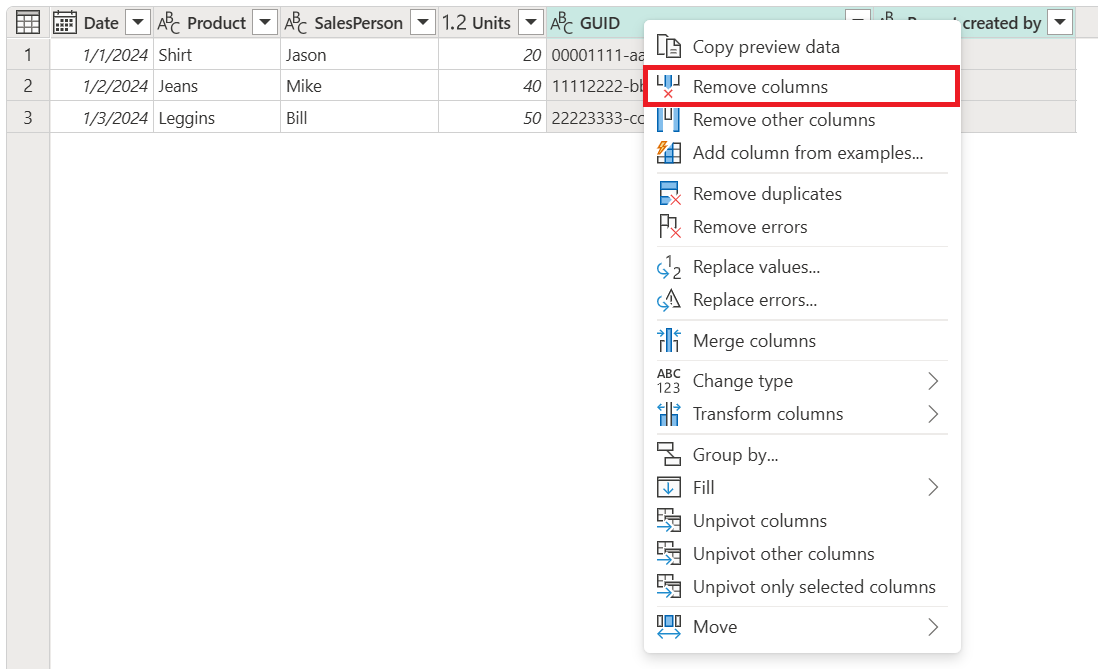 突出显示了“移除列”的表列快捷键菜单的屏幕截图。
在选择移除列后,将创建一个仅包含日期、产品、销售员和单位列的表。
 最终表的屏幕截图,其中移除了选定的 GUID 和“报表创建者”列。
删除其他列
从示例表开始,从表选择除 GUID 和创建的报表之外的所有列。 在主页选项卡上,选择删除列>删除其他列。
 Power Query 主页选项卡功能区的屏幕截图,其中突出显示了“移除其他列”选项。
在选择移除其他列后,将创建一个仅包含日期、产品、销售员和单位列的表。
 最终表的屏幕截图,其中移除了未选定的 GUID 和“报表创建者”列。