You can write and run unit tests in Visual Studio using some of the more popular JavaScript frameworks without the need to switch to a command prompt. Both Node.js and ASP.NET Core projects are supported.
Write unit tests for ASP.NET Core
To add support for unit testing of JavaScript and TypeScript in an ASP.NET Core project, you need to add TypeScript, npm, and unit testing support to the project by including required NuGet packages.
Add a unit test (ASP.NET Core)
The following example is based on the ASP.NET Core Model-View-Controller project template, and includes adding a Jest or Mocha unit test.
Create an ASP.NET Core Model-View-Controller project.
For an example project, see Add TypeScript to an existing ASP.NET Core app. For unit testing support, we recommend you start with a standard ASP.NET Core project template.
In Solution Explorer (right pane), right-click the ASP.NET Core project node and select Manage NuGet Packages for Solutions.
In the Browse tab, search for the following packages and install each one:
Use the NuGet package to add TypeScript support instead of the npm TypeScript package.
In Solution Explorer, right-click the project node and choose Edit Project File.
The .csproj file opens in Visual Studio.
Add the following elements to the .csproj file in the
PropertyGroupelement.This example specifies Jest or Mocha as the test framework. You could specify Tape or Jasmine instead.
The
JavaScriptTestRootelement specifies that your unit tests will be in the tests folder of the project root.<PropertyGroup> ... <JavaScriptTestRoot>tests\</JavaScriptTestRoot> <JavaScriptTestFramework>Jest</JavaScriptTestFramework> <GenerateProgramFile>false</GenerateProgramFile> </PropertyGroup>In Solution Explorer, right-click the ASP.NET Core project node and select Add > New Item. Choose the TypeScript JSON Configuration File, and then select Add.
If you don't see all the item templates, select Show All Templates, and then choose the item template.
Visual Studio adds the tsconfig.json file to the project root. You can use this file to configure options for the TypeScript compiler.
Open tsconfig.json and replace the default code with the following code:
{
  "compileOnSave": true,
  "compilerOptions": {
     "noImplicitAny": false,
     "noEmitOnError": true,
     "removeComments": false,
     "sourceMap": true,
     "target": "es5",
     "outDir": "wwwroot/js"
  },
  "include": [
    "scripts/**/*"
  ],
  "exclude": [
   "node_modules",
   "tests"
  ]
}
For Jest, if you want to compile TypeScript tests to JavaScript, remove the tests folder from the exclude section.
The scripts folder is where you can put the TypeScript code for your app. For an example project that adds code, see Add TypeScript to an existing ASP.NET Core app.
Right-click the project in Solution Explorer and choose Add > New Item (or press Ctrl + SHIFT + A). Use the search box to find the npm file, choose the npm Configuration File, use the default name, and click Add.
A package.json file is added to the project root.
In Solution Explorer, right-click the npm node under Dependencies and choose Install new npm packages.
Note
In some scenarios, Solution Explorer might not show the npm node due to a known issue described here. If you need to see the npm node, you can unload the project (right-click the project and choose Unload Project) and then reload the project to make the npm node re-appear. Alternatively, you can add the package entries to package.json and install by building the project.
Use the npm package installation dialog to install the following npm packages:
In package.json, add the
testsection at the end of thescriptssection:In Solution Explorer, right-click the test folder and choose Add > New Item, and then add a new file named App.test.tsx.
This adds the new file under the test folder.
Add the following code to App.test.tsx.
Open Test Explorer (choose Test > Windows > Test Explorer) and Visual Studio discovers and displays tests. If tests aren't showing initially, then rebuild the project to refresh the list. The following illustration shows the Jest example, with two different unit test files.

Note
For TypeScript, don't use the
outfileoption in tsconfig.json, because Test Explorer won't be able to find your unit tests. You can use theoutdiroption, but make sure that configuration files such aspackage.jsonandtsconfig.jsonare in the project root.
Run tests (ASP.NET Core)
You can run the tests by clicking the Run All link in Test Explorer. Or, you can run tests by selecting one or more tests or groups, right-clicking, and selecting Run from the shortcut menu. Tests run in the background, and Test Explorer automatically updates and shows the results. Furthermore, you can also debug selected tests by right-clicking and selecting Debug.
The following illustration shows the Jest example, with a second unit test added.
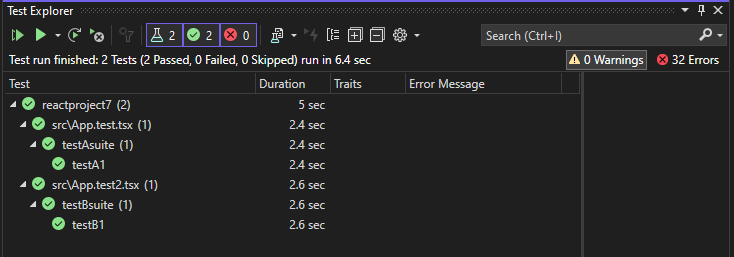
For some unit test frameworks, unit tests are typically run against the generated JavaScript code.
Note
In most TypeScript scenarios, you can debug a unit test by setting a breakpoint in TypeScript code, right-clicking a test in Test Explorer, and choosing Debug. In more complex scenarios, such as some scenarios that use source maps, you may have difficulty hitting breakpoints in TypeScript code. As a workaround, try using the debugger keyword.
Note
Profiling tests and code coverage aren't currently supported.