了解单一 SQL 数据库
让我们看看部署单个 Azure SQL 数据库的几种方法。
通过门户部署
通过 Azure 门户创建 SQL 数据库非常简单。 首先,导航到 Azure 门户,然后从左侧菜单中选择“SQL 数据库”。 在出现的滑出面板中,选择“创建”。

在下图的窗格中,你会注意到应该已经为你提供了订阅。 需要提供以下信息:
- 资源组 - 如果有要使用的现有资源组,请从下拉列表中选择它。 若要为此 Azure SQL 数据库创建新的资源组,请选择“ 创建新 ”选项。
- 数据库名称 – 提供数据库的名称。
- 服务器 – 每个数据库必须驻留在逻辑服务器上。 如果已在相应的区域中有一个,则可以选择它。 否则,请选择 “创建新 ”链接并按照提示创建新的逻辑服务器来托管数据库。
- 是否要使用 SQL 弹性池? – 决定是否使用弹性池。
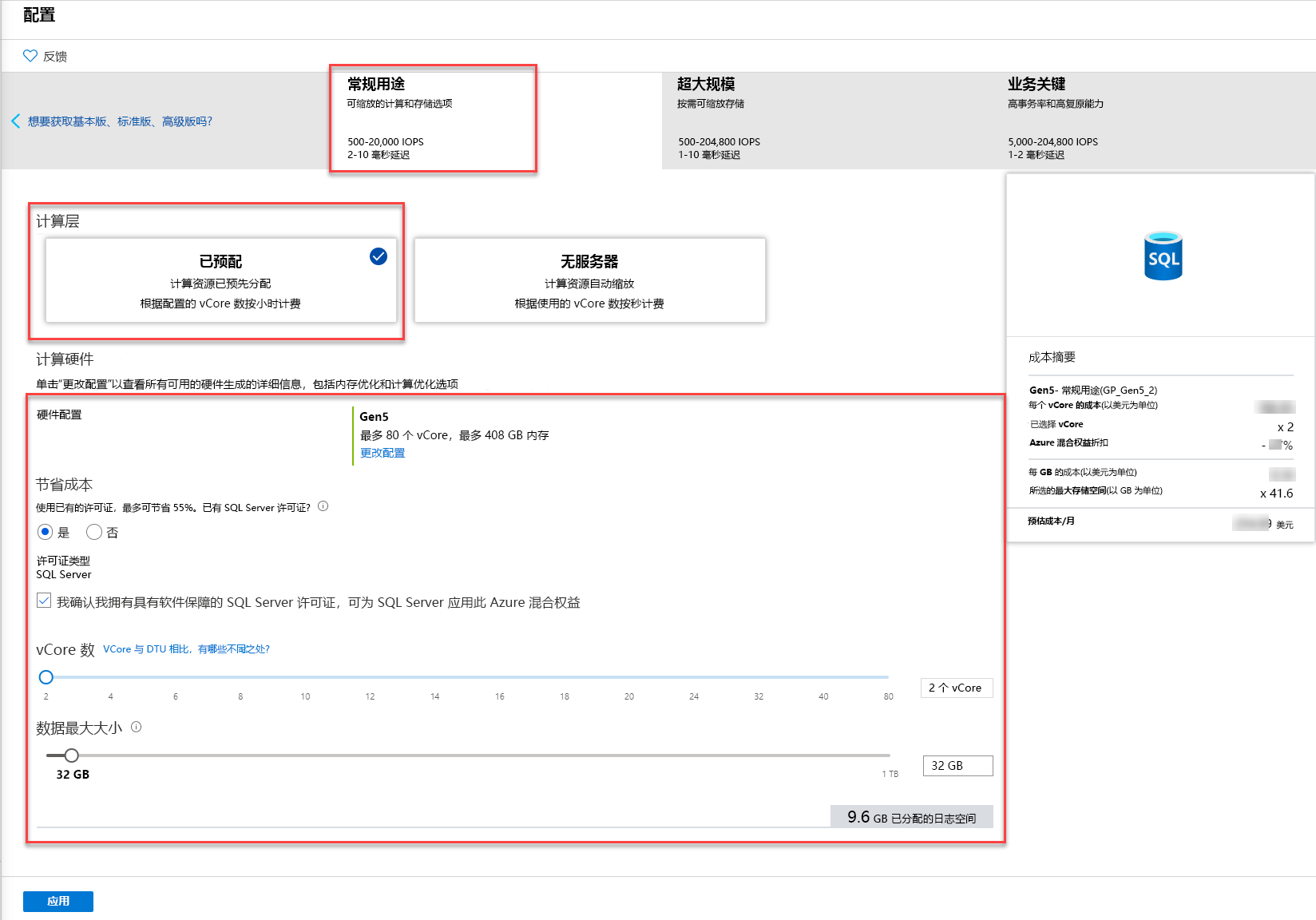
- 计算 + 存储 - 确定所需的适当计算资源。 默认情况下,它设置为 Gen5、2vCore,存储量为 32 GB。 选择“ 配置数据库 ”以查看并选择备用配置选项。

在这里,你将注意到服务层级是常规用途,计算层是无服务器层,如前所述。 无服务器根据所使用的 vCore 数量按秒计费。 替代选项是“预配”,其中计算资源根据配置的 vCore 数预先分配并按小时计费。
通过 PowerShell/CLI 部署 Azure SQL 数据库
你还可以使用 Azure PowerShell 或 Azure CLI 部署数据库。 下图显示了要在其中创建新资源组的 PowerShell 示例,并定义名为 SqlAdmin 的管理员,然后创建新的服务器、数据库和防火墙规则。
# Connect-AzAccount

# The SubscriptionId in which to create these objects
$SubscriptionId = ''

# Set the resource group name and location for your server
$resourceGroupName = "myResourceGroup-$(Get-Random)"
$location = "westus2"

# Set an admin login and password for your server
$adminSqlLogin = "SqlAdmin"
$password = "ChangeYourAdminPassword1"

# Set server name - the logical server name has to be unique in the system
$serverName = "server-$(Get-Random)"

# The sample database name
$databaseName = "mySampleDatabase"

# The ip address range that you want to allow to access your server
$startIp = "0.0.0.0"
$endIp = "0.0.0.0"

# Set subscription
Set-AzContext -SubscriptionId $subscriptionId

# Create a resource group
$resourceGroup = New-AzResourceGroup -Name $resourceGroupName -Location $location

# Create a server with a system wide unique server name
$server = New-AzSqlServer -ResourceGroupName $resourceGroupName `
 -ServerName $serverName `
 -Location $location `
 -SqlAdministratorCredentials $(New-Object -TypeName System.Management.Automation.PSCredential -ArgumentList $adminSqlLogin, $(ConvertTo-SecureString -String $password -AsPlainText -Force))

# Create a server firewall rule that allows access from the specified IP range

$serverFirewallRule = New-AzSqlServerFirewallRule -ResourceGroupName $resourceGroupName `
 -ServerName $serverName `
 -FirewallRuleName "AllowedIPs" -StartIpAddress $startIp -EndIpAddress $endIp

# Create a blank database with an S0 performance level

$database = New-AzSqlDatabase -ResourceGroupName $resourceGroupName `
 -ServerName $serverName `
 -DatabaseName $databaseName `
 -RequestedServiceObjectiveName "S0" `
 -SampleName "AdventureWorksLT"
Azure CLI 还可用于部署 Azure SQL 数据库,如下所示:
#!/bin/bash

# set execution context (if necessary)
az account set --subscription <replace with your subscription name or id>

# Set the resource group name and location for your server
resourceGroupName=myResourceGroup-$RANDOM
location=westus2

# Set an admin login and password for your database
adminlogin=ServerAdmin
password=`openssl rand -base64 16`

# password=<EnterYourComplexPasswordHere1>

# The logical server name has to be unique in all of Azure
servername=server-$RANDOM

# The ip address range that you want to allow to access your DB
startip=0.0.0.0
endip=0.0.0.0

# Create a resource group
az group create \
 --name $resourceGroupName \
 --location $location

# Create a logical server in the resource group
az sql server create \
 --name $servername \
 --resource-group $resourceGroupName \
 --location $location \
 --admin-user $adminlogin \
 --admin-password $password

# Configure a firewall rule for the server

az sql server firewall-rule create \
 --resource-group $resourceGroupName \
 --server $servername \
 -n AllowYourIp \
 --start-ip-address $startip \
 --end-ip-address $endip

# Create a database in the server
az sql db create \
 --resource-group $resourceGroupName \
 --server $servername
 --name mySampleDatabase \
 --sample-name AdventureWorksLT \
 --edition GeneralPurpose \
 --family Gen4 \
 --capacity 1 \

# Echo random password
echo $password
使用 Azure 资源管理器模板部署 Azure SQL 数据库
如前文所述,部署资源的另一种方法是使用 Azure 资源管理器模板。 资源管理器模板提供对资源最精细的控制,Microsoft提供了一个名为 GitHub 存储库的存储库,该存储库 Azure-Quickstart-Templates托管可在部署中引用的 Azure 资源管理器模板。 部署基于 GitHub 的模板的 PowerShell 示例如下所示:
#Define Variables for parameters to pass to template
$projectName = Read-Host -Prompt "Enter a project name"
$location = Read-Host -Prompt "Enter an Azure location (i.e. centralus)"
$adminUser = Read-Host -Prompt "Enter the SQL server administrator username"
$adminPassword = Read-Host -Prompt "Enter the SQl server administrator password" -AsSecureString
$resourceGroupName = "${projectName}rg"

#Create Resource Group and Deploy Template to Resource Group
New-AzResourceGroup -Name $resourceGroupName -Location $location

New-AzResourceGroupDeployment -ResourceGroupName $resourceGroupName `
 -TemplateUri "https://raw.githubusercontent.com/Azure/azure-quickstart-templates/master/101-sql-logical-server/azuredeploy.json" `
 -administratorLogin $adminUser -administratorLoginPassword $adminPassword

Read-Host -Prompt "Press [ENTER] to continue ..."
此脚本自动创建 Azure 资源组并在其中部署 SQL 逻辑服务器。 它会提示用户输入项目名称、Azure 位置和 SQL Server 管理员凭据,然后使用提供的详细信息创建资源组。 最后,它使用指定 URI 中的预定义 ARM 模板将 SQL 逻辑服务器部署到资源组,并暂停执行,直到用户按下 ENTER。