Important
本文已弃用。 有关更新指南,请参阅 设备 MFT 设计指南 。
Important
设备元数据已弃用,并将在 Windows 的将来版本中删除。 有关替代功能的信息,请参阅驱动程序包容器元数据。
UWP 设备应用允许设备制造商使用相机驱动程序 MFT(媒体基础转换)对相机的视频流应用自定义设置和特殊效果。 This article introduces driver MFTs and uses the Driver MFT sample to show how to create one. 若要了解有关 UWP 设备应用的一般详细信息,请参阅 UWP 设备应用简介。
驱动程序 MFT
本部分介绍你创建的媒体基础转换(MFT),以将效果应用于来自相机的媒体捕获流。 此转换是你提供颜色效果、方案模式和人脸跟踪效果的方式,这些效果真正将相机与其他相机区分开来。 当 UWP 应用开始视频捕获时,此 MFT(称为驱动程序 MFT)首先应用于来自相机驱动程序的连接视频流。 When that app invokes the Camera options UI, Windows automatically provides access to any interfaces the driver MFT implements for controlling its custom effects.

UWP 设备应用不需要驱动程序 MFT。 设备制造商可以选择在没有驱动程序 MFT 的情况下实现 UWP 设备应用,只需为硬件提供包含品牌打造的区分用户界面,而无需对视频流应用自定义设置和特殊效果。
如何使用驱动程序 MFT
The UWP device app for a camera runs in a different process than the Microsoft Store app that invokes it from the CameraCaptureUI API. 若要使Microsoft应用商店设备应用控制驱动程序 MFT,必须发生跨不同进程空间的特定事件序列。
A UWP app wants to capture a photo, so it calls the CaptureFileAsync method
Windows 请求驱动程序 MFT 指针和相机的设备 ID
驱动程序 MFT 指针传递到设置主机
主机查询与相机关联的Microsoft应用商店设备应用的应用 ID 的设备属性(每个设备元数据)
如果未找到 UWP 设备应用,则默认浮出控件与捕获引擎交互
如果找到 UWP 设备应用,则它已激活,设置主机会将驱动程序 MFT 指针传递给它
UWP 设备应用使用通过指针公开的接口控制驱动程序 MFT

AvStream 驱动程序模型要求
相机的驱动程序必须使用 AvStream 驱动程序模型。 有关 AVStream 驱动程序模型的详细信息,请参阅 AVStream 微型驱动程序设计指南。
驱动程序 MFT 如何向应用公开
驱动程序 MFT 注册到 Windows 作为 COM 接口,以便它可以实现的转换应用于来自特定设备的媒体流,例如相机。
Note
不应使用 MFTRegister 函数注册驱动程序 MFT,因为它特定于设备,而不是常规用途 MFT。 有关注册表项的信息,请参阅本文后面的 “安装和注册驱动程序 MFT ”部分。
当应用启动视频捕获时,将实例化媒体基础源阅读器以提供视频流。 此媒体源从设备注册表项读取注册表值。 如果在注册表值中找到驱动程序 MFT COM 类的 CLSID,源读取器将实例化驱动程序 MFT 并将其插入媒体管道。
除了 UWP 设备应用,当与它关联的设备用于使用以下 API 捕获视频时,还可以访问驱动程序 MFT 功能:
使用 HTML 在 UWP 应用中使用 HTML5 <视频> 标记。 驱动程序 MFT 启用的转换会影响使用 <视频元素播放的视频> ,如以下代码示例所示:
var video = document.getElementById('myvideo');
    video.src = URL.createObjectURL(fileItem);
    video.play();
使用 Windows 运行时在 UWP 应用中的 Windows.Media.MediaCapture API。 For more info on how this API is used, see the Media Capture sample.
媒体基础的源读取器,用于处理媒体数据的应用。 调用
IMFSourceReaderEx::GetTransformForStream时,驱动程序 MFT 将作为第一个 (0) MFT 向应用程序公开。 返回的类别为MFT_CATEGORY_VIDEO_EFFECT.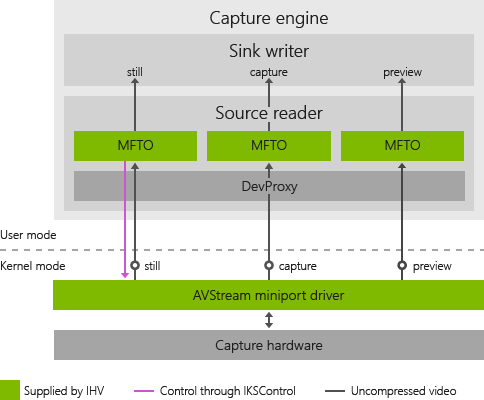
Multi-pin cameras
如果你有三引脚或其他多引脚相机,请参阅 多引脚相机上的驱动程序 MFT 注意事项。
驱动程序 MFT 实现
本部分提供有关实现驱动程序 MFT 的信息。 For a full example of a driver MFT that works together with a UWP device app, see the Driver MFT sample.
Development tools
Microsoft Visual Studio Professional 或 Microsoft Visual Studio Ultimate 是必需的。
驱动程序 MFT 特征
驱动程序 MFT 按流实例化。 对于相机支持的每个流,都会实例化 MFT 实例并将其连接到该流。 驱动程序 MFT 应具有单个输入流和单个输出流。 驱动程序 MFT 可以是同步 MFT 或异步 MFT。
相机与驱动程序 MFT 之间的通信
若要在媒体源和驱动程序 MFT 之间启用双向通信,请将指向源流的属性存储的指针设置为驱动程序 MFT MFT_CONNECTED_STREAM_ATTRIBUTE的输入流属性存储。 这通过通过在驱动程序 MFT 中公开 MFT_ENUM_HARDWARE_URL_Attribute 来启用的握手过程进行,如以下示例所示:
HRESULT CDriverMft::GetAttributes(IMFAttributes** ppAttributes)
{
    HRESULT hr = S_OK;
    if (NULL == ppAttributes)
    {
       return E_POINTER;
    };
        if(!m_pGlobalAttributes) {
           MFCreateAttributes(&m_pGlobalAttributes, 1);
           m_pGlobalAttributes->
             SetString(MFT_ENUM_HARDWARE_URL_Attribute, L"driverMFT");
        }
        *ppAttributes = m_pGlobalAttributes;
        (*ppAttributes)->AddRef();
        return S_OK;
}
在此示例中, MFT_CONNECTED_STREAM_ATTRIBUTE 驱动程序 MFT 的属性存储区设置为指向设备源流的属性存储。 有关如何设置相机与 MFT 之间的通信的更多详细信息,请参阅 硬件握手序列 。
如何访问设备源信息
下面的代码示例演示驱动程序 MFT 如何从其输入属性存储中获取指向源转换的指针。 然后,驱动程序 MFT 可以使用源指针获取设备源信息。
if(!m_pSourceTransform && m_pInputAttributes) {

          m_pInputAttributes->
              GetUnknown( MFT_CONNECTED_STREAM_ATTRIBUTE,
              IID_PPV_ARGS(&pSourceAttributes));
          pSourceAttributes->
              GetUnknown(
              MF_DEVICESTREAM_EXTENSION_PLUGIN_CONNECTION_POINT,
              IID_PPV_ARGS(&pUnk)));
          pUnk->QueryInterface(__uuidof(IMFTransform),
              (void**)&m_pSourceTransform));
      }
      if (m_pSourceTransform) {
         // Put code to get device source information here.
      }
如何实现直通模式
若要将驱动程序 MFT 置于直通模式,请为输入和输出流指定相同的媒体类型。
ProcessInput MFT ProcessOutput 的调用仍将进行。 它由驱动程序 MFT 实现决定是否在传递模式下发生任何处理。
要包含的头文件
需要包括驱动程序 MFT 必须实现的IInspectableIMFTransform头文件和方法。 For a list of header files to include, see stdafx.h in the SampleMFT0 directory of the UWP device app for camera sample.
// required for IInspectable
#include <inspectable.h>
如何实现 IInspectable
用于相机 UWP 设备应用的驱动程序 MFT 必须实现方法, IInspectable 以便Microsoft应用商店设备应用可以在启动时访问驱动程序 MFT 的指针。 驱动程序 MFT 应实现如下所示的方法 IInspectable :
IInspectable::GetIids should return null in the iids out parameter, and return 0 in the iidCount out parameter.
IInspectable::GetRuntimeClassName should return null in the out parameter.
IInspectable::GetRuntiGetTrustLevel should return
TrustLevel::BaseTrustin the out parameter.
下面的代码示例演示如何 IInspectable 在示例驱动程序 MFT 中实现方法。 This code can be found in the Mft0.cpp file, in the SampleMFT0 directory of the sample.
// Mft0.cpp
STDMETHODIMP CMft0::GetIids(
    /* [out] */ __RPC__out ULONG *iidCount,
    /* [size_is][size_is][out] */ __RPC__deref_out_ecount_full_opt(*iidCount) IID **iids)
{
    HRESULT hr = S_OK;
    do {
        CHK_NULL_PTR_BRK(iidCount);
        CHK_NULL_PTR_BRK(iids);
        *iids = NULL;
        *iidCount = 0;
    } while (FALSE);

    return hr;
}

STDMETHODIMP CMft0::GetRuntimeClassName(
    /* [out] */ __RPC__deref_out_opt HSTRING *className)
{
    HRESULT hr = S_OK;
    do {
        CHK_NULL_PTR_BRK(className);
        *className = NULL;
    } while (FALSE);

    return hr;
}

STDMETHODIMP CMft0::GetTrustLevel(
    /* [out] */ __RPC__out TrustLevel *trustLevel)
{
    HRESULT hr = S_OK;
    do {
        CHK_NULL_PTR_BRK(trustLevel);
        *trustLevel = TrustLevel::BaseTrust;
    } while (FALSE);

    return hr;
}
COM implementation
驱动程序 MFT 实现的每个接口都应实现和派生, IUnknown以便正确封送到相机的 UWP 设备应用。 The following is an example .idl file for a driver MFT that demonstrates this.
// SampleMft0.idl : IDL source for SampleMft0
//

// This file will be processed by the MIDL tool to
// produce the type library (SampleMft0.tlb) and marshalling code.

import "oaidl.idl";
import "ocidl.idl";
import "Inspectable.idl";
import "mftransform.idl";
[
    object,
    uuid(F5208B72-A37A-457E-A309-AE3060780E21),
    oleautomation,
    nonextensible,
    pointer_default(unique)
]
interface IMft0 : IUnknown{
    [id(1)] HRESULT UpdateDsp([in] UINT32 uiPercentOfScreen);
    [id(2)] HRESULT Enable(void);
    [id(3)] HRESULT Disable(void);
    [id(4)] HRESULT GetDspSetting([out] UINT* puiPercentOfScreen, [out] BOOL* pIsEnabled);
};
[
    uuid(DE05674A-C564-4C0E-9B7C-E1519F7AA767),
    version(1.0),
]
library SampleMft0Lib
{
    importlib("stdole2.tlb");
    [
        uuid(7BB640D9-33A4-4759-B290-F41A31DCF848)
    ]
    coclass Mft0
    {
        [default] interface IMft0;
        interface IInspectable;
        interface IMFTransform;
    };
};
Note
驱动程序 MFT 是一个常规 COM 类,可以使用它创建 CoCreateInstance。 不应使用 MFTRegister 函数进行注册,因为它不是常规用途 MFT。
创建代理
驱动程序 MFT 是进程外服务器。 若要在 UWP 设备应用中使用它,必须在代理中提供封送支持,以便可以跨进程边界使用驱动程序 MFT 接口。 You can find an example of this in the Driver MFT sample. 此示例使用 MIDL 编译器生成无存根代理。
向应用公开驱动程序 MFT
若要在 C# 或 JavaScript 中编写与驱动程序 MFT 交互的 UWP 设备应用,需要在 Microsoft Store 设备应用的 Microsoft Visual Studio 项目中创建另一个组件。 此组件是一个包装器,用于在 Windows 运行时组件中公开驱动程序 MFT 接口,该组件对 Microsoft 应用商店设备应用可见。
适用于相机的 UWP 设备应用中的包装器子项目提供了如何将驱动程序 MFT 公开到 Windows 运行时的示例,以便可以从 C# 或 JavaScript 中实现的 UWP 设备应用使用它。 It's designed to work together with the Driver MFT sample. See the Driver MFT sample page for a step-by-step guide to installing, running, and testing the samples.
安装和注册驱动程序 MFT
本部分列出了安装驱动程序 MFT 的步骤:
驱动程序 MFT DLL 必须安装在以下位置的子目录中:
- %SystemDrive%\Program Files\
Your camera installer registers the driver MFT by calling regsvr32 on your driver MFT DLL, or by providing a driver manifest (.man) file for the DLL that the installer uses for registration.
在
CameraPostProcessingPluginCLSID相机的注册表项中设置值。 INF 文件应通过在设备的设备类注册表项中指定驱动程序 MFT 的 CLSID,方法是将CameraPostProcessingPluginCLSID值设置为驱动程序 MFT 类的 CLSID GUID。 下面是 INF 文件条目中的一个示例,用于填充相机的注册表项:
KSCATEGORY_VIDEO_CAMERA:

[HKEY_LOCAL_MACHINE\SYSTEM\CurrentControlSet\Control\DeviceClasses\{E5323777-F976-4f5b-9B55-B94699C46E44}\##?#USB#VID_045E&PID_075D&MI_00#8&23C3DB65&0&0000#{E5323777-F976-4f5b-9B55-B94699C46E44}\#GLOBAL\Device Parameters]
"CLSID"="{17CCA71B-ECD7-11D0-B908-00A0C9223196}"
"FriendlyName"="USB Video Device"
"RTCFlags"=dword:00000010
"CameraPostProcessingPluginCLSID"="{3456A71B-ECD7-11D0-B908-00A0C9223196}"
KSCATEGORY_CAPTURE:

[HKEY_LOCAL_MACHINE\SYSTEM\CurrentControlSet\Control\DeviceClasses\{ 65E8773D-8F56-11D0-A3B9-00A0C9223196}\##?#USB#VID_045E&PID_075D&MI_00#8&23C3DB65&0&0000#{65E8773D-8F56-11D0-A3B9-00A0C9223196}\#GLOBAL\Device Parameters]
"CLSID"="{17CCA71B-ECD7-11D0-B908-00A0C9223196}"
"FriendlyName"="USB Video Device"
"RTCFlags"=dword:00000010
"CameraPostProcessingPluginCLSID"="{3456A71B-ECD7-11D0-B908-00A0C9223196}"
Note
KSCATEGORY_VIDEO_CAMERA 建议用于相机。 通常只需要其中一个注册表项,具体取决于设备的注册方式。
将应用与相机相关联
本部分包含有关在设备元数据和 Windows 注册表中标识相机所需的步骤的信息。 此元数据使你能够配对 UWP 设备应用并标识应用,以便在相机首次连接时无缝下载它。
Updates
首次安装应用后,如果用户下载应用的更新版本,则更新会自动集成到相机捕获体验中。 但是,不会自动下载更新。 The user must download more app updates from the Microsoft Store, because the app is automatically installed only on first connect. UWP 设备应用的主页可以提供更新可用通知,并提供下载更新的链接。
Important
更新的应用应使用通过 Windows 更新分发的任何更新驱动程序。
Multiple cameras
多个相机模型可以在其设备元数据中声明相同的 UWP 设备应用。 如果系统具有多个内部嵌入式相机,则相机必须共享相同的 UWP 设备应用。 The app includes logic for determining which camera is in use and can show different UI for each camera in its More options experience. 有关自定义该体验的详细信息,请参阅 如何自定义相机选项。
Internal cameras
UWP device apps for internal cameras are eligible for Automatic installation from the Microsoft Store, but it's recommended that they be preinstalled for the most seamless user experience. 支持内部相机并将它们关联到 UWP 设备应用需要执行更多步骤。 有关详细信息,请参阅 标识内部相机的位置。
创建设备元数据包
对于内部和外部相机,需要创建设备元数据包。 将相机的 UWP 设备应用提交到 Microsoft 应用商店(或使用 OPK 预安装它(在内部相机的情况下),除了应用本身外,还需要提供包含的元数据:
- 应用程序发布者名称
- 应用程序包名称
- 应用程序元素标识符
- 设备体验标识符
有关如何使用设备元数据将应用与设备关联的详细信息,请参阅 生成 UWP 设备应用。