本快速入門說明如何使用 Azure.Messaging.ServiceBus .NET 程式庫,將訊息傳送至服務匯流排主題,以及從該主題的訂用帳戶接收訊息。
在本快速入門中,您會執行下列步驟:
- 使用 Azure 入口網站建立服務匯流排命名空間。
- 使用 Azure 入口網站建立服務匯流排主題。
- 使用 Azure 入口網站,針對該主題建立服務匯流排訂用帳戶。
- 撰寫 .NET 主控台應用程式,以將一組訊息傳送到主題。
- 撰寫 .NET 主控台應用程式,以從訂用帳戶接收這些訊息。
附註
本快速入門提供簡單案例的逐步實作指示,而此簡單案例說明如何將一批訊息傳送至服務匯流排主題,以及如何接收來自主題訂閱的訊息。 如需其他和進階情節的更多樣本,請參閱 GitHub 上的服務匯流排 .NET 樣本。
- 本快速入門顯示兩種連線到 Azure 服務匯流排的方式:連接字串和無密碼。 第一個選項顯示如何使用連接字串來連線到服務匯流排命名空間。 第二個選項顯示如何使用 Microsoft Entra ID 中的安全性主體和角色型存取控制 (RBAC),來連線到服務匯流排命名空間。 您不需要擔心在程式碼或設定檔或 Azure Key Vault 等安全儲存體中,有硬式編碼連接字串。 如果您不熟悉 Azure,您可能會覺得連接字串選項較容易遵循。 不過建議您在實際應用程式和實際執行環境中使用無密碼選項。 如需詳細資訊,請參閱驗證和與授權。
先決條件
如果您不熟悉服務,請先參閱服務匯流排概觀,再執行本快速入門。
- Azure 訂用帳戶。 若要使用 Azure 服務 (包括 Azure 服務匯流排),您需要訂用帳戶。 如果您沒有現有 Azure 帳戶,您可以註冊免費試用。
-
Visual Studio 2022。 應用程式範例會使用 C# 10 中引進的新功能。 您仍然可以搭配先前的 C# 語言版本使用服務匯流排用戶端程式庫,但語法可能會有所不同。 若要使用最新的語法,建議您安裝 .NET 6.0 或更高版本,並將語言版本設定為
latest。 如果您使用的是 Visual Studio,Visual Studio 2022 之前的版本與建置 C# 10 專案所需的工具不相容。
在 Azure 入口網站中建立命名空間
若要開始使用 Azure 中的服務總線傳訊實體,請建立命名空間,其名稱在 Azure 中是唯一的。 命名空間會為應用程式中的服務總線資源提供範圍容器,例如佇列和主題。
若要建立命名空間:
登入 Azure 入口網站。
從左上方選取快顯功能表,然後導航至 [ 所有服務 ] 頁面。
在左側導覽列上,選取 [整合]。
向下卷動至 [傳訊服務>服務總線 ],然後選取 [ 建立]。
![顯示選取 [建立資源]、[整合] 和功能表中 [服務總線] 的螢幕快照。](includes/media/service-bus-create-namespace-portal/create-resource-service-bus-menu.png)
在 [建立命名空間] 頁面的 [基本] 索引標籤中,遵循下列步驟:
針對 [訂用帳戶],選擇要在其中建立命名空間的 Azure 訂用帳戶。
針對資源群組,請選擇現有資源群組或建立新的資源群組。
輸入符合下列命名慣例的 命名空間名稱 :
- 此名稱在整個 Azure 中必須是唯一的。 系統會立即檢查此名稱是否可用。
- 名稱長度至少 6 個字元,最多 50 個字元。
- 名稱僅可包含字母、數字和連字號
-。 - 名稱開頭必須為字母,且結尾必須為字母或數字。
- 名稱結尾不得為
-sb或-mgmt。
針對 位置,選擇託管命名空間的區域。
針對定價層,選取命名空間的定價層 (基本、標準或進階)。 針對本快速入門,選取 [標準]。
如果您選取 Premium層,您可以啟用命名空間的 異地複寫。 異地復寫功能可確保命名空間的元數據和數據會持續從主要區域複寫到一或多個次要區域。
重要事項
如果您想要使用主題和訂用帳戶,請選擇 [標準] 或 [進階]。 基本定價層不支援主題和訂用帳戶。
若已選取 [進階] 定價層,請指定傳訊單位數目。 進階層可讓您的資源在 CPU 和記憶體層級上獲得隔離,讓每個工作負載能夠獨立執行。 此資源容器稱為「傳訊單位」 。 進階命名空間都至少有一個傳訊單位。 您可以為每個服務匯流排的進階命名空間選取 1、2、4、8 或 16 個傳訊單位。 如需詳細資訊,請參閱 服務總線進階傳訊層。
選取頁面底部的 [檢閱 + 建立]。
![顯示 [建立命名空間] 頁面的螢幕快照](includes/media/service-bus-create-namespace-portal/create-namespace.png)
在 [檢閱 + 建立] 頁面上檢閱設定,然後選取 [建立]。
部署資源成功之後,請選取部署頁面上的 [移至資源 ]。
![顯示部署成功頁面的螢幕快照,其中包含 [移至資源] 連結。](includes/media/service-bus-create-namespace-portal/deployment-alert.png)
您會看到服務匯流排命名空間的首頁。

![顯示選取 [建立資源]、[整合] 和功能表中 [服務總線] 的螢幕快照。](includes/media/service-bus-create-namespace-portal/create-resource-service-bus-menu.png#lightbox)

使用 Azure 入口網站建立主題
在 [服務匯流排命名空間] 頁面上,展開左側導覽功能表上的 [實體],然後選取左側功能表上的 [主題]。
選取工具列上的 [+ 主題]。
輸入主題的名稱。 保留其他選項的預設值。
選取 [建立]。
![此螢幕擷取畫面顯示 Azure 入口網站中的 [建立主題] 頁面。](includes/media/service-bus-create-topics-subscriptions-portal/create-topic.png)
針對主題建立訂用帳戶
選取您在上一節中建立的主題。

在 [服務匯流排主題] 頁面上,選取工具列上的 [+ 訂用帳戶]。
![顯示 [主題] 頁面上 [新增訂用帳戶] 按鈕的螢幕擷取畫面。](includes/media/service-bus-create-topics-subscriptions-portal/add-subscription-button.png)
在 [建立訂用帳戶] 頁面上,遵循下列步驟:
輸入 S1 作為訂用帳戶的 [名稱]。
然後,選取 [建立] 以建立訂用帳戶。
![顯示 [建立訂用帳戶] 頁面的螢幕擷取畫面。](includes/media/service-bus-create-topics-subscriptions-portal/create-subscription-page.png)
向 Azure 驗證應用程式
本文說明連線到 Azure 服務總線的兩種方式: 無密碼 和 連接字串。
第一個選項說明如何使用 Microsoft Entra ID 中的安全性主體和角色型存取控制 (RBAC),來連線到服務匯流排命名空間。 您不需要擔心在程式代碼、組態檔中或 Azure Key Vault 等安全記憶體中有硬式編碼連接字串。
第二個選項說明如何使用連接字串來連線到服務匯流排命名空間。 如果您不熟悉 Azure,您可能會覺得連接字串選項較容易遵循。 不過建議您在實際應用程式和實際執行環境中使用無密碼選項。 如需詳細資訊,請參閱 服務總線驗證和授權。 若要深入瞭解無密碼驗證,請參閱 驗證 .NET 應用程式。
將角色指派給 Microsoft Entra 使用者
當您在本機開發時,請確定連線到 Azure 服務總線的用戶帳戶具有正確的許可權。 您需要 Azure 服務總線數據擁有者 角色,才能傳送和接收訊息。 若要指派您此角色,您需要具備使用者存取系統管理員角色,或具備包含Microsoft.Authorization/roleAssignments/write動作的其他角色。
您可以使用 Azure 入口網站、Azure CLI 或 Azure PowerShell,將 Azure RBAC 角色指派給使用者。 若要深入瞭解角色指派的可用範圍,請參閱 瞭解 Azure RBAC 的範圍。
下列範例會將 Azure Service Bus Data Owner 角色指派給您的使用者帳戶,該角色提供對 Azure 服務匯流排資源的完整存取權。 在實際案例中,遵循 最低許可權原則 ,只為使用者提供更安全的生產環境所需的最低許可權。
Azure 服務匯流排的 Azure 內建角色
對於 Azure 服務匯流排來說,透過 Azure 入口網站和 Azure 資源管理 API 來的管理命名空間和所有相關資源的作業,皆已使用 Azure RBAC 模型來加以保護。 Azure 提供下列 Azure 內建角色,以授權存取服務匯流排命名空間:
- Azure 服務總線數據擁有者:啟用服務總線命名空間及其實體的數據存取,包括佇列、主題、訂用帳戶和篩選。 此角色的成員可以從佇列或主題/訂用帳戶傳送和接收訊息。
-
Azure 服務匯流排資料傳送者:使用此角色來給予
send存取服務匯流排命名空間及其實體的權限。 -
Azure 服務總線數據接收器:使用此角色來授
receive對服務總線中的命名空間及其相關實體的存取權。
如果您想要建立自訂角色,請參閱服務匯流排作業所需的權限 (機器翻譯)。
將 Microsoft Entra 使用者新增至 Azure 服務匯流排擁有者角色
將您的 Microsoft Entra 使用者名稱新增至服務匯流排命名空間層級的 Azure 服務匯流排資料擁有者角色, 此設定可讓在使用者帳戶內容中執行的應用程式,將訊息傳送至佇列或主題。 它可以從佇列或主題的訂閱接收訊息。
重要事項
在大部分情況下,角色指派在 Azure 中傳播需要一兩分鐘的時間。 在罕見的情況下,可能需要高達八分鐘的時間。 如果您第一次執行程式碼時收到驗證錯誤,請稍候片刻再試一次。
如果您沒有在 Azure 入口網站中開啟 [服務匯流排命名空間] 頁面,請使用主要搜尋列或左側導覽找出您的服務匯流排命名空間。
在 [ 概觀] 頁面上,從左側功能表中選取 [訪問控制][IAM ]。
在 [存取控制 (IAM)] 頁面上,選取 [角色指派] 索引標籤。
從頂端功能表中選取 [+ 新增 ],然後 選取 [新增角色指派]。

使用搜尋方塊,從結果篩選出所需的角色。 在此範例中,搜尋
Azure Service Bus Data Owner並選取相符的結果。 接著,選擇 [下一步]。在 [存取權指派對象為] 下,選取 [使用者、群組或服務主體],然後選擇 [+ 選取成員]。
在對話方塊中,搜尋 Microsoft Entra 使用者名稱 (通常是您的 user@domain 電子郵件地址),然後在對話方塊底部選擇 [選取]。
選取 [檢閱 + 指派] 以移至最終頁面,然後再次選取 [檢閱 + 指派] 以完成此程序。

啟動 Visual Studio
您可以使用下列步驟來授權存取服務匯流排命名空間:
啟動 Visual Studio。 如果您看到 [開始使用] 視窗,請選取右側窗格中的 [不使用程式碼繼續] 連結。
選取 Visual Studio 右上方的 [登入] 按鈕。

使用您先前指派角色的 Microsoft Entra 帳戶來登入。
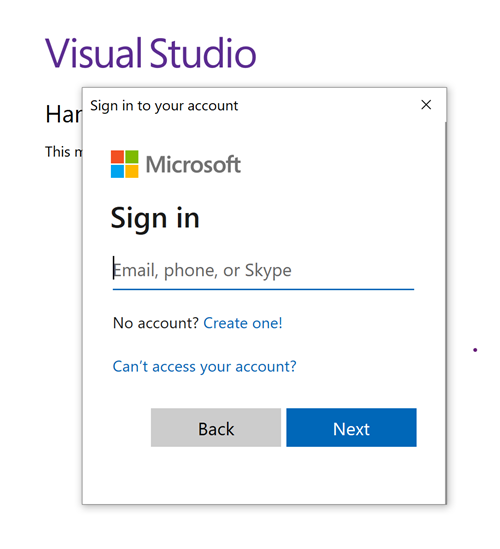
將訊息傳送到主題
本節說明如何建立 .NET 主控台應用程式,將訊息傳送至服務匯流排主題。
附註
本快速入門提供簡單案例的逐步實作指示,而此簡單案例說明如何將一批訊息傳送至服務匯流排主題,以及如何接收來自主題訂閱的訊息。 如需其他和進階情節的更多樣本,請參閱 GitHub 上的服務匯流排 .NET 樣本。
建立主控台應用程式
- 在 Visual Studio 中,選取 [檔案] -> [新增] -> [專案] 功能表。
- 在 [建立新專案] 對話方塊上,執行下列步驟:如果您沒有看到此對話方塊,請在功能表上選取 [檔案]、選取 [新增],然後選取 [專案]。
選取 [C#] 作為程式設計語言。
選取 [主控台] 作為應用程式的類型。
從結果清單中選取 [主控台應用程式]。
然後,選取 [下一步]。
![此圖顯示 [建立新專案] 對話方塊,其中已選取 [C#] 和 [主控台]](media/service-bus-dotnet-get-started-with-queues/new-send-project.png)
- 在專案名稱中輸入 TopicSender、在解決方案名稱中輸入 ServiceBusTopicQuickStart,然後選取 [下一步]。
- 在 [其他資訊] 頁面上,選取 [建立] 以建立解決方案和專案。
將 NuGet 套件新增至專案
從功能表選取 [工具]>[NuGet 套件管理員]>[套件管理員主控台]。
執行下列命令來安裝 Azure.Messaging.ServiceBus NuGet 套件。
Install-Package Azure.Messaging.ServiceBus執行下列命令來安裝 Azure.Identity NuGet 套件。
Install-Package Azure.Identity
新增程式碼以將訊息傳送到主題
以下列程式碼取代 Program.cs 的內容。 本節概述重要步驟,程式碼註解中有額外資訊。
- 使用 物件建立
DefaultAzureCredential物件。DefaultAzureCredential會自動探索並使用 Visual Studio 登入的認證,向 Azure 服務匯流排進行驗證。 - 在 物件上叫用
ServiceBusClient方法,以針對特定服務匯流排主題建立 ServiceBusSender 物件。 - 使用 ServiceBusSender.CreateMessageBatchAsync 建立 ServiceBusMessageBatch 物件。
- 使用 ServiceBusMessageBatch.TryAddMessage 將訊息新增至批次。
- 使用 ServiceBusSender.SendMessagesAsync 方法,將訊息批次傳送至服務匯流排主題。
重要事項
使用服務匯流排命名空間和主題的名稱,更新程式碼片段中的預留位置值 (
<NAMESPACE-NAME>和<TOPIC-NAME>)。using System.Threading.Tasks; using Azure.Messaging.ServiceBus; using Azure.Identity; // the client that owns the connection and can be used to create senders and receivers ServiceBusClient client; // the sender used to publish messages to the topic ServiceBusSender sender; // number of messages to be sent to the topic const int numOfMessages = 3; // The Service Bus client types are safe to cache and use as a singleton for the lifetime // of the application, which is best practice when messages are being published or read // regularly. //TODO: Replace the "<NAMESPACE-NAME>" and "<TOPIC-NAME>" placeholders. client = new ServiceBusClient( "<NAMESPACE-NAME>.servicebus.windows.net", new DefaultAzureCredential()); sender = client.CreateSender("<TOPIC-NAME>"); // create a batch using ServiceBusMessageBatch messageBatch = await sender.CreateMessageBatchAsync(); for (int i = 1; i <= numOfMessages; i++) { // try adding a message to the batch if (!messageBatch.TryAddMessage(new ServiceBusMessage($"Message {i}"))) { // if it is too large for the batch throw new Exception($"The message {i} is too large to fit in the batch."); } } try { // Use the producer client to send the batch of messages to the Service Bus topic await sender.SendMessagesAsync(messageBatch); Console.WriteLine($"A batch of {numOfMessages} messages has been published to the topic."); } finally { // Calling DisposeAsync on client types is required to ensure that network // resources and other unmanaged objects are properly cleaned up. await sender.DisposeAsync(); await client.DisposeAsync(); } Console.WriteLine("Press any key to end the application"); Console.ReadKey();- 使用 物件建立
建置專案,並確定沒有任何錯誤。
執行程式,並等候確認訊息。
A batch of 3 messages has been published to the topic重要事項
在大部分情況下,角色指派在 Azure 中傳播需要一兩分鐘的時間。 在罕見的情況下,可能需要高達八分鐘的時間。 如果您第一次執行程式碼時收到驗證錯誤,請稍候片刻再試一次。
在 Azure 入口網站中遵循下列步驟:
瀏覽至您的服務匯流排命名空間。
在概觀頁面的底部窗格中,切換至主題索引標籤,然後選取服務匯流排主題。 在下列範例中是
mytopic。
在服務匯流排主題頁面中,您可以在底部計量一節的訊息圖表中,看到主題有三個傳入訊息。 如果您沒有看到此值,請等候幾分鐘,然後重新整理頁面,以查看更新的圖表。

選取下方窗格中的訂用帳戶。 在下列範例中為 S1。 在 [服務匯流排訂用帳戶] 頁面上,您會看到 [作用中訊息計數] 為 3。 訂用帳戶已收到您傳送至主題的三則訊息,但尚未有任何接收者接收此訊息。


自訂用帳戶接收訊息
在本節中,您會建立一個 .NET 主控台應用程式,接收從訂用帳戶到服務匯流排主題的訊息。
附註
本快速入門提供簡單案例的逐步實作指示,而此簡單案例說明如何將一批訊息傳送至服務匯流排主題,以及如何接收來自主題訂閱的訊息。 如需其他和進階情節的更多樣本,請參閱 GitHub 上的服務匯流排 .NET 樣本。
為接收者建立專案
- 在 [方案總管] 視窗中,以滑鼠右鍵按一下 [ServiceBusTopicQuickStart] 解決方案、指向 [新增],然後選取 [新增專案]。
- 選取 [主控台應用程式],然後選取 [下一步]。
- 輸入 SubscriptionReceiver 作為 [專案名稱],然後選取 [下一步]。
- 在 [其他資訊] 頁面上,選取 [建立]。
- 在 [方案總管] 視窗中,以滑鼠右鍵按一下 [SubscriptionReceiver],然後選取 [設定為啟動專案]。
將 NuGet 套件新增至專案
從功能表選取 [工具]>[NuGet 套件管理員]>[套件管理員主控台]。
針對 [預設專案] 下拉式清單選取 [SubscriptionReceiver]。
執行下列命令來安裝 Azure.Messaging.ServiceBus NuGet 套件。
Install-Package Azure.Messaging.ServiceBus執行下列命令來安裝 Azure.Identity NuGet 套件。
Install-Package Azure.Identity
新增程式碼以從訂用帳戶接收訊息
在本節中,您會新增程式碼以從訂用帳戶中擷取訊息。
將
Program.cs的現有內容取代為下列屬性和方法:using System.Threading.Tasks; using Azure.Messaging.ServiceBus; using Azure.Identity; // the client that owns the connection and can be used to create senders and receivers ServiceBusClient client; // the processor that reads and processes messages from the subscription ServiceBusProcessor processor; // handle received messages async Task MessageHandler(ProcessMessageEventArgs args) { string body = args.Message.Body.ToString(); Console.WriteLine($"Received: {body} from subscription."); // complete the message. messages is deleted from the subscription. await args.CompleteMessageAsync(args.Message); } // handle any errors when receiving messages Task ErrorHandler(ProcessErrorEventArgs args) { Console.WriteLine(args.Exception.ToString()); return Task.CompletedTask; }將下列程式碼附加至
Program.cs的尾端。- 使用 物件建立
DefaultAzureCredential物件。DefaultAzureCredential會自動探索並使用 Visual Studio 登入的認證,向 Azure 服務匯流排進行驗證。 - 在 物件上叫用
ServiceBusClient方法,以針對特定服務匯流排主題建立 ServiceBusProcessor 物件。 - 針對 物件的 ProcessMessageAsync 和
ServiceBusProcessor事件指定處理常式。 - 透過在 物件上叫用
ServiceBusProcessor來開始處理訊息。 - 當使用者按下按鍵結束處理時,會在 物件上叫用
ServiceBusProcessor。
重要事項
使用服務匯流排命名空間、主題和訂用帳戶的名稱,更新程式碼片段中的預留位置值 (
<NAMESPACE-NAME>、<TOPIC-NAME>和<SUBSCRIPTION-NAME>)。如需詳細資訊,請參閱程式碼註解。
// The Service Bus client types are safe to cache and use as a singleton for the lifetime // of the application, which is best practice when messages are being published or read // regularly. // // Create the clients that we'll use for sending and processing messages. // TODO: Replace the <NAMESPACE-NAME> placeholder client = new ServiceBusClient( "<NAMESPACE-NAME>.servicebus.windows.net", new DefaultAzureCredential()); // create a processor that we can use to process the messages // TODO: Replace the <TOPIC-NAME> and <SUBSCRIPTION-NAME> placeholders processor = client.CreateProcessor("<TOPIC-NAME>", "<SUBSCRIPTION-NAME>", new ServiceBusProcessorOptions()); try { // add handler to process messages processor.ProcessMessageAsync += MessageHandler; // add handler to process any errors processor.ProcessErrorAsync += ErrorHandler; // start processing await processor.StartProcessingAsync(); Console.WriteLine("Wait for a minute and then press any key to end the processing"); Console.ReadKey(); // stop processing Console.WriteLine("\nStopping the receiver..."); await processor.StopProcessingAsync(); Console.WriteLine("Stopped receiving messages"); } finally { // Calling DisposeAsync on client types is required to ensure that network // resources and other unmanaged objects are properly cleaned up. await processor.DisposeAsync(); await client.DisposeAsync(); }- 使用 物件建立
Program.cs應會顯示如下:using System; using System.Threading.Tasks; using Azure.Messaging.ServiceBus; using Azure.Identity; // the client that owns the connection and can be used to create senders and receivers ServiceBusClient client; // the processor that reads and processes messages from the subscription ServiceBusProcessor processor; // handle received messages async Task MessageHandler(ProcessMessageEventArgs args) { string body = args.Message.Body.ToString(); Console.WriteLine($"Received: {body} from subscription."); // complete the message. messages is deleted from the subscription. await args.CompleteMessageAsync(args.Message); } // handle any errors when receiving messages Task ErrorHandler(ProcessErrorEventArgs args) { Console.WriteLine(args.Exception.ToString()); return Task.CompletedTask; } // The Service Bus client types are safe to cache and use as a singleton for the lifetime // of the application, which is best practice when messages are being published or read // regularly. // // Create the clients that we'll use for sending and processing messages. // TODO: Replace the <NAMESPACE-NAME> placeholder client = new ServiceBusClient( "<NAMESPACE-NAME>.servicebus.windows.net", new DefaultAzureCredential()); // create a processor that we can use to process the messages // TODO: Replace the <TOPIC-NAME> and <SUBSCRIPTION-NAME> placeholders processor = client.CreateProcessor("<TOPIC-NAME>", "<SUBSCRIPTION-NAME>", new ServiceBusProcessorOptions()); try { // add handler to process messages processor.ProcessMessageAsync += MessageHandler; // add handler to process any errors processor.ProcessErrorAsync += ErrorHandler; // start processing await processor.StartProcessingAsync(); Console.WriteLine("Wait for a minute and then press any key to end the processing"); Console.ReadKey(); // stop processing Console.WriteLine("\nStopping the receiver..."); await processor.StopProcessingAsync(); Console.WriteLine("Stopped receiving messages"); } finally { // Calling DisposeAsync on client types is required to ensure that network // resources and other unmanaged objects are properly cleaned up. await processor.DisposeAsync(); await client.DisposeAsync(); }建置專案,並確定沒有任何錯誤。
執行接收者應用程式。 您應該會看到接收的訊息。 按任何按鍵以停止接收者和應用程式。
Wait for a minute and then press any key to end the processing
Received: Message 1 from subscription: S1
Received: Message 2 from subscription: S1
Received: Message 3 from subscription: S1

Stopping the receiver...
Stopped receiving messages
再次檢查入口網站。
在 [服務匯流排主題] 頁面的 [訊息] 圖表中,您會看到三則傳入訊息和三則傳出訊息。 如果您沒有看到這些訊息,請等候幾分鐘,然後重新整理頁面,以查看更新的圖表。

在服務匯流排訂用帳戶頁面上,您會看到作用中訊息計數為零。 這是因為接收者已接收來自此訂用帳戶的訊息,並已完成訊息。


相關內容
請參閱下列文件和範例: