- 範例名稱: WebView2_WinUI3_Sample
- 倉庫目錄: WebView2_WinUI3_Sample
- 解答檔案:
WebView2_WinUI3_Sample.sln
本範例示範在 WinUI 3 (Windows App SDK) Packaged 應用程式中使用 WebView2 控制項。
此範例也允許您隨固定版本的 WebView2 執行時出貨,而不必使用使用者電腦上安裝並執行的 WebView2 執行時版本。
NuGet 套件與工作負載元件
在建造之前,我們會先做以下幾件事:
- 更新專案的 Microsoft.Windows.SDK.BuildTools NuGet 套件,以及 (套件) 專案。
- 更新專案及 (Package) 專案的 Microsoft.WindowsAppSDK NuGet 套件。
- 如果還沒安裝,請安裝「Windows 應用程式開發」工作負載中的「Windows 10 SDK」元件。
目錄
| Directory | 內容 |
|---|---|
| WebView2_WinUI3_Sample | 專案程式碼 |
| WebView2_WinUI3_Sample (包裹) | 包裝與分銷專案 |
| WebView2_WinUI3_Sample (套件) \FixedRuntime | (可選) 固定 WebView2 執行時 |
| WebView2_WinUI3_Sample (套件) \FixedRuntime\130.0.2849.39 | (Optional) Fixed WebView2 執行時範例 |
步驟 1:安裝最新的 Visual Studio 2022
請確保 Visual Studio 2022 已安裝且是最新的。
安裝最新的 Visual Studio 2022:
前往 Visual Studio:IDE 與軟體開發者與 Teams 程式碼編輯器,然後在 Visual Studio 2022 區塊點 選下載 按鈕,然後選擇 Community 2022 或其他版本。
在 Microsoft Edge 右上角的 下載 彈窗中,
VisualStudioSetup.exe有列出。 點擊 開啟檔案。Visual Studio 安裝程式會打開。
按照提示操作,並接受預設值。
步驟 2:複製或下載 WebView2Samples 倉庫
- 如果還沒做,請複製或下載
WebView2Samples倉庫到本地硬碟。 在另一個視窗或分頁中,請參考「為 WebView2 建立你的開發環境下載 WebView2Samples 倉庫」。 請依照該部分的步驟操作,然後返回此頁繼續下方。
步驟 3:在 Visual Studio 中開啟解決方案
這些關於倉庫和分支的初步步驟並非必要,但這是個好做法,以避免更改你複製的 WebView2Samples 倉庫「主」分支中的程式碼。 這讓你可以修改專案 (的檔案,以建立並執行範例) ,同時保持「主」分支中的程式碼與倉庫相同。
你可以在任何 git 操作工具中完成這些步驟,例如:
- GitHub 桌面版。
- 在 Visual Studio 右下角、方案總管分頁旁的 Git 變更標籤。
- git bash 指令提示字元。
要在工作分支中開啟樣本的解答檔:
在 GitHub Desktop 左上角的 「目前儲存庫 」清單中,選擇 WebView2Samples 倉庫。
在視窗上方中間點選「 取原點 」。
在 Current 分支 選單中,建立一個工作分支,例如 user/myGithubUsername/winui3-sample ,然後切換到它。
你現在安全地進入一個工作分支,而不是「主」分支,並且可以自由開始修改樣本的檔案。
在你本機硬碟上,在 Visual Studio 開啟這個
.sln檔案。檔案的範例位置
.sln:如果你複製了倉庫,倉庫目錄名稱為/WebView2Samples/:<your-repos-directory>/WebView2Samples/SampleApps/WebView2_WinUI3_Sample/WebView2_WinUI3_Sample.sln如果你下載了倉庫,倉庫目錄名稱是
/WebView2Samples-main/,代表「主」分支:<your-repos-directory>/WebView2Samples-main/SampleApps/WebView2_WinUI3_Sample/WebView2_WinUI3_Sample.sln
步驟 4:更新 NuGet 套件
在方案總管中,右鍵點擊WebView2_WinUI3_Sample專案,然後選擇管理 NuGet 套件。
在 Visual Studio 中, NuGet 套件管理器 會開啟:

已 選入「已安裝 」標籤,列出 NuGet 套件:
- Microsoft.Windows.SDK.BuildTools
- Microsoft.WindowsAppSDK
- Microsoft.Web.WebView2
選擇匯報標籤。
在左上角,選擇 「選擇所有包裹 」的勾選框。
在該勾選框右側,點擊 「更新 」按鈕。
預覽 變更 對話框會打開。
點擊 「申請 」按鈕。
「 授權接受 」對話框會打開。
點擊 「我接受 」按鈕。
NuGet 套件會更新,匯報標籤旁的數字也會被移除。
點選 「檢視 」選單,然後點選 「輸出 選單項目」。
在 輸出 標籤的 下拉選 單中,選擇了 套件管理器 。 輸出包括以下線:
Installing NuGet package Microsoft.Windows.SDK.BuildTools
Installing NuGet package Microsoft.WindowsAppSDK

Successfully uninstalled 'Microsoft.Windows.SDK.BuildTools
Successfully uninstalled 'Microsoft.WindowsAppSDK

Successfully installed 'Microsoft.Web.WebView2
Successfully installed 'Microsoft.Windows.SDK.BuildTools
Successfully installed 'Microsoft.WindowsAppSDK
更新 (套件) 專案中的 NuGet 套件
在方案總管中,右鍵點擊WebView2_WinUI3_Sample (套件) 專案,然後選擇管理 NuGet 套件。
選擇匯報標籤。
在左上角,選擇 「選擇所有包裹 」的勾選框。
在該勾選框右側,點擊 「更新 」按鈕。
預覽 變更 對話框會打開。
點擊 「申請 」按鈕。
「 授權接受 」對話框會打開。
點擊 「我接受 」按鈕。
NuGet 套件會更新,匯報標籤旁的數字也會被移除。
點選 「檢視 」選單,然後點選 「輸出 選單項目」。
在 輸出 標籤的 下拉選 單中,選擇了 套件管理器 。 輸出包含如上所示的線條。
關閉 NuGet 套件管理器 視窗。
步驟 5:安裝 Windows 10 SDK 或其他工作負載元件
根據你安裝的內容,你可能需要安裝 Visual Studio 工作負載,或是工作負載的元件,例如以下,才能建立範例。
要安裝 Windows 應用程式開發工作負載中的 Windows 10 SDK 元件:
在 Visual Studio 中,點選 工具 選單,然後點選 「取得工具與功能 」選單項目。
Visual Studio 安裝程式視窗會打開。
選擇 Windows 應用程式開發 卡,這樣就會勾選一個勾選。
在右側的安裝詳情樹中,選擇 Windows 10 SDK 10.0.19041.0 元件的勾選框。
點擊 修改 按鈕。
使用者 帳號控制 對話框會打開。
點擊 「是」 按鈕。
Visual Studio 安裝程式) (開啟「開始前」對話框,提示你在 Visual Studio 中儲存作品。
關閉 Visual Studio 主視窗,必要時儲存。
在「 開始前 」對話框中,點擊 重試 按鈕。
幾分鐘後,Windows 10 SDK 10.0.19041.0 工作負載元件會被下載並安裝。 Visual Studio 安裝程式顯示「所有安裝都是最新的」。
步驟 6:建立並執行應用程式
在 Visual Studio 2022 中開啟解決方案。 例如,在 Visual Studio 安裝程式中,在 Visual Studio 2022 區塊,點擊啟動按鈕。
Visual Studio 啟動器會開啟,區塊有 「最近開啟 」和 「開始使用」。
在 「開啟近期」 區塊,選擇 WebView2_WinUI3_Sample.sln。
解決方案會在 Visual Studio 2022 中開啟。
按 [F5]****。
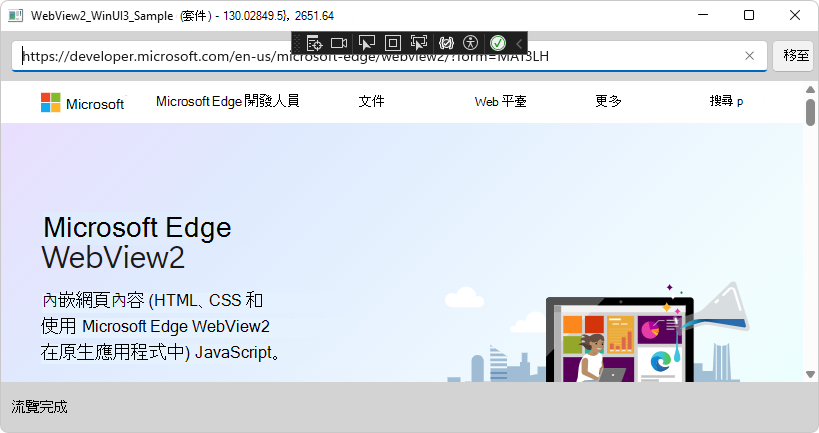
在 方案總管 中, (套件) 專案以粗體表示,表示它是預設專案。 應用程式建置後,應用程式視窗會開啟 WebView2_WinUI3_Sample (套件) 視窗:
底部顯示「導航完成」訊息。
在網址列 (文字框) , (輸入
https://bing.com完整的 HTTPS URL) ,然後按下 Enter , (相當於點擊 Go 按鈕) 。WebView2 控制項會導向 Bing,然後在底部顯示「導航完成」。
在 Visual Studio 中, 輸出 視窗會顯示如下訊息:
AddressBar_KeyDown [Enter]: https://bing.com
TryNavigate
TryCreateUri
Navigation complete
步驟 7:在您的工作分支中提交變更
在像 GitHub Desktop 這類 git 工具中,你可以提交變更,並可選擇推送到 GitHub 分支的分支。 這類操作在修改、實驗和客製化樣品時都很重要。 這也能保持工作分支的乾淨,並保持倉庫的克隆有序,方便你切換到不同的樣本。
要提交並推送已對工作分支中樣本所做的變更:
在 Visual Studio 中,選擇>「全部儲存檔案」 (Ctrl+Shift+S) 。
在 GitHub Desktop 輸入簡短的提交訊息,例如「更新、建置、執行範例」,然後點擊 提交 按鈕。
選擇 「儲存庫>推送」。 你的工作分支會從本地硬碟複製到 GitHub 的 WebView2Samples 倉庫分支。
請在 GitHub 查看你的工作分支
在 Microsoft Edge 中,請前往你所分叉的倉庫,例如
https://github.com/myGithubUsername/WebView2Samples/。點擊 [#] 分支 連結,然後選擇你的新工作分支,例如
user/myGithubUsername/winui3-sample。
步驟八:檢查程式碼
關閉 WebView2_WinUI3_Sample (套件) 應用程式。
在方案總管中,在WebView2_WinUI3_Sample專案中,雙擊每個
.xaml檔案及其檔案.cs:-
App.xaml- 沒有 WebView2 程式碼。-
App.cs- 使用固定版本 WebView2 執行時的程式碼。
-
-
MainWindow.xaml- WebView2 元素。-
MainWindow.cs- WebView2 程式碼。
-
-
以下為這些檔案的精簡版本。
App.xaml
這個檔案裡沒有 WebView2 專屬的程式碼。
簡縮列表
<Application
    x:Class="WebView2_WinUI3_Sample.App"
    xmlns="http://schemas.microsoft.com/winfx/2006/xaml/presentation"
    xmlns:x="http://schemas.microsoft.com/winfx/2006/xaml"
    xmlns:local="using:WebView2_WinUI3_Sample">
    <Application.Resources>
        <ResourceDictionary>
            <ResourceDictionary.MergedDictionaries>
                <XamlControlsResources xmlns="using:Microsoft.UI.Xaml.Controls" />
            </ResourceDictionary.MergedDictionaries>
        </ResourceDictionary>
    </Application.Resources>
</Application>
App.cs
此檔案中針對 WebView2 的程式碼已註解。你可以取消註解這些行,以使用固定版本的執行時;詳見下方「 使用固定版本 WebView2 執行時」。
簡縮列表
namespace WebView2_WinUI3_Sample
{
    /// <summary>
    /// Provides application-specific behavior to supplement the default Application class.
    /// </summary>
    public partial class App : Application
    {
        /// <summary>
        /// Initializes the singleton application object.  Equivalent to main() or WinMain().
        /// </summary>
        public App()
        {
            this.InitializeComponent();

            // If you're shipping a fixed-version WebView2 Runtime with your app, un-comment the
            // following lines of code, and change the version number to the version number of the
            // WebView2 Runtime that you're packaging and shipping to users:

            // StorageFolder localFolder = Windows.ApplicationModel.Package.Current.InstalledLocation;
            // String fixedPath = Path.Combine(localFolder.Path, "FixedRuntime\\130.0.2849.39");
            // Debug.WriteLine($"Launch path [{localFolder.Path}]");
            // Debug.WriteLine($"FixedRuntime path [{fixedPath}]");
            // Environment.SetEnvironmentVariable("WEBVIEW2_BROWSER_EXECUTABLE_FOLDER", fixedPath);
        }

        /// <summary>
        /// Invoked when the application is launched normally by the end user.
        /// </summary>
        /// <param name="args">Details about the launch request and process.</param>
        protected override void OnLaunched(Microsoft.UI.Xaml.LaunchActivatedEventArgs args)
        {
            m_window = new MainWindow();
            m_window.Activate();
        }

        private Window m_window;
    }
}
MainWindow.xaml
主視窗有以下 XAML 元素作為控制項:
-
<TextBox>- 地址欄。 -
<Button>- 開始 按鈕。 -
<WebView2>- WebView2 控制項。 -
<TextBlock>- 狀態列。
簡縮列表
<Window
    xmlns:local="using:WebView2_WinUI3_Sample">
    <Grid>
        <Grid.RowDefinitions>
        </Grid.RowDefinitions>
        <Grid Grid.Row="0" Background="LightGray">
            <TextBox Grid.Column="0"  x:Name="AddressBar" KeyDown="AddressBar_KeyDown" VerticalAlignment="Center" Margin="10,0,0,0"/>
            <Button Grid.Column="1" x:Name="Go" Content="Go" Click="Go_OnClick" VerticalAlignment="Center" HorizontalAlignment="Center"/>
        </Grid>

        <WebView2 x:Name="WebView2" Grid.Row="1"/>

        <Rectangle Grid.Row="2" Fill="LightGray"/>
        <TextBlock x:Name="StatusBar" Text="WebView2" VerticalAlignment="Center" Grid.Row="2" Margin="10,0,10,0"/>
    </Grid>
</Window>
MainWindow.cs
MainWindow 類別具備以下方法:
- 製造商
- 狀態更新
- WebView2_CoreWebView2Initialized
- WebView2_NavigationCompleted
- TryCreateUri
- 試航
- Go_OnClick
- AddressBar_KeyDown
- 標題
- GetWebView2Version
以下為這些方法的節錄或精簡版本。
MainWindow 類別
using Microsoft.Web.WebView2.Core;

namespace WebView2_WinUI3_Sample
{
    /// <summary>
    /// An empty window that can be used on its own or navigated to within a Frame.
    /// </summary>
    public sealed partial class MainWindow : Window
    {
建構函式
public MainWindow()
{
    this.InitializeComponent();

    Closed += (obj, eventArgs) =>
    {
        if (WebView2 != null)
        {
            // Ensure that WebView2 resources are released when
            // the MainWindow is closed.
            // WebView2 lifecycle in WinUI3 and the Close() method:
            // https://github.com/microsoft/microsoft-ui-xaml/issues/4752#issuecomment-819687363
            WebView2.Close();
        }
    };

    AddressBar.Text = "https://developer.microsoft.com/microsoft-edge/webview2/";

    WebView2.NavigationCompleted += WebView2_NavigationCompleted;
    WebView2.CoreWebView2Initialized += WebView2_CoreWebView2Initialized;

    WebView2.Source = new Uri(AddressBar.Text);
    StatusUpdate("Ready");
    SetTitle();
}
狀態更新
private void StatusUpdate(string message)
{
    StatusBar.Text = message;
    Debug.WriteLine(message);
}
WebView2_CoreWebView2Initialized
private void WebView2_CoreWebView2Initialized(WebView2 sender, CoreWebView2InitializedEventArgs args)
{
    if (args.Exception != null)
    {
        StatusUpdate($"Error initializing WebView2: {args.Exception.Message}");
    }
    else
    {
        SetTitle(sender);
    }
}
WebView2_NavigationCompleted
private void WebView2_NavigationCompleted(WebView2 sender, CoreWebView2NavigationCompletedEventArgs args)
{
    StatusUpdate("Navigation complete");

    // Update the Address bar with the full URL that was navigated to.
    AddressBar.Text = sender.Source.ToString();
}
TryCreateUri
private bool TryCreateUri(String potentialUri, out Uri result)
{
    StatusUpdate("TryCreateUri");

    Uri uri;
    if ((Uri.TryCreate(potentialUri, UriKind.Absolute, out uri) || Uri.TryCreate("http://" + potentialUri, UriKind.Absolute, out uri)) &&
        (uri.Scheme == Uri.UriSchemeHttp || uri.Scheme == Uri.UriSchemeHttps))
    {
        result = uri;
        return true;
    }
    else
    {
        StatusUpdate("Unable to configure URI");
        result = null;
        return false;
    }
}
試航
private void TryNavigate()
{
    StatusUpdate("TryNavigate");

    Uri destinationUri;
    if (TryCreateUri(AddressBar.Text, out destinationUri))
    {
        WebView2.Source = destinationUri;
    }
    else
    {
        StatusUpdate("URI couldn't be figured out use it as a bing search term");

        String bingString = $"https://www.bing.com/search?q={Uri.EscapeDataString(AddressBar.Text)}";
        if (TryCreateUri(bingString, out destinationUri))
        {
            AddressBar.Text = destinationUri.AbsoluteUri;
            WebView2.Source = destinationUri;
        }
        else
        {
            StatusUpdate("URI couldn't be configured as bing search term, giving up");
        }
    }
}
Go_OnClick
private void Go_OnClick(object sender, RoutedEventArgs e)
{
    StatusUpdate("Go_OnClick: " + AddressBar.Text);

    TryNavigate();
}
AddressBar_KeyDown
private void AddressBar_KeyDown(object sender, KeyRoutedEventArgs e)
{
    if (e.Key == Windows.System.VirtualKey.Enter)
    {
        StatusUpdate("AddressBar_KeyDown [Enter]: " + AddressBar.Text);

        e.Handled = true;
        TryNavigate();
    }
}
標題
private void SetTitle(WebView2 webView2 = null)
{
    var packageDisplayName = Windows.ApplicationModel.Package.Current.DisplayName;
    var webView2Version = (webView2 != null) ? " - " + GetWebView2Version(webView2) : string.Empty;
    Title = $"{packageDisplayName}{webView2Version}";
}
GetWebView2Version
private string GetWebView2Version(WebView2 webView2)
{
    var runtimeVersion = webView2.CoreWebView2.Environment.BrowserVersionString;

    CoreWebView2EnvironmentOptions options = new CoreWebView2EnvironmentOptions();
    var targetVersionMajorAndRest = options.TargetCompatibleBrowserVersion;
    var versionList = targetVersionMajorAndRest.Split('.');
    if (versionList.Length != 4)
    {
        return "Invalid SDK build version";
    }
    var sdkVersion = versionList[2] + "." + versionList[3];

    return $"{runtimeVersion}; {sdkVersion}";
}
使用固定版本的 WebView2 執行環境
如果你想隨應用程式附帶固定版本的 WebView2 執行環境,就必須將它納入專案中。 請參閱 「分發你的應用程式」和 WebView2 執行時。
以下步驟顯示執行時版本號 130.0.2849.39;您將將此編號更改為您所包裝和運送的版本。
使用固定版本執行時:
在套件專案中包含固定的 WebView2 執行環境:
\WebView2_WinUI3_Sample\WebView2_WinUI3_Sample (Package)\FixedRuntime\130.0.2849.39\上面,請使用你正在運送的版本,而不是
130.0.2849.39。更新你使用的版本的套件專案
wapproj檔 (使用你的版本而非130.0.2849.39) :< Content Include="FixedRuntime\130.0.2849.39\\**\*.*" >在
App.xaml.cs中,取消註解下方五行註解的程式碼,以啟用執行時覆寫:public App() { this.InitializeComponent(); // If you're shipping a fixed-version WebView2 Runtime with your app, un-comment the // following lines of code, and change the version number to the version number of the // WebView2 Runtime that you're packaging and shipping to users: // StorageFolder localFolder = Windows.ApplicationModel.Package.Current.InstalledLocation; // String fixedPath = Path.Combine(localFolder.Path, "FixedRuntime\\130.0.2849.39"); // Debug.WriteLine($"Launch path [{localFolder.Path}]"); // Debug.WriteLine($"FixedRuntime path [{fixedPath}]"); // Environment.SetEnvironmentVariable("WEBVIEW2_BROWSER_EXECUTABLE_FOLDER", fixedPath); }在上述程式碼中,將版本號
130.0.2849.39從改成你要出貨的版本。