利用 Windows Ink 內建的辨識功能,將墨水筆劃轉換為文字和圖形。
重要 API: InkCanvas、 Windows.UI.Input.Inking
自由形式識別與墨水分析
在此,我們將示範如何使用 Windows Ink 分析引擎(Windows.UI.Input.Inking.Analysis)來分類、分析並辨識 InkCanvas 上一組自由形式的筆觸,無論是文字還是形狀。 (除了文字與形狀辨識外,墨水分析也可用於辨識文件結構、項目符號列表及一般繪圖。)
備註
關於基本的單行純文字情境,如表單輸入,請參見本主題後面 的受限手寫辨識 。
在此範例中,當使用者點擊按鈕表示繪製完成時,識別即啟動。
從墨水分析範例(基礎)下載此範例
首先,我們設定了使用者介面(MainPage.xaml)。
介面包含「識別」按鈕、 InkCanvas 以及標準 Canvas。 按下「識別」按鈕後,會分析墨水畫布上的所有墨水筆劃,並(若識別)對應的形狀與文字會繪製在標準畫布上。 原始的墨線會從墨水畫布中移除。
<Grid Background="{ThemeResource ApplicationPageBackgroundThemeBrush}">
     <Grid.RowDefinitions>
         <RowDefinition Height="Auto"/>
         <RowDefinition Height="*"/>
     </Grid.RowDefinitions>
     <StackPanel x:Name="HeaderPanel"
                 Orientation="Horizontal"
                 Grid.Row="0">
         <TextBlock x:Name="Header"
                     Text="Basic ink analysis sample"
                     Style="{ThemeResource HeaderTextBlockStyle}"
                     Margin="10,0,0,0" />
         <Button x:Name="recognize"
                 Content="Recognize"
                 Margin="50,0,10,0"/>
     </StackPanel>
     <Grid x:Name="drawingCanvas" Grid.Row="1">

         <!-- The canvas where we render the replacement text and shapes. -->
         <Canvas x:Name="recognitionCanvas" />
         <!-- The canvas for ink input. -->
         <InkCanvas x:Name="inkCanvas" />

     </Grid>
</Grid>
在 UI 程式碼後置檔案(MainPage.xaml.cs)中,加入我們墨水與墨水分析功能所需的命名空間類型參考:
接著我們指定全域變數:
 InkAnalyzer inkAnalyzer = new InkAnalyzer();
 IReadOnlyList<InkStroke> inkStrokes = null;
 InkAnalysisResult inkAnalysisResults = null;
接著,我們設定一些基本的墨水輸入行為:
- InkPresenter 被設定為將筆、滑鼠和觸控的輸入資料解讀為筆劃(InputDeviceTypes)。
- 墨線筆觸會使用指定的 InkDrawingAttributes 在 InkCanvas 上渲染。
- 還會宣告「識別」按鈕的點擊事件監聽器。
/// <summary>
/// Initialize the UI page.
/// </summary>
public MainPage()
{
    this.InitializeComponent();

    // Set supported inking device types.
    inkCanvas.InkPresenter.InputDeviceTypes =
        Windows.UI.Core.CoreInputDeviceTypes.Mouse |
        Windows.UI.Core.CoreInputDeviceTypes.Pen |
        Windows.UI.Core.CoreInputDeviceTypes.Touch;

    // Set initial ink stroke attributes.
    InkDrawingAttributes drawingAttributes = new InkDrawingAttributes();
    drawingAttributes.Color = Windows.UI.Colors.Black;
    drawingAttributes.IgnorePressure = false;
    drawingAttributes.FitToCurve = true;
    inkCanvas.InkPresenter.UpdateDefaultDrawingAttributes(drawingAttributes);

    // Listen for button click to initiate recognition.
    recognize.Click += RecognizeStrokes_Click;
}
在這個例子中,我們在「識別」按鈕的點擊事件處理程式中執行墨水分析。
- 首先,呼叫 InkCanvas.InkPresenter 的 StrokeContainer 上的 GetStrokes,取得所有目前墨水筆觸的集合。
- 如果有墨線,請呼叫 InkAnalyzer 的 AddDataForStrokes 方法來傳遞它們。
- 我們嘗試同時辨識繪圖和文字,但你可以使用 SetStrokeDataKind 方法指定你是只關注文字(包括文件結構和項目符號列表)還是只關注繪圖(包括形狀辨識)。
- 呼叫 AnalyzeAsync 啟動墨水分析並取得 InkAnalysisResult。
- 如果 Status 回傳 Updated 狀態,請呼叫 FindNodes 來取得 InkAnalysisNodeKind.InkWord 和 InkAnalysisNodeKind.InkDrawing。
- 遍歷這組節點類型,並在辨識畫布(墨水畫布下方)繪製相應的文字或形狀。
- 最後,從 InkAnalyzer 刪除已辨識的節點,並從墨水畫布中刪除相應的墨水筆劃。
/// <summary>
/// The "Analyze" button click handler.
/// Ink recognition is performed here.
/// </summary>
/// <param name="sender">Source of the click event</param>
/// <param name="e">Event args for the button click routed event</param>
private async void RecognizeStrokes_Click(object sender, RoutedEventArgs e)
{
    inkStrokes = inkCanvas.InkPresenter.StrokeContainer.GetStrokes();
    // Ensure an ink stroke is present.
    if (inkStrokes.Count > 0)
    {
        inkAnalyzer.AddDataForStrokes(inkStrokes);

        // In this example, we try to recognizing both
        // writing and drawing, so the platform default
        // of "InkAnalysisStrokeKind.Auto" is used.
        // If you're only interested in a specific type of recognition,
        // such as writing or drawing, you can constrain recognition
        // using the SetStrokDataKind method as follows:
        // foreach (var stroke in strokesText)
        // {
        //     analyzerText.SetStrokeDataKind(
        //      stroke.Id, InkAnalysisStrokeKind.Writing);
        // }
        // This can improve both efficiency and recognition results.
        inkAnalysisResults = await inkAnalyzer.AnalyzeAsync();

        // Have ink strokes on the canvas changed?
        if (inkAnalysisResults.Status == InkAnalysisStatus.Updated)
        {
            // Find all strokes that are recognized as handwriting and
            // create a corresponding ink analysis InkWord node.
            var inkwordNodes =
                inkAnalyzer.AnalysisRoot.FindNodes(
                    InkAnalysisNodeKind.InkWord);

            // Iterate through each InkWord node.
            // Draw primary recognized text on recognitionCanvas
            // (for this example, we ignore alternatives), and delete
            // ink analysis data and recognized strokes.
            foreach (InkAnalysisInkWord node in inkwordNodes)
            {
                // Draw a TextBlock object on the recognitionCanvas.
                DrawText(node.RecognizedText, node.BoundingRect);

                foreach (var strokeId in node.GetStrokeIds())
                {
                    var stroke =
                        inkCanvas.InkPresenter.StrokeContainer.GetStrokeById(strokeId);
                    stroke.Selected = true;
                }
                inkAnalyzer.RemoveDataForStrokes(node.GetStrokeIds());
            }
            inkCanvas.InkPresenter.StrokeContainer.DeleteSelected();

            // Find all strokes that are recognized as a drawing and
            // create a corresponding ink analysis InkDrawing node.
            var inkdrawingNodes =
                inkAnalyzer.AnalysisRoot.FindNodes(
                    InkAnalysisNodeKind.InkDrawing);
            // Iterate through each InkDrawing node.
            // Draw recognized shapes on recognitionCanvas and
            // delete ink analysis data and recognized strokes.
            foreach (InkAnalysisInkDrawing node in inkdrawingNodes)
            {
                if (node.DrawingKind == InkAnalysisDrawingKind.Drawing)
                {
                    // Catch and process unsupported shapes (lines and so on) here.
                }
                // Process generalized shapes here (ellipses and polygons).
                else
                {
                    // Draw an Ellipse object on the recognitionCanvas (circle is a specialized ellipse).
                    if (node.DrawingKind == InkAnalysisDrawingKind.Circle || node.DrawingKind == InkAnalysisDrawingKind.Ellipse)
                    {
                        DrawEllipse(node);
                    }
                    // Draw a Polygon object on the recognitionCanvas.
                    else
                    {
                        DrawPolygon(node);
                    }
                    foreach (var strokeId in node.GetStrokeIds())
                    {
                        var stroke = inkCanvas.InkPresenter.StrokeContainer.GetStrokeById(strokeId);
                        stroke.Selected = true;
                    }
                }
                inkAnalyzer.RemoveDataForStrokes(node.GetStrokeIds());
            }
            inkCanvas.InkPresenter.StrokeContainer.DeleteSelected();
        }
    }
}
這是在我們的識別畫布上繪製文字區塊的功能。 我們利用墨水畫布上對應墨線劃的邊界矩形來設定 TextBlock 的位置和字體大小。
 /// <summary>
 /// Draw ink recognition text string on the recognitionCanvas.
 /// </summary>
 /// <param name="recognizedText">The string returned by text recognition.</param>
 /// <param name="boundingRect">The bounding rect of the original ink writing.</param>
 private void DrawText(string recognizedText, Rect boundingRect)
 {
     TextBlock text = new TextBlock();
     Canvas.SetTop(text, boundingRect.Top);
     Canvas.SetLeft(text, boundingRect.Left);

     text.Text = recognizedText;
     text.FontSize = boundingRect.Height;

     recognitionCanvas.Children.Add(text);
 }
以下是在我們的識別畫布上繪製橢圓和多邊形的函數。 我們利用墨水畫布上相關墨跡的邊界矩形來設定形狀的位置和字型大小。
 // Draw an ellipse on the recognitionCanvas.
 private void DrawEllipse(InkAnalysisInkDrawing shape)
 {
     var points = shape.Points;
     Ellipse ellipse = new Ellipse();

     ellipse.Width = shape.BoundingRect.Width;
     ellipse.Height = shape.BoundingRect.Height;

     Canvas.SetTop(ellipse, shape.BoundingRect.Top);
     Canvas.SetLeft(ellipse, shape.BoundingRect.Left);

     var brush = new SolidColorBrush(Windows.UI.ColorHelper.FromArgb(255, 0, 0, 255));
     ellipse.Stroke = brush;
     ellipse.StrokeThickness = 2;
     recognitionCanvas.Children.Add(ellipse);
 }

 // Draw a polygon on the recognitionCanvas.
 private void DrawPolygon(InkAnalysisInkDrawing shape)
 {
     List<Point> points = new List<Point>(shape.Points);
     Polygon polygon = new Polygon();

     foreach (Point point in points)
     {
         polygon.Points.Add(point);
     }

     var brush = new SolidColorBrush(Windows.UI.ColorHelper.FromArgb(255, 0, 0, 255));
     polygon.Stroke = brush;
     polygon.StrokeThickness = 2;
     recognitionCanvas.Children.Add(polygon);
 }
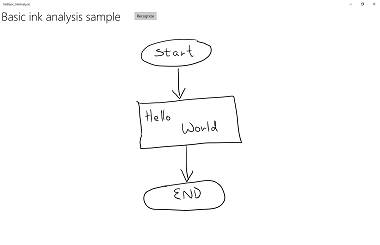
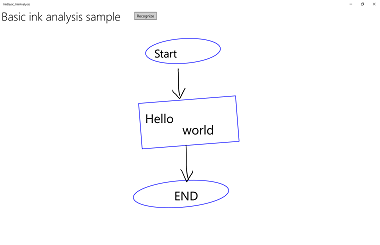
以下是這個實際操作的範例:
| 分析前 | 分析後 |
|---|---|
|
|
受限手寫辨識
在前一節(自由形式識別與墨水分析)中,我們展示了如何利用 墨水分析 API 分析並辨識 InkCanvas 區域內任意的墨水筆劃。
在本節中,我們將示範如何使用 Windows Ink 手寫辨識引擎(非墨水分析)將 InkCanvas 上的一組筆劃轉換為文字(基於已安裝的預設語言包)。
備註
本節所示的基本手寫辨識最適合單行文字輸入情境,如表單輸入。 若想了解更豐富的辨識情境,包括分析與詮釋文件結構、清單項目、形狀及圖紙(除了文字辨識外),請參見前一節: 含墨水分析的自由形式辨識。
在此範例中,當使用者點擊按鈕表示已完成書寫時,識別即啟動。
從 Ink 手寫辨識範例下載此範例
首先,我們設定了介面。
介面包含「識別」按鈕、 InkCanvas 以及顯示識別結果的區域。
<Grid Background="{ThemeResource ApplicationPageBackgroundThemeBrush}">
     <Grid.RowDefinitions>
         <RowDefinition Height="Auto"/>
         <RowDefinition Height="*"/>
     </Grid.RowDefinitions>
     <StackPanel x:Name="HeaderPanel"
                 Orientation="Horizontal"
                 Grid.Row="0">
             <TextBlock x:Name="Header"
                 Text="Basic ink recognition sample"
                 Style="{ThemeResource HeaderTextBlockStyle}"
                 Margin="10,0,0,0" />
             <Button x:Name="recognize"
                 Content="Recognize"
                 Margin="50,0,10,0"/>
     </StackPanel>
     <Grid Grid.Row="1">
         <Grid.RowDefinitions>
             <RowDefinition Height="*"/>
             <RowDefinition Height="Auto"/>
         </Grid.RowDefinitions>
         <InkCanvas x:Name="inkCanvas"
             Grid.Row="0"/>
         <TextBlock x:Name="recognitionResult"
             Grid.Row="1"
             Margin="50,0,10,0"/>
     </Grid>
 </Grid>
在這個例子中,你需要先加入我們墨水功能所需的命名空間類型參考:
接著我們設定一些基本的墨水輸入行為。
InkPresenter 被設定為將筆與滑鼠的輸入資料解讀為筆劃(InputDeviceTypes)。 使用指定的 InkDrawingAttributes,墨線筆觸會在 InkCanvas 上渲染。 還會宣告「識別」按鈕的點擊事件監聽器。
public MainPage()
    {
        this.InitializeComponent();

        // Set supported inking device types.
        inkCanvas.InkPresenter.InputDeviceTypes =
            Windows.UI.Core.CoreInputDeviceTypes.Mouse |
            Windows.UI.Core.CoreInputDeviceTypes.Pen;

        // Set initial ink stroke attributes.
        InkDrawingAttributes drawingAttributes = new InkDrawingAttributes();
        drawingAttributes.Color = Windows.UI.Colors.Black;
        drawingAttributes.IgnorePressure = false;
        drawingAttributes.FitToCurve = true;
        inkCanvas.InkPresenter.UpdateDefaultDrawingAttributes(drawingAttributes);

        // Listen for button click to initiate recognition.
        recognize.Click += Recognize_Click;
    }
最後,我們進行基本的手寫辨識。 在這個例子中,我們使用「識別」按鈕的點擊事件處理程式來執行手寫辨識。
- InkPresenter 會將所有墨水筆劃儲存在 InkStrokeContainer 物件中。 筆劃透過 InkPresenter 的 StrokeContainer 屬性曝光,並使用 GetStrokes 方法檢索。
// Get all strokes on the InkCanvas. IReadOnlyList<InkStroke> currentStrokes = inkCanvas.InkPresenter.StrokeContainer.GetStrokes();- InkRecognizerContainer 是用來管理手寫辨識流程的。
// Create a manager for the InkRecognizer object // used in handwriting recognition. InkRecognizerContainer inkRecognizerContainer = new InkRecognizerContainer();- RecognizeAsync 被呼叫用來擷取一組 InkRecognitionResult 物件。 每個由 InkRecognitionr 偵測到的單字都會產生辨識結果。
// Recognize all ink strokes on the ink canvas.
    IReadOnlyList<InkRecognitionResult> recognitionResults =
        await inkRecognizerContainer.RecognizeAsync(
            inkCanvas.InkPresenter.StrokeContainer,
            InkRecognitionTarget.All);
每個 InkRecognitionResult 物件包含一組候選文字。 此列表中最頂端的項目被識別引擎視為最佳匹配,接著依信心遞減排序其餘候選人。
我們會逐個 InkRecognitionResult 反覆篩選,並彙整候選人名單。 候選圖塊隨後會被顯示, InkStrokeContainer 會被清除(同時也會清除 InkCanvas)。
string str = "Recognition result\n"; // Iterate through the recognition results. foreach (var result in recognitionResults) { // Get all recognition candidates from each recognition result. IReadOnlyList<string> candidates = result.GetTextCandidates(); str += "Candidates: " + candidates.Count.ToString() + "\n"; foreach (string candidate in candidates) { str += candidate + " "; } } // Display the recognition candidates. recognitionResult.Text = str; // Clear the ink canvas once recognition is complete. inkCanvas.InkPresenter.StrokeContainer.Clear();- 以下是點擊事件處理器的完整範例。
// Handle button click to initiate recognition.
    private async void Recognize_Click(object sender, RoutedEventArgs e)
    {
        // Get all strokes on the InkCanvas.
        IReadOnlyList<InkStroke> currentStrokes = inkCanvas.InkPresenter.StrokeContainer.GetStrokes();

        // Ensure an ink stroke is present.
        if (currentStrokes.Count > 0)
        {
            // Create a manager for the InkRecognizer object
            // used in handwriting recognition.
            InkRecognizerContainer inkRecognizerContainer =
                new InkRecognizerContainer();

            // inkRecognizerContainer is null if a recognition engine is not available.
            if (!(inkRecognizerContainer == null))
            {
                // Recognize all ink strokes on the ink canvas.
                IReadOnlyList<InkRecognitionResult> recognitionResults =
                    await inkRecognizerContainer.RecognizeAsync(
                        inkCanvas.InkPresenter.StrokeContainer,
                        InkRecognitionTarget.All);
                // Process and display the recognition results.
                if (recognitionResults.Count > 0)
                {
                    string str = "Recognition result\n";
                    // Iterate through the recognition results.
                    foreach (var result in recognitionResults)
                    {
                        // Get all recognition candidates from each recognition result.
                        IReadOnlyList<string> candidates = result.GetTextCandidates();
                        str += "Candidates: " + candidates.Count.ToString() + "\n";
                        foreach (string candidate in candidates)
                        {
                            str += candidate + " ";
                        }
                    }
                    // Display the recognition candidates.
                    recognitionResult.Text = str;
                    // Clear the ink canvas once recognition is complete.
                    inkCanvas.InkPresenter.StrokeContainer.Clear();
                }
                else
                {
                    recognitionResult.Text = "No recognition results.";
                }
            }
            else
            {
                Windows.UI.Popups.MessageDialog messageDialog = new Windows.UI.Popups.MessageDialog("You must install handwriting recognition engine.");
                await messageDialog.ShowAsync();
            }
        }
        else
        {
            recognitionResult.Text = "No ink strokes to recognize.";
        }
    }
國際認可
Windows 墨水平台內建的手寫辨識包含 Windows 支援的大量區域與語言子集。
請參閱 InkRecognizer.Name 屬性主題,了解 InkRecognizer 支援的語言列表。
你的應用程式可以查詢已安裝的手寫辨識引擎並使用其中一個,或讓使用者選擇偏好的語言。
注意 使用者可前往設定>時間與語言查看已安裝語言清單。 已安裝的語言列在 語言類別中。
要安裝新的語言包並啟用該語言的手寫辨識:
- 到 設定 > 、時間與語言 > 、區域與語言。
- 選擇 新增語言。
- 從列表中選擇一種語言,然後選擇區域版本。 該語言現已列於 區域與語言 頁面。
- 點擊語言並選擇 選項。
- 在 語言選項 頁面,下載手 寫辨識引擎 (他們也可以在這裡下載完整的語言包、語音辨識引擎和鍵盤配置)。
在此,我們將示範如何利用手寫辨識引擎,根據所選識別器,解讀 InkCanvas 上的一組筆劃。
識別由使用者在完成寫作後點擊按鈕啟動。
首先,我們設定了介面。
介面包含「識別」按鈕、列出所有已安裝手寫辨識器的組合框、 InkCanvas,以及顯示辨識結果的區域。
<Grid Background="{ThemeResource ApplicationPageBackgroundThemeBrush}">
        <Grid.RowDefinitions>
            <RowDefinition Height="Auto"/>
            <RowDefinition Height="*"/>
        </Grid.RowDefinitions>
        <StackPanel x:Name="HeaderPanel"
                    Orientation="Horizontal"
                    Grid.Row="0">
            <TextBlock x:Name="Header"
                       Text="Advanced international ink recognition sample"
                       Style="{ThemeResource HeaderTextBlockStyle}"
                       Margin="10,0,0,0" />
            <ComboBox x:Name="comboInstalledRecognizers"
                     Margin="50,0,10,0">
                <ComboBox.ItemTemplate>
                    <DataTemplate>
                        <StackPanel Orientation="Horizontal">
                            <TextBlock Text="{Binding Name}" />
                        </StackPanel>
                    </DataTemplate>
                </ComboBox.ItemTemplate>
            </ComboBox>
            <Button x:Name="buttonRecognize"
                    Content="Recognize"
                    IsEnabled="False"
                    Margin="50,0,10,0"/>
        </StackPanel>
        <Grid Grid.Row="1">
            <Grid.RowDefinitions>
                <RowDefinition Height="*"/>
                <RowDefinition Height="Auto"/>
            </Grid.RowDefinitions>
            <InkCanvas x:Name="inkCanvas"
                       Grid.Row="0"/>
            <TextBlock x:Name="recognitionResult"
                       Grid.Row="1"
                       Margin="50,0,10,0"/>
        </Grid>
    </Grid>
接著我們設定一些基本的墨水輸入行為。
InkPresenter 被設定為將筆與滑鼠的輸入資料解讀為筆劃(InputDeviceTypes)。 墨線筆觸會使用指定的 InkDrawingAttributes 在 InkCanvas 上渲染。
我們呼叫一個
InitializeRecognizerList函式,將已安裝的手寫辨識器清單填入識別器組合框。我們也會在「識別」按鈕上宣告點擊事件的監聽者,以及在識別器組合框中選擇變更事件。
 public MainPage()
 {
    this.InitializeComponent();

    // Set supported inking device types.
    inkCanvas.InkPresenter.InputDeviceTypes =
        Windows.UI.Core.CoreInputDeviceTypes.Mouse |
        Windows.UI.Core.CoreInputDeviceTypes.Pen;

    // Set initial ink stroke attributes.
    InkDrawingAttributes drawingAttributes = new InkDrawingAttributes();
    drawingAttributes.Color = Windows.UI.Colors.Black;
    drawingAttributes.IgnorePressure = false;
    drawingAttributes.FitToCurve = true;
    inkCanvas.InkPresenter.UpdateDefaultDrawingAttributes(drawingAttributes);

    // Populate the recognizer combo box with installed recognizers.
    InitializeRecognizerList();

    // Listen for combo box selection.
    comboInstalledRecognizers.SelectionChanged +=
        comboInstalledRecognizers_SelectionChanged;

    // Listen for button click to initiate recognition.
    buttonRecognize.Click += Recognize_Click;
}
我們在識別器組合框中填入已安裝的筆跡辨識器清單。
InkRecognizerContainer 是用來管理手寫辨識流程的。 使用這個物件呼叫 GetRecognizers ,取得已安裝的識別器清單,以填入識別器組合框。
// Populate the recognizer combo box with installed recognizers.
private void InitializeRecognizerList()
{
    // Create a manager for the handwriting recognition process.
    inkRecognizerContainer = new InkRecognizerContainer();
    // Retrieve the collection of installed handwriting recognizers.
    IReadOnlyList<InkRecognizer> installedRecognizers =
        inkRecognizerContainer.GetRecognizers();
    // inkRecognizerContainer is null if a recognition engine is not available.
    if (!(inkRecognizerContainer == null))
    {
        comboInstalledRecognizers.ItemsSource = installedRecognizers;
        buttonRecognize.IsEnabled = true;
    }
}
如果識別器組合框的選擇改變,請更新手寫辨識器。
使用 InkRecognizerContainer 根據識別器組合框中選取的識別器呼叫 SetDefaultRecognizer 。
// Handle recognizer change.
    private void comboInstalledRecognizers_SelectionChanged(
        object sender, SelectionChangedEventArgs e)
    {
        inkRecognizerContainer.SetDefaultRecognizer(
            (InkRecognizer)comboInstalledRecognizers.SelectedItem);
    }
最後,我們會根據所選的筆跡辨識器進行手寫辨識。 在這個例子中,我們使用「識別」按鈕的點擊事件處理程式來執行手寫辨識。
- InkPresenter 會將所有墨水筆劃儲存在 InkStrokeContainer 物件中。 筆劃透過 InkPresenter 的 StrokeContainer 屬性曝光,並使用 GetStrokes 方法檢索。
// Get all strokes on the InkCanvas.
    IReadOnlyList<InkStroke> currentStrokes =
        inkCanvas.InkPresenter.StrokeContainer.GetStrokes();
RecognizeAsync 被呼叫用來擷取一組 InkRecognitionResult 物件。
每個由 InkRecognitionr 偵測到的單字都會產生辨識結果。
// Recognize all ink strokes on the ink canvas.
IReadOnlyList<InkRecognitionResult> recognitionResults =
    await inkRecognizerContainer.RecognizeAsync(
        inkCanvas.InkPresenter.StrokeContainer,
        InkRecognitionTarget.All);
每個 InkRecognitionResult 物件包含一組候選文字。 此列表中最頂端的項目被識別引擎視為最佳匹配,接著依信心遞減排序其餘候選人。
我們會逐個 InkRecognitionResult 反覆篩選,並彙整候選人名單。 候選圖塊隨後會被顯示, InkStrokeContainer 會被清除(同時也會清除 InkCanvas)。
string str = "Recognition result\n"; // Iterate through the recognition results. foreach (InkRecognitionResult result in recognitionResults) { // Get all recognition candidates from each recognition result. IReadOnlyList<string> candidates = result.GetTextCandidates(); str += "Candidates: " + candidates.Count.ToString() + "\n"; foreach (string candidate in candidates) { str += candidate + " "; } } // Display the recognition candidates. recognitionResult.Text = str; // Clear the ink canvas once recognition is complete. inkCanvas.InkPresenter.StrokeContainer.Clear();- 以下是點擊事件處理器的完整範例。
// Handle button click to initiate recognition.
private async void Recognize_Click(object sender, RoutedEventArgs e)
{
    // Get all strokes on the InkCanvas.
    IReadOnlyList<InkStroke> currentStrokes =
        inkCanvas.InkPresenter.StrokeContainer.GetStrokes();

    // Ensure an ink stroke is present.
    if (currentStrokes.Count > 0)
    {
        // inkRecognizerContainer is null if a recognition engine is not available.
        if (!(inkRecognizerContainer == null))
        {
            // Recognize all ink strokes on the ink canvas.
            IReadOnlyList<InkRecognitionResult> recognitionResults =
                await inkRecognizerContainer.RecognizeAsync(
                    inkCanvas.InkPresenter.StrokeContainer,
                    InkRecognitionTarget.All);
            // Process and display the recognition results.
            if (recognitionResults.Count > 0)
            {
                string str = "Recognition result\n";
                // Iterate through the recognition results.
                foreach (InkRecognitionResult result in recognitionResults)
                {
                    // Get all recognition candidates from each recognition result.
                    IReadOnlyList<string> candidates =
                        result.GetTextCandidates();
                    str += "Candidates: " + candidates.Count.ToString() + "\n";
                    foreach (string candidate in candidates)
                    {
                        str += candidate + " ";
                    }
                }
                // Display the recognition candidates.
                recognitionResult.Text = str;
                // Clear the ink canvas once recognition is complete.
                inkCanvas.InkPresenter.StrokeContainer.Clear();
            }
            else
            {
                recognitionResult.Text = "No recognition results.";
            }
        }
        else
        {
            Windows.UI.Popups.MessageDialog messageDialog =
                new Windows.UI.Popups.MessageDialog(
                    "You must install handwriting recognition engine.");
            await messageDialog.ShowAsync();
        }
    }
    else
    {
        recognitionResult.Text = "No ink strokes to recognize.";
    }
}
動態辨識
雖然前兩個例子需要使用者按下按鈕啟動辨識,但你也可以利用筆劃輸入搭配基本的計時功能來進行動態辨識。
在這個範例中,我們將使用與前一個國際識別範例相同的使用者介面和筆劃設定。
這些全域物件(InkAnalyzer、 InkStroke、 InkAnalysisResult、 DispatcherTimer)在整個應用程式中都會被使用。
// Stroke recognition globals.
InkAnalyzer inkAnalyzer;
DispatcherTimer recoTimer;
我們不再用按鈕啟動辨識,而是新增兩個 InkPresenter 筆劃事件的監聽器(StrokesCollected 和 StrokeStarted),並設定一個基本的計時器(DispatcherTimer),間隔為一秒。
public MainPage()
{
    this.InitializeComponent();

    // Set supported inking device types.
    inkCanvas.InkPresenter.InputDeviceTypes =
        Windows.UI.Core.CoreInputDeviceTypes.Mouse |
        Windows.UI.Core.CoreInputDeviceTypes.Pen;

    // Listen for stroke events on the InkPresenter to
    // enable dynamic recognition.
    // StrokesCollected is fired when the user stops inking by
    // lifting their pen or finger, or releasing the mouse button.
    inkCanvas.InkPresenter.StrokesCollected += inkCanvas_StrokesCollected;
    // StrokeStarted is fired when ink input is first detected.
    inkCanvas.InkPresenter.StrokeInput.StrokeStarted +=
        inkCanvas_StrokeStarted;

    inkAnalyzer = new InkAnalyzer();

    // Timer to manage dynamic recognition.
    recoTimer = new DispatcherTimer();
    recoTimer.Interval = TimeSpan.FromSeconds(1);
    recoTimer.Tick += recoTimer_TickAsync;
}
接著,我們定義在第一步中宣告的 InkPresenter 事件的處理常式(我們也會覆寫 OnNavigatingFrom 頁面事件來管理計時器)。
筆劃收集
在 InkAnalyzer 中加入墨線筆劃(AddDataForStrokes),當使用者停止筆劃(舉起筆或手指,或放開滑鼠按鈕)時啟動識別計時器。 在一秒鐘沒有墨水輸入後,開始識別。使用 SetStrokeDataKind 方法來指定你是只對文字(包括文件結構和項目符號列表)感興趣,還是只對繪圖感興趣(包括形狀辨識)。
中風開始
如果新筆劃在下一次計時器跳動事件前開始,請停止計時器,因為新筆劃很可能是單一手寫條目的延續。
// Handler for the InkPresenter StrokeStarted event.
// Don't perform analysis while a stroke is in progress.
// If a new stroke starts before the next timer tick event,
// stop the timer as the new stroke is likely the continuation
// of a single handwriting entry.
private void inkCanvas_StrokeStarted(InkStrokeInput sender, PointerEventArgs args)
{
    recoTimer.Stop();
}
// Handler for the InkPresenter StrokesCollected event.
// Stop the timer and add the collected strokes to the InkAnalyzer.
// Start the recognition timer when the user stops inking (by
// lifting their pen or finger, or releasing the mouse button).
// If ink input is not detected after one second, initiate recognition.
private void inkCanvas_StrokesCollected(InkPresenter sender, InkStrokesCollectedEventArgs args)
{
    recoTimer.Stop();
    // If you're only interested in a specific type of recognition,
    // such as writing or drawing, you can constrain recognition
    // using the SetStrokDataKind method, which can improve both
    // efficiency and recognition results.
    // In this example, "InkAnalysisStrokeKind.Writing" is used.
    foreach (var stroke in args.Strokes)
    {
        inkAnalyzer.AddDataForStroke(stroke);
        inkAnalyzer.SetStrokeDataKind(stroke.Id, InkAnalysisStrokeKind.Writing);
    }
    recoTimer.Start();
}
// Override the Page OnNavigatingFrom event handler to
// stop our timer if user leaves page.
protected override void OnNavigatingFrom(NavigatingCancelEventArgs e)
{
    recoTimer.Stop();
}
最後,我們進行手寫辨識。 在這個例子中,我們使用 DispatcherTimer 的 Tick 事件處理程序來啟動筆跡辨識。
- 呼叫 AnalyzeAsync 啟動墨水分析並取得 InkAnalysisResult。
- 如果 Status 回傳 Updated 狀態,請呼叫 FindNodes 以取得 InkAnalysisNodeKind.InkWord 的節點類型。
- 遍歷節點並顯示已識別的文字。
- 最後,從 InkAnalyzer 刪除已辨識的節點,並從墨水畫布中刪除相應的墨水筆劃。
private async void recoTimer_TickAsync(object sender, object e)
{
    recoTimer.Stop();
    if (!inkAnalyzer.IsAnalyzing)
    {
        InkAnalysisResult result = await inkAnalyzer.AnalyzeAsync();

        // Have ink strokes on the canvas changed?
        if (result.Status == InkAnalysisStatus.Updated)
        {
            // Find all strokes that are recognized as handwriting and
            // create a corresponding ink analysis InkWord node.
            var inkwordNodes =
                inkAnalyzer.AnalysisRoot.FindNodes(
                    InkAnalysisNodeKind.InkWord);

            // Iterate through each InkWord node.
            // Display the primary recognized text (for this example,
            // we ignore alternatives), and then delete the
            // ink analysis data and recognized strokes.
            foreach (InkAnalysisInkWord node in inkwordNodes)
            {
                string recognizedText = node.RecognizedText;
                // Display the recognition candidates.
                recognitionResult.Text = recognizedText;

                foreach (var strokeId in node.GetStrokeIds())
                {
                    var stroke =
                        inkCanvas.InkPresenter.StrokeContainer.GetStrokeById(strokeId);
                    stroke.Selected = true;
                }
                inkAnalyzer.RemoveDataForStrokes(node.GetStrokeIds());
            }
            inkCanvas.InkPresenter.StrokeContainer.DeleteSelected();
        }
    }
    else
    {
        // Ink analyzer is busy. Wait a while and try again.
        recoTimer.Start();
    }
}
