注意事項
Mixed Reality學院的教學是以第一代) 和 Mixed Reality Immersive Headset 為核心設計 (HoloLens。 因此,我們認為保留這些教學對於仍在尋找開發指引的開發者來說非常重要。 這些教學不會更新 HoloLens 2 所用的最新工具組或互動方式。 它們會被維護以持續支援的裝置。 未來可能會發布一系列新的教學,示範如何為 HoloLens 2 開發。
在本課程中,您將學習如何使用 Microsoft Bot Framework V4 建立並部署機器人,並透過 Windows Mixed Reality 應用程式與其溝通。
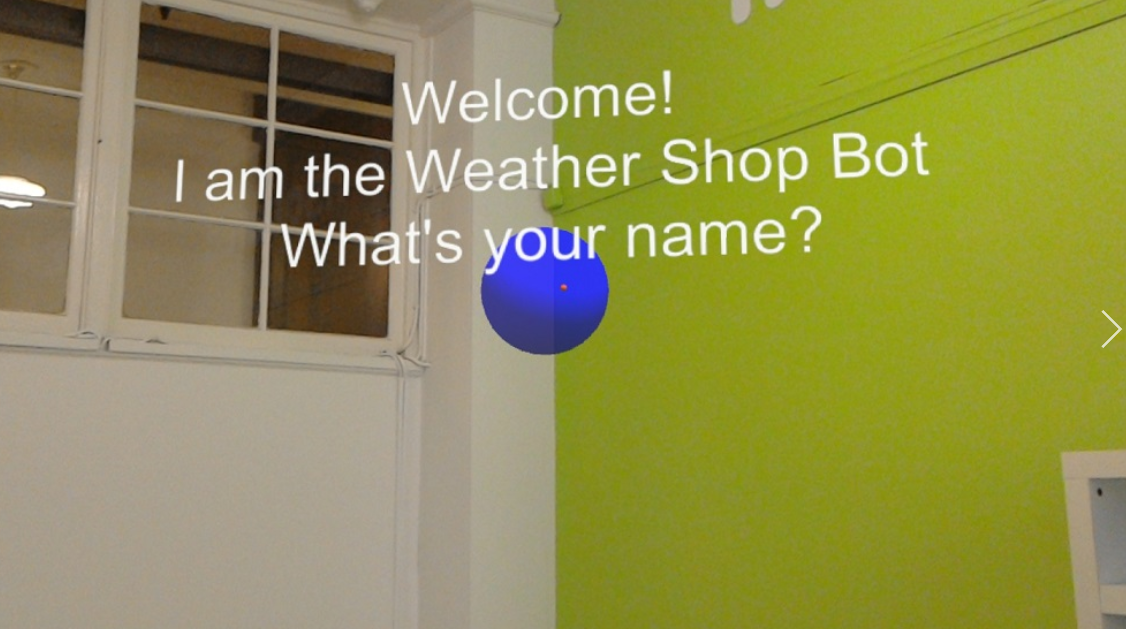
Microsoft Bot Framework V4 是一組 API,旨在為開發者提供工具,以打造可擴充且可擴展的機器人應用程式。 欲了解更多資訊,請造訪 Microsoft Bot Framework 頁面或 V4 Git Repository。
完成課程後,你建立了一個 Windows Mixed Reality 應用程式,能夠:
- 使用 輕觸手勢 啟動機器人聆聽使用者聲音。
- 當使用者說出某件事時,機器人會嘗試提供回應。
- 將機器人的回覆以文字形式顯示,放在機器人附近的 Unity 場景中。
在你的申請中,如何將結果與設計整合,取決於你自己。 本課程旨在教你如何將 Azure 服務整合到你的 Unity 專案中。 你的工作是運用從這門課程學到的知識,來強化你的混合實境應用。
裝置支援
| 河道 | 全息鏡頭 | 沉浸式頭戴裝置 |
|---|---|---|
| MR 與 Azure 312:機器人整合 | ✔️ | ✔️ |
注意事項
雖然本課程主要聚焦於全息鏡頭,但你也可以將課程中所學應用於Windows Mixed Reality沉浸式 (VR) 頭戴裝置。 因為沉浸式 (VR) 頭戴裝置沒有可存取的攝影機,你需要外接攝影機連接到你的電腦。 隨著課程進行,請參考任何需要調整以支援沉浸式 (VR) 頭戴裝置的說明。
先決條件
注意事項
這個教學是為有基本 Unity 和 C# 經驗的開發者設計的。 本文件中的先決條件與書面指示,皆為撰寫時 (測試與驗證) 內容。 你可以自由使用安裝 工具文章中 列出的最新軟體,但不假設課程內容完全符合新軟體中的內容。
我們建議本課程使用以下硬體與軟體:
- 一台開發用電腦,支援Windows Mixed Reality,用於沉浸式 (VR) 頭戴裝置開發
- Windows 10 Fall Creators Update (或更高版本) 啟用開發者模式
- 最新的 Windows 10 SDK
- Unity 2017.4
- Visual Studio 2017
- Windows Mixed Reality沉浸式 (VR) 頭戴裝置或啟用開發者模式的Microsoft HoloLens
- Internet access for Azure, and for Azure Bot retrieval. 欲了解更多資訊,請 點此連結。
開始之前
- 為避免本專案因長資料夾路徑產生建置問題,請將教學專案建立在根目錄或近根資料夾中。
- 設置並測試你的全息鏡頭。 如果你需要協助設定 HoloLens,請務必造訪 HoloLens 設定文章。
- 在開始開發新的 HoloLens 應用程式時,建議先進行校正與感測器調整, (有時針對每位使用者) 執行這些任務會有幫助。
如需校正相關協助,請點此 連結至HoloLens校正文章。
如需感測器調校的幫助,請點此 連結至《HoloLens 感測器調校》文章。
第一章 – 建立機器人應用程式
第一步是將你的機器人建立為本地 ASP.Net 核心網頁應用程式。 完成並測試後,發佈到 Azure 入口網站。
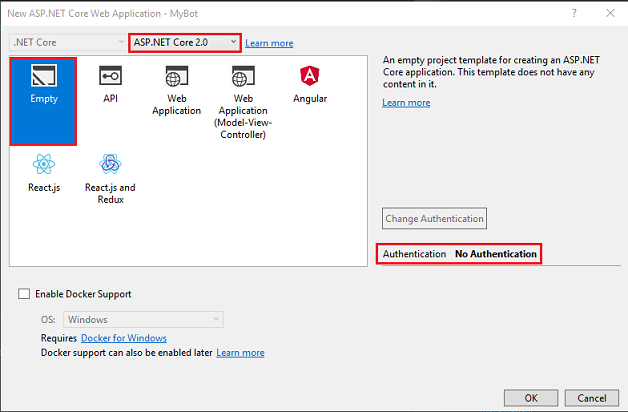
打開 Visual Studio。 建立一個新專案,選擇 ASP NET Core Web Application 作為專案類型 (在 .NET Core) 子章節中找到,並命名為 MyBot。 按一下確定。
在出現的視窗中,選擇 「清空」。 另外,確保目標設定為 ASP NET Core 2.0 ,且認證設定為 無認證。 按一下確定。
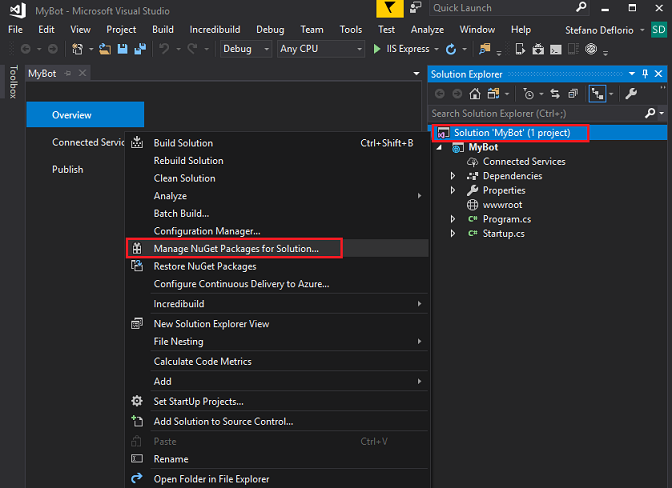
解答就此展開。 在方案總管中右鍵點選 Solution Mybot,然後點選「管理 NuGet 套件以取得解決方案」。
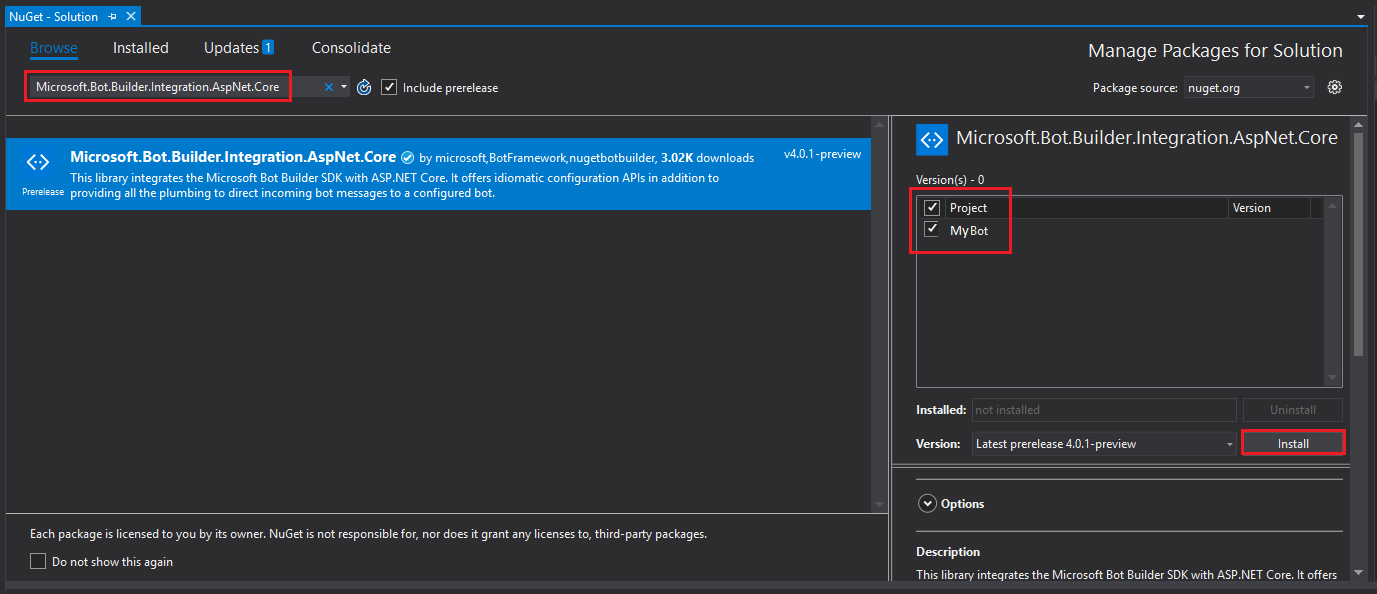
在 瀏覽標籤中 ,搜尋 Microsoft.Bot.Builder.Integration.AspNet.Core , (確保你勾選了 包含預發布) 。 選擇套件版本 4.0.1-預覽,並勾選專案方框。 然後點 選安裝。 這些函式庫是為 Bot Framework v4 安裝的。 關閉 NuGet 頁面。
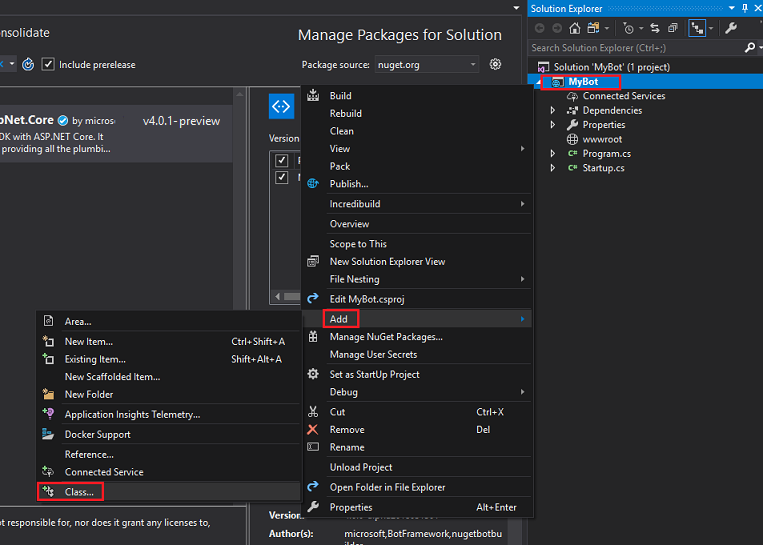
在方案總管中右鍵點擊你的專案MyBot,然後點選「新增|類別」。
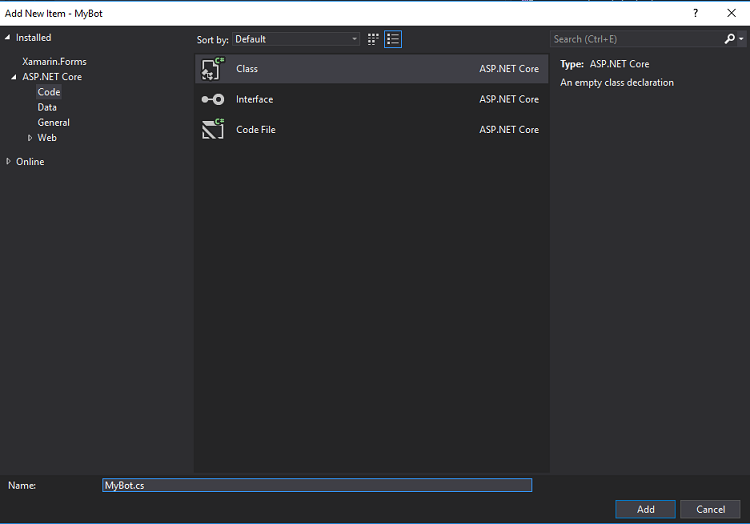
將類別命名為 MyBot ,然後點選 新增。
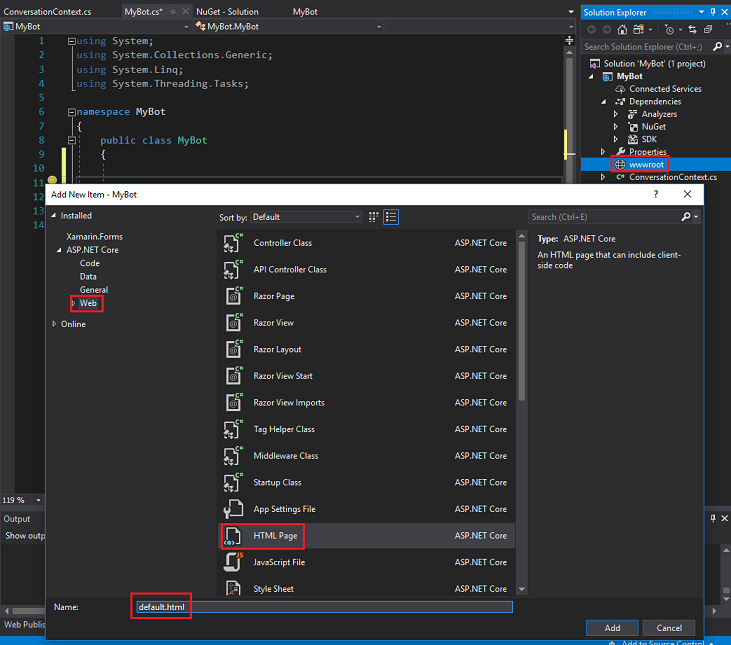
重複前述,建立另一個名為 ConversationContext 的類別。
在解決方案方案總管中右鍵點擊 wwwroot,然後點選新增|項目。 選擇 HTML 頁面 (在 Web) 小節中找到它。 檔案名稱為 default.html。 按一下 [新增]。
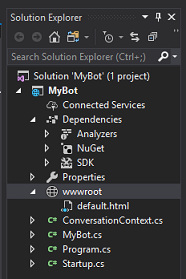
方案總管中的類別/物件清單應該像圖片一樣:
雙擊 ConversationContext 類別。 此類別負責保存機器人用來維持對話上下文的變數。 這些對話上下文值會在這個類別的實例中被保留,因為任何 MyBot 類別的實例在每次收到活動時都會刷新。 將以下程式碼加入類別:
namespace MyBot
{
    public static class ConversationContext
    {
        internal static string userName;

        internal static string userMsg;
    }
}
雙擊 MyBot 類別。 此類別承載客戶端任何進來活動所呼叫的處理器。 在這個課程中,你會加入用來建立機器人與客戶對話的程式碼。 如前所述,每當接收到一個活動時,這個類別的實例都會被初始化。 在此類別中新增以下程式碼:
using Microsoft.Bot; using Microsoft.Bot.Builder; using Microsoft.Bot.Schema; using System.Threading.Tasks; namespace MyBot { public class MyBot : IBot { public async Task OnTurn(ITurnContext context) { ConversationContext.userMsg = context.Activity.Text; if (context.Activity.Type is ActivityTypes.Message) { if (string.IsNullOrEmpty(ConversationContext.userName)) { ConversationContext.userName = ConversationContext.userMsg; await context.SendActivity($"Hello {ConversationContext.userName}. Looks like today it is going to rain. \nLuckily I have umbrellas and waterproof jackets to sell!"); } else { if (ConversationContext.userMsg.Contains("how much")) { if (ConversationContext.userMsg.Contains("umbrella")) await context.SendActivity($"Umbrellas are $13."); else if (ConversationContext.userMsg.Contains("jacket")) await context.SendActivity($"Waterproof jackets are $30."); else await context.SendActivity($"Umbrellas are $13. \nWaterproof jackets are $30."); } else if (ConversationContext.userMsg.Contains("color") || ConversationContext.userMsg.Contains("colour")) { await context.SendActivity($"Umbrellas are black. \nWaterproof jackets are yellow."); } else { await context.SendActivity($"Sorry {ConversationContext.userName}. I did not understand the question"); } } } else { ConversationContext.userMsg = string.Empty; ConversationContext.userName = string.Empty; await context.SendActivity($"Welcome! \nI am the Weather Shop Bot \nWhat is your name?"); } } } }雙擊啟動類別。 此類別會初始化機器人。 將以下程式碼加入類別:
using Microsoft.AspNetCore.Builder;
using Microsoft.AspNetCore.Hosting;
using Microsoft.Bot.Builder.BotFramework;
using Microsoft.Bot.Builder.Integration.AspNet.Core;
using Microsoft.Extensions.Configuration;
using Microsoft.Extensions.DependencyInjection;

namespace MyBot
{
public class Startup
    {
        public IConfiguration Configuration { get; }

        public Startup(IHostingEnvironment env)
        {
            var builder = new ConfigurationBuilder()
                .SetBasePath(env.ContentRootPath)
                .AddJsonFile("appsettings.json", optional: true, reloadOnChange: true)
                .AddJsonFile($"appsettings.{env.EnvironmentName}.json", optional: true)
                .AddEnvironmentVariables();
            Configuration = builder.Build();
        }

        // This method gets called by the runtime. Use this method to add services to the container.
        public void ConfigureServices(IServiceCollection services)
        {
            services.AddSingleton(_ => Configuration);
            services.AddBot<MyBot>(options =>
            {
                options.CredentialProvider = new ConfigurationCredentialProvider(Configuration);
            });
        }

        // This method gets called by the runtime. Use this method to configure the HTTP request pipeline.
        public void Configure(IApplicationBuilder app, IHostingEnvironment env)
        {
            if (env.IsDevelopment())
            {
                app.UseDeveloperExceptionPage();
            }

            app.UseDefaultFiles();
            app.UseStaticFiles();
            app.UseBotFramework();
        }
    }
}
打開 程式 類別檔案,確認其中的程式碼與以下內容相同:
using Microsoft.AspNetCore;
using Microsoft.AspNetCore.Hosting;

namespace MyBot
{
    public class Program
    {
        public static void Main(string[] args)
        {
            BuildWebHost(args).Run();
        }

        public static IWebHost BuildWebHost(string[] args) =>
            WebHost.CreateDefaultBuilder(args)
                .UseStartup<Startup>()
                .Build();
    }
}
記得儲存你的變更,要儲存,請從 Visual Studio 頂端的工具列到「全部檔案>」。
第二章 - 創造Azure Bot Service
現在你已經為機器人建置了程式碼,必須將其發佈到 Azure 入口網站上的網頁應用程式機器人服務實例。 本章將教你如何在 Azure 上建立和設定 Bot Service,然後將你的程式碼發佈給它。
首先,登入Azure入口網站 (https://portal.azure.com) 。
- 如果你還沒有 Azure 帳號,就需要自己建立一個。 如果你在教室或實驗室裡跟著這個教學,請請你的老師或監考人員幫忙設定新帳號。
登入後,點左上角的 「建立資源 」,搜尋 「Web App bot」,然後點擊 Enter。
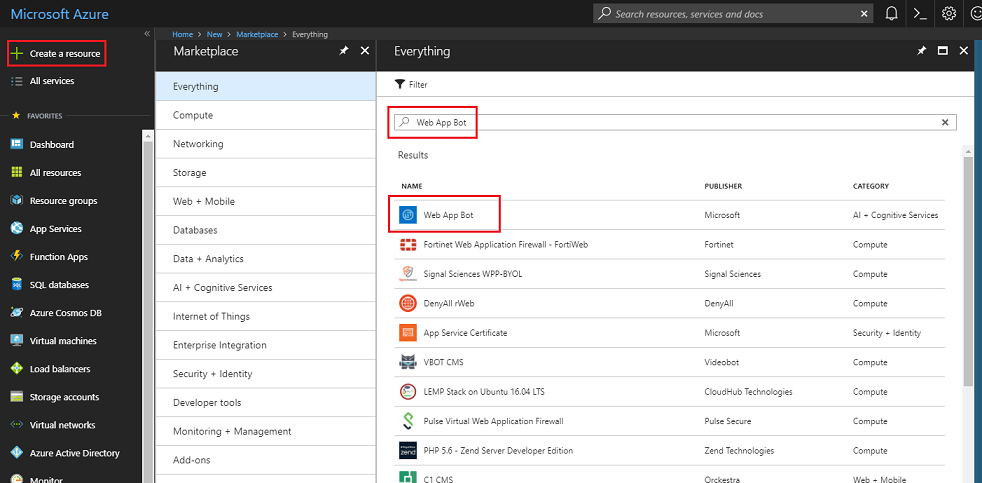
新頁面提供了 網頁應用程式機器人 服務的介紹。 在本頁左下角,選擇 「建立 」按鈕,以建立與此服務的關聯。

點擊 建立後:
請輸入你想要的 服務名稱 。
選擇 訂閱。
選擇資源群組或建立一個新的 群組 。 資源群組提供一種監控、控制存取、配置及管理 Azure 資產集合帳單的方式。 建議將所有與單一專案相關的Azure服務 (,例如這些課程) 放在共同資源群組) 下。
如果您想了解更多關於 Azure 資源群組的資訊,請點此連結
如果你要建立新的資源群組) ,請確定你的資源群組的位置 (。 理想地點應該位於該應用程式執行的區域。 部分 Azure 資產僅在特定區域可用。
選擇適合您的 定價等級 ,首次建立 網頁應用程式機器人 服務時,應該會有一個名為 F0) 的免費 (
應用程式名稱 可以保持機器人 名稱不變。
機器人 範本 保留為 基本 (C#) 。
App Service 方案/位置應該會自動填入你的帳戶。
設定你想用來架設機器人的 Azure 儲存裝置。 如果你還沒有,可以在這裡建立。
您需要確認您已理解適用於本服務的條款與條件。
按一下 [建立]。
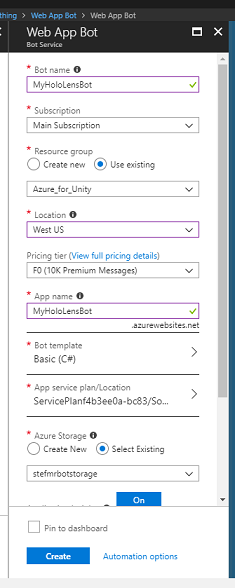
點擊 建立後,等待服務建立,這可能需要一分鐘。
服務實例建立後,入口網站會顯示通知。

點擊通知以探索您的新服務實例。
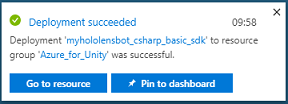
點擊通知中的 「前往資源 」按鈕,探索您的新服務實例。 你會被帶到新的 Azure 服務實例。
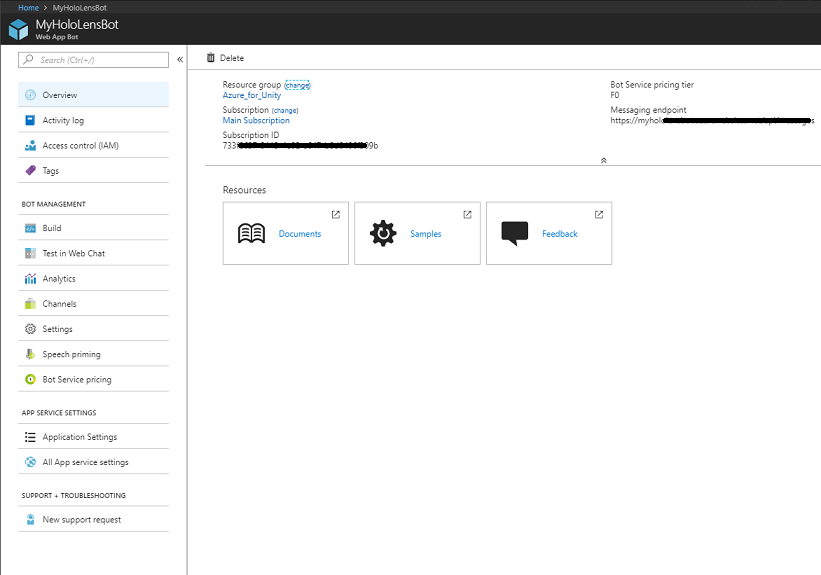
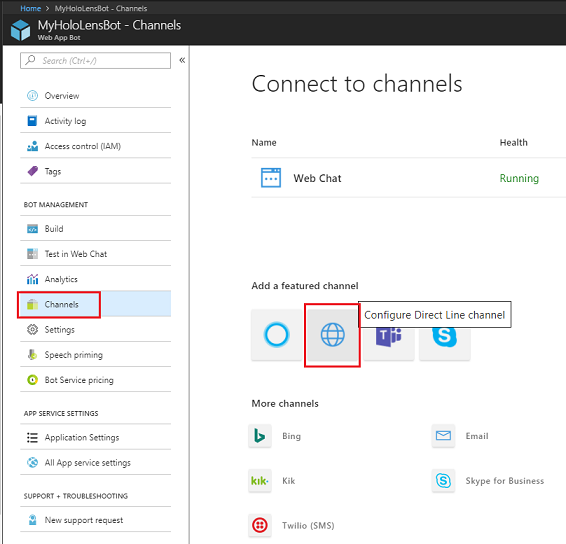
此時你需要設定一個叫做 Direct Line 的功能,讓你的客戶端應用程式能與這個 Bot Service 溝通。 點選頻道,然後在新增精選頻道區塊,點選配置 Direct Line 頻道。
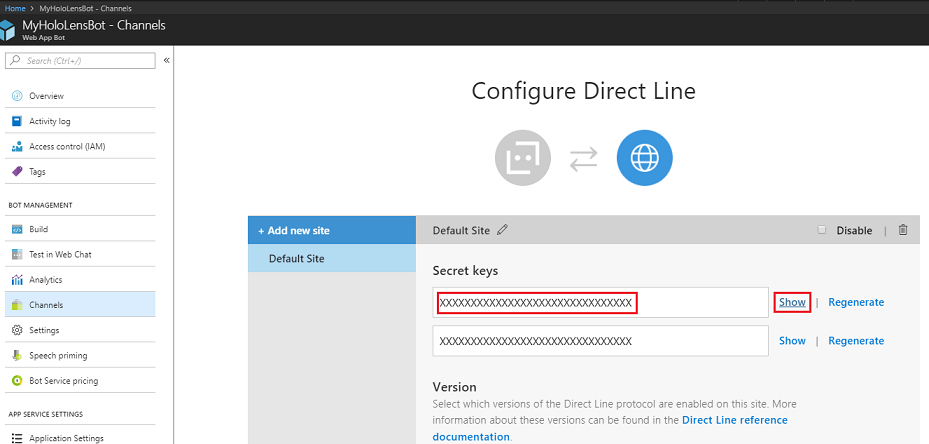
在本頁中,找到允許客戶端應用程式與機器人認證的 秘密金鑰 。 點擊 「顯示 」按鈕,取得其中一組顯示的鑰匙,供你後續專案使用。
第三章 – 將機器人發佈至 Azure 網頁應用程式 Bot Service
現在你的服務準備好了,你需要將之前建立的機器人程式碼發佈到新建立的 Web App Bot Service。
注意事項
每次你修改機器人解決方案或程式碼時,都必須將你的機器人發佈到 Azure 服務。
返回你之前建立的 Visual Studio 解決方案。
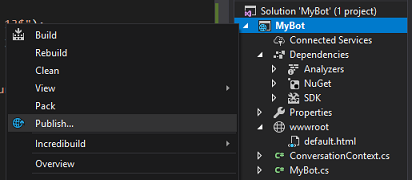
在你的 MyBot 專案中右鍵點擊,在方案總管中,然後點選發佈。
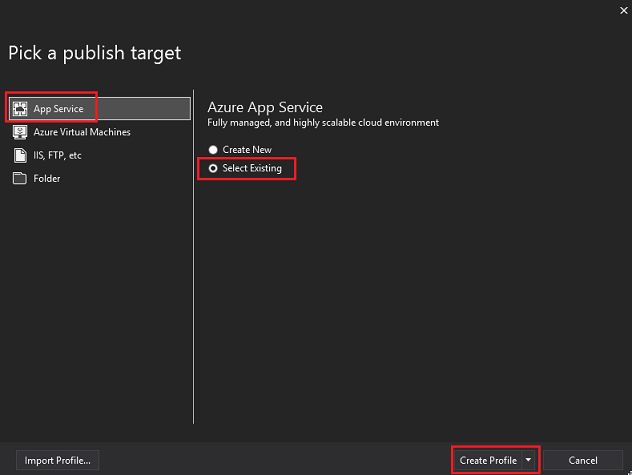
在「選擇發佈目標」頁面,點擊App Service,然後選擇現有,最後點選建立個人檔案 (如果) 看不到,可能需要點擊發佈按鈕旁的下拉箭頭。
如果你還沒登入 Microsoft 帳號,必須在這裡登入。
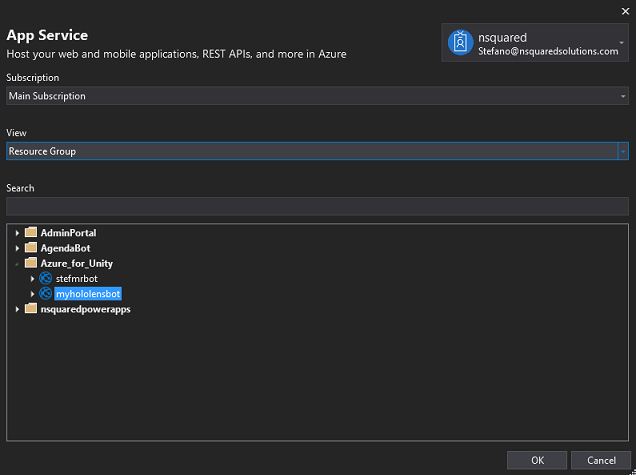
在發佈頁面,你必須設定與建立網頁應用程式機器人服務時相同的訂閱。 然後將 檢視 設為 資源群組 ,並在下拉選單資料夾結構中選擇你之前建立的 資源群組 。 按一下確定。
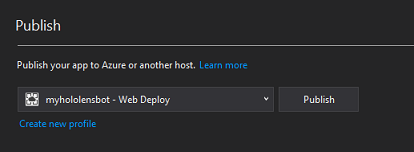
現在點擊 發佈 按鈕,等待機器人發布 (可能需要幾分鐘) 。
第四章 – 建立 Unity 專案
以下步驟是混合實境開發的典型架構,因此是其他專案的良好範本。
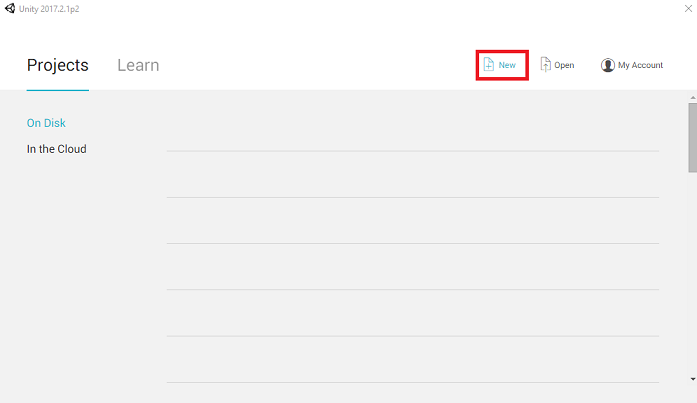
打開 Unity 並點 選新檔。
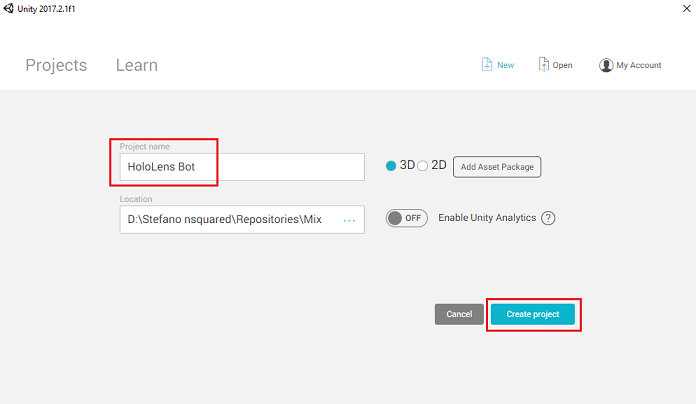
你需要提供 Unity 專案名稱。 插入 全息鏡頭機器人。 確保專案範本設定為 3D。 請將 位置 設定在適合你的位置, (記得,靠近根目錄會比較) 。 然後,點擊 「建立專案」。
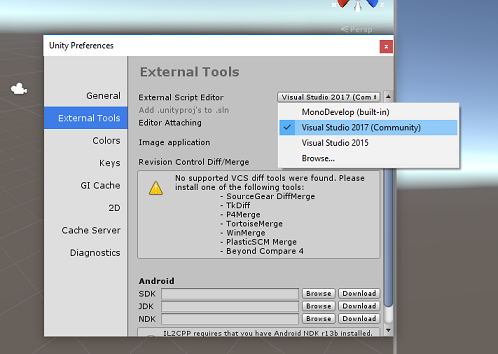
打開 Unity 時,值得檢查預設的 腳本編輯器 是否設定為 Visual Studio。 進入 編輯 > 偏好設定 ,然後從新視窗中切換到 外部工具。 將 外部腳本編輯器 改為 Visual Studio 2017。 關閉 偏好設定 視窗。
接著,前往檔案>建置設定,選擇通用 Windows 平台,然後點選 Switch Platform 按鈕套用你的選擇。
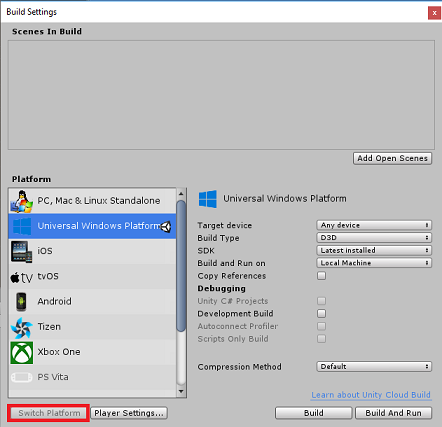
在檔案建置設定中>,確保:
目標裝置 設定為 HoloLens
對於沉浸式耳機,將 目標裝置 設為 任意裝置。
建構類型 設定為 D3D
SDK 設定為 最新安裝
Visual Studio 版本 設定為 最新安裝
建置與執行 設定為 本地機器
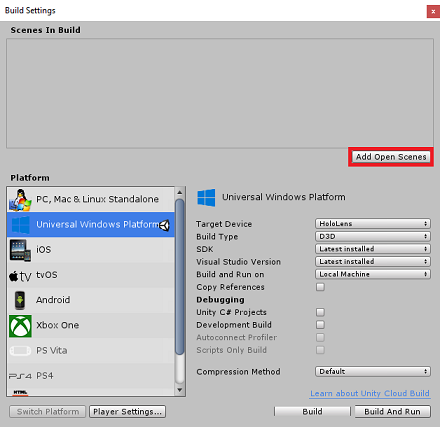
儲存場景並加入建構。
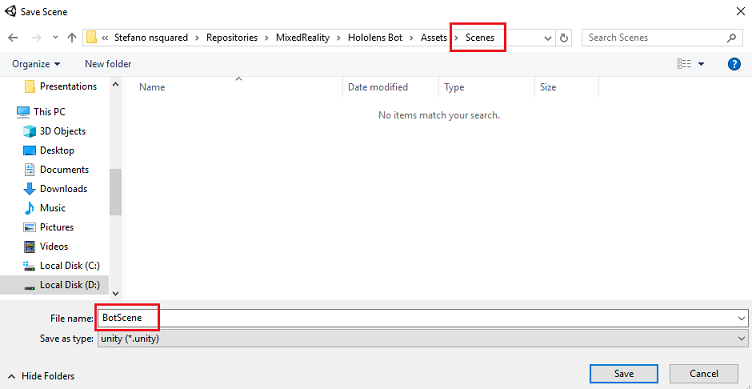
請選擇 新增開啟場景。 存檔視窗會出現。
為這個場景以及未來的場景建立一個新資料夾,然後選擇 新資料夾 按鈕,建立新資料夾,命名 為 Scenes。
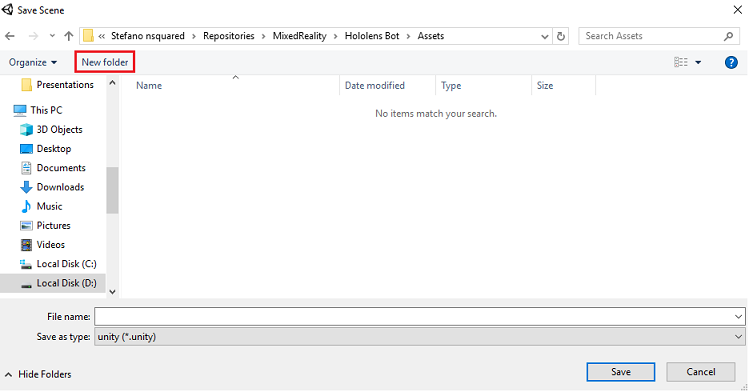
打開你新建立 的 Scenes 資料夾,然後在 檔案名稱:文字欄位輸入 BotScene,然後點 選儲存。
剩下的設定,在 建構設定裡,暫時應該保持預設。
在 建築設定 視窗中,點擊 玩家設定 按鈕,檢查 器 所在的空間會開啟相關面板。
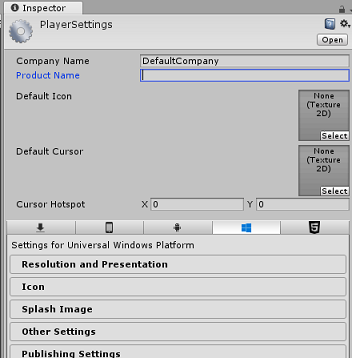
在這個面板中,需要驗證幾個設定:
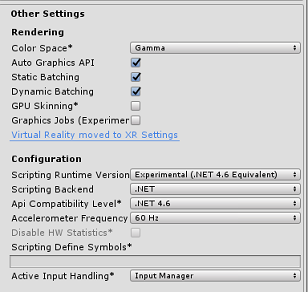
在 其他設定 標籤中:
腳本執行版本 應為 實驗性 (NET 4.6 等效) ;此變更需要重新啟動編輯器。
腳本後端應該是 .NET
API 相容等級 應該是 .NET 4.6
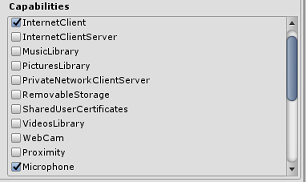
在 發佈設定 標籤中 ,功能欄下勾選:
網際網路用戶端
麥克風
在面板下方,在 XR 設定 (「發布設定) 」下方,勾選支援虛擬實境,確保已新增 Windows Mixed Reality SDK。
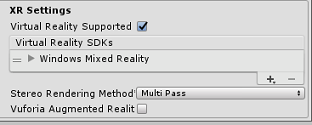
回到建置設定,Unity C# 專案不再是灰色的;勾選這個旁邊的勾選框。
關閉建構設定視窗。
將你的場景和專案儲存在 檔案 > 儲存場景/檔案 > 儲存專案 () 。
第五章 – 攝影機設置
重要事項
如果你想跳過本課程的 Unity 設定部分,直接進入程式碼,歡迎下載這個 Azure-MR-312-Package.unitypackage,將其匯入你的專案中,作為自訂套件,然後從第 7 章繼續。
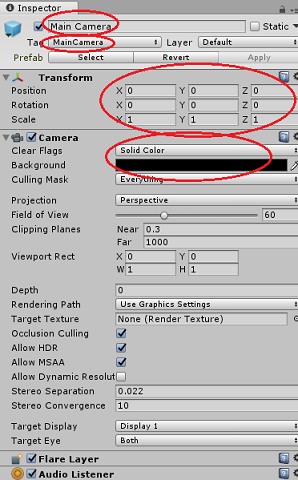
在 階層面板中,選擇 主攝影機。
選中後,在檢查器面板中看到主攝影機的所有組件。
- 相機 物件 必須命名為 主攝影機 (請注意拼寫)
- 主攝影機 標籤 必須設為 主攝影機 (注意拼寫)
- 確保 轉換位置 設定為 0、0、0
- 將 透明旗 幟設定為 純色。
- 將相機元件的 背景 色設為 黑色,alpha 0 (十六進位代碼:#00000000)
第六章 – 匯入 Newtonsoft 函式庫
為了幫助你反序列化和序列化接收並傳送到 Bot Service 的物件,你需要下載 Newtonsoft 函式庫。 你可以在這裡找到 已有相容版本,並有正確的 Unity 資料夾結構。
要將 Newtonsoft 函式庫匯入你的專案,請使用本課程附帶的 Unity 套件。
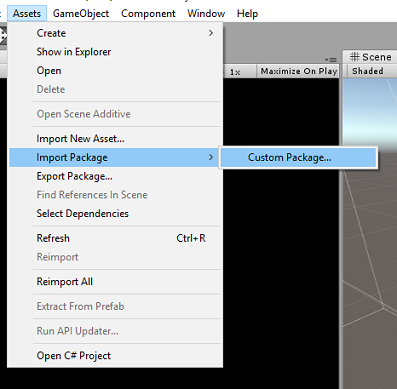
透過 Assets>匯入套件> 自訂套件選單選項,將.unitypackage 加入 Unity。
在跳出的 Unity 套件匯入 框中,確保所有在 (下且包含) 插件 的項目都被選中。
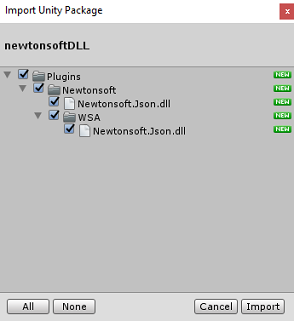
點擊 匯入 按鈕將項目加入您的專案。
在專案檢視的 Plugins 資料夾裡,進入 Newtonsoft 資料夾,選擇 Newtonsoft 插件。
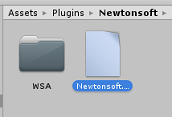
選擇 Newtonsoft 外掛後,確保「任何平台」未勾選,然後確認 WSAPlayer 也未勾選,然後點擊「套用」確認檔案設定正確。
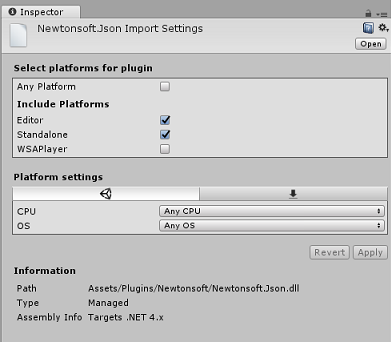
注意事項
標記這些插件會設定成只能在 Unity 編輯器中使用。 WSA 資料夾裡有另一組,這些是專案從 Unity 匯出後使用的。
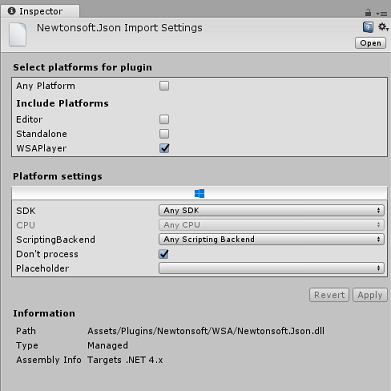
接著,你需要打開 Newtonsoft 資料夾裡的 WSA 資料夾,找到你設定的同一個檔案副本。 選擇檔案,然後在檢查器中確認
- 任何平台都未被勾選
- 僅檢查WSAPlayer
- 不處理已勾選
第七章 – 建立機器人標籤
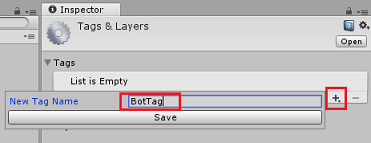
建立一個新的 標籤 物件,稱為 BotTag。 選擇場景中的主攝影機。 點擊檢查員面板中的標籤下拉選單。 點擊 新增標籤。
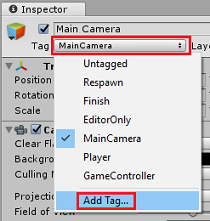
點擊符號 + 。 新 標籤 命名為 BotTag, 存檔。
警告
請勿 將 BotTag 套用到主鏡頭。 如果不小心設定,記得把主攝影機標籤改回 主攝影機。
第八章 – 建立 BotObjects 類別
你首先需要建立的腳本是 BotObjects 類別,這是一個空的類別,讓一系列其他類別物件可以儲存在同一個腳本中,並被場景中其他腳本存取。
這個類別的創造純粹是建築上的選擇。 這些物件可以放在你在本課程後面建立的機器人腳本中。
要建立這個類別:
在 專案面板中右鍵點擊,然後 建立 > 資料夾。 把資料夾命名 為 Scripts。
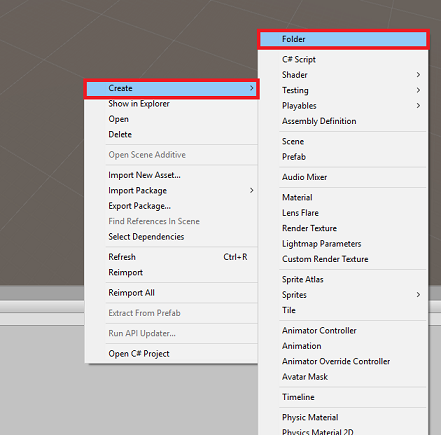
雙擊 Scripts 資料夾即可開啟。 接著在該資料夾內,右鍵點選 「建立 > C# 腳本」。 將腳本命名 為 BotObjects。
雙擊新的 BotObjects 腳本,用 Visual Studio 開啟它。
刪除腳本內容,並以以下程式碼取代:
using System;
using System.Collections;
using System.Collections.Generic;
using UnityEngine;

public class BotObjects : MonoBehaviour{}

/// <summary>
/// Object received when first opening a conversation
/// </summary>
[Serializable]
public class ConversationObject
{
    public string ConversationId;
    public string token;
    public string expires_in;
    public string streamUrl;
    public string referenceGrammarId;
}

/// <summary>
/// Object including all Activities
/// </summary>
[Serializable]
public class ActivitiesRootObject
{
    public List<Activity> activities { get; set; }
    public string watermark { get; set; }
}
[Serializable]
public class Conversation
{
    public string id { get; set; }
}
[Serializable]
public class From
{
    public string id { get; set; }
    public string name { get; set; }
}
[Serializable]
public class Activity
{
    public string type { get; set; }
    public string channelId { get; set; }
    public Conversation conversation { get; set; }
    public string id { get; set; }
    public From from { get; set; }
    public string text { get; set; }
    public string textFormat { get; set; }
    public DateTime timestamp { get; set; }
    public string serviceUrl { get; set; }
}
記得在回到 Unity 前先把你的更改存到 Visual Studio。
第九章 – 建立 GazeInput 類別
你接下來要建立的類別是 GazeInput 類別。 此類別負責:
- 建立一個代表玩家 視線 的游標。
- 偵測玩家目光擊中的物體,並保持對偵測到物體的參考。
要建立這個類別:
回到你之前建立的 Scripts 資料夾。
在資料夾內點右鍵,建立 > C# 腳本。 將腳本命名為 GazeInput。
雙擊新的 GazeInput 腳本,用 Visual Studio 開啟它。
請在類別名稱上方插入以下行:
/// <summary>
/// Class responsible for the User's gaze interactions
/// </summary>
[System.Serializable]
public class GazeInput : MonoBehaviour
接著在 GazeInput 類別中,加入以下變數,位於 Start () 方法之上:
    [Tooltip("Used to compare whether an object is to be interacted with.")]
    internal string InteractibleTag = "BotTag";

    /// <summary>
    /// Length of the gaze
    /// </summary>
    internal float GazeMaxDistance = 300;

    /// <summary>
    /// Object currently gazed
    /// </summary>
    internal GameObject FocusedObject { get; private set; }

    internal GameObject _oldFocusedObject { get; private set; }

    internal RaycastHit HitInfo { get; private set; }

    /// <summary>
    /// Cursor object visible in the scene
    /// </summary>
    internal GameObject Cursor { get; private set; }

    internal bool Hit { get; private set; }

    internal Vector3 Position { get; private set; }

    internal Vector3 Normal { get; private set; }

    private Vector3 _gazeOrigin;

    private Vector3 _gazeDirection;
應新增 Start () 方法的程式碼,並在類別初始化時呼叫:
    /// <summary>
    /// Start method used upon initialization.
    /// </summary>
    internal virtual void Start()
    {
        FocusedObject = null;
        Cursor = CreateCursor();
    }
實作一個實作並設定視線游標的方法:
    /// <summary>
    /// Method to create a cursor object.
    /// </summary>
    internal GameObject CreateCursor()
    {
        GameObject newCursor = GameObject.CreatePrimitive(PrimitiveType.Sphere);
        newCursor.SetActive(false);
        // Remove the collider, so it does not block Raycast.
        Destroy(newCursor.GetComponent<SphereCollider>());
        newCursor.transform.localScale = new Vector3(0.05f, 0.05f, 0.05f);
        Material mat = new Material(Shader.Find("Diffuse"));
        newCursor.GetComponent<MeshRenderer>().material = mat;
        mat.color = Color.HSVToRGB(0.0223f, 0.7922f, 1.000f);
        newCursor.SetActive(true);

        return newCursor;
    }
實作從主鏡頭設定射線投射的方法,並追蹤目前聚焦的物件。
    /// <summary>
    /// Called every frame
    /// </summary>
    internal virtual void Update()
    {
        _gazeOrigin = Camera.main.transform.position;

        _gazeDirection = Camera.main.transform.forward;

        UpdateRaycast();
    }


    /// <summary>
    /// Reset the old focused object, stop the gaze timer, and send data if it
    /// is greater than one.
    /// </summary>
    private void ResetFocusedObject()
    {
        // Ensure the old focused object is not null.
        if (_oldFocusedObject != null)
        {
            if (_oldFocusedObject.CompareTag(InteractibleTag))
            {
                // Provide the OnGazeExited event.
                _oldFocusedObject.SendMessage("OnGazeExited",
                    SendMessageOptions.DontRequireReceiver);
            }
        }
    }


    private void UpdateRaycast()
    {
        // Set the old focused gameobject.
        _oldFocusedObject = FocusedObject;
        RaycastHit hitInfo;

        // Initialize Raycasting.
        Hit = Physics.Raycast(_gazeOrigin,
            _gazeDirection,
            out hitInfo,
            GazeMaxDistance);
        HitInfo = hitInfo;

        // Check whether raycast has hit.
        if (Hit == true)
        {
            Position = hitInfo.point;
            Normal = hitInfo.normal;

            // Check whether the hit has a collider.
            if (hitInfo.collider != null)
            {
                // Set the focused object with what the user just looked at.
                FocusedObject = hitInfo.collider.gameObject;
            }
            else
            {
                // Object looked on is not valid, set focused gameobject to null.
                FocusedObject = null;
            }
        }
        else
        {
            // No object looked upon, set focused gameobject to null.
            FocusedObject = null;

            // Provide default position for cursor.
            Position = _gazeOrigin + (_gazeDirection * GazeMaxDistance);

            // Provide a default normal.
            Normal = _gazeDirection;
        }

        // Lerp the cursor to the given position, which helps to stabilize the gaze.
        Cursor.transform.position = Vector3.Lerp(Cursor.transform.position, Position, 0.6f);

        // Check whether the previous focused object is this same. If so, reset the focused object.
        if (FocusedObject != _oldFocusedObject)
        {
            ResetFocusedObject();
            if (FocusedObject != null)
            {
                if (FocusedObject.CompareTag(InteractibleTag))
                {
                    // Provide the OnGazeEntered event.
                    FocusedObject.SendMessage("OnGazeEntered",
                        SendMessageOptions.DontRequireReceiver);
                }
            }
        }
    }
記得在回到 Unity 前先把你的更改存到 Visual Studio。
第十章 – 創建機器人類別
你現在要建立的腳本叫 做 Bot ,是你應用程式的核心類別,它儲存:
- 你的網頁應用程式機器人憑證
- 收集使用者語音指令的方法
- 與你的網頁應用程式機器人發起對話所需的方法
- 向你的網頁應用程式機器人發送訊息所需的方法
為了向Bot Service發送訊息,SendMessageToBot () 協程會建立一個活動,該活動是 Bot Framework 識別為使用者傳送資料的物件。
要建立這個類別:
雙擊腳 本 資料夾,即可開啟。
在 Scripts 資料夾內右鍵點擊「 建立 > C# 腳本」。 把腳本命名 為機器人。
雙擊新腳本即可用 Visual Studio 開啟。
將命名空間更新為與 Bot 類別頂端相同的格式:
using Newtonsoft.Json;
using System.Collections;
using System.Text;
using UnityEngine;
using UnityEngine.Networking;
using UnityEngine.Windows.Speech;
在 Bot 類別中加入以下變數:
    /// <summary>
    /// Static instance of this class
    /// </summary>
    public static Bot Instance;

    /// <summary>
    /// Material of the sphere representing the Bot in the scene
    /// </summary>
    internal Material botMaterial;

    /// <summary>
    /// Speech recognizer class reference, which will convert speech to text.
    /// </summary>
    private DictationRecognizer dictationRecognizer;

    /// <summary>
    /// Use this variable to identify the Bot Id
    /// Can be any value
    /// </summary>
    private string botId = "MRBotId";

    /// <summary>
    /// Use this variable to identify the Bot Name
    /// Can be any value
    /// </summary>
    private string botName = "MRBotName";

    /// <summary>
    /// The Bot Secret key found on the Web App Bot Service on the Azure Portal
    /// </summary>
    private string botSecret = "-- Add your Secret Key here --";

    /// <summary>
    /// Bot Endpoint, v4 Framework uses v3 endpoint at this point in time
    /// </summary>
    private string botEndpoint = "https://directline.botframework.com/v3/directline";

    /// <summary>
    /// The conversation object reference
    /// </summary>
    private ConversationObject conversation;

    /// <summary>
    /// Bot states to regulate the application flow
    /// </summary>
    internal enum BotState {ReadyToListen, Listening, Processing}

    /// <summary>
    /// Flag for the Bot state
    /// </summary>
    internal BotState botState;

    /// <summary>
    /// Flag for the conversation status
    /// </summary>
    internal bool conversationStarted = false;
注意事項
務必將你的 機器人秘密金鑰 插入 botSecret 變數。 你的 機器人秘密金鑰 在本課程第二 章第十步有涵蓋。
現在需要新增 Awake () 和 Start () 的程式碼。
    /// <summary>
    /// Called on Initialization
    /// </summary>
    void Awake()
    {
        Instance = this;
    }

    /// <summary>
    /// Called immediately after Awake method
    /// </summary>
    void Start()
    {
        botState = BotState.ReadyToListen;
    }
再加上語音擷取開始和結束時語音庫呼叫的兩個處理器。 當使用者停止說話時, 語音辨識器 會自動停止捕捉使用者的語音。
    /// <summary>
    /// Start microphone capture.
    /// </summary>
    public void StartCapturingAudio()
    {
        botState = BotState.Listening;
        botMaterial.color = Color.red;

        // Start dictation
        dictationRecognizer = new DictationRecognizer();
        dictationRecognizer.DictationResult += DictationRecognizer_DictationResult;
        dictationRecognizer.Start();
    }


    /// <summary>
    /// Stop microphone capture.
    /// </summary>
    public void StopCapturingAudio()
    {
        botState = BotState.Processing;
        dictationRecognizer.Stop();
    }
以下處理器會收集使用者語音輸入的結果,並呼叫負責將訊息傳送至網頁應用程式 Bot Service 的協程。
    /// <summary>
    /// This handler is called every time the Dictation detects a pause in the speech.
    /// </summary>
    private void DictationRecognizer_DictationResult(string text, ConfidenceLevel confidence)
    {
        // Update UI with dictation captured
        Debug.Log($"User just said: {text}");

        // Send dictation to Bot
        StartCoroutine(SendMessageToBot(text, botId, botName, "message"));
        StopCapturingAudio();
    }
以下協程被呼叫以開始與機器人對話。 當對話呼叫完成後,會透過傳遞一系列參數來呼叫 SendMessageToCoroutine () ,將要傳送到Bot Service的活動設定為空訊息,提示Bot Service啟動對話。
    /// <summary>
    /// Request a conversation with the Bot Service
    /// </summary>
    internal IEnumerator StartConversation()
    {
        string conversationEndpoint = string.Format("{0}/conversations", botEndpoint);

        WWWForm webForm = new WWWForm();

        using (UnityWebRequest unityWebRequest = UnityWebRequest.Post(conversationEndpoint, webForm))
        {
            unityWebRequest.SetRequestHeader("Authorization", "Bearer " + botSecret);
            unityWebRequest.downloadHandler = new DownloadHandlerBuffer();

            yield return unityWebRequest.SendWebRequest();
            string jsonResponse = unityWebRequest.downloadHandler.text;

            conversation = new ConversationObject();
            conversation = JsonConvert.DeserializeObject<ConversationObject>(jsonResponse);
            Debug.Log($"Start Conversation - Id: {conversation.ConversationId}");
            conversationStarted = true;
        }

        // The following call is necessary to create and inject an activity of type //"conversationUpdate" to request a first "introduction" from the Bot Service.
        StartCoroutine(SendMessageToBot("", botId, botName, "conversationUpdate"));
    }
以下協程被呼叫以建立將傳送至 Bot Service 的活動。
    /// <summary>
    /// Send the user message to the Bot Service in form of activity
    /// and call for a response
    /// </summary>
    private IEnumerator SendMessageToBot(string message, string fromId, string fromName, string activityType)
    {
        Debug.Log($"SendMessageCoroutine: {conversation.ConversationId}, message: {message} from Id: {fromId} from name: {fromName}");

        // Create a new activity here
        Activity activity = new Activity();
        activity.from = new From();
        activity.conversation = new Conversation();
        activity.from.id = fromId;
        activity.from.name = fromName;
        activity.text = message;
        activity.type = activityType;
        activity.channelId = "DirectLineChannelId";
        activity.conversation.id = conversation.ConversationId;

        // Serialize the activity
        string json = JsonConvert.SerializeObject(activity);

        string sendActivityEndpoint = string.Format("{0}/conversations/{1}/activities", botEndpoint, conversation.ConversationId);

        // Send the activity to the Bot
        using (UnityWebRequest www = new UnityWebRequest(sendActivityEndpoint, "POST"))
        {
            www.uploadHandler = new UploadHandlerRaw(Encoding.UTF8.GetBytes(json));

            www.downloadHandler = new DownloadHandlerBuffer();
            www.SetRequestHeader("Authorization", "Bearer " + botSecret);
            www.SetRequestHeader("Content-Type", "application/json");

            yield return www.SendWebRequest();

            // extrapolate the response Id used to keep track of the conversation
            string jsonResponse = www.downloadHandler.text;
            string cleanedJsonResponse = jsonResponse.Replace("\r\n", string.Empty);
            string responseConvId = cleanedJsonResponse.Substring(10, 30);

            // Request a response from the Bot Service
            StartCoroutine(GetResponseFromBot(activity));
        }
    }
在向 Bot Service 發送活動後,會呼叫以下協程來請求回應。
    /// <summary>
    /// Request a response from the Bot by using a previously sent activity
    /// </summary>
    private IEnumerator GetResponseFromBot(Activity activity)
    {
        string getActivityEndpoint = string.Format("{0}/conversations/{1}/activities", botEndpoint, conversation.ConversationId);

        using (UnityWebRequest unityWebRequest1 = UnityWebRequest.Get(getActivityEndpoint))
        {
            unityWebRequest1.downloadHandler = new DownloadHandlerBuffer();
            unityWebRequest1.SetRequestHeader("Authorization", "Bearer " + botSecret);

            yield return unityWebRequest1.SendWebRequest();

            string jsonResponse = unityWebRequest1.downloadHandler.text;

            ActivitiesRootObject root = new ActivitiesRootObject();
            root = JsonConvert.DeserializeObject<ActivitiesRootObject>(jsonResponse);

            foreach (var act in root.activities)
            {
                Debug.Log($"Bot Response: {act.text}");
                SetBotResponseText(act.text);
            }

            botState = BotState.ReadyToListen;
            botMaterial.color = Color.blue;
        }
    }
此類別最後新增的方法,是必須在場景中顯示訊息:
    /// <summary>
    /// Set the UI Response Text of the bot
    /// </summary>
    internal void SetBotResponseText(string responseString)
    {
        SceneOrganiser.Instance.botResponseText.text =  responseString;
    }
注意事項
你可能會在 Unity 編輯器主控台看到一個錯誤,關於缺少 SceneOrganiser 類別。 忽略這則訊息,這個職業是在教學後面建立的。
記得在回到 Unity 前先把你的更改存到 Visual Studio。
第十一章 – 創造互動課程
你現在要建立的類別叫做 Interactions。 此類別用於偵測使用者的 HoloLens 輕觸輸入。
如果使用者在觀看場景中的 機器人 物件時點擊,且機器人準備聆聽語音輸入,機器人物件會變為 紅色 並開始聆聽語音輸入。
此類別繼承自 GazeInput 類別,因此能參考 Start () 方法及該類別的變數,並以 base 表示。
要建立這個類別:
雙擊腳 本 資料夾,即可開啟。
在 Scripts 資料夾內右鍵點擊「 建立 > C# 腳本」。 劇本名稱 為「互動」。
雙擊新腳本即可用 Visual Studio 開啟。
將命名空間和類別繼承更新為以下,位於 Interactions 類別頂端:
using UnityEngine.XR.WSA.Input;

public class Interactions : GazeInput
{
在 Interactions 類別中加入以下變數:
    /// <summary>
    /// Allows input recognition with the HoloLens
    /// </summary>
    private GestureRecognizer _gestureRecognizer;
然後加上 開始 () 方法:
    /// <summary>
    /// Called on initialization, after Awake
    /// </summary>
    internal override void Start()
    {
        base.Start();

        //Register the application to recognize HoloLens user inputs
        _gestureRecognizer = new GestureRecognizer();
        _gestureRecognizer.SetRecognizableGestures(GestureSettings.Tap);
        _gestureRecognizer.Tapped += GestureRecognizer_Tapped;
        _gestureRecognizer.StartCapturingGestures();
    }
新增當使用者在 HoloLens 攝影機前執行點擊手勢時觸發的處理器
    /// <summary>
    /// Detects the User Tap Input
    /// </summary>
    private void GestureRecognizer_Tapped(TappedEventArgs obj)
    {
        // Ensure the bot is being gazed upon.
        if(base.FocusedObject != null)
        {
            // If the user is tapping on Bot and the Bot is ready to listen
            if (base.FocusedObject.name == "Bot" && Bot.Instance.botState == Bot.BotState.ReadyToListen)
            {
                // If a conversation has not started yet, request one
                if(Bot.Instance.conversationStarted)
                {
                    Bot.Instance.SetBotResponseText("Listening...");
                    Bot.Instance.StartCapturingAudio();
                }
                else
                {
                    Bot.Instance.SetBotResponseText("Requesting Conversation...");
                    StartCoroutine(Bot.Instance.StartConversation());
                }
            }
        }
    }
記得在回到 Unity 前先把你的更改存到 Visual Studio。
第十二章 – 建立場景組織者類別
本實驗室最後一個必修課程叫做 SceneOrganiser。 此類別透過在主攝影機中加入元件與腳本,並在場景中建立相應物件,以程式化方式設定場景。
要建立這個類別:
雙擊腳 本 資料夾,即可開啟。
在 Scripts 資料夾內右鍵點擊「 建立 > C# 腳本」。 將腳本命名 為 SceneOrganiser。
雙擊新腳本即可用 Visual Studio 開啟。
在 SceneOrganiser 類別中加入以下變數:
    /// <summary>
    /// Static instance of this class
    /// </summary>
    public static SceneOrganiser Instance;

    /// <summary>
    /// The 3D text representing the Bot response
    /// </summary>
    internal TextMesh botResponseText;
接著加入 Awake () 和 Start () 方法:
    /// <summary>
    /// Called on Initialization
    /// </summary>
    private void Awake()
    {
        Instance = this;
    }

    /// <summary>
    /// Called immediately after Awake method
    /// </summary>
    void Start ()
    {
        // Add the GazeInput class to this object
        gameObject.AddComponent<GazeInput>();

        // Add the Interactions class to this object
        gameObject.AddComponent<Interactions>();

        // Create the Bot in the scene
        CreateBotInScene();
    }
新增以下方法,負責在場景中建立機器人物件並設定參數與元件:
    /// <summary>
    /// Create the Sign In button object in the scene
    /// and sets its properties
    /// </summary>
    private void CreateBotInScene()
    {
        GameObject botObjInScene = GameObject.CreatePrimitive(PrimitiveType.Sphere);
        botObjInScene.name = "Bot";

        // Add the Bot class to the Bot GameObject
        botObjInScene.AddComponent<Bot>();

        // Create the Bot UI
        botResponseText = CreateBotResponseText();

        // Set properties of Bot GameObject
        Bot.Instance.botMaterial = new Material(Shader.Find("Diffuse"));
        botObjInScene.GetComponent<Renderer>().material = Bot.Instance.botMaterial;
        Bot.Instance.botMaterial.color = Color.blue;
        botObjInScene.transform.position = new Vector3(0f, 2f, 10f);
        botObjInScene.tag = "BotTag";
    }
新增以下方法,負責在場景中建立 UI 物件,代表機器人的回應:
    /// <summary>
    /// Spawns cursor for the Main Camera
    /// </summary>
    private TextMesh CreateBotResponseText()
    {
        // Create a sphere as new cursor
        GameObject textObject = new GameObject();
        textObject.transform.parent = Bot.Instance.transform;
        textObject.transform.localPosition = new Vector3(0,1,0);

        // Resize the new cursor
        textObject.transform.localScale = new Vector3(0.1f, 0.1f, 0.1f);

        // Creating the text of the Label
        TextMesh textMesh = textObject.AddComponent<TextMesh>();
        textMesh.anchor = TextAnchor.MiddleCenter;
        textMesh.alignment = TextAlignment.Center;
        textMesh.fontSize = 50;
        textMesh.text = "Hi there, tap on me and I will start listening.";

        return textMesh;
    }
記得在回到 Unity 前先把你的更改存到 Visual Studio。
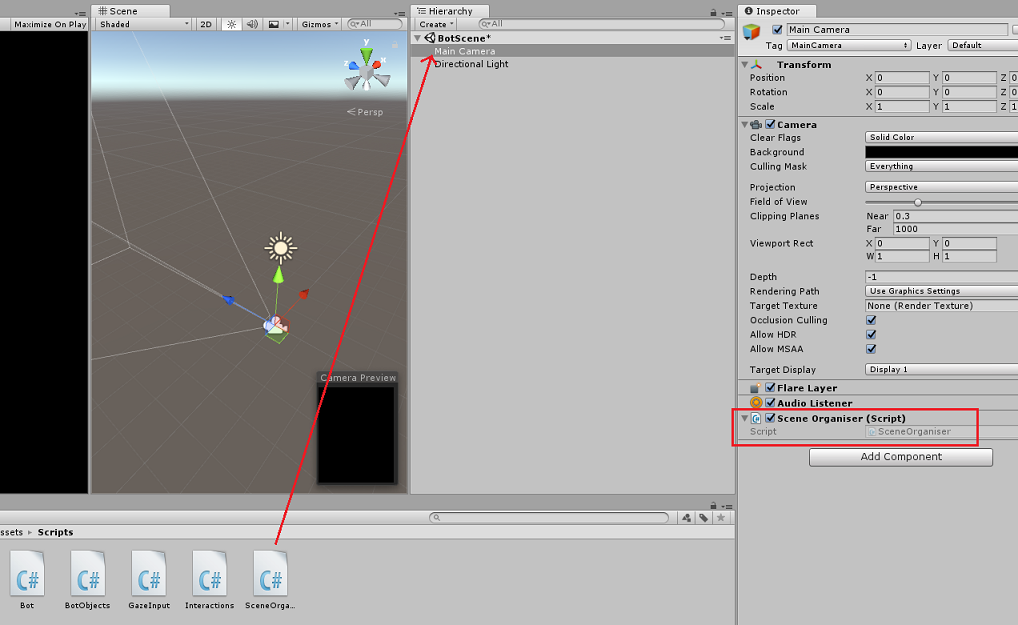
在 Unity 編輯器中,將 SceneOrganiser 腳本從 Scripts 資料夾拖曳到主攝影機。 場景組織器元件現在應該會出現在主攝影機物件上,如圖片所示。
第十三章 – 建造之前
要徹底測試你的應用程式,你需要將它側載到 HoloLens 上。 在此之前,請確保:
- 第四章提到的所有設定都是正確的。
- 腳本 SceneOrganiser 會附加在 主攝影機 物件上。
- 在 Bot 類別中,請確保你已將 你的 Bot Secret 金鑰 插入 botSecret 變數。
第十四章 – 建造與側載到全息鏡頭
這個專案 Unity 部分所需的一切都已完成,現在是時候從 Unity 來建立它了。
進入建置設定,檔案>建置設定......。
從 建置設定 視窗點選 建置。
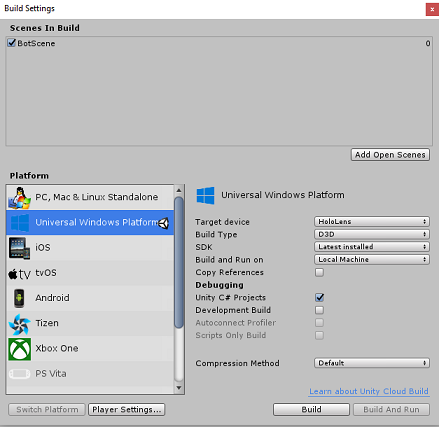
如果還沒,記得點選 Unity C# 專案。
點擊 「建造」。 Unity 會啟動一個檔案總管視窗,你需要在那裡建立並選擇一個資料夾來建置應用程式。 現在就建立那個資料夾,並命名為 App。 然後選擇 App 資料夾,點選「 選擇資料夾」。
Unity 開始將你的專案建置到 App 資料夾。
Unity 完成建置 (可能會花點時間) ,它會在建置地點開啟一個檔案總管視窗 (查看工作列,因為視窗不一定總是顯示在視窗上方,但會通知你新增一個視窗) 。
第十五章 – 部署至全息鏡頭
在 HoloLens 上部署:
你需要 HoloLens (的 IP 位址,才能進行遠端部署) ,並確保你的 HoloLens 處於 開發者模式。 若要執行這項作業:
- 戴著全息鏡片時, 打開設定。
- 前往 網路 & 網路 > Wi-Fi > 進階選項
- 請注意 IPv4 位址。
- 接著,回到 設定,再到 更新開發者安全 > &
- 開啟開發者模式。
) App 資料夾 (新的 Unity 建置,並用 Visual Studio 開啟解決方案檔案。
在解決方案設定中選擇除錯。
在 解決方案平台中,選擇 x86, 遠端機器。

到 建置選單 ,點選 部署解決方案,將應用程式側載到你的 HoloLens。
你的應用程式現在應該會出現在 HoloLens 已安裝的應用程式清單中,準備啟動!
注意事項
若要部署到沉浸式耳機,請將解決方案平台設為本地機器,並將配置設為除錯,平台為 x86。 接著在本地機器上部署,使用 建置選單,選擇 部署解決方案。
第十六章 – 在全息鏡頭上使用應用程式
啟動應用程式後,機器人會以藍色球體的形式出現在你面前。
當你凝視球體時,使用 輕觸手勢 來發起對話。
等對話開始 (介面會在) 時顯示訊息。 當你收到機器人的介紹訊息後,再次點擊機器人使其變紅並開始聆聽你的聲音。
當你停止說話後,應用程式會將訊息傳送給機器人,並在介面中顯示回應。
重複這個過程,每次想發送訊息) 都必須點擊, (
這段對話展示了機器人如何保留你名字 () 資訊,同時提供已知資訊,例如已存貨的物品。
以下是一些可以問機器人的問題:
what do you sell?

how much are umbrellas?

how much are raincoats?
你完成的網頁應用程式機器人 (v4) 應用程式
恭喜你,你打造了一個結合 Azure Web App Bot、Microsoft Bot Framework v4 的混合實境應用程式。
額外練習
練習一
這個實驗室的對話結構很基本。 使用 Microsoft LUIS 讓你的機器人具備自然語言理解能力。
練習二
此範例不包括結束對話並重新開始新對話。 為了讓機器人功能完整,試著在對話中設置結束功能。