上一頁: 顯示 Markdown 內容
既然我們知道如何呈現基本 Markdown 內容,讓我們嘗試利用 調適型卡片的強大功能來顯示更有意義的內容。 這對於建立表單或顯示更複雜的內容很有用。
使用表單
您可以使用IFormContent介面在命令面板中建立卡片(請參閱工具組實作的FormContent)。 這可讓您提供調適型卡片 JSON,而命令選擇區會為您轉譯它。 當使用者提交表單時,命令面板會在表單上呼叫 SubmitForm 方法,其中包含來自表單的 JSON 負載和輸入。
小提示
您可以使用 Adaptive Card Designer 來建立自適應卡片承載。 您可以在該處設計您的卡片設計,然後將 JSON 承載複製到擴充套件。
- 在
Pages目錄中,新增類別 - 為類別命名
FormPage - 更新類別
FormPage:
internal sealed partial class FormPage : ContentPage
{
    private readonly SampleContentForm sampleForm = new();

    public override IContent[] GetContent() => [sampleForm];

    public FormPage()
    {
        Name = "Open";
        Title = "Sample Content";
        Icon = new IconInfo("\uECA5"); // Tiles
    }
}
FormPage 是內容頁面,向使用者顯示表單SampleContentForm。 它會建立 SampleContentForm 實例,此實例是一個表單(稍後定義),描述使用者輸入表單的 UI 和邏輯。
- 在檔案底部 (類別底下
FormPage) 新增:
internal sealed partial class SampleContentForm : FormContent
{
    public SampleContentForm()
    {
        TemplateJson = $$"""
{
    "$schema": "http://adaptivecards.io/schemas/adaptive-card.json",
    "type": "AdaptiveCard",
    "version": "1.6",
    "body": [
        {
            "type": "TextBlock",
            "size": "medium",
            "weight": "bolder",
            "text": " Sample",
            "horizontalAlignment": "center",
            "wrap": true,
            "style": "heading"
        },
        {
            "type": "Input.Text",
            "label": "Name",
            "style": "text",
            "id": "SimpleVal",
            "isRequired": true,
            "errorMessage": "Name is required",
            "placeholder": "Enter your name"
        }
    ],
    "actions": [
        {
            "type": "Action.Submit",
            "title": "Submit",
            "data": {
                "id": "1234567890"
            }
        }
    ]
}
""";

    }

    public override CommandResult SubmitForm(string payload)
    {
        var formInput = JsonNode.Parse(payload)?.AsObject();
        Debug.WriteLine($"Form submitted with formInput: {formInput}");
        if (formInput == null)
        {
            return CommandResult.GoHome();
        }
        ConfirmationArgs confirmArgs = new()
        {
            PrimaryCommand = new AnonymousCommand(
                () =>
                {
                    string? name = formInput["Name"]?.ToString();
                    ToastStatusMessage t = new($"Hi {name}" ?? "No name entered");
                    t.Show();
                })
            {
                Name = "Confirm",
                 Result = CommandResult.KeepOpen(),
            },
            Title = "You can set a title for the dialog",
            Description = "Are you really sure you want to do the thing?",
        };
        return CommandResult.Confirm(confirmArgs);
    }
}
SampleContentForm包含表單和表單提交邏輯。
TemplateJson包含表單結構和動作。 此範例只包含一個文字輸入,其標識碼為 「Name」,而且有一個提交表單的動作。
SubmitForm 進行承載數據的解析;如果無效,將命令返回至主頁,否則會顯示確認對話框和快顯通知。
- 開啟
<ExtensionName>CommandsProvider.cs - 將
MarkdownPage替換為FormPage
public <ExtensionName>CommandsProvider()
{
    DisplayName = "My sample extension";
    Icon = IconHelpers.FromRelativePath("Assets\\StoreLogo.png");
    _commands = [
+       new CommandItem(new FormPage()) { Title = DisplayName },
    ];
}
- 部署擴充功能
- 在指令面板中,
Reload

調適型卡片可以執行更複雜的表單,包括使用另一個 JSON 物件動態建立自訂表單。 您必須先使用 調適型卡片設計工具 來設定表單,然後更新命令。
- 開啟https://adaptivecards.io/designer/
- 在 中
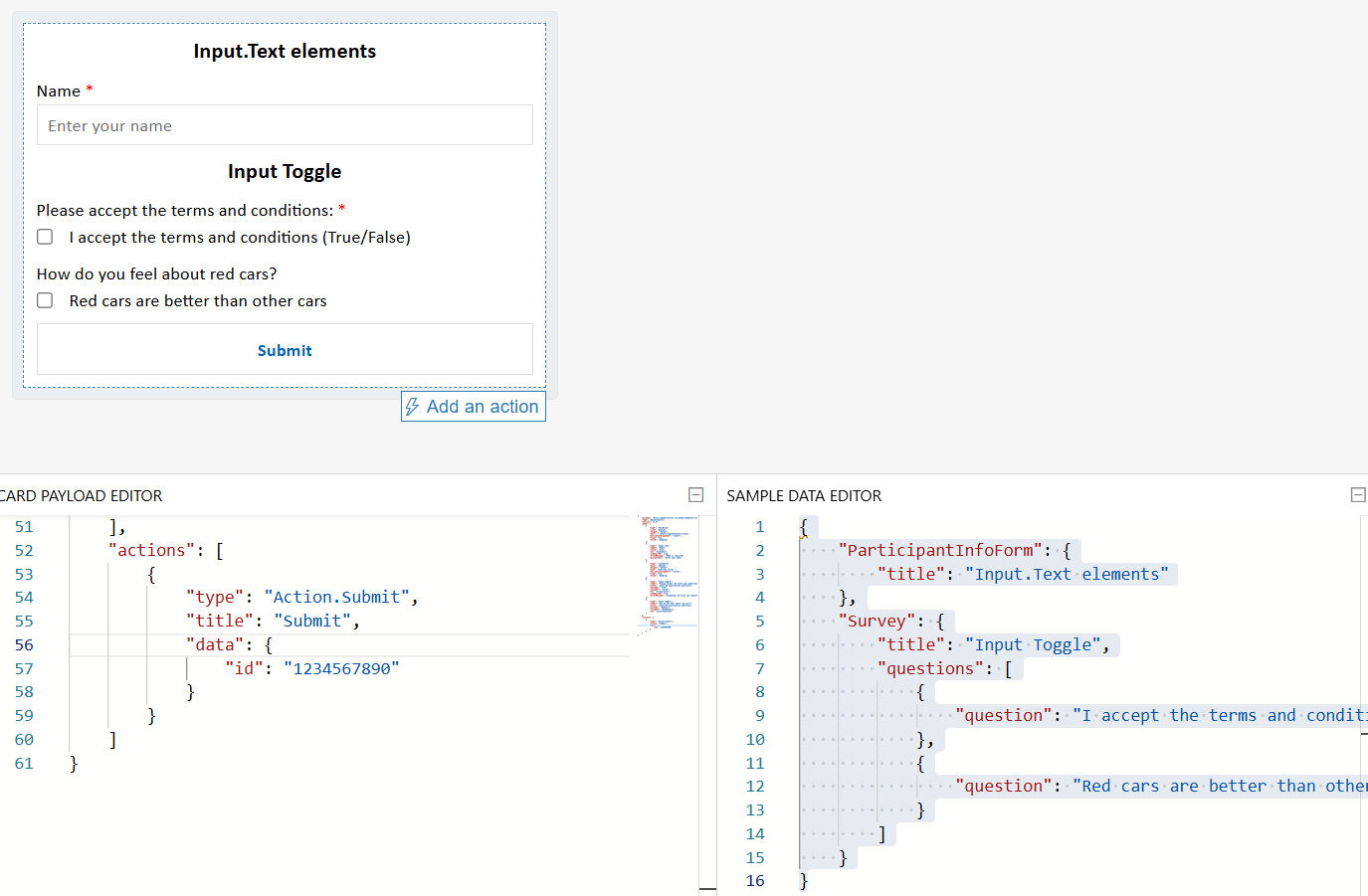
CARD PAYLOAD EDITOR,將 json 取代為:
{
    "$schema": "http://adaptivecards.io/schemas/adaptive-card.json",
    "type": "AdaptiveCard",
    "version": "1.6",
    "body": [
        {
            "type": "TextBlock",
            "size": "medium",
            "weight": "bolder",
            "text": " ${ParticipantInfoForm.title}",
            "horizontalAlignment": "center",
            "wrap": true,
            "style": "heading"
        },
        {
            "type": "Input.Text",
            "label": "Name",
            "style": "text",
            "id": "Name",
            "isRequired": true,
            "errorMessage": "Name is required",
            "placeholder": "Enter your name"
        },
        {
            "type": "TextBlock",
            "size": "medium",
            "weight": "bolder",
            "text": "${Survey.title} ",
            "horizontalAlignment": "center",
            "wrap": true,
            "style": "heading"
        },
        {
            "type": "Input.Toggle",
            "label": "Please accept the terms and conditions:",
            "title": "${Survey.questions[0].question}",
            "valueOn": "true",
            "valueOff": "false",
            "id": "AcceptsTerms",
            "isRequired": true,
            "errorMessage": "Accepting the terms and conditions is required"
        },
        {
            "type": "Input.Toggle",
            "label": "How do you feel about red cars?",
            "title": "${Survey.questions[1].question}",
            "valueOn": "RedCars",
            "valueOff": "NotRedCars",
            "id": "ColorPreference"
        }
    ],
    "actions": [
        {
            "type": "Action.Submit",
            "title": "Submit",
            "data": {
                "id": "1234567890"
            }
        }
    ]
}
- 在 中
SAMPLE DATA EDITOR,將 json 取代為:
{
    "ParticipantInfoForm": {
        "title": "Input.Text elements"
    },
    "Survey": {
        "title": "Input Toggle",
        "questions": [
            {
                "question": "I accept the terms and conditions (True/False)"
            },
            {
                "question": "Red cars are better than other cars"
            }
        ]
    }
}
設計工具看起來應該像這樣:
若要將此內容新增至您的延伸模組:
- 使用
CARD PAYLOAD EDITOR內容更新TemplateJson - 在
TemplateJson底下,添加:
        DataJson = $$"""
{
    "ParticipantInfoForm": {
        "title": "Input.Text elements"
    },
    "Survey": {
        "title": "Input Toggle",
        "questions": [
            {
                "question": "I accept the terms and conditions (True/False)"
            },
            {
                "question": "Red cars are better than other cars"
            }
        ]
    }
}
""";
- 部署擴充功能
- 在指令面板中,
Reload
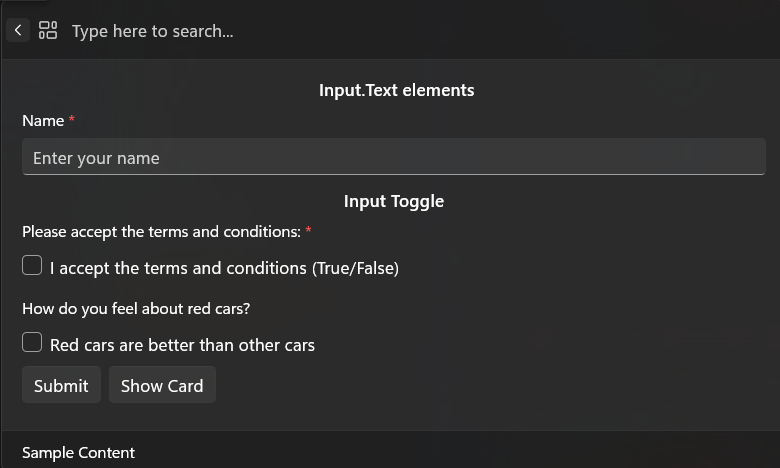
TemplateJson 和 DataJson 一起建立動態、數據驅動表單。
TemplateJson 可以作為表單藍圖,DataJson 作為動態內容來源。
完整範例
如需使用表單與內容頁面的完整範例,請前往 SamplePagesExtension/Pages/SampleContentPage.cs。
重要項目
使用
TemplateJson的FormContent屬性定義表單配置。 這是卡片承載編輯器中的 JSON 承載https://adaptivecards.io/designer/。 它會描述表單的結構和UI。選擇性地使用
DataJson屬性綁定動態數據。 這是調適型卡片設計工具中範例數據編輯器中的 JSON。 它可讓您使用 ${...} 佔位符將動態值插入卡片,讓您的表單更容易本地化和維護。實作
SubmitForm方法來處理表單提交。 當使用者提交表單時,會呼叫這個方法。 您會收到表單的承載做為 JSON 字串,您可以剖析及用來觸發動作、顯示確認對話框或傳回導覽結果。
public override CommandResult SubmitForm(string payload)
{
    var formInput = JsonNode.Parse(payload)?.AsObject();
    if (formInput == null)
    {
        return CommandResult.GoHome();
    }

    // retrieve the value of the input field with the id "name"
    var name = formInput["name"]?.AsString();

    // do something with the data

    // and eventually
    return CommandResult.GoBack();
}
備註
您可以在擴充功能中混合並比對不同的 IContent 類型。 例如,您可以使用 MarkdownContent 區塊來顯示貼文,後面接著區塊 FormContent 來收集回復。
