I think I got all the stuff posted. Oh, one more thing I forgot to mention. After the first image, my network was acting funny, so I rebooted my modem and router, but I don't think that would change anything. The second images are after the reboot of the modem and router. I was also trying a different way to post with all the pictures together, so it is probably a little confusing at first, looking at the images. But there are 4 CPU pictures and 4 Memory pictures. I think I got them posted right.
Windows 11 24H2 automatic functions via Task scheduler not working correctly
After windows update, which I think was the Defender update, some scheduled tasks stopped working correctly while others are unaffected by the update. The biggest issue caused by this update that was automatically pushed to my system was a Daily reboot task that worked flawlessly for years, and now only works after a manual reboot, and then only works for a while before the error comes back. The error is not showing as an error as far as I know, but after Windows has run on my PC for a while, if I try to manually reboot or use the task to reboot, the Del login screen comes up with the cursor spinning below it. This screen will stay just like that, with the spinning cursor, for days if I allow it to continue. When this happens, only pushing and holding the power button till PC turns off and then pushing the power button to turn it back on works to reboot the PC. Other issues are that some tasks will automatically disable themselves and will stay disabled unless I enable them. and OneDrive doesn't automatically load. I thought it was that the patch corrupted files, so I reloaded Windows using the ISO file, and only 25H was available via the website, so I upgraded to 25H2, and installed 25H2 from the ISO file. You think that would have fixed the issue, but it didn't, and even more error occured with Widgets not working. I uninstalled the latest feature, and that got me back to 24H2, but I still had the same old problem I had before. I remembered that there were SFC and DISM embedded tools that I could try, and I ran all of them in the order recommended, and they found some errors, just not the ones that were causing my errors, and fixed them. So I ran chkdsk with the recommended tags to fix any errors it detected, and then ran SFC and DISM again, which ran without errors but didn't fix my issues either. Whatever is causing the errors is not loaded at first, because after I restart my PC for a while, the tasks are ready, and during that time, I can run the reboot task, and my PC reboots just like it used to. Wait a few hours and try to run it, and I have to turn the power off and on to get my PC to reboot. Now, as far as the task that disables itself after I activate it, they stay activated for the rest of the day. So whatever is causing them to disable in the first place is a one-time thing that after it occurs it doesn't occur again until after a reboot. Windows itself is running fine, and all the tasks run fine as far as I can tell, but the ones that are disabling themselves are not just created by the software I installed, but also some were added automatically by Microsoft, so I am not sure what they do. My OneDrive seems to have a mind of its own and will sometimes load as it is supposed to, and other time will not load and I have to manually open it to get it to load. Any help resolving this issue would be appreciated.
Windows for home | Windows 11 | Windows update
17 answers
Sort by: Most helpful
-
-
Chris Byrd 45 Reputation points
2025-12-19T16:25:51.3666667+00:00 I think I got all the stuff posted. Oh, one more thing I forgot to mention. After the first image, my network was acting funny, so I rebooted my modem and router, but I don't think that would change anything. The second images are after the reboot of the modem and router. I was also trying a different way to post with all the pictures together, so it is probably a little confusing at first, looking at the images. But there are 4 CPU pictures and 4 Memory pictures. I think I got them posted right.
If it gets confusing you can look at the time in the Taskbar on each picture.
-
Chris Byrd 45 Reputation points
2025-12-19T19:13:32.8266667+00:00 Also, if the pictures are confusing the way they were posted, if you look at the taskbar in each picture, it has the time, so if necessary, you can look at the taskbar in the images and get them in the right order according to the timeline I posted before I sent anything. Also strange that after my power came back online, my OneDrive was in the taskbar without me having to manually load it. So that may be fixed. I will get the other stuff you need shortly. I have to do some other stuff right now.
-
Chris Byrd 45 Reputation points
2025-12-19T20:55:54.0233333+00:00 Was I supposed to gather more data? If so, I can't find what I am supposed to gather. Something was removed, so I don't know if the part that was removed is the data I was supposed to collect and send. I am waiting for the next bit of information to either collect or to send to help troubleshoot. I probably won't check back again today, but I will be looking tomorrow for the information I need to collect to get to you if there is any. Thanks so much for helping me, as I have done all I can do on my own and don't seem to have gotten anywhere.
-
MotoX80 37,161 Reputation points2025-12-19T23:21:54.5233333+00:00 I had to think about my reply. Sorry for the long answer. You should read this carefully.
The only thing I noticed was the increased handle count in the CPU image, but it didn't look excessive. Everything else looks like you have plenty of resources.
The first thing that I would recommend that you do is to ensure that you have a backup of any critical data files on this pc. Copy them off to another PC or an external drive. That's "Cover Your YouKnowWhat 101".
Next I think that I would run the hardware vendor's diagnostic tools. Like Dells' SupportAssist and Intels' Driver and Support Assistant. Verify that the firmware, drivers, BIOS, etc, are all up to date.
Then run whatever hardware test tool that they offer. Test cpu/memory/disk. You shouldn't have to hold the power button down to force a boot. Let's check the hardware first and eliminate that as a source of the problem. You may need to boot into the BIOS to run those tests.
Next I would uninstall any 3rd party anti-virus and intrusion detection programs like Norton and McAfee. Reboot afterwards and see if the problem still occurs.
Next, run msconfig.exe and choose a diagnostic boot. The theory being that some piece of software that you have installed is causing the hang (disabling the tasks?). Let's see what happens if you boot up without loading most of the applications.
Some things won't work because the services that they require won't be started. But that's ok. Test what you can. Browse some sites, play a video/mp3. Let it run for a while and see if you can reboot ok.
If you still have the problem, then that would imply that your problem is in the base Windows OS. If you don't have the problem, then that would point to some application (that didn't get started in the diagnostic reboot) as being the cause of your problem.
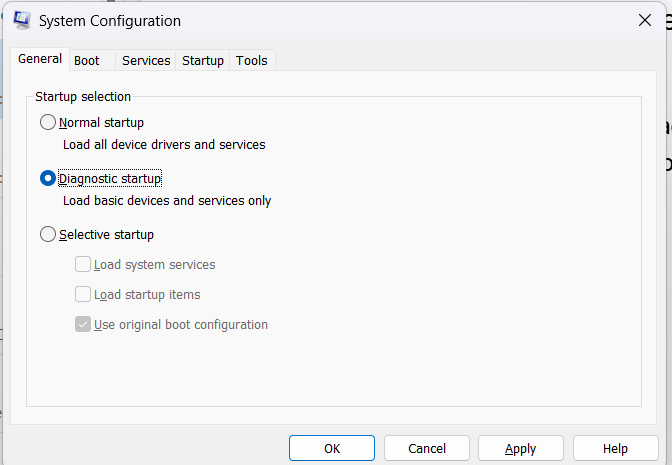
Run msconfig and boot back in to Normal Startup.
Eventually you will need to apply MS's updates to get the latest security patches. I saw in your initial question where you mentioned about running SFC and DISM. They are commonly offered as suggestions on this site. What I did was to try to consolidate all of the "health tests" that I knew about into a Powershell script that I named IsWindowsHealthy.ps1.
https://learn.microsoft.com/en-us/answers/questions/118183/how-to-fix-error-0x80070543-in-windows-10
Save that as a .ps1 file and run it in a "Run as administrator" Powershell prompt. See if it detects any issue like "The component store is repairable.". You may need to "Set-ExecutionPolicy Bypass" in order to run the script.
Finally run Windows Update and get the latest patches installed.
Good luck.