Note
Access to this page requires authorization. You can try signing in or changing directories.
Access to this page requires authorization. You can try changing directories.
Azure Copilot can help you work more efficiently with Azure Kubernetes Service (AKS) clusters.
When you ask Azure Copilot for help with AKS, it automatically pulls context when possible, based on the current conversation or on the page you're viewing in the Azure portal. If the context isn't clear, you're prompted to specify a cluster.
This video shows how Azure Copilot can assist with AKS cluster management and configurations.
Tip
The tasks and sample prompts listed here show a few of the areas where Azure Copilot can be especially helpful. However, this isn't a complete list of all the things you can do. We encourage you to experiment with your own prompts and see how Azure Copilot can help you manage your Azure resources and environment.
Run cluster commands
You can use Azure Copilot to run kubectl commands based on your prompts. When you make a request that can be achieved by a kubectl command, you see the command along with the option to execute it directly in the Run command pane. This pane lets you run commands on your cluster through the Azure API, without directly connecting to the cluster. You can also copy the generated command and run it directly.
This video shows how Azure Copilot can assist with kubectl commands for managing AKS clusters.
Cluster command sample prompts
Here are a few examples of the kinds of prompts you can use to run kubectl commands on an AKS cluster. Modify these prompts based on your real-life scenarios, or try additional prompts to get different kinds of information.
- "List all my namespaces"
- "List all of my failed pods in this cluster"
- "Check the rollout status for deployment
aksdeployment" - "Get all pods that are in pending states in all namespaces"
- "Can you delete my deployment named
my-deploymentin namespacemy-namespace?" - "Scale the number of replicas of my deployment
my-deploymentto 5" - "How do I get the status of all nodes in my AKS cluster?"
- "List all services in my AKS cluster with kubectl"
Cluster command example
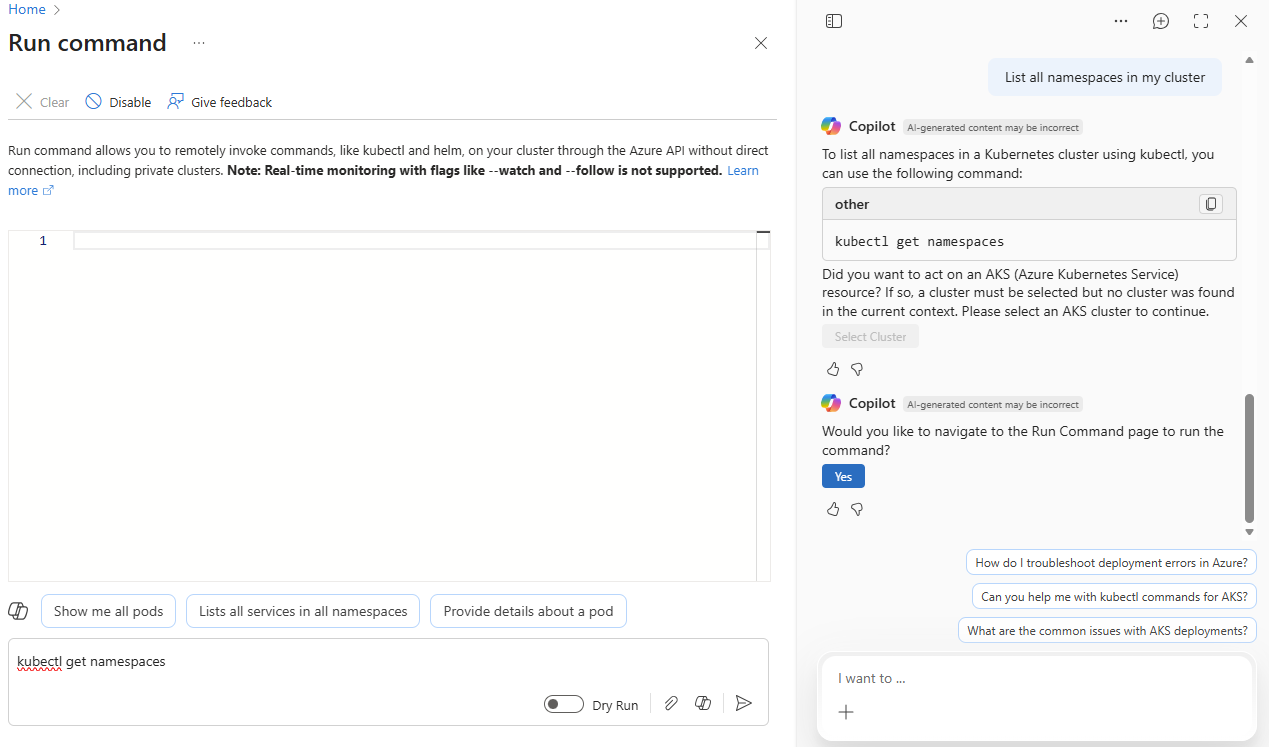
You can say "List all namespaces in my cluster." Azure Copilot shows you the kubectl command to perform your request, and ask if you'd like to execute the command. If you're not already working in the context of a cluster, you're prompted to select one. When you confirm, the Run command pane opens with the generated command included.
Start and stop node pools
You can start and stop AKS node pools by prompting Azure Copilot, without having to navigate to each cluster individually. You can also take actions on node pools starting from a prompt to Azure Copilot.
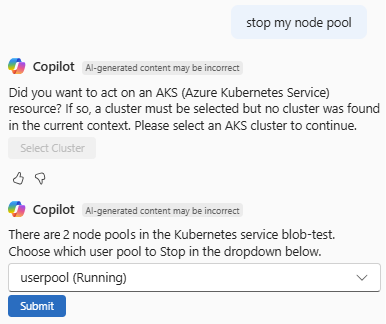
When you ask for help with node pools, you're prompted to select which node pool to work with. From there, Azure Copilot prompts you to confirm the action.
Node pool sample prompts
- "Stop a node pool."
- "Start my nodepool."
- "I want to halt a node pool."
- "Stop the node pool in my cluster."
- "Can you start a node pool?"
- "I want to take action on a node pool."
Node pool example
When you say "stop my node pool", Azure Copilot prompts you to confirm which node pool to stop. After you make a selection, you're prompted to confirm the action.
Enable IP address authorization
Use Azure Copilot to quickly make changes to the IP addresses that are allowed to access an AKS cluster. When you reference your own IP address, Azure Copilot can add it to the authorized IP ranges, without your providing the exact address. If you want to include alternative IP addresses, Azure Copilot asks if you want to open the Networking pane for your AKS cluster and helps you edit the relevant field.
IP address sample prompts
Here are a few examples of the kinds of prompts you can use to manage the IP addresses that can access an AKS cluster. Modify these prompts based on your real-life scenarios, or try additional prompts to get different kinds of information.
- "Allow my IP to access my AKS cluster"
- "Add my IP address to the allowlist of my AKS cluster's network policies"
- "Add my IP address to the authorized IP ranges of AKS cluster's networking configuration"
- "Add IP CIDR to my AKS cluster’s authorized IP ranges"
- "Update my AKS cluster's authorized IP ranges"
Manage cluster backups
Azure Copilot can help streamlines the process of installing the Azure Backup extension to an AKS cluster. On clusters where the extension is already installed, it helps you configure backups and view existing backups.
When you ask for help with backups, you're prompted to select a cluster. From there, Azure Copilot prompts you to open the Backup pane for that cluster, where you can proceed with installing the extension, configuring backups, or viewing existing backups.
Backup sample prompts
Here are a few examples of the kinds of prompts you can use to manage AKS cluster backups. Modify these prompts based on your real-life scenarios, or try additional prompts to get different kinds of information.
- "Install backup extension on my AKS cluster"
- "Configure AKS backup"
- "Manage backup extension on my AKS cluster"
- "I want to view the backups on my AKS cluster"
Backup example
You can say "Install AKS backup" to start the process of installing the AKS backup extension. After you select a cluster, you're prompted to open its Backup pane. From there, select Launch install backup to open the experience. After reviewing the prerequisites for the extension, you can step through the installation process.

Configure monitoring on clusters
Azure Copilot can streamline the process of installing Azure Monitor on your AKS clusters. When monitoring is configured, it provides visibility into cluster, node, and container level insight if already configured.
When you ask for help with monitoring, Azure Copilot automatically pulls context from the cluster you're viewing or the current conversation. If the context isn't clear, you're prompted to specify a cluster. From there, you're guided to the Insights pane of the cluster, where you can confirm installation or view data.
Monitoring sample prompts
- "Configure monitoring on my AKS cluster"
- "Navigate to the monitoring page"
- "Navigate to the monitoring page for my cluster"
- "I want to configure monitoring"
- "Configure monitoring for my AKS cluster"
- "Can you configure monitoring?"
- "Navigate to the monitoring page of my AKS cluster"
- "Navigate to the monitoring page for a different cluster"
Monitoring example
When you're working with an AKS cluster, you can say "help me set up monitoring on my cluster". Azure Copilot guides you to Insights for the current cluster, where you can configure Azure Monitor.

Deploy and work with cluster tools
Azure Copilot can streamline the process of installing tools on your AKS clusters, such as Istio, Periscope, and CanIPull.
When you ask to deploy an AKS tool, Azure Copilot automatically pulls context from the cluster you're viewing or the current conversation. If the context isn't clear, you're prompted to specify a cluster.
Install and work with Istio
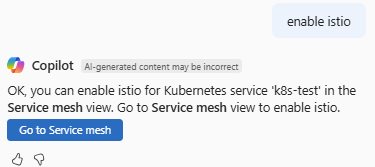
Azure Copilot can streamline the process of installing Istio on your AKS clusters. It also helps you view and create traffic management rules after Istio is configured. When you ask Azure Copilot for help with Istio, you're guided to the Service mesh pane of the cluster, where you can confirm installation or manage traffic management rules.
Istio sample prompts
- "Enable Istio"
- "I want to enable Istio on my AKS cluster"
- "Navigate to the Istio page"
- "I want to navigate to the Istio page"
Istio example
When you're working with an AKS cluster, you can say "enable istio". Azure Copilot guides you to Service mesh for the current cluster, where you can configure Istio.
Deploy Periscope and collect logs
The AKS Periscope tool helps you diagnose and troubleshoot issues within AKS clusters. It collects and exports logs and diagnostic information from nodes and pods, making it easier to identify and resolve problems.
Periscope sample prompts
- "Help me deploy Periscope to my AKS cluster"
- "Deploy Periscope to my cluster"
- "Add Periscope to my cluster"
- "Add periscope logging to my cluster"
- "Help me collect diagnostics logs from my AKS cluster"
Periscope example
You can say "Help me deploy Periscope to my AKS cluster." If you're not already in the context of a cluster, Azure Copilot prompts you to select one. Once you make the selection, Azure Copilot may prompt you to confirm details, then deploys Periscope to your cluster.

Deploy AKS CanIPull and troubleshoot image pull issues
The AKS CanIPull tool is a diagnostic utility designed to perform health checks on AKS clusters, specifically focusing on image pulls. This tool helps ensure that your AKS clusters can successfully pull container images from container registries, a crucial task for the smooth operation of your applications.
CanIPull sample prompts
- "Help me deploy CanIpull to my AKS cluster"
- "Help me deploy CanIpull to my AKS cluster"
- "Deploy CanIpull to my cluster"
- "Add CanIpull to my cluster"
- "Add CanIpull health check to my cluster"
- "Do I have access to a specific Azure Container Registry from my AKS cluster?"
- "Help me test if ACR is attached to my AKS cluster"
CanIPull example
When you say "Help me deploy CanIPull to my AKS cluster", Azure Copilot prompts you to select a cluster, along with one node on the cluster to which CanIPull will be deployed.
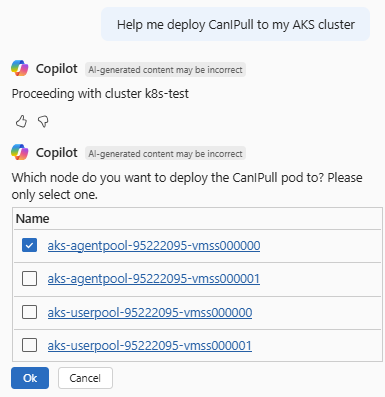
Next, you're prompted to select an Azure Container Registry to pull from. After you confirm the deployment, Copilot deploys CanIPull to the selected node.

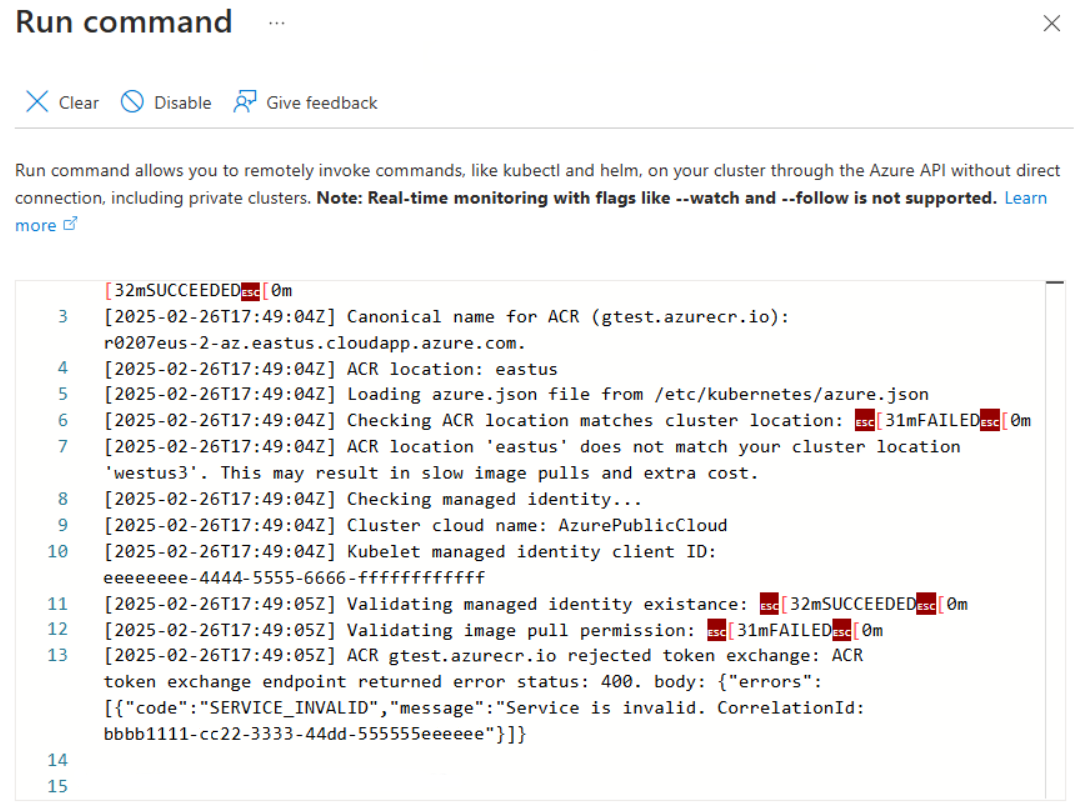
After the deployment completes, you're prompted to navigate to the Run Command pane, where you can view CanIPull logs and check for issues.
Troubleshoot cluster issues
Azure Copilot can help troubleshoot issues with your AKS clusters. When you ask for troubleshooting help, Azure Copilot executes relevant detectors on the target cluster to identify issues, provides remediation solutions, and suggest helpful documentation links to help you understand more about the problem. For example, you can ask for help resolving problems related to CPU/memory usage, OOMKilled errors, cluster upgrade failures, or networking issues.
Troubleshooting sample prompts
- "Why is my AKS cluster's CPU usage high?"
- "How do I fix OOMKilled errors?"
- "Steps to troubleshoot AKS networking issues?"
- "Why did my AKS upgrade fail?"
- "How to resolve memory pressure in AKS?"
- "Causes of pod evictions in AKS?"
- "How to check AKS node health?"
- "Why isn't my AKS cluster scaling?"
- "Troubleshoot DNS issues in AKS?"
- "Best practices for monitoring AKS?"
Troubleshooting example
If you say "diagnose my AKS cluster node health", Azure Copilot asks you to confirm the cluster name and a timeframe to review. After that, any potential issues are shown, along with links to get more details about an issue. If no problems are found, Azure Copilot shows details about cluster health and links to helpful information.
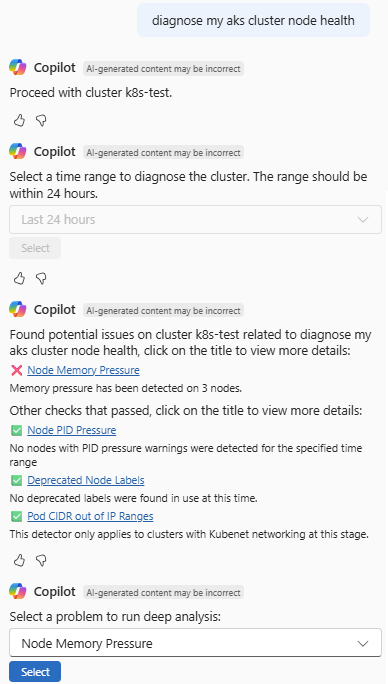
You can select a problem to run deep analysis. When you do so, you see more details about the problem, along with suggested solutions. In some cases, specific commands are shown, which you can select and run. You can also select the title of any check to see more details about it.
Get VM size recommendations
When you create an AKS cluster, you can ask Azure Copilot for help determining which Azure virtual machine (VM) size to use. Based on the CPU and memory requirements of your application, Azure Copilot recommends appropriate sizes to help you narrow down your choices. Azure Copilot also provides options to deploy the AKS cluster by taking you directly to the cluster creation experience in the Azure portal.
While familiarity with VM size options can be beneficial, Azure Copilot is designed to assist you regardless of your expertise levels in achieving their deployment goals. However, it's crucial that you exercise due diligence with the suggested options.
VM size sample prompts
- "Recommend VM sizes for AKS clusters"
- "Recommend VM sizes for Kubernetes Service for my AI workload"
- "Suggest VM sizes for AKS deployments"
- "Recommend Azure Sizes for Kubernetes Service"
- "I am creating Kubernetes Service Resource for my workload, which Azure size should I use?"
VM size example
You can say "Recommend VM size for creating AKS cluster for my workload. Azure Copilot prompts you for information about your workload requirements.

Based on the details you provide, Azure Copilot presents some recommended lets you choose which of the recommended sizes to use for your VM.
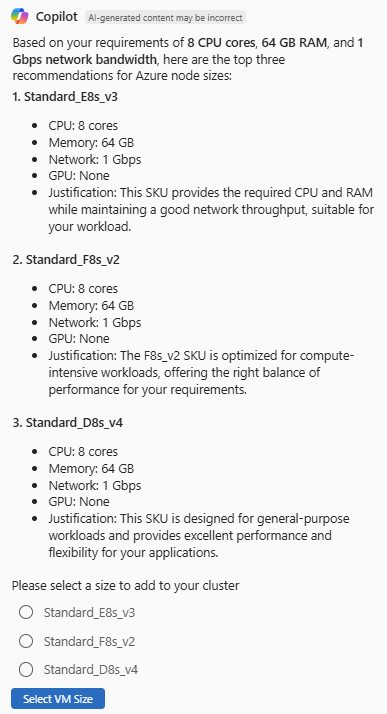
After you choose one of the recommended sizes, select Create AKS cluster with selection to proceed to the cluster creation experience.
Update AKS pricing tier
Use Azure Copilot to make changes to your AKS pricing tier. When you request an update to your pricing tier, you're prompted to confirm, and then Azure Copilot makes the change for you.
You can also get information about different pricing tiers, helping you to make informed decisions before changing your clusters' pricing tier.
Pricing tier sample prompts
Here are a few examples of the kinds of prompts you can use to manage your AKS pricing tier. Modify these prompts based on your real-life scenarios, or try additional prompts to make different kinds of changes.
- "What is my AKS pricing tier?"
- "Update my AKS cluster pricing tier"
- "Upgrade AKS cluster pricing tier to Standard"
- "Downgrade AKS cluster pricing tier to Free"
- "What are the limitations of the Free pricing tier?"
- "What do you get with the Premium AKS pricing tier?"
Work with Kubernetes YAML files
Azure Copilot can help you create Kubernetes YAML files to apply to AKS clusters.
For more information, see Create Kubernetes YAML files using Azure Copilot.
Next steps
- Explore capabilities of Azure Copilot.
- Learn more about Azure Kubernetes Service (AKS).