Note
Access to this page requires authorization. You can try signing in or changing directories.
Access to this page requires authorization. You can try changing directories.
The secure score in Microsoft Defender for Cloud can help you improve your cloud security posture. The secure score aggregates security findings into a single score so that you can assess, at a glance, your current security situation. The higher the score, the lower the identified risk level is.
When you turn on Defender for Cloud in a subscription, the Microsoft cloud security benchmark (MCSB) standard is applied by default in the subscription. Assessment of resources in scope against the MCSB standard begins.
The MCSB issues recommendations based on assessment findings. Only built-in recommendations from the MCSB affect the secure score. Currently, risk prioritization doesn't affect the secure score.
Note
Two Secure Score models: Microsoft Defender for Cloud now offers two different Secure Score models. The new Cloud Secure Score (risk-based) is available in the Microsoft Defender portal and incorporates asset risk factors and criticality for more accurate prioritization. The classic Secure Score remains available in the Azure portal. These are completely different models with different calculations and values. For more information about the new model, see the Defender portal experience of this article.
Recommendations flagged as Preview aren't included in secure score calculations. You should still remediate these recommendations wherever possible, so that when the preview period ends, they'll contribute toward your score. Preview recommendations are marked with an icon:  .
Recommendation maturity [Preview] doesn't modify the secure score UI or weighting model; it only classifies recommendations. Aside from excluding preview recommendations, the secure score formulas and UI values remain unchanged.
.
Recommendation maturity [Preview] doesn't modify the secure score UI or weighting model; it only classifies recommendations. Aside from excluding preview recommendations, the secure score formulas and UI values remain unchanged.
View the secure score
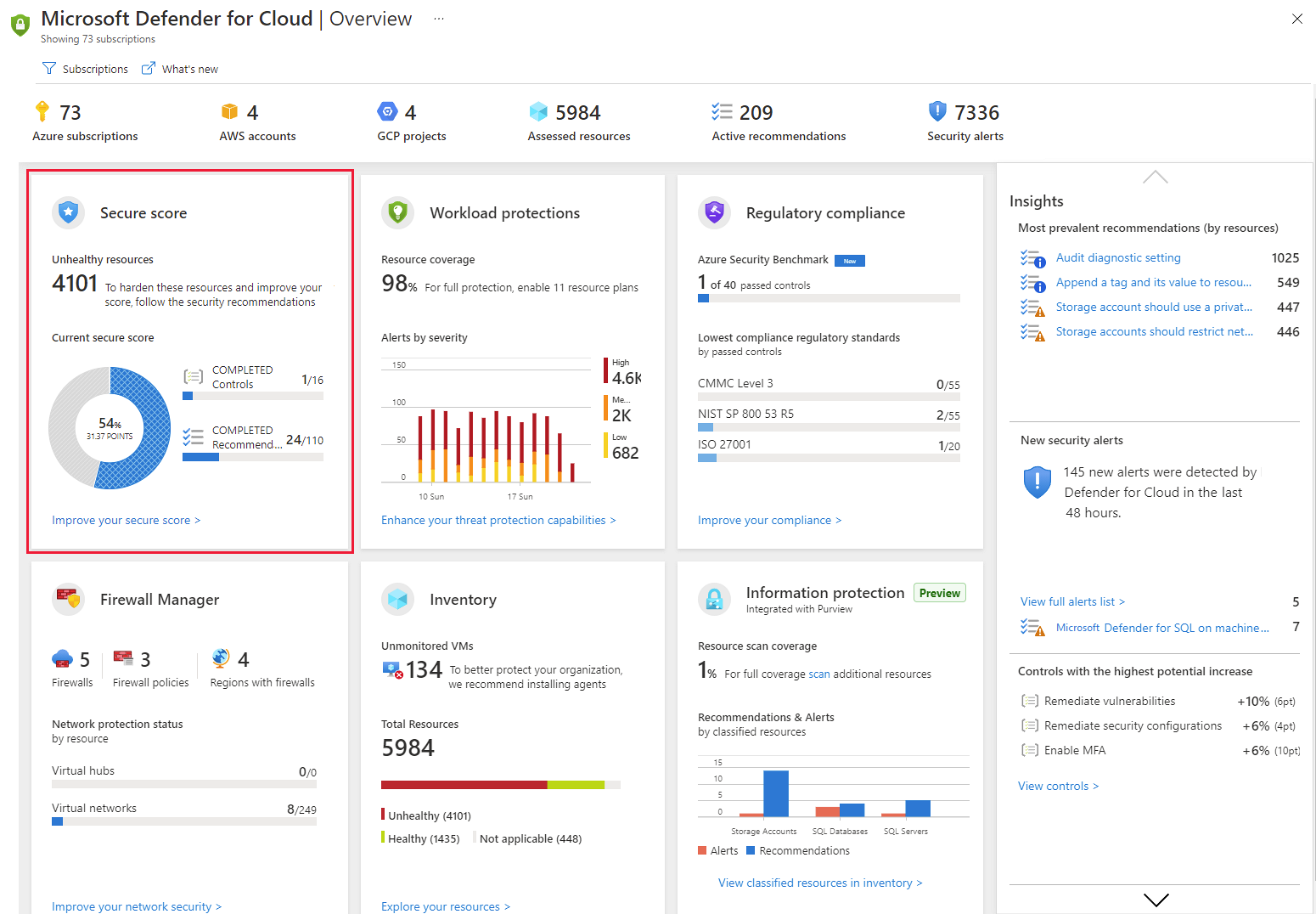
When you view the Defender for Cloud Overview dashboard, you can view the secure score for all of your environments. The dashboard shows the secure score as a percentage value and includes the underlying values.

The Azure mobile app shows the secure score as a percentage value. Tap it to see details that explain the score.
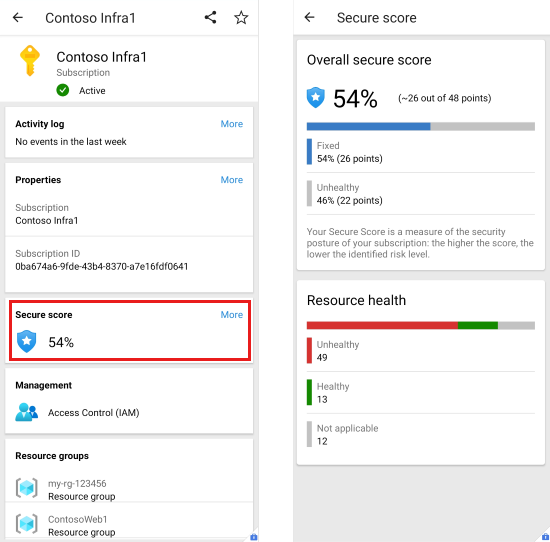
Explore your security posture
The Security posture page in Defender for Cloud shows the secure score for your environments overall and for each environment separately.
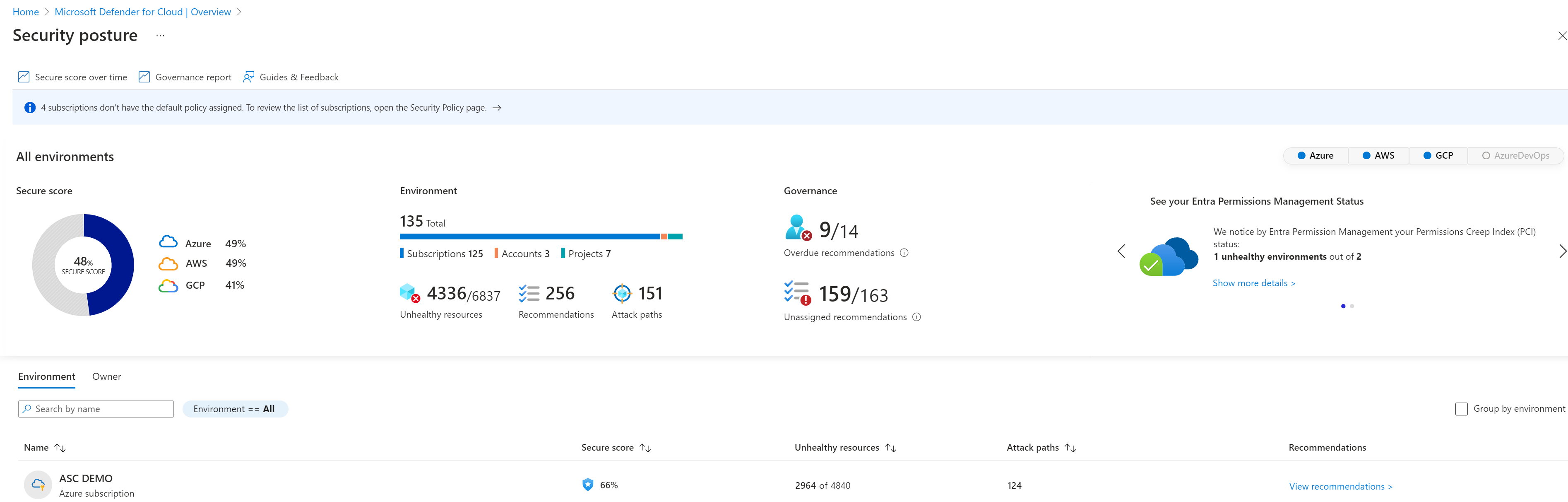
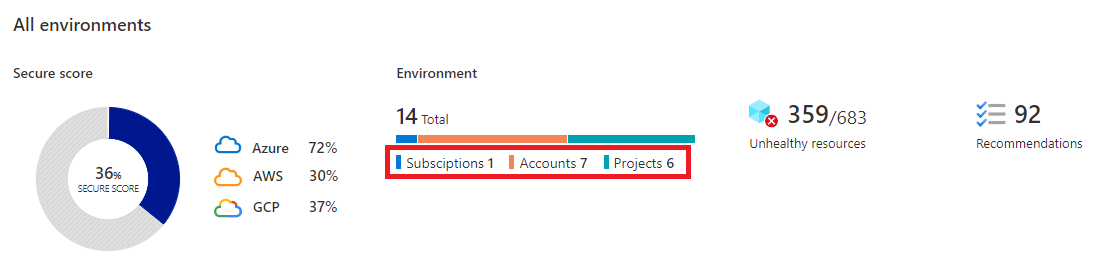
On this page, you can see the subscriptions, accounts, and projects that affect your overall score, information about unhealthy resources, and relevant recommendations. You can filter by environment, such as Azure, Amazon Web Services (AWS), Google Cloud Platform (GCP), and Azure DevOps. You can then drill down into each Azure subscription, AWS account, and GCP project.

Calculation of the secure score
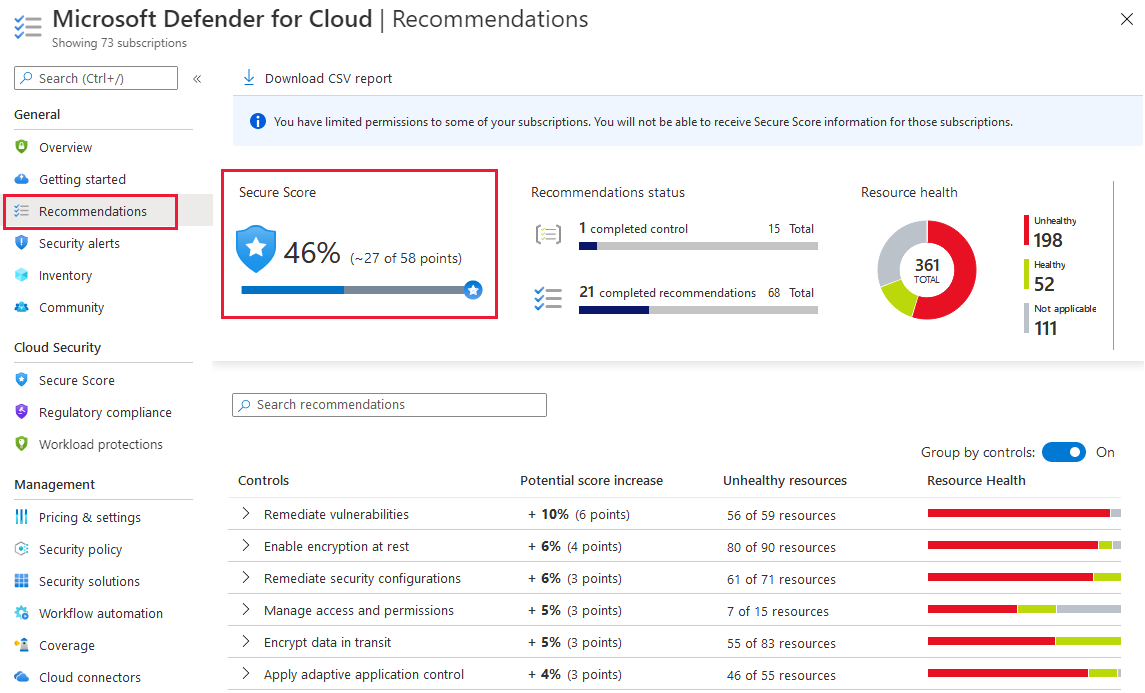
On the Recommendations page in Defender for Cloud, the Secure score recommendations tab shows how compliance controls within the MCSB contribute toward the overall security score.
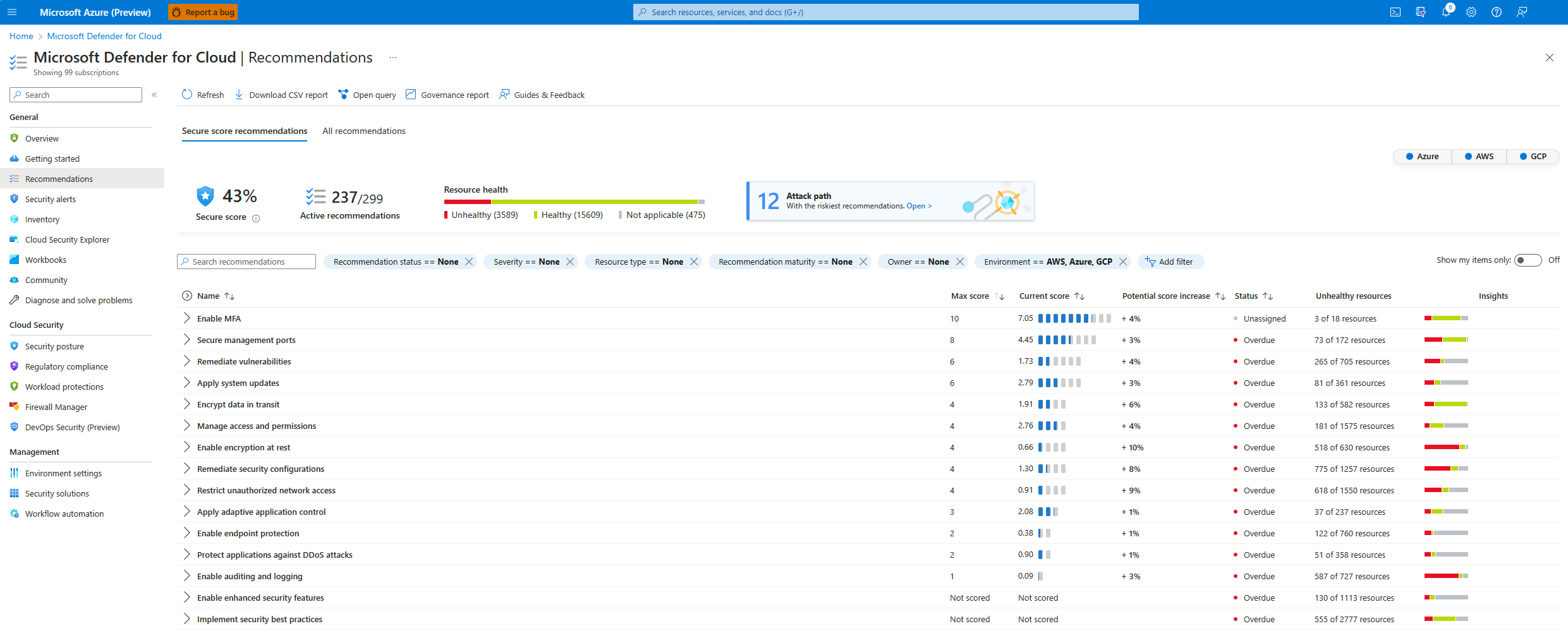
Defender for Cloud calculates each control every eight hours for each Azure subscription or for each AWS or GCP cloud connector.
Important
Recommendations within a control are updated more often than the control itself. You might find discrepancies between the resource count on the recommendations and the resource count on the control.
Example scores for a control
The following example focuses on secure score recommendations for Remediate vulnerabilities.

This example illustrates the following fields in the recommendations.
| Field | Details |
|---|---|
| Remediate vulnerabilities | A grouping of recommendations for discovering and resolving known vulnerabilities. |
| Max score | The maximum number of points that you can gain by completing all recommendations within a control. The maximum score for a control indicates the relative significance of that control and is fixed for every environment. Use the values in this column to determine which issues to work on first. |
| Current score | The current score for this control. Current score = [Score per resource] * [Number of healthy resources] Each control contributes to the total score. In this example, the control is contributing 3.33 points to current total score. |
| Potential score increase | The remaining points available to you within the control. If you remediate all the recommendations in this control, your score increases by 4%. Potential score increase = [Score per resource] * [Number of unhealthy resources] |
| Insights | Extra details for each recommendation, such as: -
Preview recommendation: This recommendation affects the secure score only when it's generally available.-  Fix: Resolve this issue.
-  Enforce: Automatically deploy a policy to fix this issue whenever someone creates a noncompliant resource.
-  Deny: Prevent new resources from being created with this issue.
 |
Score calculation equations
Here's how scores are calculated.
Security control
The equation for determining the score for a security control is:

The current score for each control is a measure of the status of the resources within the control. Each individual security control contributes toward the secure score. Each resource that's affected by a recommendation within the control contributes toward the control's current score. The secure score doesn't include resources found in preview recommendations.
In the following example, the maximum score of 6 is divided by 78 because that's the sum of the healthy and unhealthy resources. So, 6 / 78 = 0.0769. Multiplying that by the number of healthy resources (4) results in the current score: 0.0769 * 4 = 0.31.

Single subscription or connector
The equation for determining the secure score for a single subscription or connector is:


This equation is the same equation for a connector, with just the word subscription replaced by the word connector.
Multiple subscriptions and connectors
The equation for determining the secure score for multiple subscriptions and connectors is:

The combined score for multiple subscriptions and connectors includes a weight for each subscription and connector. Defender for Cloud determines the relative weights for your subscriptions and connectors based on a linear weighting model using the combined number of healthy and unhealthy resources per subscription (excluding 'Not applicable' resources). The current score for each subscription and connector is calculated in the same way as for a single subscription or connector, and then its weight is applied (see equation). If a subscription or connector doesn't have any assessments (no healthy or unhealthy resources) for a given control, that control is excluded from the score calculation for that subscription or connector. In that case, neither the control's current nor maximum potential points contribute to that subscription's score. The aggregated secure score shown in the UI is not a simple arithmetic average of per-subscription percentages or per-control counts; it's a weighted sum across subscriptions. Therefore, the per-control resource numbers displayed in the UI can't be used to manually recompute the overall secure score across multiple subscriptions.
When you view multiple subscriptions and connectors, the secure score evaluates all resources within all enabled policies and groups them. Grouping them shows how, together, they affect each security control's maximum score.
Improve a secure score
The MCSB consists of a series of compliance controls. Each control is a logical group of related security recommendations and reflects your vulnerable attack surfaces.
To see how well your organization is securing each individual attack surface, review the scores for each security control. Your score improves only when you remediate all of the recommendations.
To get all the possible points for a security control, all of your resources must comply with all of the security recommendations within the security control. For example, Defender for Cloud has multiple recommendations for how to secure your management ports. You need to remediate them all to make a difference in your secure score.
You can improve your secure score by using either of these methods:
- Remediate security recommendations from your recommendations list. You can remediate each recommendation manually for each resource, or use the Fix option (when available) to resolve an issue on multiple resources quickly.
- Enforce or deny recommendations to improve your score, and to make sure that your users don't create resources that negatively affect your score.
Secure score controls
The following table lists the security controls in Microsoft Defender for Cloud. For each control, you can see the maximum number of points that you can add to your secure score if you remediate all of the recommendations listed in the control, for all of your resources.
| Secure score | Security control |
|---|---|
| 10 | Enable MFA: Defender for Cloud places a high value on MFA. Use these recommendations to help secure the users of your subscriptions. There are three ways to enable MFA and be compliant with the recommendations: security defaults, per-user assignment, and conditional access policy. |
| 8 | Secure management ports: Brute force attacks often target management ports. Use these recommendations to reduce your exposure with tools like just-in-time VM access and network security groups. |
| 6 | Apply system updates: Not applying updates leaves unpatched vulnerabilities and results in environments that are susceptible to attacks. Use these recommendations to maintain operational efficiency, reduce security vulnerabilities, and provide a more stable environment for your users. To deploy system updates, you can use the Azure Update Manager to manage patches and updates for your machines. |
| 6 | Remediate vulnerabilities: When your vulnerability assessment tool reports vulnerabilities to Defender for Cloud, Defender for Cloud presents the findings and related information as recommendations. Use these recommendations to remediate identified vulnerabilities. |
| 4 | Remediate security configurations: Misconfigured IT assets have a higher risk of being attacked. Use these recommendations to harden the identified misconfigurations across your infrastructure. |
| 4 | Manage access and permissions: A core part of a security program is ensuring that your users have just the necessary access to do their jobs: the least privilege access model. Use these recommendations to manage your identity and access requirements. |
| 4 | Enable encryption at rest: Use these recommendations to ensure that you mitigate misconfigurations around the protection of your stored data. |
| 4 | Encrypt data in transit: Use these recommendations to help secure data that's moving between components, locations, or programs. Such data is susceptible to man-in-the-middle attacks, eavesdropping, and session hijacking. |
| 4 | Restrict unauthorized network access: Azure offers a suite of tools that help you provide high security standards for access across your network. Use these recommendations to manage adaptive network hardening in Defender for Cloud, ensure that you configured Azure Private Link for all relevant platform as a service (PaaS) services, enable Azure Firewall on virtual networks, and more. |
| 3 | Apply adaptive application control: Adaptive application control is an intelligent, automated, end-to-end solution to control which applications can run on your machines. It also helps to harden your machines against malware. |
| 2 | Protect applications against DDoS attacks: Advanced networking security solutions in Azure include Azure DDoS Protection, Azure Web Application Firewall, and the Azure Policy add-on for Kubernetes. Use these recommendations to help protect your applications with these tools and others. |
| 2 | Enable endpoint protection: Defender for Cloud checks your organization's endpoints for active threat detection and response solutions, such as Microsoft Defender for Endpoint or any of the major solutions shown in this list. If no endpoint detection and response (EDR) solution is enabled, use these recommendations to deploy Microsoft Defender for Endpoint. Defender for Endpoint is included in the Defender for Servers plan. Other recommendations in this control help you deploy agents and configure file integrity monitoring. |
| 1 | Enable auditing and logging: Detailed logs are a crucial part of incident investigations and many other troubleshooting operations. The recommendations in this control focus on ensuring that you enabled diagnostic logs wherever they're relevant. |
| 0 | Enable enhanced security features: Use these recommendations to enable any Defender for Cloud plans. |
| 0 | Implement security best practices: This collection of recommendations is important for your organizational security but doesn't affect your secure score. |
Track your secure score
You can find your overall secure score, and your score per subscription, through the Azure portal or programmatically as described in the following sections:
Tip
For a detailed explanation of how your scores are calculated, see Calculations - understanding your score.
Get your secure score from the portal
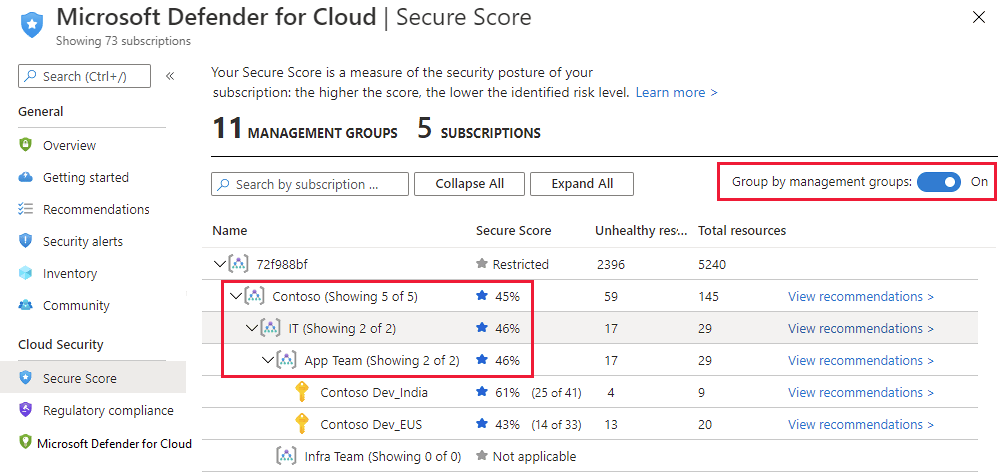
Defender for Cloud displays your score prominently in the Azure portal. When you select the secure score tile on the overview page, you're taken to the dedicated secure score page, where you see the score broken down by subscription. Select a single subscription to see the detailed list of prioritized recommendations and the potential effect that remediating them will have on the subscription's score.
Your secure score is shown in the following locations in Defender for Cloud's Azure portal pages:
In a tile on Defender for Cloud's Overview (main dashboard):
In the dedicated Secure score page you can see the secure score for your subscription and your management groups:

Note
Any management groups for which you don't have sufficient permissions, will show their score as "Restricted."
At the top of the Recommendations page:

Get your secure score from the REST API
You can access your score via the secure score API. The API methods provide the flexibility to query the data and build your own reporting mechanism of your secure scores over time. For example, you can use the Secure Scores API to get the score for a specific subscription. In addition, you can use the Secure Score Controls API to list the security controls and the current score of your subscriptions.

For examples of tools built on top of the secure score API, see the secure score area of our GitHub community.
Get your secure score from Azure Resource Graph
Azure Resource Graph provides instant access to resource information across your cloud environments with robust filtering, grouping, and sorting capabilities. It's a quick and efficient way to query information across Azure subscriptions programmatically or from within the Azure portal. Learn more about Azure Resource Graph.
To access the secure score for multiple subscriptions with Azure Resource Graph:
From the Azure portal, open Azure Resource Graph Explorer.

Enter your Kusto query (using the following examples for guidance).
This query returns the subscription ID, the current score in points and as a percentage, and the maximum score for the subscription.
SecurityResources
| where type == 'microsoft.security/securescores'
| extend current = properties.score.current, max = todouble(properties.score.max)
| project subscriptionId, current, max, percentage = ((current / max)*100)
This query returns the status of all the security controls. For each control, you get the number of unhealthy resources, the current score, and the maximum score.
SecurityResources
| where type == 'microsoft.security/securescores/securescorecontrols'
| extend SecureControl = properties.displayName, unhealthy = properties.unhealthyResourceCount, currentscore = properties.score.current, maxscore = properties.score.max
| project SecureControl , unhealthy, currentscore, maxscore
Select Run query.

Track your secure score over time
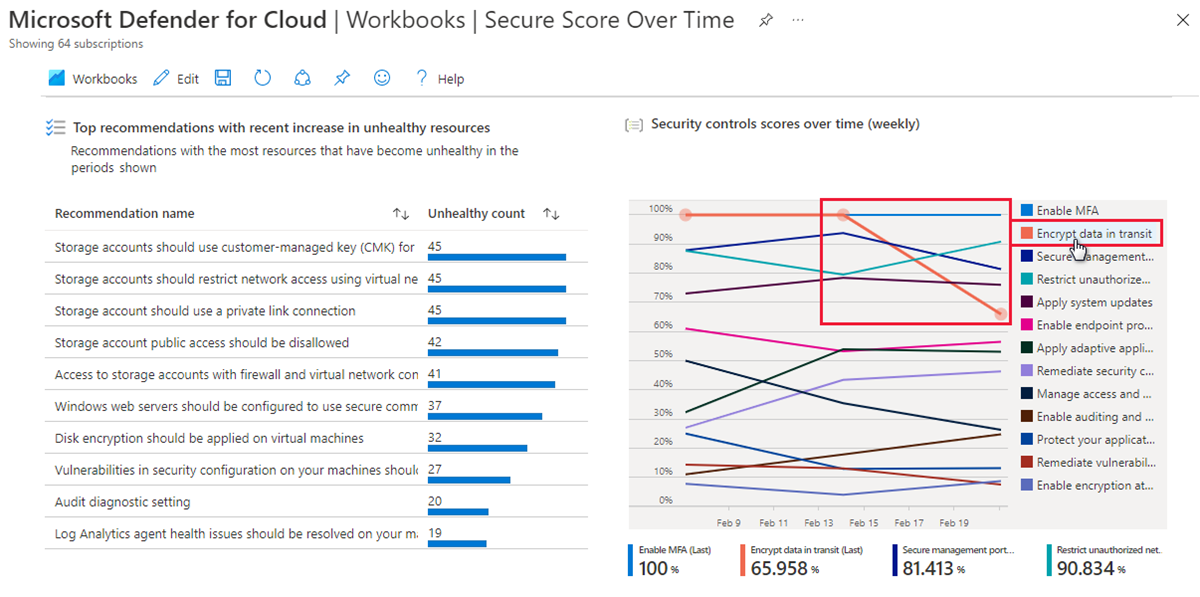
Secure Score Over Time report in workbooks page
Defender for Cloud's workbooks page includes a ready-made report for visually tracking the scores of your subscriptions, security controls, and more. Learn more in Create rich, interactive reports of Defender for Cloud data.
Power BI Pro dashboards
If you're a Power BI user with a Pro account, you can use the Secure Score Over Time Power BI dashboard to track your secure score over time and investigate any changes.
Tip
You can find this dashboard, and other tools for working programmatically with secure score, in the dedicated area of the Microsoft Defender for Cloud community on GitHub: https://github.com/Azure/Azure-Security-Center/tree/master/Secure%20Score
The dashboard contains the following two reports to help you analyze your security status:
Resources Summary - provides summarized data regarding your resources' health.
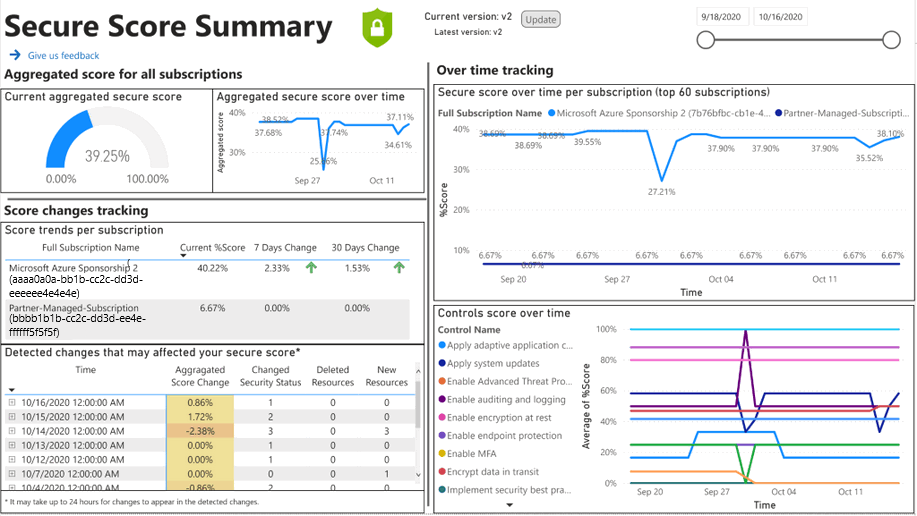
Secure Score Summary - provides summarized data regarding your score progress. Use the "Secure score over time per subscription" chart to view changes in the score. If you notice a dramatic change in your score, check the "detected changes that might affect your secure score" table for possible changes that could have caused the change. This table presents deleted resources, newly deployed resources, or resources that their security status changed for one of the recommendations.
Next steps
Note
Two Secure Score models: Microsoft Defender for Cloud now offers two different Secure Score models. The new Cloud Secure Score (risk-based) is available in the Microsoft Defender portal and incorporates asset risk factors and criticality for more accurate prioritization. The classic Secure Score remains available in the Azure portal. These are completely different models with different calculations and values. For more information about the classic model, see the Azure portal experience of this article.
This capability is currently in preview. For details about current gaps and restrictions, see Known limitations.
Cloud secure score in the Defender portal
The Cloud secure score (risk-based) is an assessment of your cloud security posture. The score allow you to objectively assess and monitor your cloud security posture and measure your risk mitigation efforts.
The Cloud secure score introduces asset risk factors and asset criticality into the calculation, making the score more accurate and enabling smarter prioritization of high risk level recommendations.
Cloud secure score model
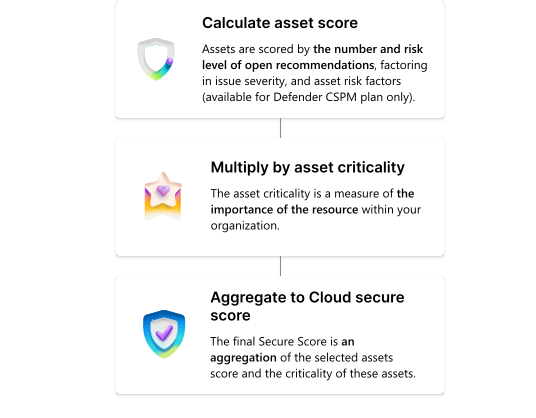
The Cloud secure score is based on the number and risk level of open recommendations in Defender for cloud. To improve your score, focus on recommendations with higher risk levels, as they contribute the most to your score.
Cloud secure score formula
The Cloud Secure Score ranges from 0 to 100, with 100 indicating an optimal security posture. The score is an aggregation of the selected assets score.
To calculate the environmental score for a given organization at any scope, the formula assesses the asset risk (the combination of likelihood and impact). For each asset, the formula calculates a weighted average of the recommendations risk level on this asset, while factoring in the asset’s risk factors (e.g. internet exposure, data sensitivity, etc.), as well as the asset criticality to the organization.

Legend (Cloud Secure Score formula)
- n = Number of assets
- Criticality = The asset criticality for the organization
- Rec. Low = Recommendations with low risk level
- Rec. Medium = Recommendations with medium risk level
- Rec. High = Recommendations with high risk level
- Rec. Critical = Recommendations with critical risk level
Access the Cloud secure score (Defender portal)
Secure scores are consolidated into a unified Microsoft Security experience, providing a single entry point to understand posture across identities, devices, cloud apps, data, and infrastructure. The Cloud secure score is the cloud posture component within that broader set.

Navigation paths to the Cloud secure score (Cloud initiative)
- Exposure Management > Secure score > View Cloud initiative
- Exposure Management > Initiatives > View Cloud initiative
- Cloud Infrastructure > Overview > top metrics card or Security posture widget > View cloud initiative
Initiatives dashboard
Navigate to Exposure Management > Initiatives for a consolidated cloud security posture view. This dashboard aggregates:
- Top initiatives and their relative status
- Recent security and exposure score history (14 day trends)
- Cross-domain insights (SaaS, endpoint, cloud, identity, ransomware protection)
- Workload-specific posture data to track remediation momentum
Open the Cloud initiative page
- Go to Exposure Management > Initiatives.
- Select Cloud Security.
- From the side panel, choose open initiative page.
- Review the overview dashboard elements:
- Current Cloud secure score
- Secure score over time trend
- Secure score by environment (Azure, AWS, GCP) for quick multicloud comparison
- Secure score by workload to highlight posture differences across major workload categories
- Recommendations summary
- Most common recommendations by criticality to focus remediation where it drives the largest score and risk reduction impact

Note
The previous (classic) secure score is still available in the Azure portal using the classic view of recommendations. Navigation: Azure portal → Microsoft Defender for Cloud → Recommendations → Switch to classic view.
Microsoft Secure Score context
Microsoft secure score is a broader, unified concept spanning multiple security domains. This page focuses on the Cloud secure score (cloud security posture management in Defender for Cloud). Other Microsoft secure scores appear in the Microsoft security portals.
Secure score types
| Score type | Scope / domain | Primary source products & data |
|---|---|---|
| Microsoft Secure Score | Identity posture | Microsoft Entra (Azure AD) recommendations |
| Exposure Secure Score | Device / endpoint posture | Microsoft Defender for Endpoint (device configuration, threat protection) |
| Cloud Secure Score | Cloud posture (multicloud) | Microsoft Defender for Cloud (Azure, AWS, GCP) |
Note
Recommendations flagged as preview aren't included in secure score calculations. You should still remediate these recommendations wherever possible, so that when the preview period ends, they'll contribute toward your score. Preview recommendations are marked with an icon:
.
Recommendation maturity [Preview] doesn't modify the secure score UI or weighting model; it only classifies recommendations. Aside from excluding preview recommendations, the secure score formulas and UI values remain unchanged.