Note
Access to this page requires authorization. You can try signing in or changing directories.
Access to this page requires authorization. You can try changing directories.
Resiliency validation is a feature that assesses the resiliency of network connectivity for ExpressRoute-enabled workloads. You can perform site failovers for your ExpressRoute connections to the gateway to evaluate network resiliency during outages. You can also validate your setup during migrations by testing failover mechanisms. By proactively testing your network, you can maintain continuous connectivity to Azure workloads and strengthen your connections.
Key features
- Test circuit failover: Connections are temporarily disconnected from the gateway to the selected ExpressRoute circuit to validate failover from one peering location to another.
- Route redundancy: View insights into redundancy status for all prefixes received from the selected peering location.
- Traffic visualization: Visualize traffic on the ExpressRoute gateway and all connections associated with it during testing.
- Test history: View detailed information about previously conducted tests.
Common use cases
Identify and solve potential problems within your network to enhance the overall reliability and resiliency of your network infrastructure.
Validate high availability and disaster recovery (HA/DR) procedures and migrations. You can verify that your systems are prepared for unplanned events and maintain seamless operations by validating maintenance behavior at the workload level.
Ensure network resiliency before migrating from one ExpressRoute peering location to another.
Limitations
- The Resiliency Validation feature is supported only for ExpressRoute gateways connected to ExpressRoute circuits in at least two distinct peering locations.
- The Route List tab can only be refreshed once per hour.
- This feature isn't supported for Virtual WAN or ExpressRoute Metro yet.
- You can't run the Resiliency Validation test if there are any ongoing tests or if any of the circuits are currently undergoing maintenance.
Prerequisites
- You must have an ExpressRoute circuit in at least two distinct peering locations and an ExpressRoute virtual network gateway connected to those circuits.
- You must have Contributor-level authorization to access this feature.
Run the resiliency validation test
Important
- During the test, the ExpressRoute virtual network gateway disconnects from the target ExpressRoute circuit, resulting in a temporary loss of connectivity for nonredundant routes. Make sure your routing policies are configured to enable traffic failover.
- The targeted ExpressRoute circuit remains connected to other ExpressRoute virtual network gateways, and the gateway performing the test stays connected to other ExpressRoute circuits.
You can access the gateway resiliency validation from any ExpressRoute gateway resource. In the left menu, go to the Monitoring section.
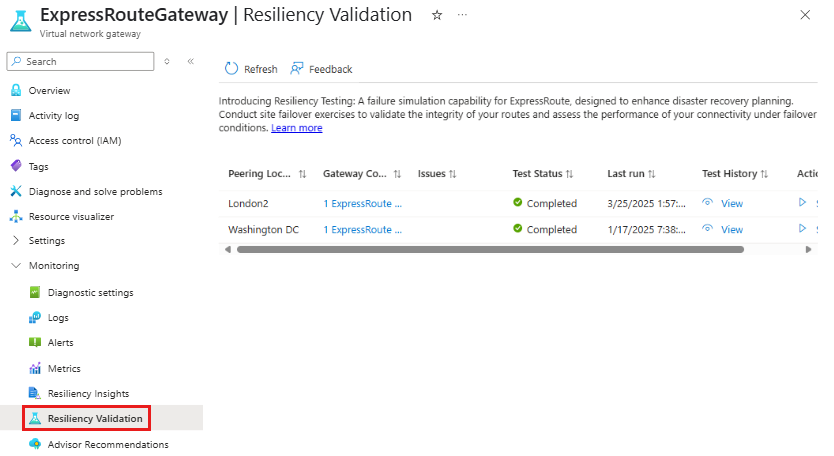
The dashboard provides a detailed overview of all ExpressRoute circuits connected to the ExpressRoute virtual network gateway, categorized by peering location. It displays the most recent test status, the timestamp of the last test conducted, the results of the latest test, and an action button to configure a new test.
Start the test
For the target peering location, select Configure new test.
Review the autopopulated configuration, which includes:
- Gateway name
- Peering location
- Route redundancy information
- Traffic details
- Status of all connections to the ExpressRoute gateway
Review the Route List tab to verify that all critical routes are marked as redundant.

Confirm that the circuits listed on this page aren't undergoing maintenance by selecting the first checkbox.
Acknowledge that you reviewed the Route List tab and that all critical routes are marked as redundant by selecting the second checkbox.
Enter the name of the gateway to confirm that you understand the potential effect of the test on your network.
Select Start Simulation to start the test.

The resiliency validation status shows as In progress.
During the test
Go to the Test Status tab to validate connectivity to your Azure workloads through each redundant connection. Review the traffic flow graph for the ExpressRoute gateway, which displays the average bits per second traffic flow. The tab also provides ingress and egress traffic information for connected and disconnected peering locations.

Note
Traffic metrics are updated every minute and displayed in the Test Status tab. Allow up to 5 minutes for the metrics to appear after you start the test.
Validate connectivity from your on-premises network to your Azure workloads through the redundant connection by sending data packets. You can use tools like iPerf for this purpose.
Select Stop Simulation to end the test. When prompted, confirm if the test was completed successfully and select the failover peering location.
After you confirm, connectivity for all connections to the ExpressRoute gateway is restored.
To view the test report, select View under the Test History column on the dashboard for the selected peering location.
FAQ
Why can't I see the Resiliency Validation feature in my ExpressRoute gateway?
This feature is only available for ExpressRoute virtual network gateways configured in a Max Resiliency model. It isn't supported for Virtual WAN ExpressRoute gateways.
Why is the Route List not updated to the latest?
The Route List tab is designed to flag missing route redundancy. It retrieves route resiliency status from Resiliency Insights, so it might display cached results for up to one hour after the last update.
Does the feature support Microsoft Peering or VPN connectivity?
No, the Resiliency Insights feature supports only ExpressRoute Private Peering connectivity. It doesn't support Microsoft Peering or VPN connectivity.
Can I control the gateway validation tests other than the Azure portal?
Yes, you can use REST API, PowerShell, and CLI to start and stop the gateway resiliency validation tests.
What happens if I don't terminate a test?
The test continues to run indefinitely.
What metrics or alerts can I monitor during the resiliency validation test?
To ensure network resilience during outages, configure redundant connections. During a failover, if the backup circuit exceeds 100% of its bandwidth, packet drops might occur. Use Circuit QoS metrics to monitor packet drops caused by rate limiting. Additionally, the Test Status tab in the Resiliency Validation feature provides traffic monitoring for the connections. Make sure alerts are configured to validate their effectiveness during the test.
Can I control traffic on demand using the gateway resiliency validation tool?
Yes, if the routes are advertised redundantly through circuits in different peering locations, the gateway resiliency validation tool allows you to control traffic on demand by failing traffic over to connections in an alternative site.
Does this feature support FastPath and Private Link?
For FastPath, while the data path bypasses the gateway, the gateway still handles control plane activities like route management. During a disconnect between the ExpressRoute circuit and the gateway, routes are withdrawn from the affected circuit. However, if redundant circuits are properly configured, connectivity for failover connections to FastPath and Private Link is maintained during the failover.
Is packet loss expected during a failover simulation?
A brief connectivity disruption occurs during the failover simulation as BGP (Border Gateway Protocol) reconverges. Performance tests using iPerf on TCP (up to 500 Mbps) show no packet loss during the simulation. However, in an actual outage scenario, some packet loss can occur until traffic successfully fails over.
How long does a failover take?
After the simulation begins, traffic failover typically completes within 15 seconds.
Next steps
- Learn more about the ExpressRoute gateway and how to monitor ExpressRoute circuits.
- Learn about ExpressRoute Resiliency Insights.