Note
Access to this page requires authorization. You can try signing in or changing directories.
Access to this page requires authorization. You can try changing directories.
Machine Configuration security baselines provide a unified approach to enforcing security and compliance across diverse environments—including Azure, hybrid, multicloud, and edge scenarios—by supporting both native Azure virtual machines and non-Azure servers that are Azure Arc-enabled machines (Windows and Linux).
With built-in security baselines, you can customize security controls to meet your specific requirements to ensure they meet your organization’s requirements before deploying security baselines in your environment.
The new Azure Policy Settings Picker experience streamlines this process. It allows you to select which settings to evaluate and adjust configuration parameters for granular control. The experience supports advanced input formats for Linux and Windows and exports your customized baseline as a reusable JSON artifact. This flexibility ensures that policy enforcement is consistent, precise, and adaptable to complex enterprise needs, regardless of where your workloads run.
Note
Ensure the Machine Configuration prerequisites initiative is assigned to your subscription.
Open the Machine Configuration blade
In the Azure portal, navigate to Policy > Machine Configuration.
Select the Definitions tab.
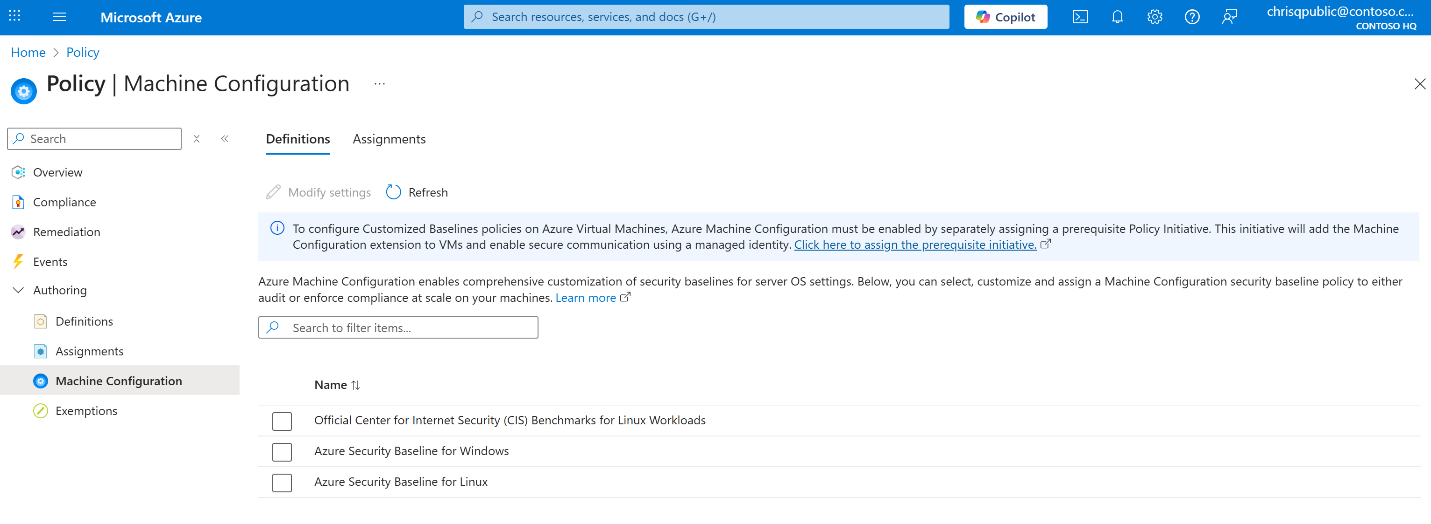
Choose one of the built-in baselines:
Official CIS Benchmarks for Linux Workloads
Azure Security Baseline for Windows
Azure Security Baseline for Linux
Click Modify settings.
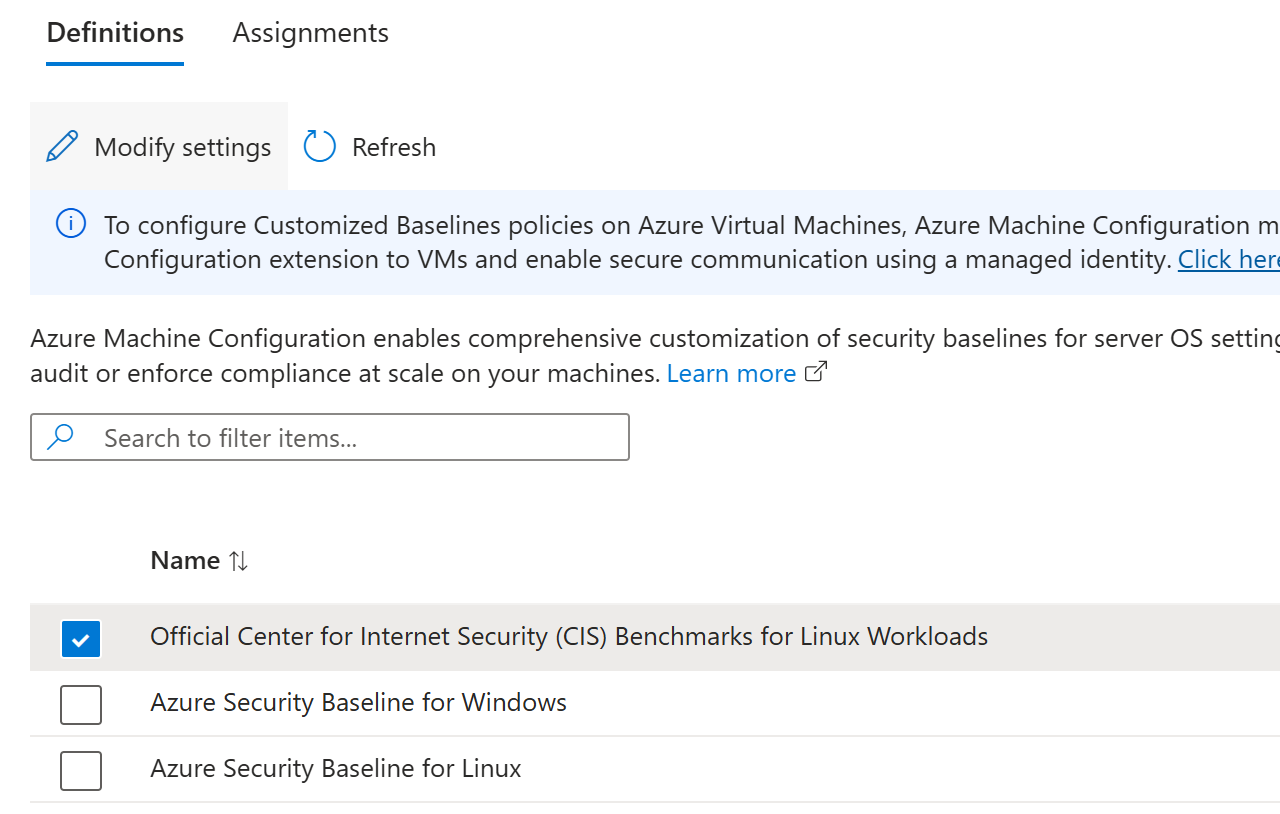
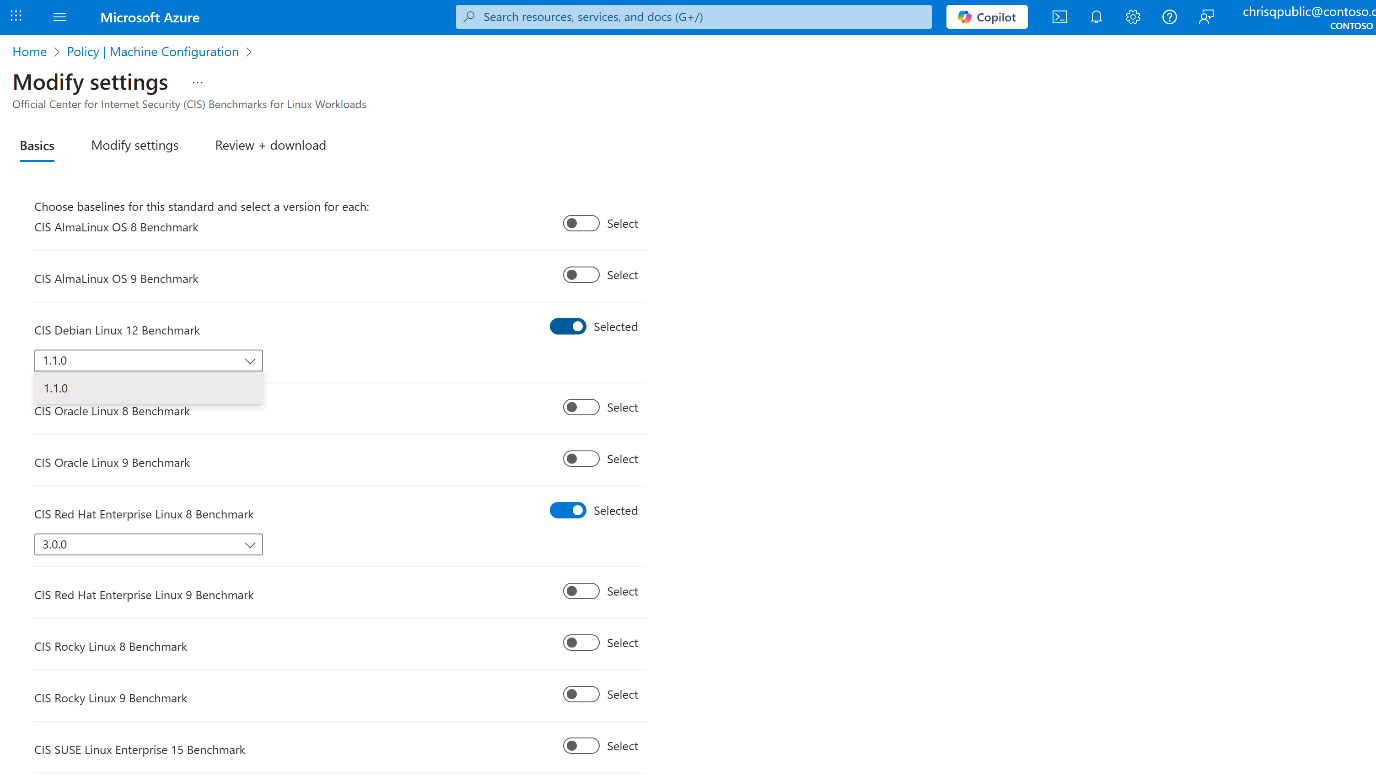
Select baselines and versions
The configuration experience differs slightly between Linux and Windows baselines:
CIS Benchmarks for Linux: You can enable one or more supported distributions (such as Red Hat Enterprise Linux, Alma Linux, Rocky Linux, or Ubuntu). Unselected distributions are excluded from evaluation. For each enabled distro, select the CIS Benchmark version you want to apply.
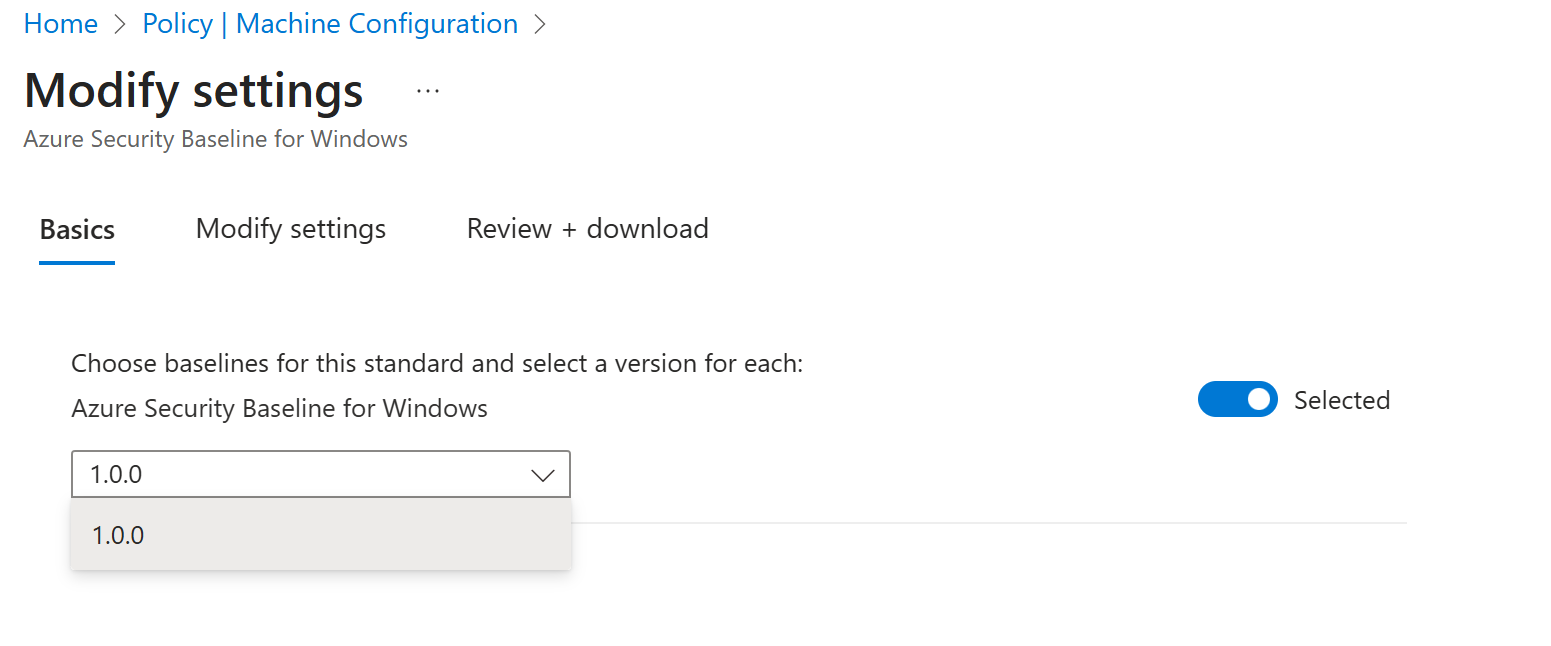
For Azure Baselines (Windows or Linux): These baselines apply uniformly across operating systems and don't require distro selection. Confirm the baseline version under Basics and continue.
Modify settings
On the Modify settings tab, review and adjust configuration rules for your selected baselines.
Use the checkbox next to each rule to include or exclude it from evaluation.
For configurable rules, edit the Parameter value field to define your organization's required state.
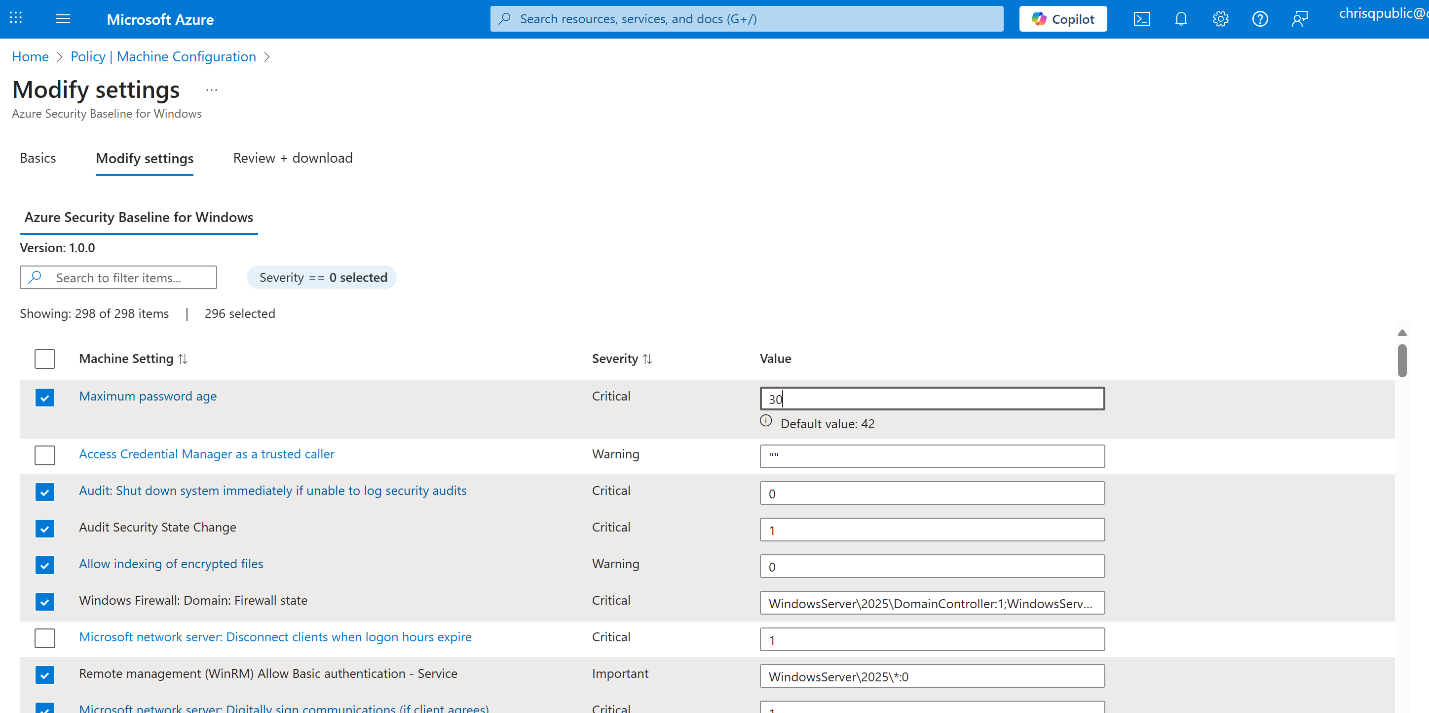
- View per rule Metadata by clicking on a highlighted rule. This action opens the context pane showing details such as Rule ID, Description, Severity, and Compliance Standard.

These features are available uniformly for all benchmarks and baselines in Machine Configuration.
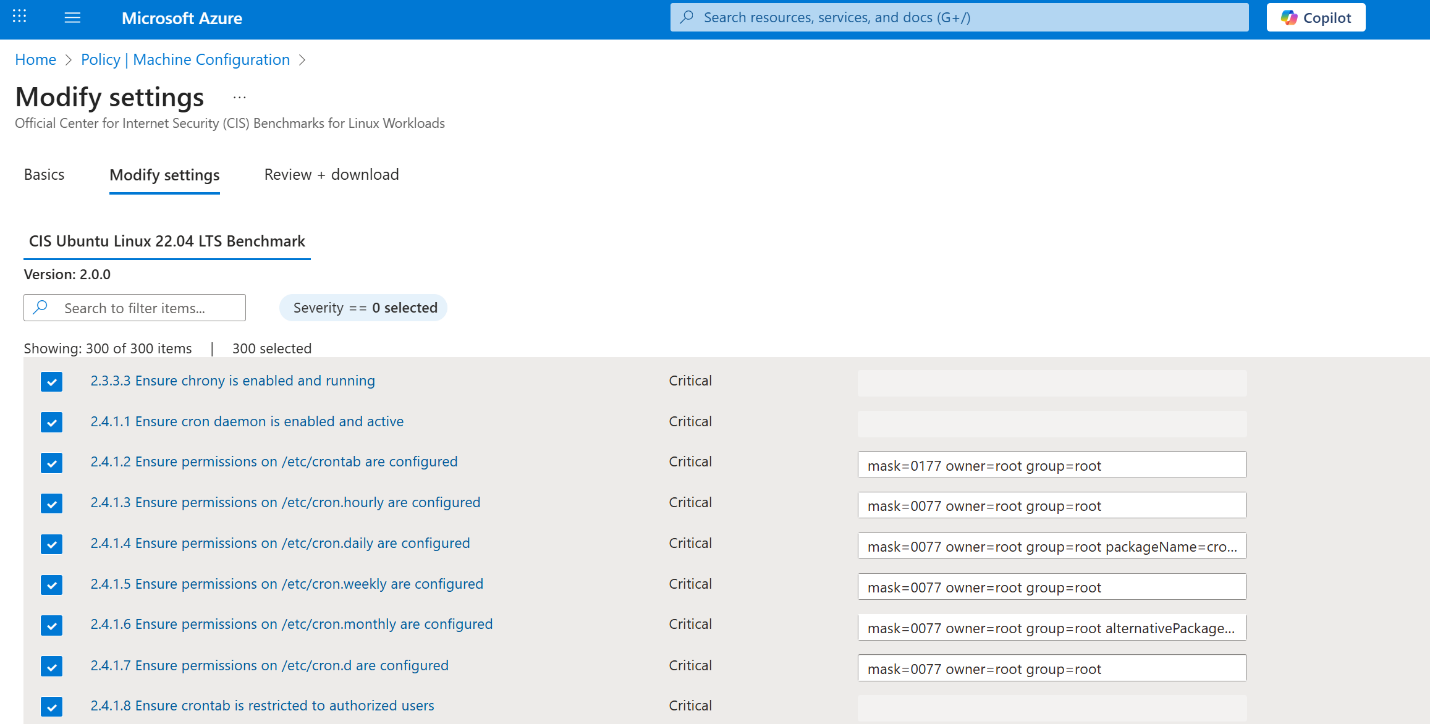
Custom Input for CIS Benchmarks for Linux
To support advanced customization, CIS Benchmarks for Linux may use a structured input format for some parameter values. This format allows you to define multiple attributes in a single line—for example, specifying both the expected service state and the package name.
Example format:
key1=value1 key2=value2 key3=value3
Example input:
serviceName=named.service expectedUnitFileState=enabled expectedActiveState=active packageName=bind
The format enables fine-grained control, allowing you to model complex configurations that align with your existing Linux environment.
Custom Input for Azure Security Baseline (Windows)
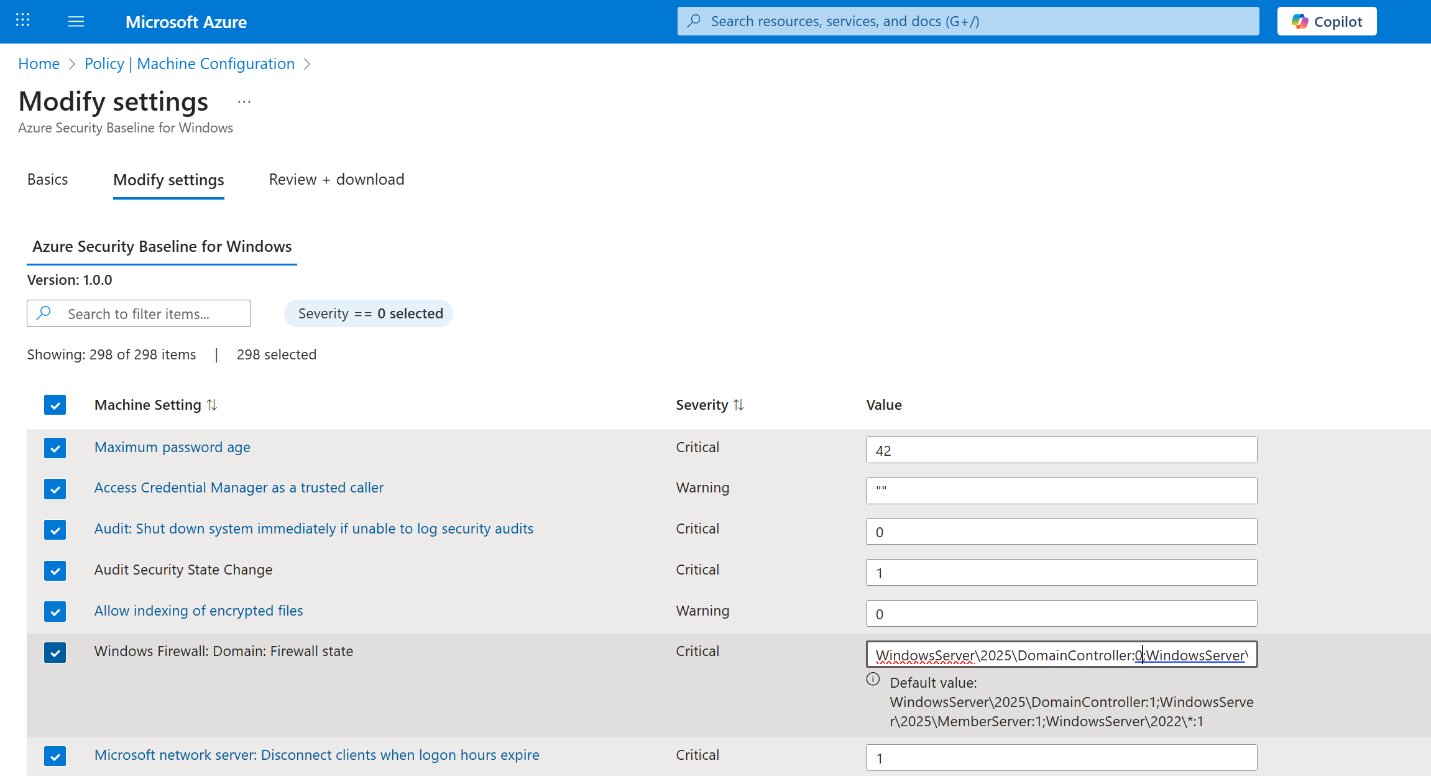
To achieve similar granularity in applicability of baseline settings, the Azure Security Baseline for Windows supports formatted string input for complex rule targeting across OS editions and server roles.
Each value uses the format:
WindowsServer\<Year>\<ServerRole>:<Value>
Separate multiple targets using semicolons ";".
A wildcard * may also be used to apply a rule across all versions or roles (for example, WindowsServer\2022\:1).
Example input:
WindowsServer\2025\DomainController:1;WindowsServer\2025\MemberServer:1;WindowsServer\2022\\:1
The scoping provides precise control for your rule application—for example, applying a setting only to Domain Controllers on Windows Server 2025, or across all roles on Windows Server 2022.
Review and download
After completing your changes:
Select the Review + download tab.
Review any edited or excluded settings.

- Click Download All Baselines to export your customized configuration as a JSON file.
You can also select Assign audit policy to create a policy assignment directly from your customized baseline within the portal.
This JSON artifact defines all active settings for your baseline, making it easy to version, share, or reuse across environments and deployment pipelines.