Note
Access to this page requires authorization. You can try signing in or changing directories.
Access to this page requires authorization. You can try changing directories.
In this article, learn how to submit training jobs with MLflow Projects that use Azure Machine Learning workspaces for tracking. You can submit jobs and only track them with Azure Machine Learning or migrate your runs to the cloud to run completely on Azure Machine Learning Compute.
Warning
Support for MLproject files (MLflow Projects) in Azure Machine Learning will be fully retired in September 2026. MLflow is still fully supported and is still the recommended way to track machine learning workloads in Azure Machine Learning.
As you continue to use MLflow, we recommend that you transition from MLproject files to Azure Machine Learning Jobs, using either the Azure CLI or the Azure Machine Learning SDK for Python (v2). For more information on Azure Machine Learning jobs, see Track ML experiments and models with MLflow.
MLflow Projects allow you to organize and describe your code so other data scientists (or automated tools) can run it. MLflow Projects with Azure Machine Learning enable you to track and manage your training runs in your workspace.
Important
This feature is currently in public preview. This preview version is provided without a service-level agreement, and we don't recommend it for production workloads. Certain features might not be supported or might have constrained capabilities.
For more information, see Supplemental Terms of Use for Microsoft Azure Previews.
Learn more about the MLflow and Azure Machine Learning integration.
Prerequisites
Install the MLflow SDK
mlflowpackage and the Azure Machine Learningazureml-mlflowplugin for MLflow:pip install mlflow azureml-mlflowTip
You can use the
mlflow-skinnypackage, which is a lightweight MLflow package without SQL storage, server, UI, or data science dependencies. We recommend this package for users who primarily need the MLflow tracking and logging capabilities but not the full suite of features, including deployments.Create an Azure Machine Learning workspace. To create a workspace, see Create resources you need to get started. Review the access permissions you need to perform MLflow operations in your workspace.
To do remote tracking, or track experiments running outside Azure Machine Learning, configure MLflow to point to the tracking URI of your Azure Machine Learning workspace. For more information on how to connect MLflow to your workspace, see Configure MLflow for Azure Machine Learning.
To use Azure Machine Learning as backend for MLflow projects, you need the package
azureml-core.pip install azureml-core
Connect to your workspace
If you're working outside Azure Machine Learning, you need to configure MLflow to point to your Azure Machine Learning workspace's tracking URI. For more information, see Configure MLflow for Azure Machine Learning.
Track MLflow projects in Azure Machine Learning workspaces
This example shows how to submit MLflow projects and track them in Azure Machine Learning.
Add the
azureml-mlflowpackage as a pip dependency to your environment configuration file to track metrics and key artifacts in your workspace.conda.yaml
name: mlflow-example
channels:
  - defaults
dependencies:
  - numpy>=1.14.3
  - pandas>=1.0.0
  - scikit-learn
  - pip:
    - mlflow
    - azureml-mlflow
Submit the local run and set the parameter
backend = "azureml". This parameter adds support for automatic tracking, model capture, log files, snapshots, and printed errors in your workspace. In this example, the MLflow project you want to run is in the current folder,uri=".".mlflow run . --experiment-name --backend azureml --env-manager=local -P alpha=0.3View your runs and metrics in the Azure Machine Learning studio.
Train MLflow projects in Azure Machine Learning jobs
This example shows how to submit MLflow projects as a job running on Azure Machine Learning compute.
Create the backend configuration object. In this example, set the backend configuration to
COMPUTE. This parameter references the name of your remote compute cluster that you want to use for running your project. If you includeCOMPUTE, the project is automatically submitted as an Azure Machine Learning job to the indicated compute.backend_config.json
{ "COMPUTE": "cpu-cluster" }Add the
azureml-mlflowpackage as a pip dependency to your environment configuration file to track metrics and key artifacts in your workspace.conda.yaml
name: mlflow-example
channels:
  - defaults
dependencies:
  - numpy>=1.14.3
  - pandas>=1.0.0
  - scikit-learn
  - pip:
    - mlflow
    - azureml-mlflow
Submit the local run and set the parameter
backend = "azureml". This parameter adds support for automatic tracking, model capture, log files, snapshots, and printed errors in your workspace. In this example, the MLflow project you want to run is in the current folder,uri=".".mlflow run . --backend azureml --backend-config backend_config.json -P alpha=0.3Note
Since Azure Machine Learning jobs always run in the context of environments, the parameter
env_manageris ignored.View your runs and metrics in the Azure Machine Learning studio.
Clean up resources
If you don't plan to use the logged metrics and artifacts in your workspace, you can't delete them individually. Instead, delete the resource group that contains the storage account and workspace, so you don't incur any charges:
In the Azure portal, select Resource groups on the far left.
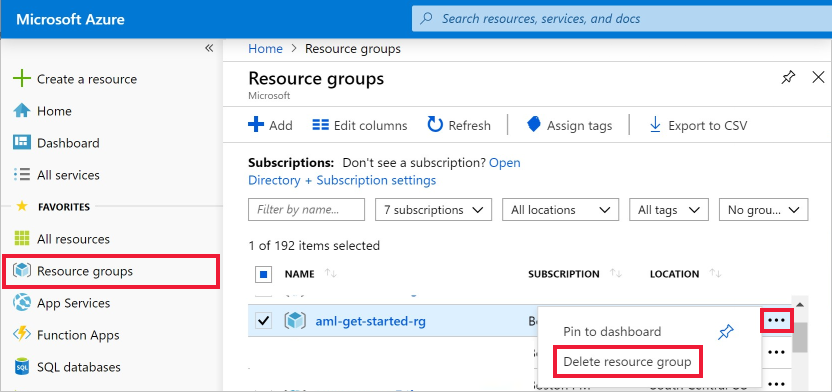
From the list, select the resource group you created.
Select Delete resource group.
Enter the resource group name. Then select Delete.
Example notebooks
The MLflow with Azure Machine Learning notebooks demonstrate and expand upon concepts presented in this article.
Note
A community-driven repository of examples using mlflow can be found at https://github.com/Azure/azureml-examples.