Note
Access to this page requires authorization. You can try signing in or changing directories.
Access to this page requires authorization. You can try changing directories.
Important
Some information in this article relates to a prereleased product which may be substantially modified before it's commercially released. Microsoft makes no warranties, expressed or implied, with respect to the information provided here.
Custom data collection (Preview) enables organizations to expand and customize telemetry collection beyond default configurations to support specialized threat hunting and security monitoring needs.
Custom data collection rules allow you to define specific events and analyze the data to enhance your security visibility and threat hunting operations. Custom data collection rules are based on tailored filters for event properties such as folder paths, process names, and network connections.
This article shows you how to create and manage custom data collection rules in the Microsoft Defender portal.
Create custom data collection rules
Prerequisites
To use custom data collection, check that you have the following prerequisites:
- A Microsoft Defender for Endpoint P2 license.
- A connected Microsoft Sentinel workspace: required for custom data storage and querying. You can currently only connect one Sentinel workspace per Defender for Endpoint tenant for custom data collection.
- Dynamic tags configured in Asset Rule Management for device targeting. To use a tag for custom data collection, the tag should be run at least once.
Supported operating systems
- Windows 10 and 11 with a minimum Defender for Endpoint client version of 10.8805.
- Windows 10 requires enrollment in Extended Security Updates (ESU) program.
Performance and limits
- Each collection rule can capture up to 25,000 events per device within a 24-hour rolling window. Once the device reaches the limit, telemetry for the specific rule on the specific device stops until the window resets.
- If the device reaches the threshold early in the cycle, it can take up to 24 hours for telemetry to resume. For example, if the device reaches the limit one hour after the window resets, telemetry resumes after 23 hours.
- If the device reaches the threshold near the end of the window, the delay is shorter. For example, if the device reaches the limit two hours before the window resets, telemetry resumes after two hours.
- Rule deployment typically takes 20 minutes to one hour.
- Custom collection operates alongside default Defender for Endpoint configuration without interference.
Data costs
Custom data collection is included with Microsoft Defender for Endpoint P2 licensing. However, data ingestion into Microsoft Sentinel workspaces incurs charges based on your Sentinel billing arrangement.
Create rules
In the Microsoft Defender portal, navigate to Settings > Endpoints > Rules > Custom Data Collection.
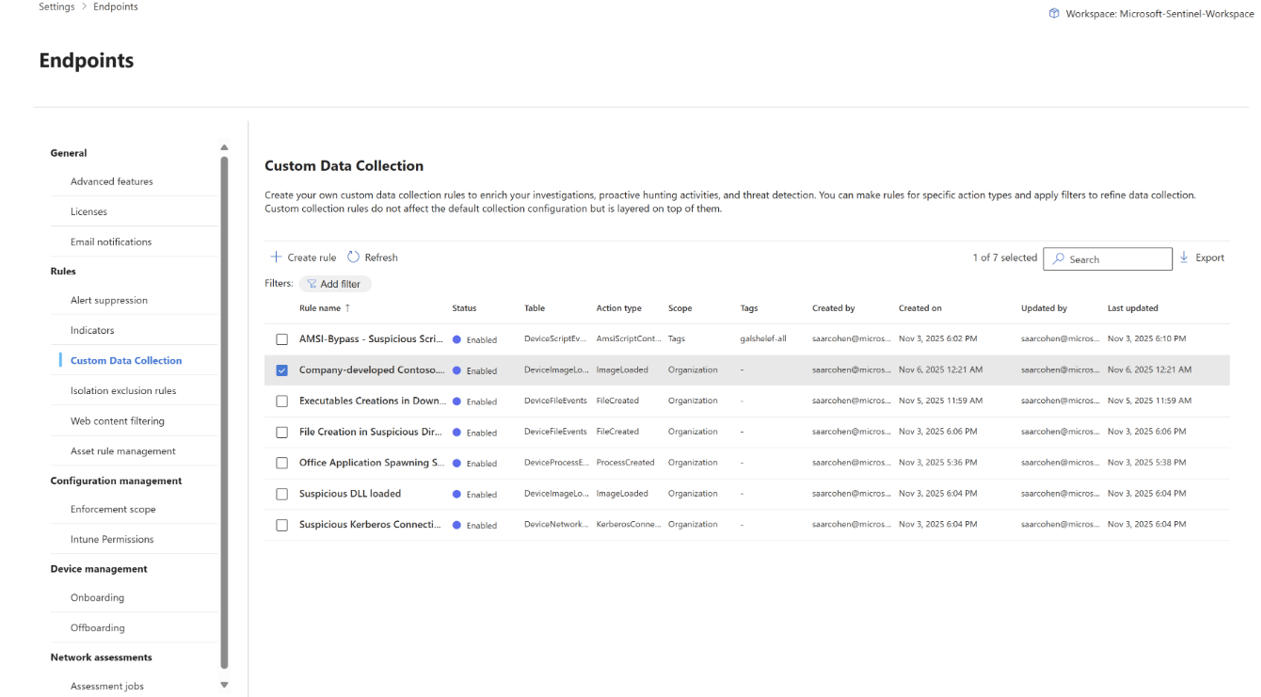
To switch your Microsoft Sentinel workspace, select the workspace name on the top right, and select the workspace.
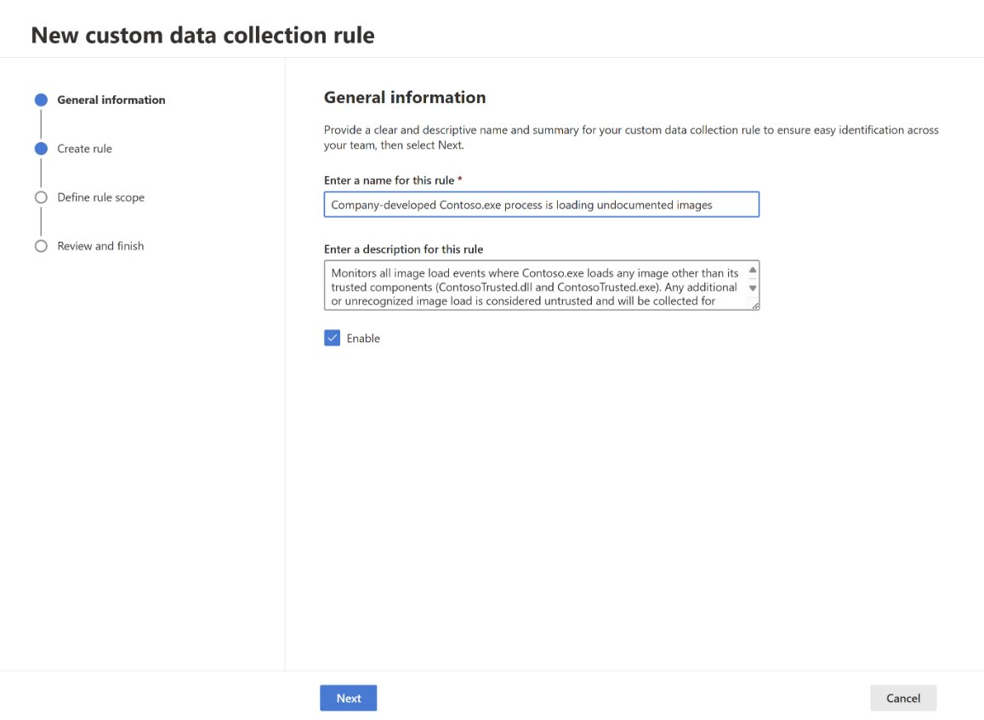
Select Create rule. In the General Information section, type a rule name and description, and select Next.
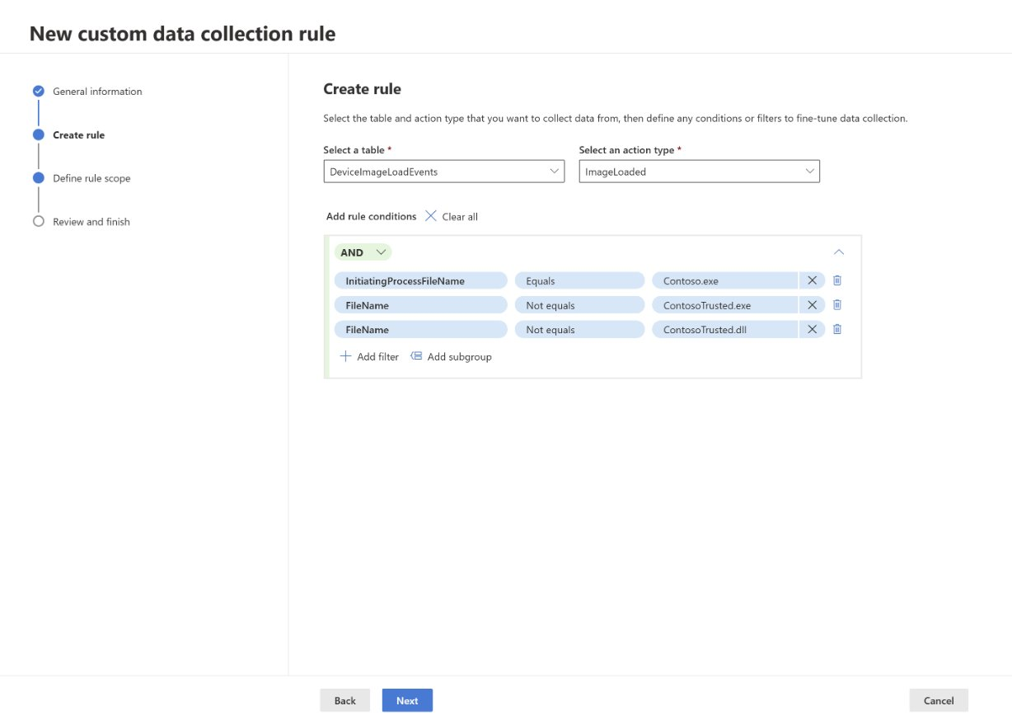
In the Create rule section:
- Select which table you want to collect data from. For more information, see Supported event tables.
- Select the action for which you want to collect data.
- Add rule conditions to filter the data even further. You can add multiple conditions to refine the data collection. Rule conditions are based on the selected table. For more information, see the respective table link under Supported event tables.
Select Next.
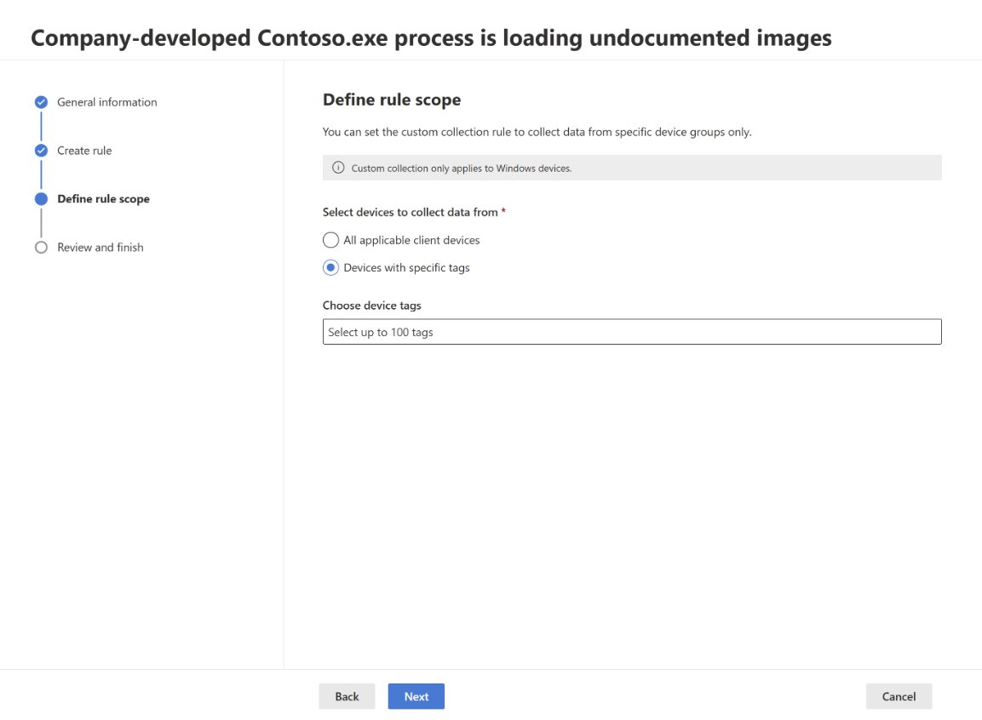
In the Define rule scope section, select whether you want to collect data from all applicable client devices or from specific devices that include dynamic tags. For more information, see Create dynamic rules for devices in asset rule management.
Note
Custom data collection only supports dynamic tags.
In the Review and finish section, review your rule settings, and select Submit.
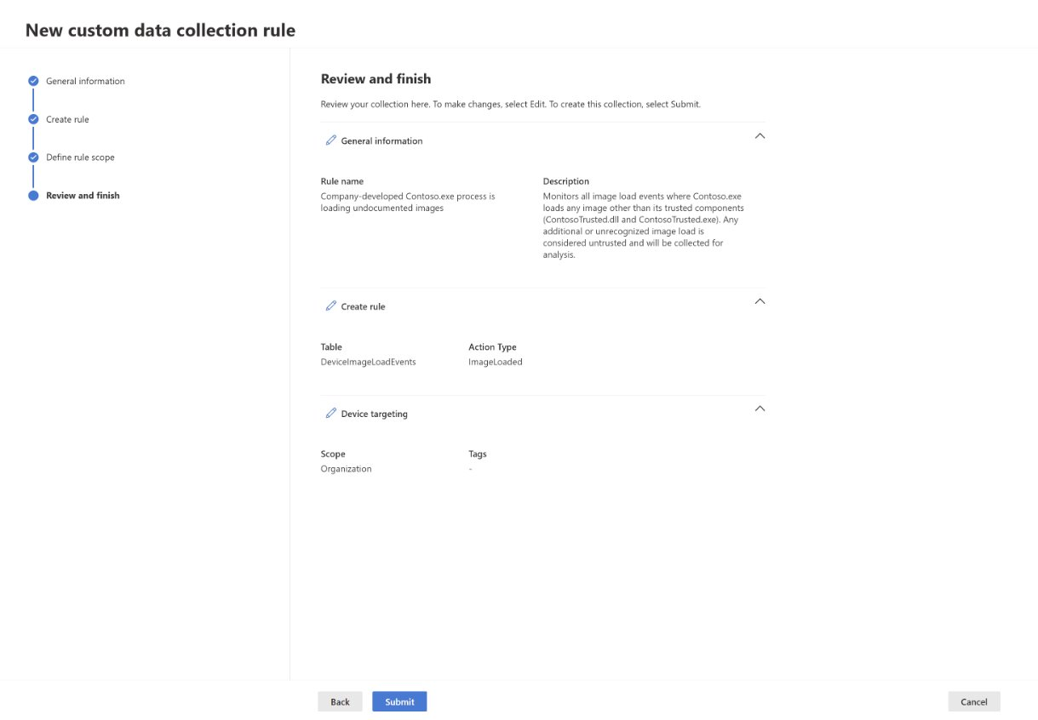
It can take up to an hour for the rule to be deployed to the targeted devices.
Monitor and troubleshoot
If rules aren't working as expected:
- Create a broad rule to collect events in an unexpected use case. For example, create a rule that collects all network events where
port not equals 0. - Apply individual filters and tags to isolate issues.
- If a device isn't responding after you enable the feature, reboot the device.
Review these considerations when monitoring and troubleshooting custom data collection rules:
- Endpoint detection and response (EDR) exclusions may override custom collection rules.
- Dynamic tags update approximately every hour. Check the Custom collection > Last run time column for the status.
Edit, delete, and enable or disable custom data collection rules
- To edit a rule, navigate to Settings > Endpoints > Rules > Custom Collection, select the rule you want to edit, and select Edit.
- To disable or enable a rule, select the rule you want to modify, and select or clear the Enable check-box under the rule description. When you disable a rule,data collection for that rule stops on all targeted devices.
- To delete a rule, select the rule you want to delete, and select Delete. When you delete a rule, the rule is permanently removed from the system.
Tip
Do you want to learn more? Engage with the Microsoft Security community in our Tech Community: Microsoft Defender XDR Tech Community.