Note
Access to this page requires authorization. You can try signing in or changing directories.
Access to this page requires authorization. You can try changing directories.
Note
The Vulnerability Management section in the Microsoft Defender portal is now located under Exposure management. With this change, you can now consume and manage security exposure data and vulnerability data in a unified location, to enhance your existing Vulnerability Management features. Learn more.
These changes are relevant for Preview customers (Microsoft Defender XDR + Microsoft Defender for Identity preview option).
Note
The configuration score is now part of the devices secure score.
Your devices secure score indicates how well your endpoints are protected against cybersecurity threats.
This article explains what the Microsoft Secure Score for devices is, how it works, and how you can improve your security configuration to reduce your vulnerability exposure.
What is Microsoft Secure Score for devices?
The secure score reflects the collective security configuration state of your devices across the following categories:
- Application
- Operating system
- Network
- Accounts
- Security controls
The secure score is visible in different Microsoft Defender portal locations depending on your Microsoft Defender Vulnerability Management experience:
- If you're a Microsoft Defender XDR + Microsoft Defender for Identity preview customer, the secure score is visible under Exposure management > Recommendations.
- For existing customers, the secure score is visible under the Microsoft Defender Vulnerability Management dashboard. Select a category to go to the Security recommendations page and view the relevant recommendations.
Unmanaged devices (devices not enrolled in management solutions like Intune or Azure AD) do count towards your Secure Score but are typically marked as non-compliant for several security checks. These devices may lower your score, especially if they fail critical security assessments such as anti-malware status, patch management, and encryption requirements. It's recommended to bring these devices under management to improve both security posture and secure score.
How it works
Note
Microsoft Secure Score for devices currently supports configurations set via Group Policy. Due to the current partial Intune support, configurations which might have been set through Intune might show up as misconfigured. Contact your IT Administrator to verify the actual configuration status in case your organization is using Intune for secure configuration management.
The data in the Microsoft Secure Score for devices is the product of meticulous and ongoing vulnerability discovery process. It is aggregated with configuration discovery assessments that continuously:
- Compare collected configurations to the collected benchmarks to discover misconfigured assets
- Map configurations to vulnerabilities that can be remediated or partially remediated (risk reduction)
- Collect and maintain best practice configuration benchmarks (vendors, security feeds, internal research teams)
- Collect and monitor changes of security control configuration state from all assets
Improve your security configuration
Note
This section describes the Microsoft Defender Vulnerability Management experience for customers using the Microsoft Defender XDR + Microsoft Defender for Identity preview. This experience is part of the integration of Microsoft Defender Vulnerability Management into Microsoft Security Exposure Management. Learn more.
Improve your security configuration by remediating issues from the security recommendations list. As you do so, your Microsoft Secure Score for devices improves and your organization becomes more resilient against cybersecurity threats and vulnerabilities.
Navigate to the Exposure management > Recommendations page.
Review the categories in the Score breakdown section.
Do one of the following:
- View all security recommendations in the recommendation list.
- To view recommendations by category, in the recommendations table, add the Category filter and select the category you want to address.
Select a recommendation. A flyout panel opens with details related to the recommendation. Select Request remediation.

Read the description to understand the context of the issue and what to do next. Select a due date, add notes, and select Export all remediation activity data to CSV so you can attach it to an email for follow-up.
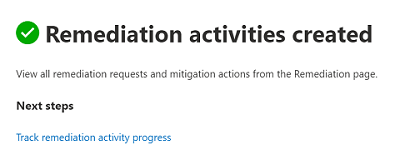
Select Submit. You'll see a confirmation message that the remediation task has been created.
Send a follow-up email to your IT Administrator and allow the time that you've allotted for the remediation to propagate in the system.
Review the Recommendations page. You can expect the following outcome:
- In the Score breakdown area, the number of recommendations for the category you addressed decreases, compared to the percentage before remediation.
- The addressed recommendation is no longer listed in the recommendations table.
- Your Devices Secure Score increases compared to the percentage before remediation.
Download mandatory security updates
To boost your vulnerability assessment detection rates, download the following mandatory security updates and deploy them in your network:
- 19H1 customers | KB 4512941
- RS5 customers | KB 4516077
- RS4 customers | KB 4516045
- RS3 customers | KB 4516071
To download the security updates:
- Go to Microsoft Update Catalog.
- Key-in the security update KB number that you need to download, then click Search.