Note
Access to this page requires authorization. You can try signing in or changing directories.
Access to this page requires authorization. You can try changing directories.
By default, the agent uses public web data sources to research leads and their companies. However, you can enhance the relevance of the research insights and email content by adding custom knowledge sources that are specific to your organization and industry. For example, you can add customer testimonials and case studies as knowledge sources for outreach emails to engage with leads effectively.
Considerations
Before you configure knowledge sources for the Sales Qualification Agent, consider the following factors:
When you add a knowledge source to the agent, you'll be redirected to Microsoft Copilot Studio. So, ensure that you have the necessary permissions to access and modify the knowledge sources in Copilot Studio. The Sales Qualification Agent uses specialized, micro agents in Copilot Studio for outreach emails, follow-up emails, and research insights. Knowledge sources added to these micro agents are only used for the specific purpose it's configured for. For example, knowledge sources added to the Research micro agent are only used for research insights, and not for outreach emails or follow-up emails.
If the Sales Qualification Agent and Opportunity Research Agent are in the same environment, they share the same knowledge sources for account research insights. The knowledge sources that you add to or remove from one of the agents is reflected in the other agent as well. If you see knowledge sources that you didn't add, it's possible that those sources are configured for the Opportunity Research Agent. Don't remove them unless you want to remove them from both the agents.
Ensure that any files or documents that you want the agent to use are in a SharePoint folder. Any other file sources such as OneDrive aren't supported.
In Copilot Studio, when you upload files from SharePoint, select the SharePoint option in the Featured section. The SharePoint option under the Upload file section isn't supported. Selecting this option blocks the agent from processing the leads. The following screenshot shows the correct option to select in Copilot Studio:
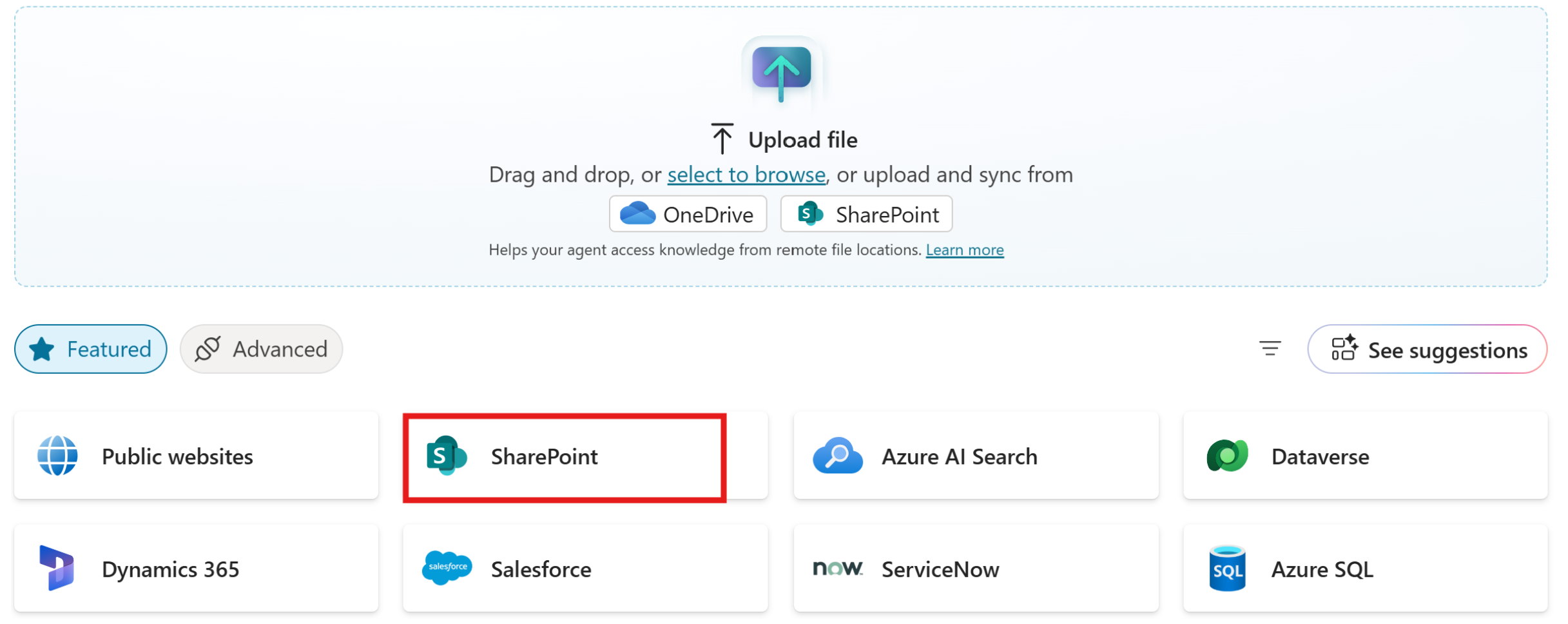
Add knowledge sources for company research
By default, the agent uses public web data sources to research leads and their companies. However, you can add custom knowledge sources that you want the agent to use to get more relevant and specific insights about the lead and their company.
In the Knowledge section, select Research.
Under Enrich research with knowledge sources, select Company research. Company insights include industry type, company size, financials, priorities, and news. The following examples are the best sources to add as knowledge sources for company research:
Insight Typical questions answered Examples of out-of-box data sources Company background What does the company do? What is its size and industry? Company website, Wikipedia pages, Crunchbase profiles Strategic priorities What is the firm focusing on? Does their priority match with what we are selling? Annual reports, earnings-call transcripts Financials How healthy is the business? Will they have budget to buy what we are selling? SEC filings, Bloomberg, Dataverse finance tables Recent news What just happened that matters to us, and shows a need or intent for our solutions? Bing news search Select Add in Microsoft Copilot Studio or Manage in Microsoft Copilot Studio to add or remove knowledge sources. You're redirected to the D365 Sales Agent - Research agent's Knowledge page in Copilot Studio.
Add relevant knowledge sources and return to the agent settings page. The knowledge sources you added in Copilot Studio are listed under Company research. You can now test the knowledge source.
Select the Test icon (
 ) in the Company research section. Follow the instructions in the Test insight pane and verify whether the agent is generating relevant research insights using the knowledge sources you added.
Configure the agent to generate competitor insights
The Sales Qualification Agent can provide insights about competitors for a lead. These insights include information about your competitors, their strengths and weaknesses, and talking points to help sellers position your products or services effectively against the competition. As an admin, you can configure the agent to generate competitor insights by specifying key competitors and uploading relevant knowledge sources.
How the agent identifies competitors to research
The agent identifies the competitors for a lead from the following sources:
Competitors added to the lead record are given the highest priority. If the lead record has a competitor specified, the agent researches only that competitor.
If no competitors are specified in the lead record, the agent looks for competitors from:
Web search results based on account research and value proposition.
Closed opportunities that include competitor information.
Competitors list configured in the agent settings (as explained in the following section).
The agent ranks competitors based on the number of sources they appear in. If a competitor is mentioned in more sources than others, the agent ranks it as the top competitor. If there are multiple competitors with the same rank, the agent picks the one associated with the recently won opportunity.
The following table illustrates how the agent prioritizes competitors in different scenarios:
Scenario Which competitors are considered? Contoso appears in three sources, Fabrikam in two, and Northwind in one Contoso Contoso and Fabrikam each appear in three sources, Northwind in two Contoso or Fabrikam depending on which one was associated with the most recently won opportunity. Contoso and Fabrikam both appear in two sources The competitor from the most recent opportunity is prioritized Contoso, Fabrikam, and Northwind each appear in one source (No overlap among sources) Competitors configured by the admin are shown as fallback No competitor information available in records and no competitors configured in agent settings Competitors from web search results are shown
Add competitors and knowledge sources for competitor insights
When the agent doesn't find competitor information in the lead record or doesn't find any overlapping mentions of competitors across different sources, it uses the competitors list you add in the agent settings as explained in this section.
You can also upload relevant documents such as battle cards, positioning briefs, and market analysis reports to help the agent generate more accurate and relevant insights. Learn more about considerations for knowledge sources.
Under Knowledge, select Research, and then scroll down to the Competitor research section.
Under Key competitors, select + Competitor to add up to three competitors for the product line that the agent will work on.
Select Upload in Microsoft Copilot Studio to upload or remove knowledge sources for competitor insights.
The D365 Sales Agent - Competitors agent's Knowledge page opens in Copilot Studio.Select Add knowledge and then select Upload file.
Note
You can upload only slide decks or documents as knowledge sources for competitor insights.
Select the documents. You can group similar documents into a group to help the agent understand the context better. For example, you can group all documents related to a specific competitor. Select Upload > Upload as a group to upload the documents as a group.
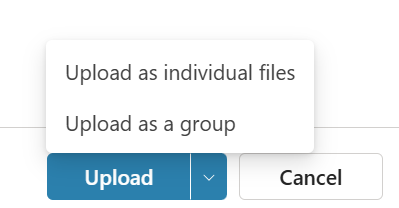
You can also group individual documents into a group after uploading them. Select a document in the Knowledge page and select Create file group to create a group and add the document to it.
Return to the Sales Qualification Agent settings page and select the Test icon (
) in the Competitor research section. Follow the instructions in the Test insight pane and verify whether the agent is generating relevant research insights using the knowledge sources you added.
Add knowledge sources for outreach and follow-up emails
You can add knowledge sources that the agent can use to draft outreach and follow-up emails to leads. For example, you can add customer testimonials and case studies as knowledge sources for outreach emails to engage with leads effectively.
- Go to the agent settings page.
- In the Knowledge section, select Agent emails. Add knowledge sources for the following email types:
- Knowledge sources for email personalization: The agent uses these knowledge sources to draft personalized outreach emails. Add relevant customer testimonials, case studies, and other insights to engage with the lead effectively.
- Knowledge sources for email responses: This setting is only applicable for the Research and engage mode. The agent uses these knowledge sources to draft follow-up emails to respond accurately and ask insightful questions. For an effective follow-up, add knowledge sources that include price sources, product specifications, sales playbooks, SKUs, and more. - Select Manage to add or remove knowledge sources in Microsoft Copilot Studio. For email personalization, the D365 Sales Agent - Outreach Emails agent's Knowledge page opens in Copilot Studio. For email responses, the D365 Sales Agent - Engage Autonomous agent's Knowledge page opens in Copilot Studio.
- Add relevant knowledge sources and go back to the agent settings page. The knowledge sources you added in Copilot Studio are listed under the respective email type.
Example Scenario: Contoso Investment Bank targets high-net-worth (HNW) leads
Goal: Contoso’s sales operations team wants the agent to decide if a lead’s personal net worth exceeds US$5 million. If it does, they want to include tailored talking points in the outreach email.
| Insight area | Contoso data source | How to add |
|---|---|---|
| Financials | SharePoint list "Client financial profiles" (NetWorth, AUM, RiskTolerance) |
Add as a knowledge source, describe columns, tag with financials |
| Company background | Public site hoovers.com profile pages Dunn & Bradstreet (D&B) number from Account.DUNSNumber |
Add https://www.hoovers.com/ as a public website D&B’s D-U-N-S number is synced to Dataverse Account table and added to Copilot Studio. |
| Recent news | Bloomberg RSS feed for the prospect’s company | Upload the RSS XML file or connect via a news API |
| Strategic priorities | Contoso analyst reports stored in a SharePoint library | Add SharePoint URL |
After you publish the knowledge sources, the agent:
- Fetches NetWorth from the SharePoint list to decide if the lead meets the high-net-worth threshold.
- Uses Dunn & Bradstreet’s high-quality data to augment public sources.
- Surfaces company priorities from the analyst reports suggesting relevant investment products.
- Quotes the latest Bloomberg headline in the latest news card.
- Generates an email that references the lead’s net-worth range and a recent strategic move.
Best practices
The following are some best practices to consider while adding knowledge sources:
- Keep descriptions specific. Adding descriptions such as "Dataverse table with Assets Under Management by client" is more helpful than just "Finance table."
- Limit public sites. Too many broad domains dilute relevance; add the few that best match your industry.
- Review security. The agent only presents data that the signed-in seller is permitted to access.
- Monitor capacity. Large files and frequent refreshes consume AI credits; track usage in Power Platform admin center.
With curated knowledge sources, the Sales Qualification Agent becomes a best researcher that understands your organization and surfaces the insights your sellers value most.
Next steps
Related information
Add knowledge to an agent
Configure the Sales Qualification Agent