Note
Access to this page requires authorization. You can try signing in or changing directories.
Access to this page requires authorization. You can try changing directories.
Important
- Ensure that the agent is properly configured to avoid editing configurations after starting. Editing the agent changes how leads are processed before and after the change, giving different results.
- Ensure that terms are accepted for Bing Search and Move data across regions in Power Platform admin center.
The Start agent option is enabled only after following steps are completed:
- All the sections in the agent configuration page are completed and marked with a green check mark as shown in the following image.
- Outreach email simulation is completed (applicable only for Research and engage mode).
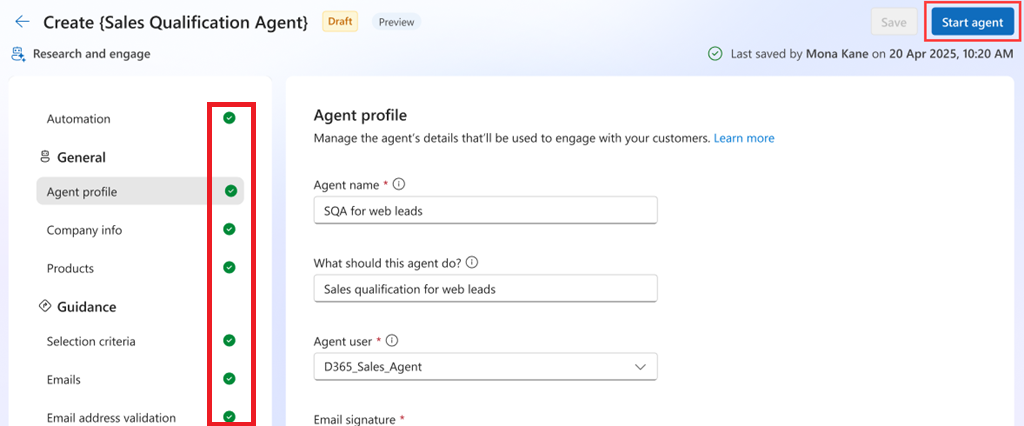
A confirmation message is displayed, select Start agent to start the agent. The agent might take a few seconds to start, and you can continue working while the agent is being started. Upon successful activation, the agent is listed under the AI agents home page with status as On. As soon as the agent is started, the agent starts processing the leads that match the configured selection criteria.
Note
If the agent fails to start due to unknown issues, contact Microsoft support.
Add agent-specific views to your app
After you start the agent, sellers can view the list of leads being processed by the agent, leads handed over by the agent, and leads that are disqualified by the agent. The Sales Hub app includes the following agent-specific views by default:
- Leads from AI Agent
- Leads disqualified by AI Agent
- Leads handed over by AI Agent
- Leads being processed by AI Agent
If you don't see these views in your app, it could be because:
- Your organization uses a custom app for sales.
- You turned off Include all views in the app option for the Lead entity in Power Apps.
To add the agent-specific views to your app, follow the steps in Manage views and charts.