Note
Access to this page requires authorization. You can try signing in or changing directories.
Access to this page requires authorization. You can try changing directories.
Connecting applications to Fabric's API for GraphQL enables your web, mobile, and backend applications to query Fabric data sources using a modern, efficient API. This integration requires proper authentication through Microsoft Entra ID and configuration of your application to call the GraphQL endpoint securely.
This article walks you through connecting a React application to Fabric GraphQL API by:
- Creating and configuring a Microsoft Entra app for authentication
- Setting up a sample GraphQL API in Fabric with data to query
- Cloning and configuring a complete React application from GitHub
- Testing the authenticated connection
The tutorial uses React, but authentication concepts apply to any language. For samples in C#, Python, or other languages, see the Microsoft Fabric Samples GitHub repository.
Who needs to connect applications
Application connection setup is essential for:
- Web and mobile developers building applications that consume data from Fabric lakehouses and warehouses
- Integration developers connecting Fabric data to custom applications and automated workflows
- Backend developers creating services that integrate with Fabric's unified analytics platform
- Data engineers setting up automated data processing workflows that consume Fabric data via APIs
Use this guide when you need to authenticate and authorize applications to access your Fabric GraphQL APIs.
Prerequisites
Development tools: You need Node.js (LTS version) and Visual Studio Code installed on your machine.
Before connecting an application, ensure you have an API for GraphQL in Fabric. For more information, see Create an API for GraphQL in Fabric and add data.
The API for GraphQL requires applications to use Microsoft Entra for authentication. Register and configure your application to perform API calls against Fabric. For more information, see Create a Microsoft Entra app in Azure.
The authenticated credential (user principal, service principal, or managed identity) calling the API needs Execute permissions for the GraphQL API (Run Queries and Mutations option when adding direct access permissions). If using single sign-on (SSO) as the connectivity option in the API, ensure the credential has read or write permissions in the chosen data source. For more information, see Connect to a data source and build your schema.
Authentication and permissions summary
Access to the GraphQL API requires proper authentication and authorization at both the API level and the underlying data source level. You can authenticate using either a user principal (representing an individual user) or a service principal (representing an application or service). For data source connectivity, you can use single sign-on (SSO) where the caller's identity is passed through to the data source, or saved credentials where a pre-configured connection is used.
The following table summarizes the different supported authentication scenarios and the minimum required permissions for clients accessing the GraphQL API:
| API Caller | Data source connectivity | Required GraphQL API permissions | Required Data Source permissions | Microsoft Entra app scope |
|---|---|---|---|---|
| User Principal (UPN) | Single sign-on (SSO) | Run Queries and Mutations at the API level | Appropriate Read/Write permissions granted to the UPN at the data source | GraphQLApi.Execute.All |
| Service Principal (SPN) | Single sign-on (SSO) | Run Queries and Mutations at the API level | Appropriate Read/Write permissions granted to the SPN at the data source | Not Applicable |
| User Principal (UPN) | Saved credentials | Run Queries and Mutations at the API level | Appropriate Read/Write permissions granted to the saved credential (connection) at the data source | GraphQLApi.Execute.All |
| Service Principal (SPN) | Saved credentials | Run Queries and Mutations at the API level | Appropriate Read/Write permissions granted to the SPN at the data source | Not Applicable |
Create a Microsoft Entra app
Before your application can call the Fabric GraphQL API, you must register it in Microsoft Entra ID. This registration creates an identity for your application and defines what permissions it needs. The registration process generates a Client ID (application identifier) and establishes the authentication flow your app uses to obtain access tokens.
For React applications, you configure single-page application (SPA) settings that use the PKCE flow—a secure authentication method designed for browser-based apps where client secrets can't be safely stored.
Register an application using the steps described on Quickstart: Register an application with the Microsoft identity platform.
The Microsoft Entra app Application (client) ID and Directory (tenant) ID values appear in the Summary box. Record these values because you need them when you configure the React application.
Configure API permissions so your application can access the Fabric GraphQL API. Under the Manage list, select API permissions, then Add permission.
Add the PowerBI Service, select Delegated permissions, and select GraphQLApi.Execute.All permissions. This permission allows your application to execute queries and mutations on behalf of the signed-in user. Confirm that admin consent isn't required.
Go back to the Manage list, select Authentication > Add a platform > Single-page application.
For local development purposes, add
http://localhost:3000under Redirect URIs and confirm that the application is enabled for the authorization code flow with Proof Key for Code Exchange (PKCE). Select the Configure button to save your changes. If the application encounters an error related to cross-origin requests, add the Mobile and desktop applications platform in the previous step with the same redirect URI.Back to Authentication, scroll down to Advanced Settings and, under Allow public client flows, select Yes for Enable the following mobile and desktop flows.
Set up a sample GraphQL API for application access
With your Microsoft Entra app registered, you need a GraphQL API in Fabric to query. This section walks you through creating a sample API using Fabric's public holidays dataset. This gives you a working API to test authentication and data retrieval without needing to configure your own data sources.
The sample API exposes holiday data from a Lakehouse table, which your React application queries to display public holidays.
From the Fabric portal home page, select Data Engineering from the list of workloads.
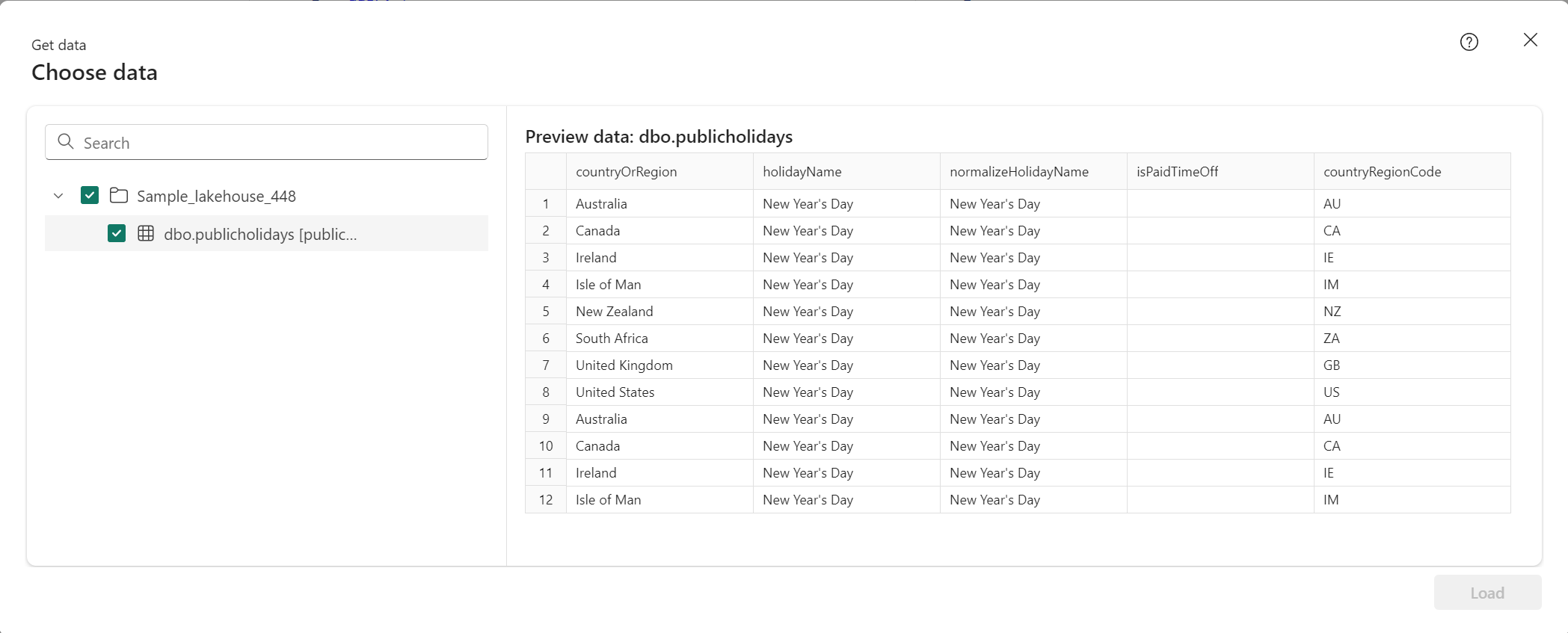
In the Data Engineering experience, select Use a sample, and under Lakehouse, select Public holidays to automatically create a new Lakehouse with public holidays data.

Follow the steps from Create an API for GraphQL to create a new GraphQL API and select the Lakehouse you created. Add the public holidays table so clients can access this data.
Before building the React application, verify that your API works correctly by testing it in the API editor. Use the following query—this is the same query your React application executes later:
 query {
 publicholidays (filter: {countryRegionCode: {eq:"US"}, date: {gte: "2024-01-01T00:00:00.000Z", lte: "2024-12-31T00:00:00.000Z"}}) {
     items {
       countryOrRegion
       holidayName
       date
     }
   }
 }
Select Copy endpoint on the API item's toolbar.

In the Copy link screen, select Copy.

Record the Client ID and Tenant ID from the Microsoft Entra app and the endpoint URI. You need these values when you configure the React application.


Clone and configure the React application
Now that you have the Microsoft Entra app and GraphQL API set up, you can configure a React application to connect to them. The application uses Microsoft Authentication Library (MSAL) to handle authentication and makes GraphQL requests with Bearer tokens.
Clone the samples repository from GitHub:
git clone https://github.com/microsoft/fabric-samples.gitNavigate to the React application folder:
cd fabric-samples/docs-samples/data-engineering/GraphQL/ReactThe folder contains a complete React application. You only need to edit
src/authConfig.jsto configure your specific endpoint and credentials.Open the project in your code editor:
code .In your editor, navigate to the
srcfolder and openauthConfig.js.Replace the following placeholder values with your specific details:
Enter_the_GraphQL_Endpoint_Here- Replace with your GraphQL API endpoint from Set up a sample GraphQL API for application accessEnter_the_Application_Id_Here- Replace with your Application (client) ID from Create a Microsoft Entra appEnter_the_Tenant_Info_Here- Replace with your Directory (tenant) ID from Create a Microsoft Entra app
Important
In the same file, the
loginRequestconstant includes the scopehttps://analysis.windows.net/powerbi/api/GraphQLApi.Execute.All. This exact scope is required for accessing Fabric GraphQL APIs. Don't remove or modify this scope; otherwise, authentication fails.Save the file.
In your terminal, navigate to the project root folder and run:
npm installThis installs all required dependencies.
Test the application
With the application configured, run it locally to verify everything works correctly:
In your terminal, run:
npm startThis command starts the development server and opens the application in your browser.
Complete the authentication flow when the application loads at
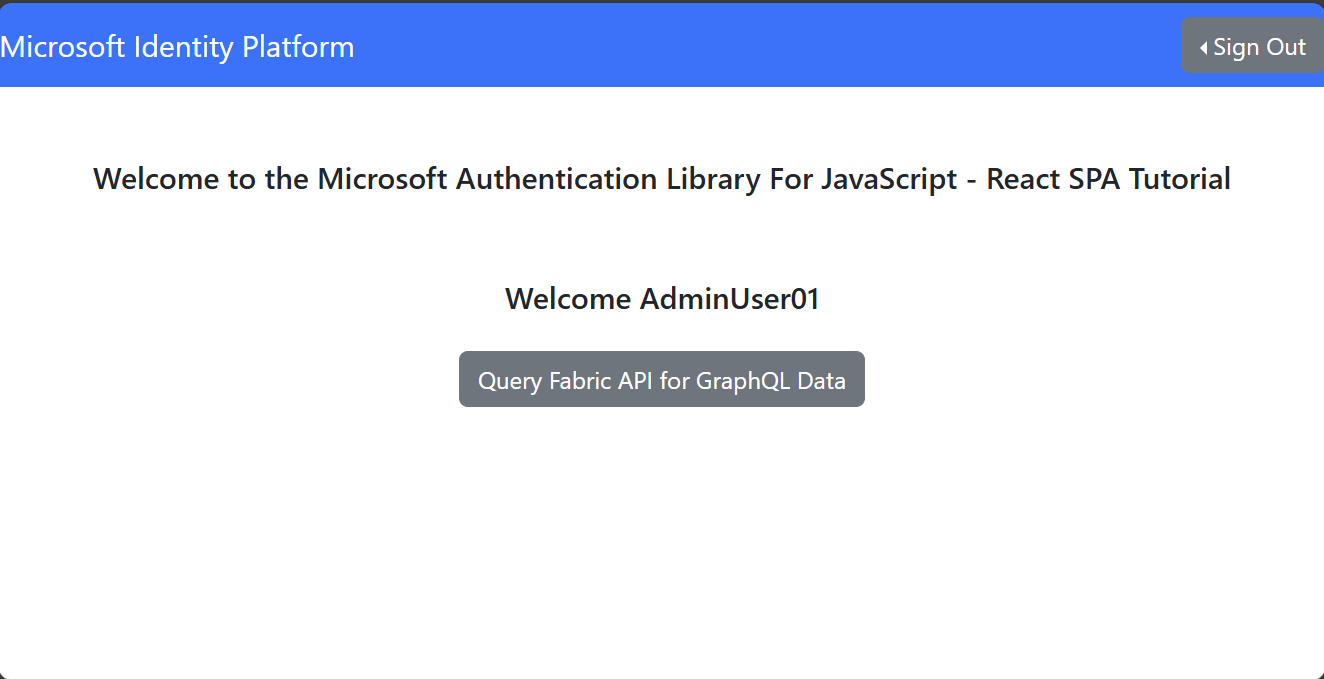
http://localhost:3000. Follow the sign-in steps described in the tutorial section Call the API from the application.After signing in successfully, select the Query Fabric API for GraphQL Data button. This triggers the authentication flow, acquires an access token, and executes the GraphQL query against your Fabric API.
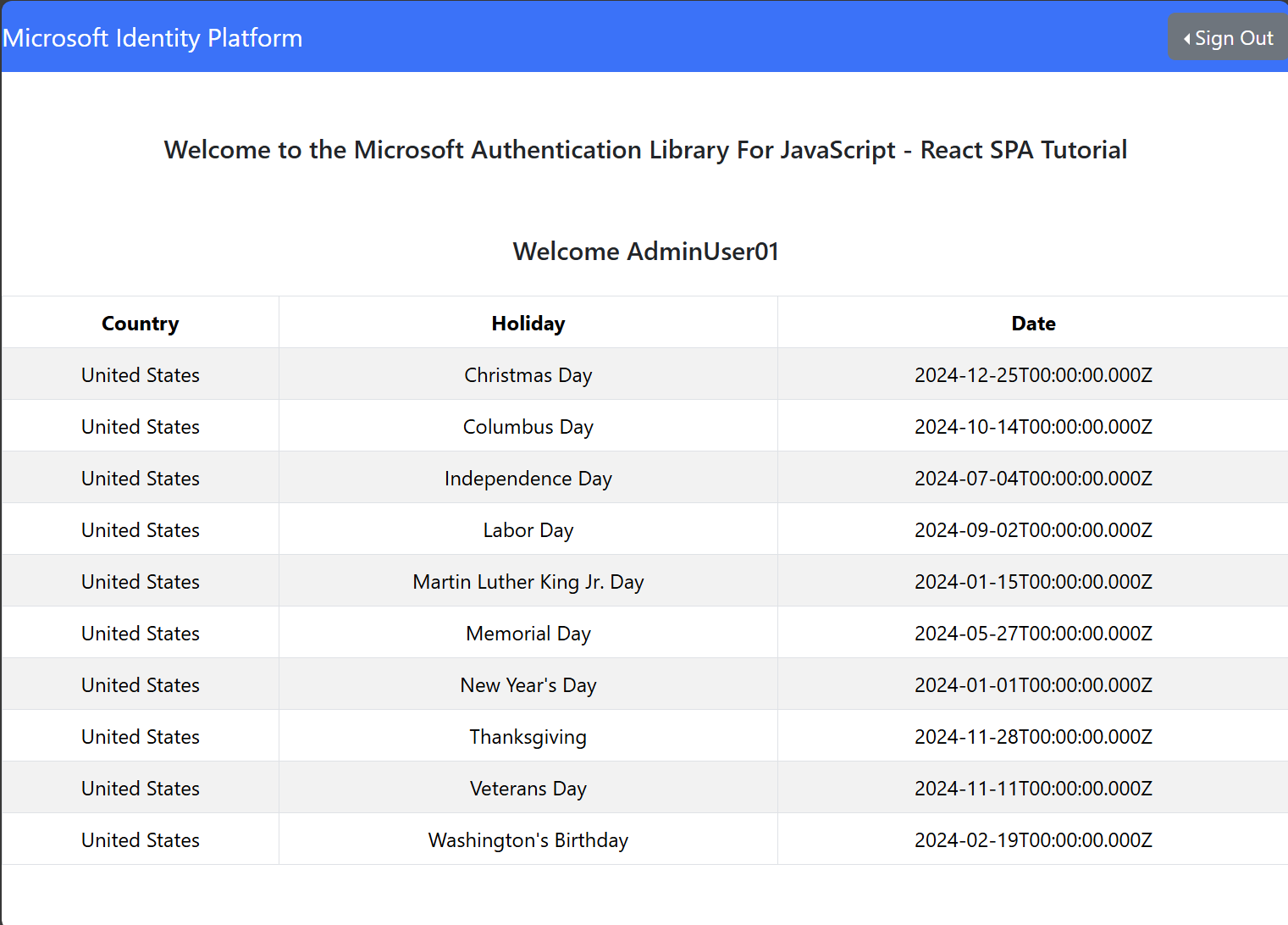
If everything is configured correctly, the application displays public holidays in a table. This confirms that:
- Your Microsoft Entra app has the correct permissions
- The access token was successfully acquired
- The GraphQL API authenticated the request
- The query executed against the Lakehouse data
Other npm commands
Beyond npm start and npm install, you can use these common npm commands for different development scenarios:
npm run dev- Alternative way to start the development servernpm run build- Create an optimized production build of your applicationnpm run preview- Test the production build locally before deployingnpm test- Run automated tests to verify your code works correctly
Related content
Now that you have a working application connected to your Fabric GraphQL API, explore these resources to build more sophisticated solutions:
- Create an API for GraphQL in Fabric and add data - Learn how to expose your own data sources
- Query multiple data sources in Fabric API for GraphQL - Combine data from different sources in a single query
- Fabric API for GraphQL editor - Test and develop queries interactively
- Create a Microsoft Entra app in Azure - Detailed guide for production app registration
- Microsoft Fabric GraphQL samples - Browse samples in multiple languages