Note
Access to this page requires authorization. You can try signing in or changing directories.
Access to this page requires authorization. You can try changing directories.
Get started with the Fabric API for GraphQL by creating an API, then linking a data source to expose the data you chose through the API. Fabric builds the GraphQL schema automatically based on your data, and applications are ready to connect in minutes.
Who should create GraphQL APIs
Creating GraphQL APIs in Fabric is designed for:
- Data engineers exposing Fabric lakehouse and warehouse data through modern APIs for application consumption
- Fabric workspace contributors who want to quickly create data access APIs without writing backend code
- BI developers building custom analytics applications that need programmatic access to Fabric data
- Integration developers creating data access layers for custom applications and automated workflows
- Development teams who prefer GraphQL's flexible, type-safe approach over direct database connections
Use this guide when you need to create a new GraphQL API that exposes your Fabric lakehouse, warehouse, or database data to applications.
Prerequisites
To create an API for GraphQL, you need:
Your permissions:
- Be a member of the Fabric workspace where you want to create the API
- Have at least the Contributor role in that workspace (or higher: Admin, Member)
Organizational setup:
A Fabric administrator or capacity admin must enable the "Users can create Fabric items" tenant setting

The workspace must be backed by a Fabric capacity (Premium, Trial, or Fabric capacity)

Data source access (for later steps):
- Read permissions on the data sources you plan to expose through the GraphQL API
- The permissions can be granted through workspace membership or direct data source permissions
- In this guide, we use an AdventureWorks SQL analytics endpoint linked to a mirrored database as an example data source. To get the AdventureWorks sample data, see Load AdventureWorks sample data in your SQL database.
Creating an API for GraphQL
To create an API for GraphQL:
Go to the Fabric portal at https://fabric.microsoft.com and sign in with your organizational account.
Select a workspace where you want to create the API and then select New item. In the panel that opens, under Develop data, select API for GraphQL.
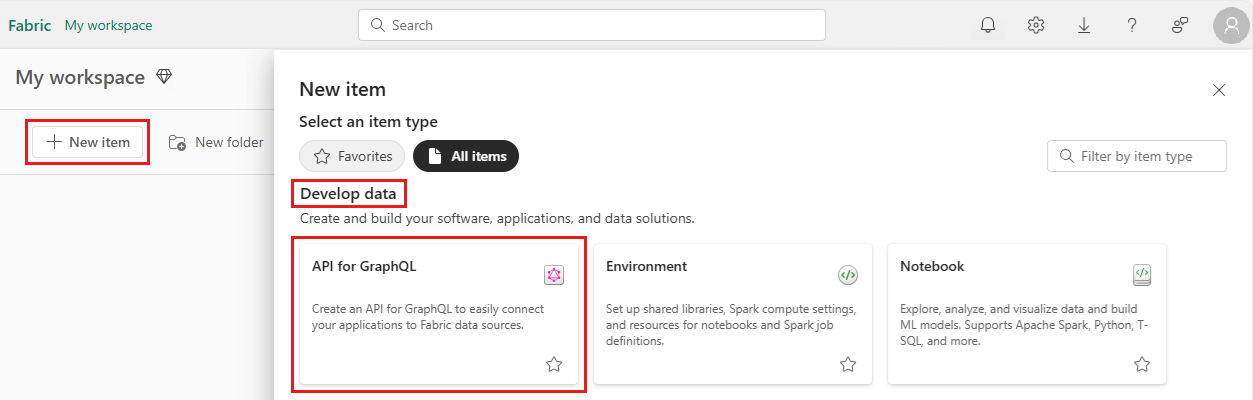
Enter a Name for your new API for GraphQL item and select Create.
You now have an active GraphQL API endpoint in Fabric. At this point, you can copy the endpoint URL from the Fabric portal, select Generate code to get code samples, and the API is ready to receive requests. In the next section, we'll connect data sources to build your schema, but the endpoint itself is already functional.
Connect to a data source and build your schema
At this point, the API endpoint is ready but it's not exposing any data yet. APIs for GraphQL are defined in a schema organized in terms of types and fields, in a strongly typed system. Fabric automatically generates the necessary GraphQL schema based on the data you choose to expose to GraphQL clients.
To connect a data source and build your schema:
Make sure that you selected the new GraphQL API item in your workspace.
Under Add data to the API for GraphQL select the Select data source tile.
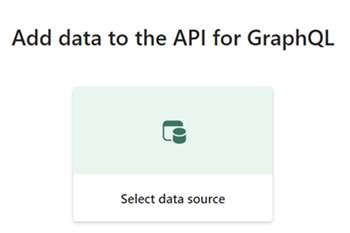
Next select the connectivity option for your API:
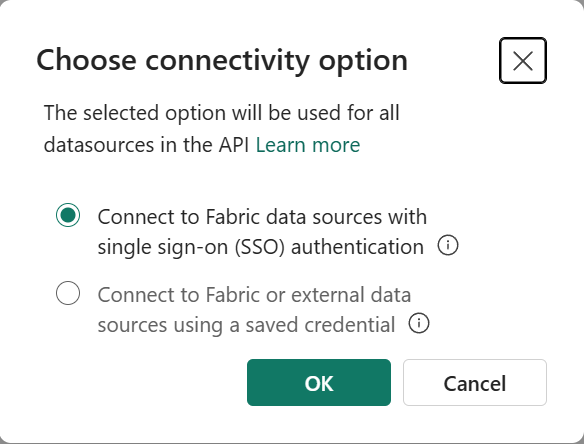
Here you can define how API clients can access the API to execute GraphQL requests based on two distinct options:
Single sign-on (SSO): You can use client credentials to connect to data sources. The authenticated API user must have access to the underlying tables in the data source.
For example, if you're exposing Lakehouse data to your API clients, the authenticated user needs to have access to both the API and the Lakehouse. More specifically, Execute permissions to the GraphQL API (Run Queries and Mutations option when adding direct access permissions) and read or write permissions required in the data source of choice, accordingly. Alternatively, the user can be added as workspace member with a contributor role where both the API and data source items are located, which provides the required access to both items from a single location. For more information, see Give users access to workspaces.
Saved credentials: You can use saved credentials to connect to data sources. The authenticated API user doesn't need direct access to the data. A saved credential is shared to access the data between the API and underlying tables in the data source.
For example, if you're exposing Lakehouse data to your API clients the authenticated user just needs to have direct access to the API (Run Queries and Mutations option when adding direct access permissions) and not the Lakehouse. A saved credential is used to connect the API to the data source and is shared by all authenticated API users. This option is required if you're exposing an Azure data source such as an Azure SQL database via GraphQL.
Once selected, these options are enforced for all data sources later added to the API. It's not possible to mix single-sign on and saved credentials in the same API. You can use User Principal Names (UPNs) or Service Principal Names (SPNs) to connect to your API, using either SSO or saved credentials depending on your security requirements.
For a detailed breakdown of permission requirements for different authentication scenarios, see Authentication and permissions summary.
Note
API for GraphQL requires client applications to use Microsoft Entra ID for authentication. Your client application must be registered and configured adequately to execute API calls against Fabric. The app registered in Microsoft Entra ID requires GraphQLApi.Execute.All API permissions for the Power BI service. You can find an end-to-end tutorial with instructions and sample code for both user principals and service principals at Connect Applications.
From the OneLake catalog, choose the data source you want to connect to. Select Filter to see only specific types of Fabric data sources, or search by a specific keyword. When you're ready, select Connect.

In this example, we chose a SQL analytics endpoint linked to a mirrored database that contains the AdventureWorks sample data.
If you selected Saved credentials previously, and if there isn't a saved credential for your GraphQL API already in place, you're prompted to create a new saved credential.
The Choose data page appears, where you can choose which objects you want exposed in your GraphQL schema.
Select the checkboxes next to the individual tables, views, or stored procedures you want to expose in the API. To select all the objects in a folder, select the checkbox with the data source name at the top.
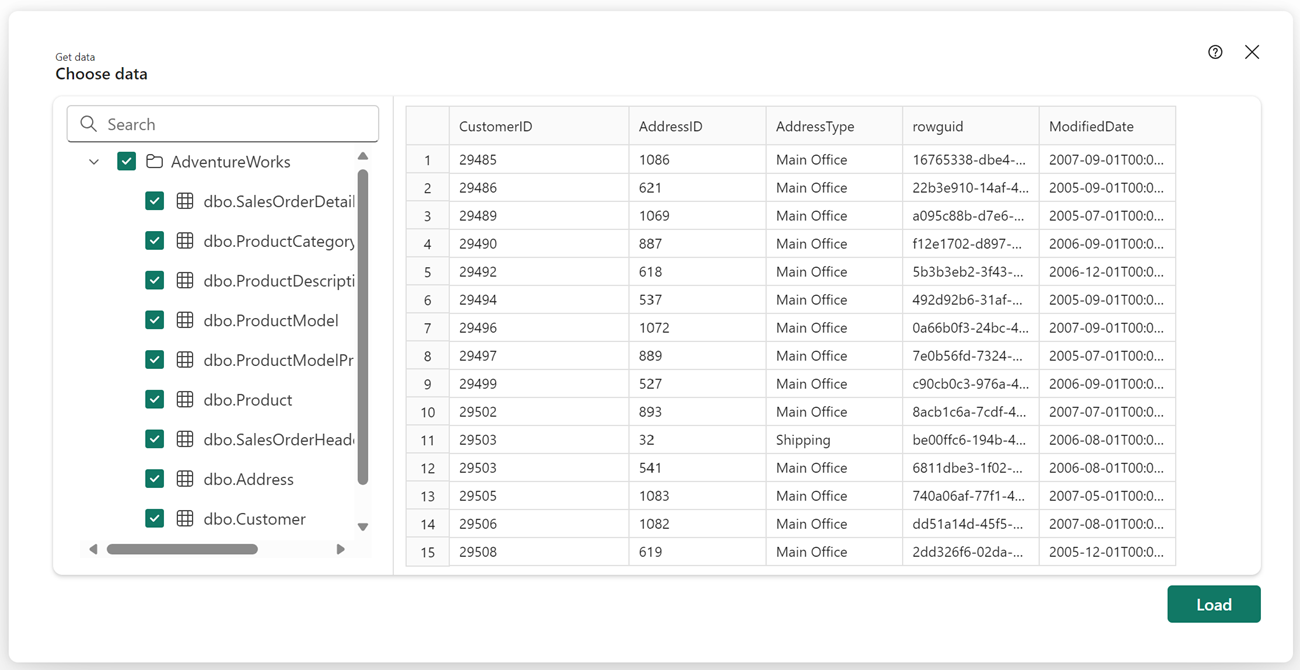
Select Load to start the GraphQL schema generation process.
The schema is generated and you can start prototyping GraphQL queries (read, list) or mutations (create, update, delete) to interact with your data.

Tip
Enter Ctrl/Cmd + space bar to get suggestions while writing your queries in the editor.
For more information on using the API editor, see Fabric API for GraphQL editor.


Summary
That's it! You successfully created a GraphQL API in Fabric, connected your data source, and generated a schema. Your API is now ready to accept connections and requests from client applications. You can use the API editor to test and prototype GraphQL queries, and use the Schema explorer to verify the data types and fields exposed in the API.