Note
Access to this page requires authorization. You can try signing in or changing directories.
Access to this page requires authorization. You can try changing directories.
Relationships transform your GraphQL API from simple data access into a powerful graph that mirrors how your business entities actually connect. Instead of forcing clients to make multiple roundtrip calls and stitch data together manually, relationships let you fetch deeply nested, related data in a single query—retrieving a customer, their orders, the products in those orders, and product categories all at once.
Without relationships, your API would return isolated data that clients must join themselves. With relationships, you define these connections once in your schema, and GraphQL handles the traversal automatically. For example, a query starting from a product can navigate through orders to find all customers who purchased it, or start from a customer to see all products they've ever ordered—all in one efficient request.
Fabric API for GraphQL supports three relationship patterns that cover all common data modeling scenarios:
- One-to-one (1:1): Each record in one type relates to exactly one record in another type (example: Product → ProductCategory, where each product has one category)
- One-to-many (1:N): Each record in one type relates to multiple records in another type (example: ProductCategory → Product, where each category contains many products)
- Many-to-many (M:N): Records in both types can relate to multiple records in the other type (example: SalesOrderHeader ↔ Product, where orders contain multiple products and products appear in multiple orders)
By modeling these relationships in your GraphQL schema, you create an intuitive API that reflects your domain model and dramatically simplifies client application code.
Prerequisites
Before creating relationships, you need:
At least two types defined in your GraphQL API schema. For example, if you're using AdventureWorks sample data, you might have types like
Product,ProductCategory,SalesOrderHeader, andSalesOrderDetailalready created from your lakehouse or warehouse tables. If you don't have types yet, see Create an API for GraphQL in Fabric and add data.Matching fields (foreign keys) between the types you want to relate. For a one-to-one or one-to-many relationship, you need a common field in both types—such as
ProductCategoryIDappearing in bothProductandProductCategory. These fields serve as the connection points for the relationship.A linking type (junction table) for many-to-many relationships. If you're creating a many-to-many relationship, you need a third type that connects the other two. For example, to relate
SalesOrderHeaderandProductin a many-to-many relationship, you needSalesOrderDetailas the linking type. This linking type must have foreign keys pointing to both of the types you want to relate (such asSalesOrderIDandProductID). Learn more about many-to-many relationships.
Create a new one-to-one relationship
A one-to-one relationship connects two types where each record in one type relates to exactly one record in the other type. This is useful when you have related data that could be in the same table but is separated for organizational or performance reasons. For example, a Product might relate to exactly one ProductCategory through a ProductCategoryID field.
The following steps show how to create a one-to-one relationship:
From the Schema explorer pane, select the ellipsis next to a type, and then select the Manage relationships option. The Manage relationships screen appears.
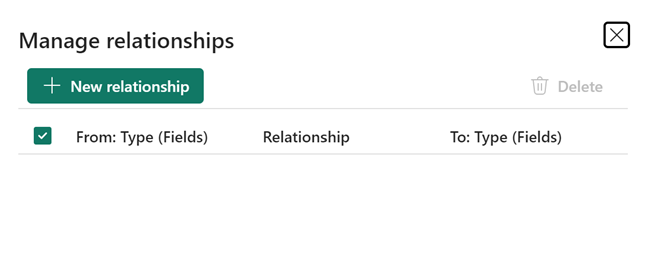
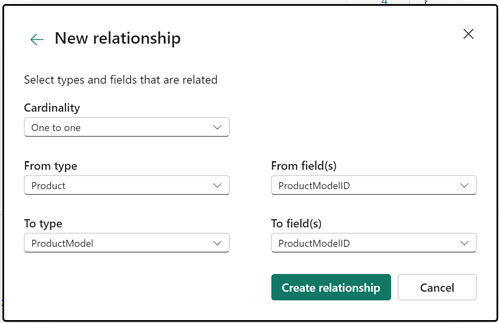
Select New relationship. For this example, we create a new one-to-one relationship between the Product type and the ProductCategory type, based on the ProductCategoryID field that exists in both types. We select One to one for Cardinality, select the From and To types, and then select the From and To fields for this relationship.
Note
You can select multiple fields in the From and To field pickers. This feature lets you create relationships that include multiple fields.
Select Create relationship. Your list of relationships now shows the newly created relationship.
Select the X in the upper-right corner to close the Manage relationships screen.
One-to-many (1:N) and many-to-many (M:N) relationships
While one-to-one relationships are straightforward, one-to-many and many-to-many relationships handle more complex data patterns that are common in real-world applications. The process for creating these relationships is similar to one-to-one, but the cardinality selection determines how GraphQL interprets and exposes the relationship.
One-to-many (1:N) relationships
A one-to-many relationship connects a single record in one type to multiple records in another type. For example, a single ProductCategory contains many Product records, but each Product belongs to only one category.
To create a one-to-many relationship between ProductCategory and Product, select One to many as the cardinality. Follow the same steps as for one-to-one relationships, but the cardinality setting tells GraphQL that one category relates to many products.
Many-to-many (M:N) relationships
A many-to-many relationship connects records where both sides can have multiple related records. For example, a SalesOrderHeader can contain multiple Product records, and each Product can appear in multiple orders. These relationships require a linking type (junction table) to store the connections between the two main types.
To create a many-to-many relationship between SalesOrderHeader and Product, you need the SalesOrderDetail linking type. This linking type contains foreign keys pointing to both types you want to relate.
To create the many-to-many relationship:
- From the Schema explorer pane, select the ellipsis next to a type, and then select the Manage relationships option. The Manage relationships screen appears.
- Select New relationship.
- Cardinality: Select Many to Many and the additional fields for linking appear.

- From type: Select SalesOrderHeader (one side of the relationship)
- Linking type: Select SalesOrderDetail (the junction table that connects orders to products)
- From field(s): Select SalesOrderID (the field in SalesOrderHeader that links to the linking type)
- Linking from field(s): Select SalesOrderID (the matching field in SalesOrderDetail that connects to SalesOrderHeader)
- To type: Select Product (the other side of the relationship)
- To field(s): Select ProductID (the field in Product that links to the linking type)
- Linking to field(s): Select ProductID (the matching field in SalesOrderDetail that connects to Product)

The key concept: the linking type (SalesOrderDetail) has two foreign keys—one pointing to each of the types you want to relate. The "Linking from field(s)" and "Linking to field(s)" are both fields in the linking type, while "From field(s)" and "To field(s)" are in the related types.
Considerations for many-to-many relationships
When you create a many-to-many relationship, what GraphQL automatically generates depends on whether your linking type has extra fields beyond the two foreign keys.
General rule:
- If the linking type has additional fields beyond the foreign keys (most common), GraphQL creates four one-to-many relationships that expose the linking type. This lets you access those additional fields in your queries and navigate between types in both directions.
- If the linking type has only the two foreign keys (less common), GraphQL creates just the direct many-to-many relationship. You can query directly between the two main types without referencing the linking type.
Linking type with additional fields (typical scenario)
In most real-world scenarios, your linking type has fields beyond the two foreign keys. Junction tables typically store information about the relationship itself—not just which records are related, but details about how they're related.
When you create the many-to-many relationship, the API generates four relationships that appear in your relationship list. Why four? Because you need bi-directional navigation between all three types.
For example, if SalesOrderDetail contains additional fields like OrderQty, UnitPrice, or UnitPriceDiscount (beyond just SalesOrderID and ProductID), you'll see these four relationships in the portal:
- SalesOrderHeader → SalesOrderDetail (one-to-many): Start from an order and list all its line items to see quantities and prices
- SalesOrderDetail → SalesOrderHeader (many-to-one): Start from a line item and navigate back to see which order it belongs to
- Product → SalesOrderDetail (one-to-many): Start from a product and see all the orders it appears in with their quantities
- SalesOrderDetail → Product (many-to-one): Start from a line item and navigate to see which product was ordered
These four relationships give you complete flexibility to start from any type (SalesOrderHeader, Product, or SalesOrderDetail) and navigate to any other type, while accessing the additional fields like OrderQty and UnitPrice that exist only in the linking type.
Linking type with only foreign keys
If SalesOrderDetail contained only SalesOrderID and ProductID (no other fields), the API creates two one-to-many relationships that you'll see in the portal:
- SalesOrderHeader → SalesOrderDetail (one-to-many)
- Product → SalesOrderDetail (one-to-many)
In this scenario, queries can navigate directly from orders to products (and vice versa) without explicitly referencing the linking type in your GraphQL queries. The linking type exists but doesn't add value since it contains no additional data.
Delete a relationship
You can remove relationships that are no longer needed or were created incorrectly. Deleting a relationship doesn't delete the types themselves—it only removes the connection between them.
To delete a relationship:
From the Schema explorer pane, select the ellipsis next to a type that has relationships, and then select Manage relationships. The Manage relationships screen appears showing all relationships for the selected type.
Select the checkbox next to each relationship you want to delete. You can select multiple relationships to delete them in a single operation.
Select Delete from the toolbar.
Confirm the deletion when prompted. The relationship is removed from your GraphQL schema.
Tip
If you created a many-to-many relationship and want to remove it, remember that you'll need to delete all four relationships (or two relationships if the linking type has only foreign keys) that were created. Each relationship appears as a separate entry in the relationship list.