Note
Access to this page requires authorization. You can try signing in or changing directories.
Access to this page requires authorization. You can try changing directories.
Note
Apache Airflow job is powered by Apache Airflow.
Data Workflows is a capability within Microsoft Fabric that helps you build and manage pipelines. Powered by the Apache Airflow runtime, Data Workflows provides a cloud-based platform for developing, scheduling, and monitoring Python-based data workflows as Directed Acyclic Graphs (DAGs). You can use Apache Airflow in a Software-as-a-Service (SaaS) model for pipeline development and management.
You can store your workflow files in two locations: Fabric-managed storage or Git-managed storage. This article shows you how to synchronize your code from an existing Git repository.
Create an Apache Airflow job
You can use an existing workspace or create a new workspace.
Select + New Item. Under the Prepare data section, select Apache Airflow job.
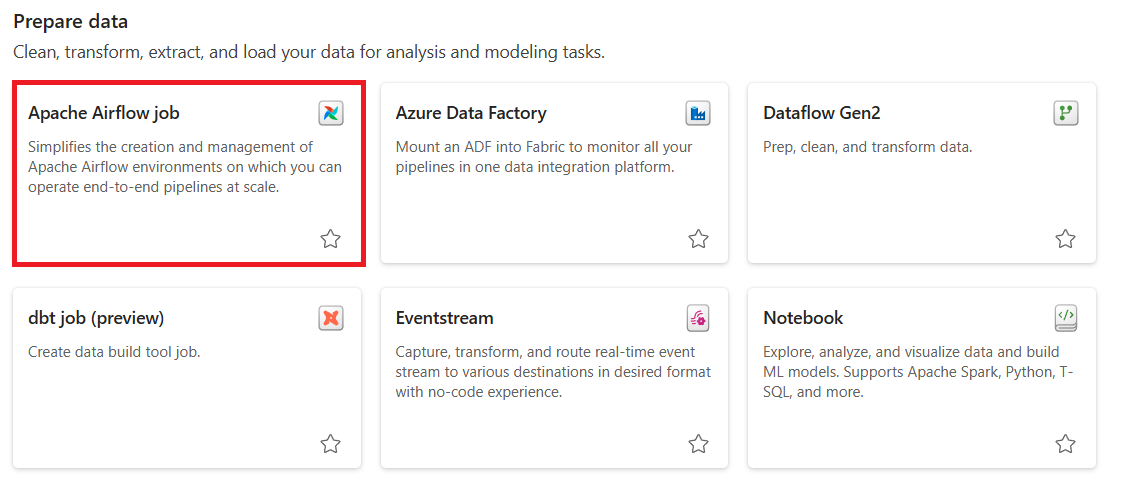
Enter a name for your project and select Create.
Synchronize your Git repository
Specify the Git repository you want to synchronize with your Apache Airflow Job.
Go to the Settings button and select the File Storage tab. Choose Git-sync as the storage type.

Fill out the following fields:
Git service type: The type of Git service you're using. Supported service types:
- GitHub
- ADO: Azure DevOps
- GitLab
- BitBucket
Git Credential type: The authentication method for your Git repository. Supported credential types:
- None: Select this credential type if the repository is public.
- Personal Access token: A personal access token from the Git service used to authenticate with the repository.
- Fill out the fields:
- Username: Your Git username.
- Personal Access token: Your token value.
- Fill out the fields:
- Service Principal: Select this credential when you use Azure DevOps as the Git service:
- Fill out the fields:
- Service principal app ID: The client ID of your service principal that has access to the Azure DevOps repository.
- Service principal secret: The client secret with access to the Azure DevOps repository.
- Service principal tenant ID: The tenant ID of your service principal.
- Fill out the fields:
Repo: The clone URL to the repository you want to synchronize.
Branch: The name of the repository branch you want to synchronize.
Select Apply.

Monitor your DAGs
To verify your repository is synchronized, go to the Apache Airflow UI by selecting Monitor in Apache Airflow. In the UI, you see all the DAGs from your repository loaded directly.

The code editor isn't supported when you use Git-sync storage. You need to edit your code locally and push the changes to your remote Git repository. Your latest commit is automatically synchronized with Data Workflows, and you can see your updated code in the Apache Airflow UI.
Supported Git repository structure
|── dags/
|   |-- *.py
|-- plugins
|    |-- executors/
|    |   ├-- __init__.py
|    |   └-- *.py
|    |-- hooks/
|    |   ├-- __init__.py
|    |   └-- *.py
|    |-- operators/
|    |   ├-- __init__.py
|    |   └-- *.py
|    |-- transfers/
|    |   ├-- __init__.py
|    |   └-- *.py
|    |-- triggers/
|    |    ├-- __init__.py
|    |    └-- *.py
Note
Data Workflows only synchronizes the dags and plugins folders from the repository. Make sure your files or subfolders are inside one of these folders.