Note
Access to this page requires authorization. You can try signing in or changing directories.
Access to this page requires authorization. You can try changing directories.
Microsoft Fabric brings together Microsoft's analytics tools into a single SaaS platform. It offers strong capabilities for workflow orchestration, data movement, replication, and transformation at scale. Fabric Data Factory provides a SaaS environment that builds on Azure Data Factory (ADF) PaaS through ease-of-use improvements and extra functionality, making Fabric Data Factory the perfect modernization of your existing data integration solutions.
This guide shows you migration strategies, considerations, and approaches to help you move from Azure Data Factory to Fabric Data Factory.
Why migrate?
Migrating from ADF and Synapse pipelines to Fabric Data Factory is more than a lift-and-shift: it’s an opportunity to simplify governance, standardize patterns, and use Fabric Data Factory's advanced features to improve your data integration strategy.
Fabric offers many new features, including:
- Integrated pipeline activities like email and Teams for message routing
- Built-in CI/CD (deployment pipelines) without external Git dependencies
- Seamless workspace integration with OneLake, Warehouse, and Lakehouse for unified analytics
- Streamlined semantic data model refreshes that scale to meet both self-service and enterprise data needs
- Built-in AI capabilities with Copilot to help you create and manage pipelines
For a detailed comparison, see the Azure Data Factory and Fabric Data Factory comparison guide.
Critical architectural differences
Before you migrate from Azure Data Factory to Fabric Data Factory, consider these critical architectural differences that tend to have the biggest effect on migration planning:
| Category | Azure Data Factory | Fabric Data Factory | Migration Impact |
|---|---|---|---|
| Custom code | Custom Activity | Azure Batch activity | The activity name is different, but supports the same functionality. |
| Dataflows | Mapping Data Flows (Spark-based) | Dataflow Gen2 (Power Query engine) with fast copy and multiple destinations | Different transformation engines and capabilities. Check our guide to dataflows for Mapping Data Flow users for more information. |
| Datasets | Separate, reusable dataset objects | Properties are defined inline within activities | When you convert from ADF to Fabric, 'dataset' information is within each activity. |
| Dynamic connections | Linked service properties can be dynamic using parameters | Connection poperties don't support dynamic properties but pipeline activities can use dynamic content for connection objects | For Metadata Driven Architecture-based solutions that rely on parameterized connections, parameterize the connection object in Fabric. |
| Global Parameters | Global Parameters | Fabric Variable Library | Different implementation patterns and data types, though we have a migration guide. |
| HDInsight activities | Five separate activities (Hive, Pig, MapReduce, Spark, Streaming) | Single HDInsight activity | You only need one activity type when converting, but all functionality is supported. |
| Identity | Managed Identity | Fabric Workspace Identity | Different identity models, with some planning required to shift. |
| Key Vault | Mature integration with all auth types | Limited integration via Fabric Key Vault Reference | Compare currently supported Key Vault sources and authentication with your existing configurations. |
| Pipeline execution | Execute pipeline activity | Invoke Pipeline activity with FabricDataPipeline connection type | Activity name and connection requirements change when converting. |
| Scheduling | One trigger for many pipelines or many triggers per pipeline with centralized management | One schedule per pipeline or many schedules per pipeline with no schedule reuse or central hub | Fabric currently requires per-pipeline schedule management. |
Migration paths
Migration paths depend on your ADF assets and their feature parity. Options include:
- Azure Data Factory items in Fabric for continuity. - A live view of your existing Azure Data Factory instance within Fabric, enabling gradual migration and testing. This is also a good first step before using conversion tools or replatforming.
- Use the PowerShell conversion tool to migrate pipelines with high parity. - Automate the migration of pipelines, activities, and parameters at scale. Ideal for standard patterns like Copy, Lookup, and Stored Procedure.
- Manual migration for complex environments - Rebuild pipelines in Fabric to leverage new features and optimize performance. This is necessary for pipelines with low parity or custom logic, but it’s also an opportunity to modernize your architecture.
Azure Data Factory items in your Fabric workspace
Adding an existing ADF to your Fabric workspace give you immediate visibility and governance while you migrate incrementally. It’s ideal for discovery, ownership assignment, and side-by-side testing because teams can see pipelines, organize them under Fabric workspaces, and plan cutovers per domain. Use Azure Data Factory items to catalog what exists, prioritize the highest-value/lowest-risk pipelines first, and establish conventions (naming, folders, connection reuse) that your conversion scripts and partner tools can follow consistently.
Mounting in Fabric is achieved via the Azure Data Factory item type: Bring your Azure Data Factory to Fabric.
Use the PowerShell upgrade tool
Microsoft offers an ADF-to-Fabric migration utility in the Azure PowerShell module. When you use the module, you can translate a large subset of ADF JSON (pipelines, activities, parameters) into Fabric-native definitions, giving you a fast starting point. Expect strong coverage for Copy/Lookup/Stored Procedure patterns and control flow, with manual follow-up for edge cases (custom connectors, complex expressions, certain data flow constructs). Treat the script output as a scaffold: run it in batches, enforce code-style/lint checks, then attach connections and fix any property mismatches. Build this into a repeatable CI run so you can iterate as you learn, instead of hand-editing every pipeline.
For a full guide, see PowerShell migration. For a detailed tutorial with examples, see the PowerShell migration tutorial.
Manual migration
Manual migration is necessary for complex pipelines with low parity, but it's also a chance to modernize your architecture and adopt Fabric’s integrated features. This path requires more upfront planning and development but can yield long-term benefits in maintainability, performance, and cost.
To migrate effectively, follow these steps:
- Assess and inventory: Catalog all ADF assets, including pipelines, datasets, linked services, and integration runtimes. Identify dependencies and usage patterns.
- Identify duplicates and unused items: Clean up unused or redundant items in ADF to streamline the migration and your data integration environment.
- Identify gaps: Use the migration assessment tool and review connector parity and activity parity to identify gaps between your ADF pipelines and Fabric pipelines, and plan for alternatives.
- Review new features: Use our data movement decision guide and data integration decision guide to decide which Fabric tools will work best for your needs.
- Plan: Review the migration best practices for considerations for each of your items, and guidelines for making the most of Fabric's improved capabilities.
- If you use global parameters in ADF, plan to migrate them to Fabric variable libraries. See Convert ADF Global Parameters to Fabric Variable Libraries for detailed steps.
- ADF transition: Consider adding an Azure Data Factory item in Microsoft Fabric as a first step in migration, allowing for gradual transition in a single platform.
- Prioritize: Rank your pipelines based on business impact, complexity, and ease of migration.
- Automate where you can: For all low-complexity pipelines, consider using the PowerShell upgrade tool to automate some migration.
- Consider tooling: Use these tools to make recreation easier:
- Use Fabric templates as a starting place for pipelines with common data integration scenarios.
- Use parameterization to create reusable pipelines
- Use Copilot in Fabric Data Factory to help with pipeline creation
- Use deployment pipelines for CI/CD and version control
- Manual migration: For scenarios not supported by other migration methods, rebuild them in Fabric:
- Recreate connections: Set up Connections in Fabric to replace Linked Services in ADF
- Recreate activities: Set up your activities in your pipelines, replacing unsupported activities with Fabric alternatives or using the Invoke pipeline activity
- Schedule and set triggers: Rebuild schedules and event triggers in Fabric to match your ADF schedules
- Test thoroughly: Validate migrated pipelines against expected outputs, performance benchmarks, and compliance requirements.
Sample migration scenarios
Moving from ADF to Fabric can involve different strategies depending on your use case. This section outlines common migration paths and considerations to help you plan effectively.
- Scenario 1: ADF pipelines and data flows
- Scenario 2: ADF with CDC, SSIS, and Airflow
- Scenario 3: PowerShell migration
- Scenario 4: ADF items in a Fabric workspace
Scenario 1: ADF pipelines and data flows
Modernize your ETL environment by moving pipelines and data flows to Fabric. Plan for these elements:
- Recreate Linked Services as Connections
- Recreate global parameters as variable libraries
- Define dataset properties inline in pipeline activities
- Replace SHIRs (self-hosted integration runtimes) with OPDGs (on-premises data gateways) and VNet IRs with Virtual Network Data Gateways
- Rebuild unsupported ADF activities using Fabric alternatives or the Invoke pipeline activity. Unsupported activities include:
- Data Lake Analytics (U-SQL), a deprecated Azure service
- Validation activity, which can be rebuilt using Get Metadata, pipeline loops, and If activities
- Power Query, which is fully integrated into Fabric as dataflows where M code can be reused
- Notebook, Jar, and Python activities can be replaced with the Databricks activity in Fabric
- Hive, Pig, MapReduce, Spark, and Streaming activities can be replaced with the HDInsight activity in Fabric
As an example, here's ADF dataset configuration page, with its file path and compression settings:
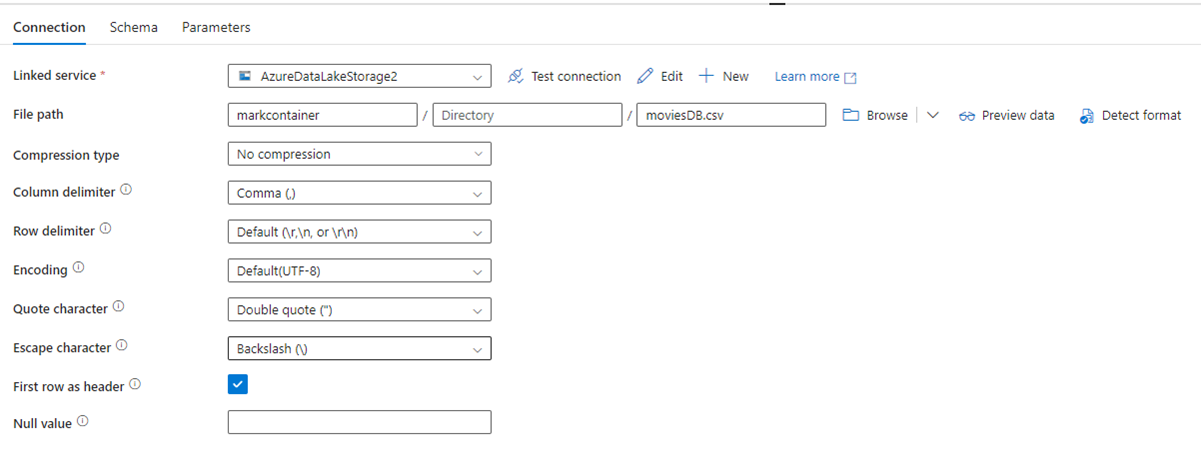
And here's a Copy activity for Data Factory in Fabric, where compression and file path are inline in the activity:

Scenario 2: ADF with CDC, SSIS, and Airflow
Recreate CDC as Copy job items. For Airflow, copy your DAGs into Fabric’s Apache Airflow offering. Execute SSIS packages using ADF pipelines and call them from Fabric.
Scenario 3: PowerShell migration
Use the Microsoft.FabricPipelineUpgrade PowerShell module to migrate your Azure Data Factory pipelines to Fabric. This approach works well for automating the migration of pipelines, activities, and parameters at scale. The PowerShell module translates a large subset of ADF JSON into Fabric-native definitions, providing a fast starting point for migration.
For detailed guidance, see the PowerShell migration tutorial.
Scenario 4: ADF items in a Fabric workspace
You can add an entire ADF factory in a Fabric workspace as a native item. This lets you manage ADF factories alongside Fabric artifacts within the same interface. The ADF UI remains fully accessible, allowing you to monitor, manage, and edit your ADF factory items directly from the Fabric workspace. However, execution of pipelines, activities, and integration runtimes still occurs within your Azure resources.
This feature is useful for organizations transitioning to Fabric, as it provides a unified view of both ADF and Fabric resources, simplifying management and planning for migration.
For more information, see Bring your Azure Data Factory into Fabric.