Note
Access to this page requires authorization. You can try signing in or changing directories.
Access to this page requires authorization. You can try changing directories.
Copilot helps you transform your natural language questions into Kusto Query Language (KQL) queries effortlessly. Describe your data analysis or extraction needs in plain language, and Copilot generates the corresponding KQL query for you. This functionality empowers users of all skill levels, even those unfamiliar with KQL, to explore and analyze data with ease and efficiency.
For billing information about Copilot, see Announcing Copilot in Fabric pricing.
Prerequisites
- A workspace with a Microsoft Fabric-enabled capacity
- Write access to a KQL queryset
Note
- Your administrator needs to enable the tenant switch before you start using Copilot. See the article Copilot tenant settings for details.
- Your F2 or P1 capacity needs to be in one of the regions listed in this article, Fabric region availability.
- If your tenant or capacity is outside the US or EU, Copilot is disabled by default. Your Fabric tenant admin will also need to enable the Data sent to Azure OpenAI can be processed outside your capacity's geographic region, compliance boundary, or national cloud instance tenant setting in the Fabric Admin portal to use Copilot.
- Copilot in Microsoft Fabric isn't supported on trial SKUs. Only paid SKUs (F2 or higher, or P1 or higher) are supported.
- See the article Overview of Copilot in Fabric and Power BI for more information.
How Copilot for writing queries in KQL works
Copilot, powered by OpenAI's advanced language capabilities, simplifies the process of creating Kusto Query Language (KQL) queries by translating natural language questions into KQL. This feature eliminates the complexity of learning KQL, making it accessible to both experienced data analysts and citizen data scientists. This streamlines data analysis and boosts productivity by making query creation intuitive and straightforward.
Copilot supports conversational interactions which allows you to clarify, adapt, and extend your queries dynamically, all while maintaining the context of your previous inputs. You can refine queries and ask follow-up questions without starting over:
Dynamic query refinement: You can refine the initial KQL generated by Copilot by refining your prompt to remove ambiguity, specify tables or columns, or provide more context.
Seamless follow-up questions: If the generated KQL is correct but you want to explore the data more deeply, you can ask follow-up questions related to the same task. You can expand the scope of your query, add filters, or explore related data points by building on previous dialogue.
How to use Copilot for writing queries in KQL
You can access Copilot in Fabric in two ways:
Through a KQL queryset: Go to a new or existing KQL queryset and use the Copilot feature to generate queries from natural language prompts.
Through the Edit tile in Real-Time Dashboards: When editing a tile in a Real-Time dashboard, use Copilot to help create or refine KQL queries directly within the dashboard editing experience.
Follow the steps to use Copilot in either context:
In the Copilot pane, enter your question in natural language and press Enter.
After a few seconds, Copilot generates a KQL query based on your input. You can copy the query to the clipboard, Insert it to the query editor, or Replace the query in context with it. To run the query in the query editor, you must have write access to the KQL queryset.
Select the Run button to execute the query.

Note
- Copilot doesn't generate control commands.
- Copilot doesn't automatically run the generated KQL query. Run the queries at your own discretion.

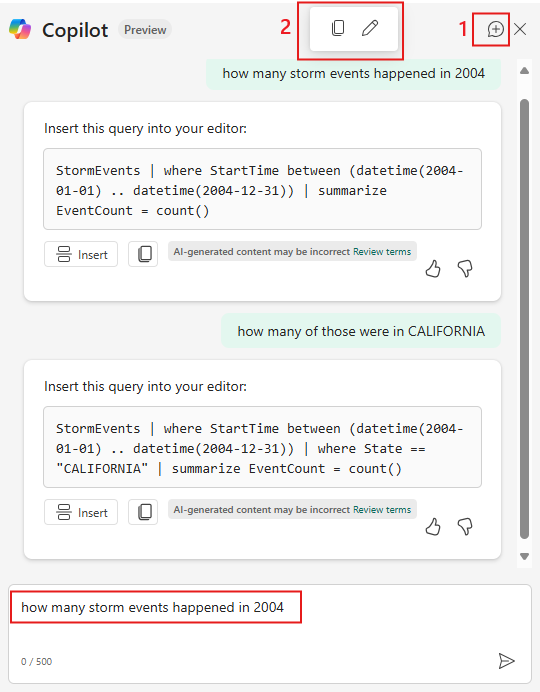
You can continue to ask follow-up questions or further refine your query. To start a new chat, select the speech bubble on the top right of the Copilot pane (1).
Hover over a previous question (2) and select the pencil icon to copy it to the question box to edit it or copy it to your clipboard.
Best practices for using Copilot to write KQL queries
Here are some tips that can help improve the accuracy of the KQL queries generated by Copilot:
Start with simple natural language prompts to learn the current capabilities and limitations. Then, gradually proceed to more complex prompts.
State the task precisely, and avoid ambiguity. Imagine you shared the natural language prompt with a few KQL experts from your team without adding oral instructions - would they be able to generate the correct query?
To generate the most accurate query, supply any relevant information that can help the model. If you can, specify tables, operators, or functions that are critical to the query.
Prepare your database: Add docstring properties to describe common tables and columns. This step might be redundant for descriptive names (for example, timestamp) but is critical to describe tables or columns with meaningless names. You don't have to add docstring to tables or columns that are rarely used. For more information, visit alter table column-docstrings command.
To improve Copilot results, select either the like or dislike icon to submit your comments in the Submit feedback form.
Note
The Submit feedback form submits the name of the database, its URL, the KQL query generated by copilot, and any free text response you include in the feedback submission. Results of the executed KQL query aren't sent.
Adding Private Shots
Copilot enhances the user's prompt by leveraging the most relevant examples (referred to as <NL, KQL> pairs or "shots") from a Public Shots database. This database, curated and maintained by the Real-Time Intelligence team, is derived from KQL documentation and is readily available to all Copilot users. While the Public Shots database provides a solid foundation, it is generic and lacks domain-specific knowledge of your current KQL database.
To further improve Copilot's ability to generate accurate and complex KQL queries tailored to your specific scenarios, you can create a Private Shots database. This approach allows you to include advanced KQL queries that address your team's unique requirements, such as those utilizing advanced KQL operators (e.g., graph semantics, time series analysis, anomaly detection) or Stored Functions defined in your KQL database.
Currently, Private Shots are automatically published from both querysets and real-time dashboards. When you save these artifacts, the KQL queries they contain are published to the Private Shots database, enhancing Copilot's ability to generate queries that align with your specific data and use cases.
Note
- After saving the Private Shots artifacts, it can take a few minutes for them to be published and available for Copilot to use.
- Only the KQL is mandatory. The LLM generated the respective NL description. Still you're welcome to add a short description of the KQL by a preceding comment (that must be attached to the KQL).
- KQL queries are checked for valid syntax; only valid ones are added to the Private Shots database.
- Copilot uses only Private Shots that are accessible to the user. If you lack permission to view a specific dashboard or queryset, Copilot doesn't utilize shots from those artifacts.
- KQL queries generated by Copilot and inserted into the queryset using the "Copy to Editor" button include a comment line:
// This KQL query was generated by AI:. These queries aren't published to the Private Shots database. To include them, remove this comment while retaining the subsequent comment containing the user's prompt, as it aids in generating the natural language description.
Responsible AI and use of Copilot
To view Microsoft's guidelines on responsible AI use, see Privacy, security, and responsible use of Copilot for Real-Time Intelligence.
Microsoft is committed to ensuring that our AI systems are guided by our AI principles and Responsible AI Standard. These principles include empowering our customers to use these systems effectively and in line with their intended uses. Our approach to responsible AI is continually evolving to proactively address emerging issues.
Limitations
Here are the current limitations of Copilot in Fabric:
- Copilot can't change existing KQL queries in the KQL query editor. For example, if you ask Copilot chat pane to edit a specific part of an existing query, it doesn't work. However, Copilot understands previous inputs in the chat pane, so users can iterate queries that Copilot generated before insertion.
- Copilot might produce inaccurate results when the intent is to evaluate data. Copilot only has access to the database schema; it doesn't have access to any of the data.
- Copilot responses can include inaccurate or low-quality content, so review outputs before using them in your work.
- People who can meaningfully evaluate the content's accuracy and appropriateness should review the outputs.
- The Copilot in Fabric in KQL database chat pane isn't currently available if Private Link is enabled and Public Access is disabled in the tenant setting.