Note
Access to this page requires authorization. You can try signing in or changing directories.
Access to this page requires authorization. You can try changing directories.
If you want to connect your own application with an eventstream, you can add a custom endpoint or a custom app as a destination. Then you can consume real-time events from the eventstream to your own application with the connection endpoint exposed on the custom endpoint or custom app. Also, with the Apache Kafka protocol available as an option for custom endpoints or custom apps, you can consume real-time events by using the Apache Kafka protocol.
This article shows you how to add a custom endpoint destination or a custom app destination to an eventstream in Microsoft Fabric event streams.
Note
Enhanced capabilities are enabled by default when you create eventstreams. If you have eventstreams that you created via standard capabilities, those eventstreams will continue to work. You can still edit and use them as usual. We recommend that you create a new eventstream to replace standard eventstreams so that you can take advantage of additional capabilities and benefits of enhanced eventstreams.
Prerequisites
Before you start, make sure you have access to the workspace where your eventstream is located. The workspace must be in Fabric capacity or Trial mode.
- Contributor or higher permissions are required to edit the eventstream to add a Custom endpoint destination.
- If you want to use Entra ID authentication to connect your application, you need Member or higher permissions.
If you're using Entra ID authentication, you also need to make sure the managed identity of the custom endpoint has the required permissions. Configure the necessary settings in the Admin portal:
Select Settings (gear icon) in the top-right corner.
Select Admin portal under the Governance and insights section.

Activate the following tenant setting to grant the service principal access to Fabric APIs for creating workspaces, connections, or deployment pipelines:
- On the Tenant settings page, in the Developer settings section, expand the Service principal can use Fabric API option.
- Toggle to Enabled.
- Apply to the entire organization.
- Select Apply.
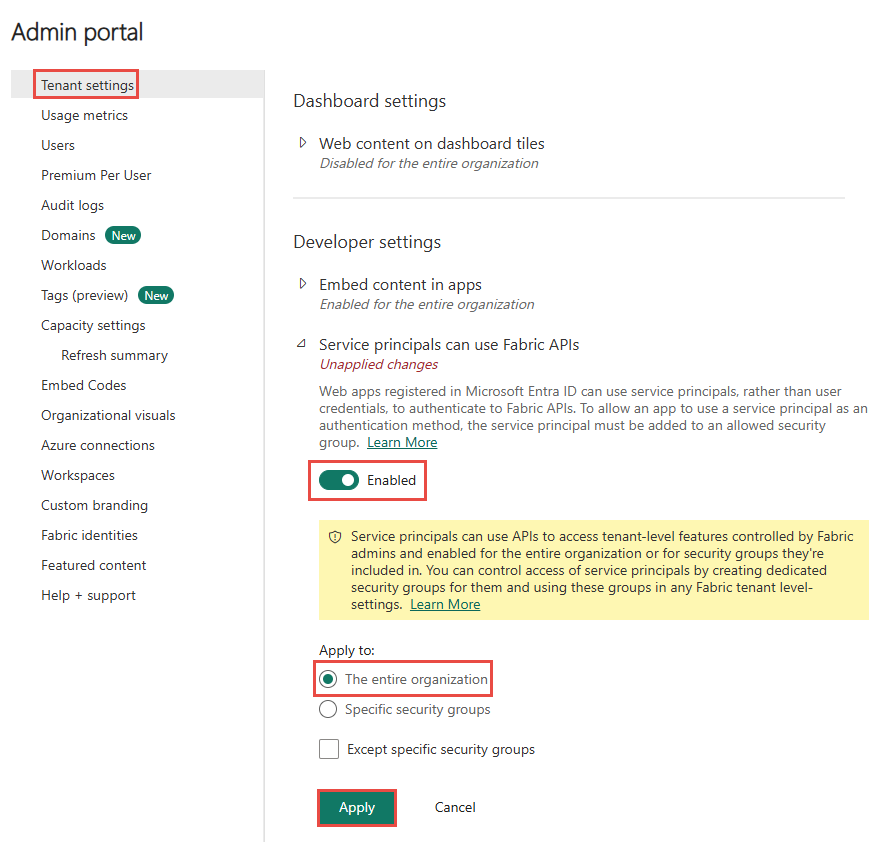
Enable this option to access all other APIs (enabled by default for new tenants):
- Still on the Tenant settings page, expand the Allow Service principals to create and use profiles option.
- Toggle to Enabled.
- Apply to the entire organization.
- Select Apply.

Note
An eventstream can support up to 11 combined sources and destinations only when you're using the following types:
- Source: Custom endpoint.
- Destinations: Custom endpoint and eventhouse with direct ingestion.
Any sources or destinations not included in the preceding list, and destinations not appended to the default stream, don't count toward this limit.
Add a custom endpoint as a destination
If you want to route event data to your app, you can add a custom endpoint as your eventstream destination:
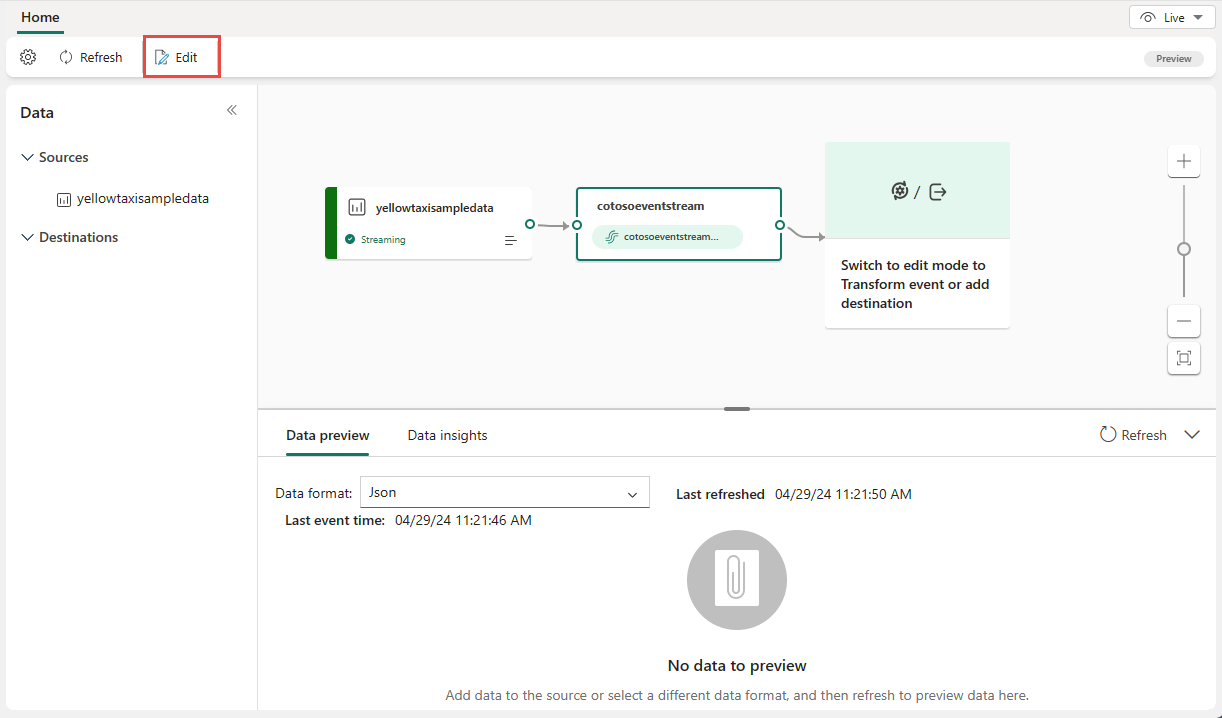
If you're in the live view, switch to edit mode by selecting Edit on the ribbon.
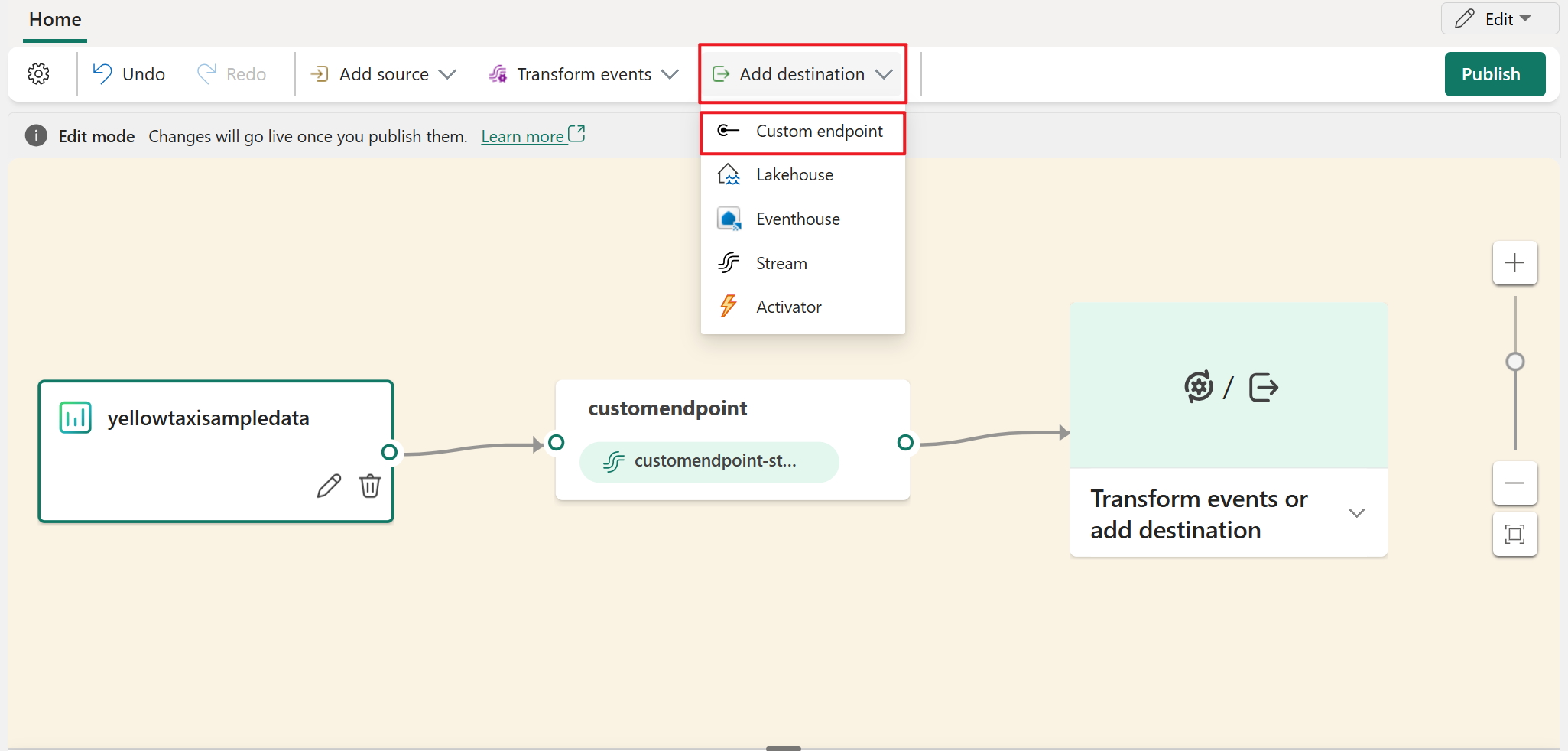
In edit mode, add a custom endpoint destination in one of the following ways:
Select Add destination on the ribbon, select Custom endpoint, and then connect the endpoint to your default stream or derived stream.
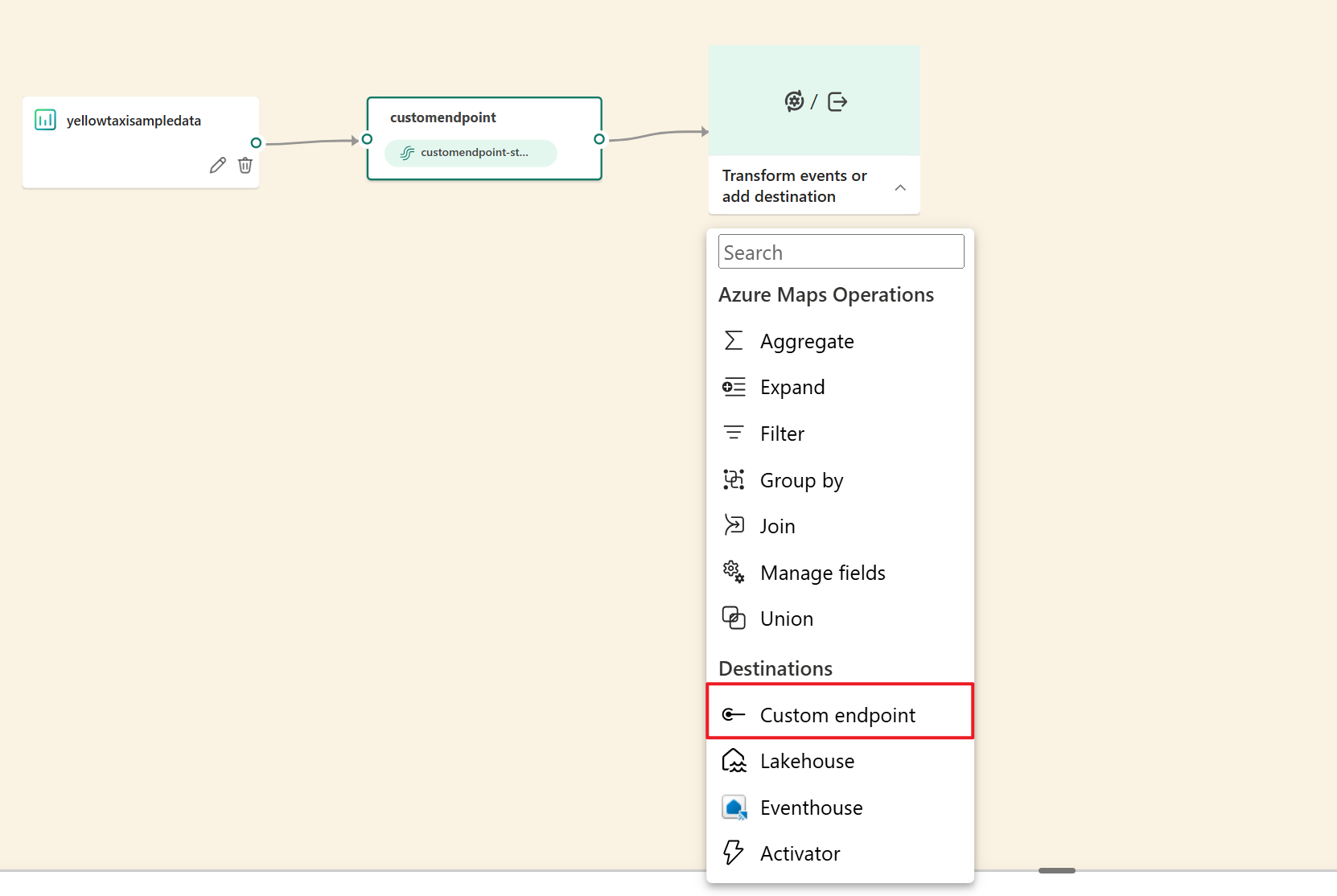
In the editor, select Transform events or add destination, and then select Custom endpoint.
For Destination name, enter a name for the custom endpoint. Then select Save.

If you're using schemas at the source, for Input schema, select the schema for events. This field is the extra field you fill when you enable the schema support for an eventstream.
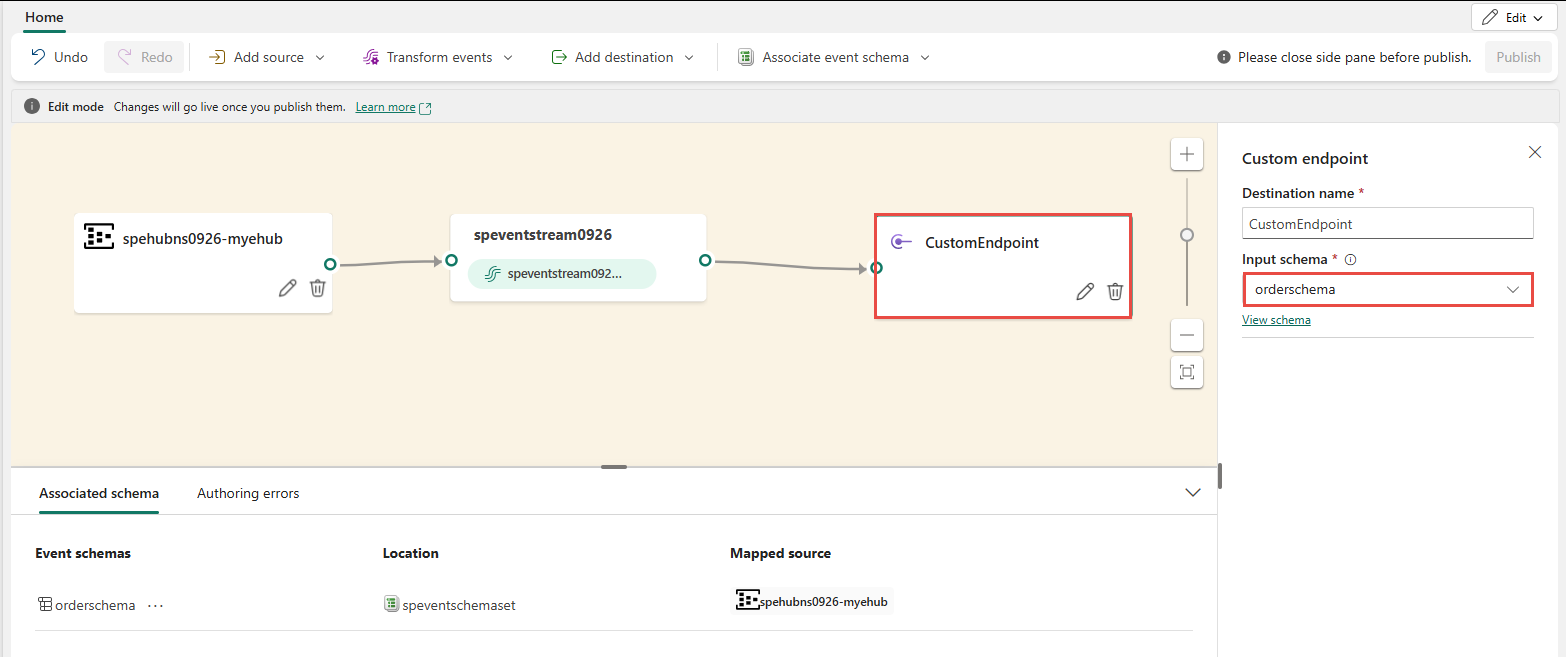
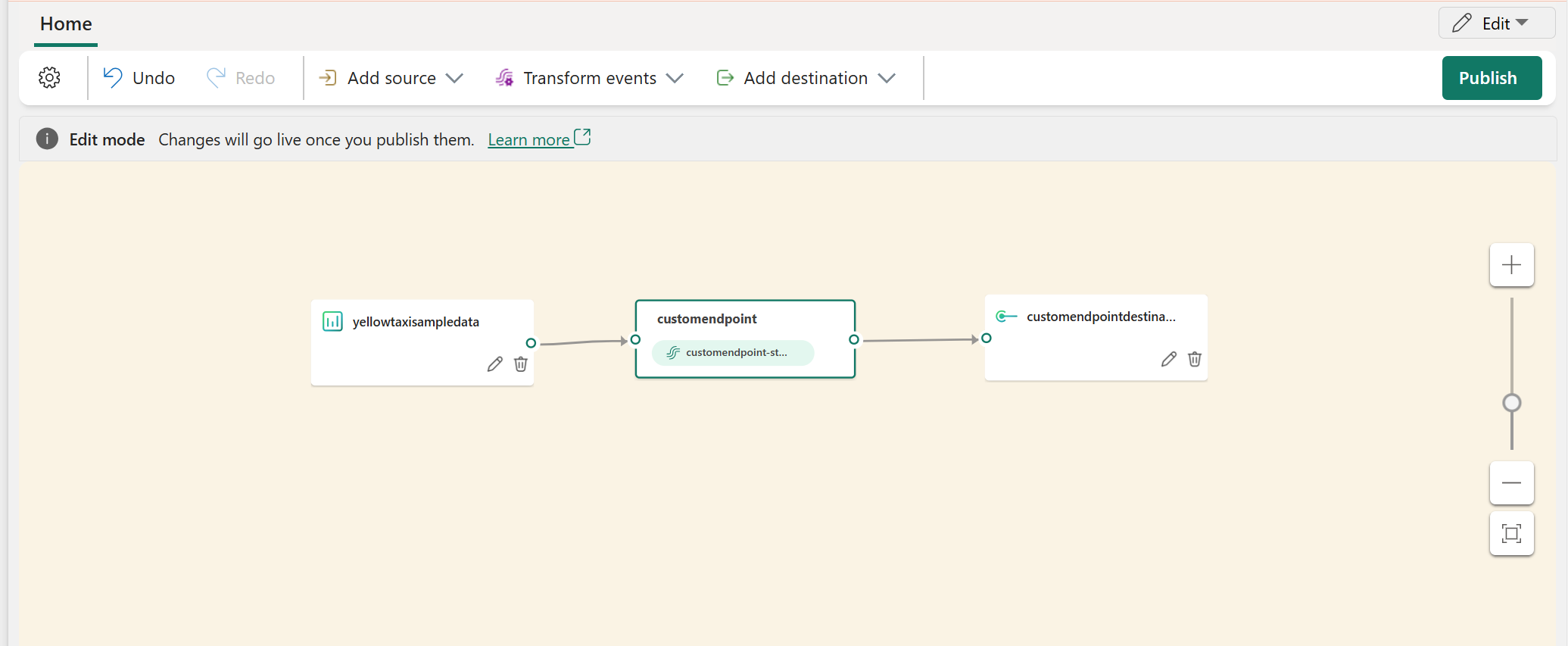
Connect the default stream tile to the custom endpoint tile if there's no existing connection.

To view the detailed information of your custom endpoint, select Publish.

Get endpoint details on the Details pane to consume events
In the Live view, select the custom endpoint tile. The Details pane that appears includes three protocol tabs: Event Hub, AMQP, and Kafka.
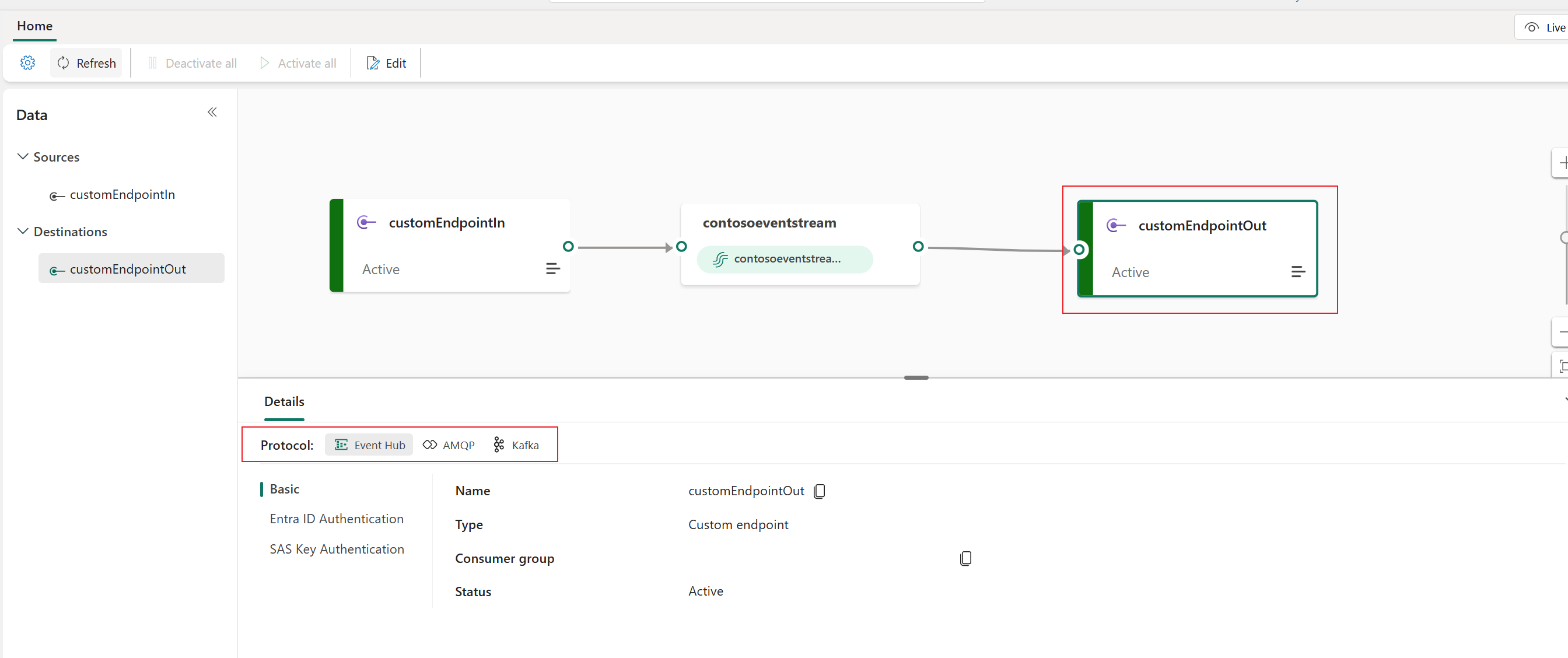
Each protocol tab contains three pages: Basic, SAS Key Authentication, and Entra ID Authentication. These pages provide endpoint information specific to the selected protocol.
The Basic page shows the name, type, and status of your custom endpoint.
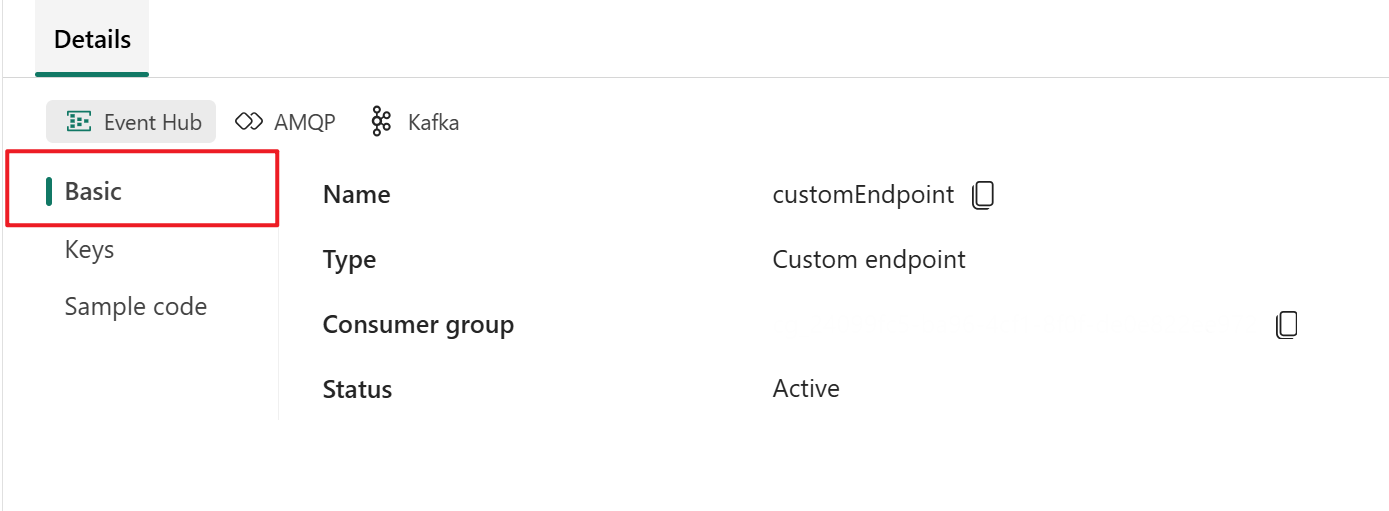
SAS Key Authentication and Entra ID Authentication are two supported authentication methods for connecting to your application:
- SAS Key Authentication provides the information needed to produce and consume Eventstream data using Shared Access Signature (SAS) keys.
- Entra ID Authentication enables a security principal (such as a user or service principal) to consume Eventstream data using Microsoft Entra ID authentication.
For steps to use Entra ID Authentication, see Enable Entra ID Authentication for an Application in Eventstream.
The following section describes how to connect to a custom endpoint destination using SAS Key Authentication.
Event hub
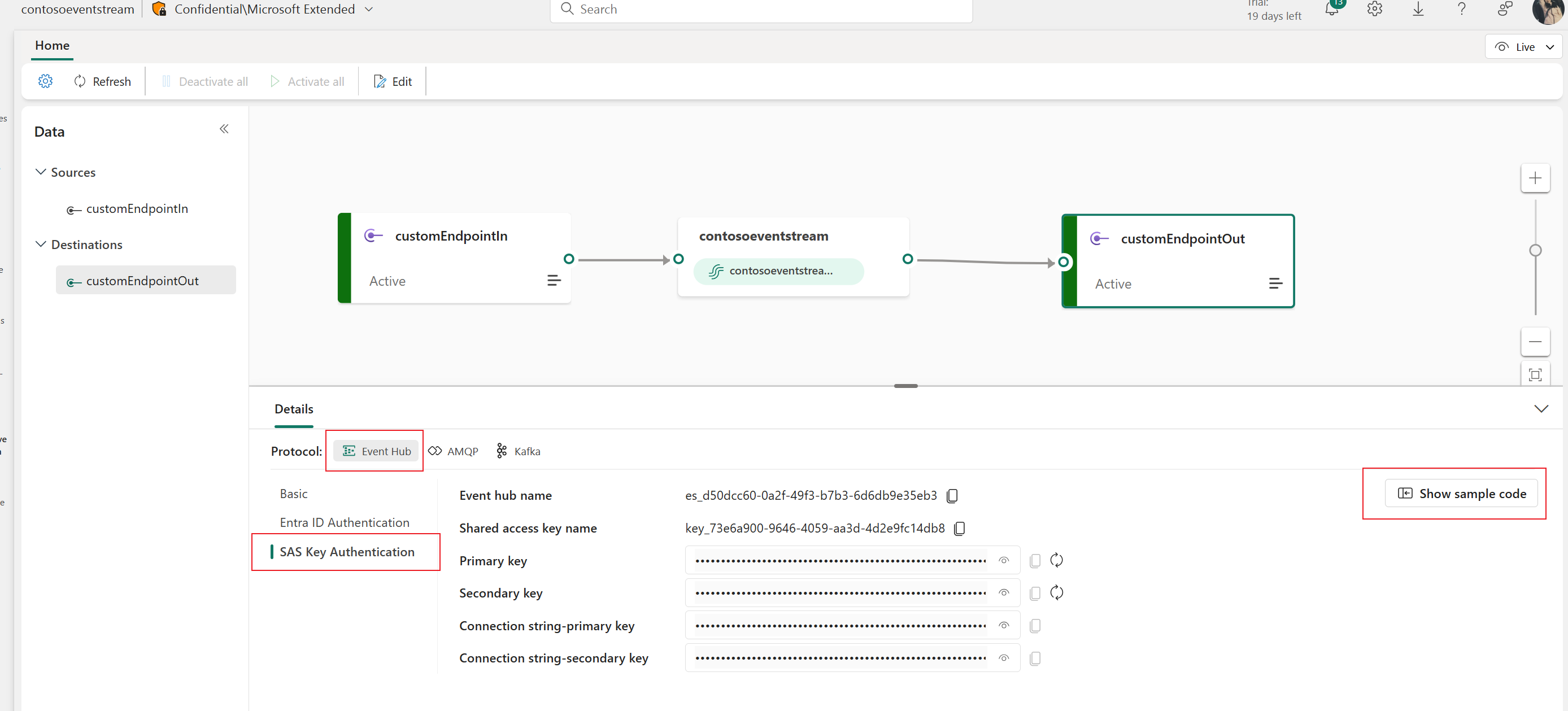
The Keys page on the Event Hub tab contains information related to an event hub's connection string. The information includes Event hub name, Shared access key name, Primary key, and Connection string-primary key.
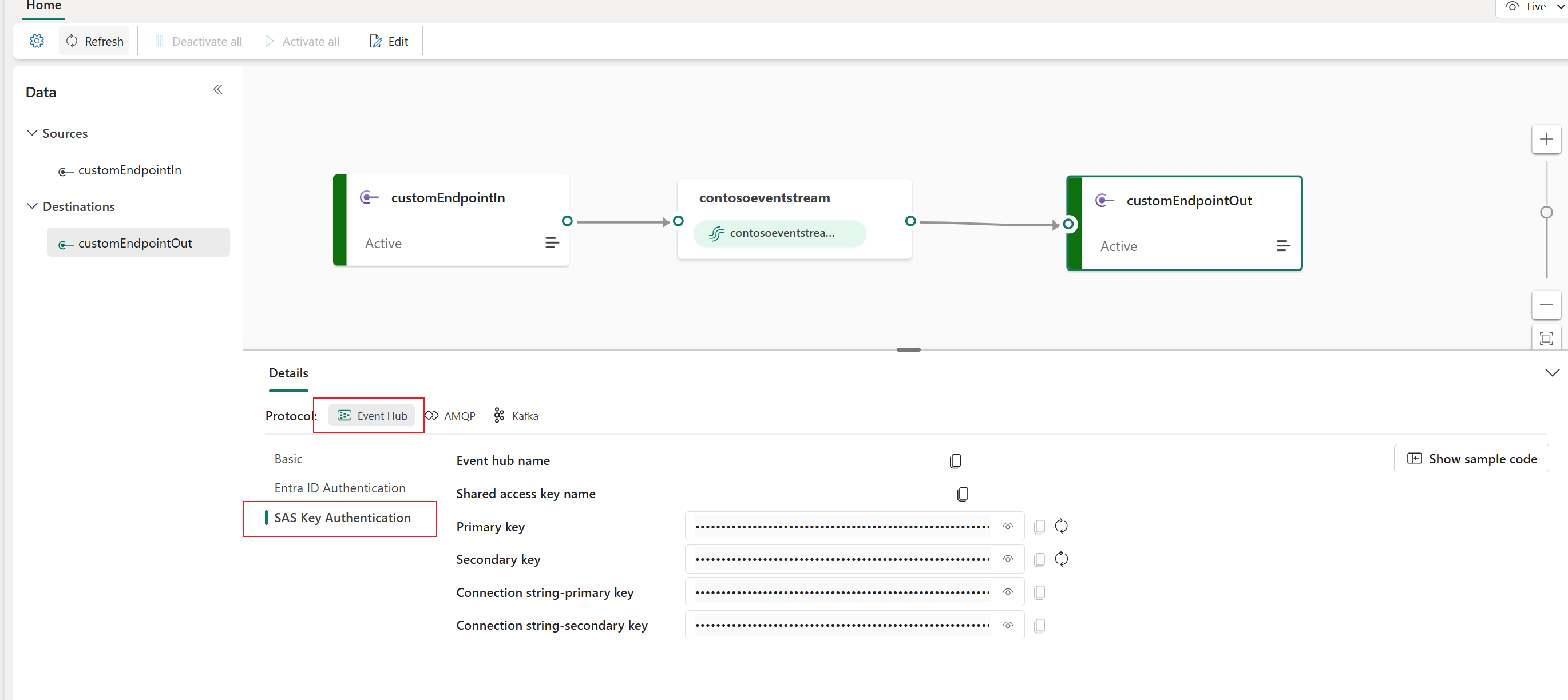
The event hub format is the default for the connection string, and it works with the Azure Event Hubs SDK. This format allows you to connect to your eventstream via the Event Hubs protocol.
The following example shows what the connection string looks like in event hub format:
Endpoint=sb://eventstream-xxxxxxxx.servicebus.windows.net/;SharedAccessKeyName=key_xxxxxxxx;SharedAccessKey=xxxxxxxx;EntityPath=es_xxxxxxx
Select Show sample code button on the Event Hub page to get ready-to-use code that includes the required information about connection keys in the event hub. Simply copy and paste it into your application for use.
Kafka
The Kafka format is compatible with the Apache Kafka protocol, which is a popular distributed streaming platform that supports high-throughput and low-latency data processing. You can use the Keys and Sample code information for the Kafka protocol format to connect to the eventstream and consume the events.

Select Show sample code button on the Kafka page to get ready-made code, including the necessary connection keys in Kafka format. Simply copy it for your use.
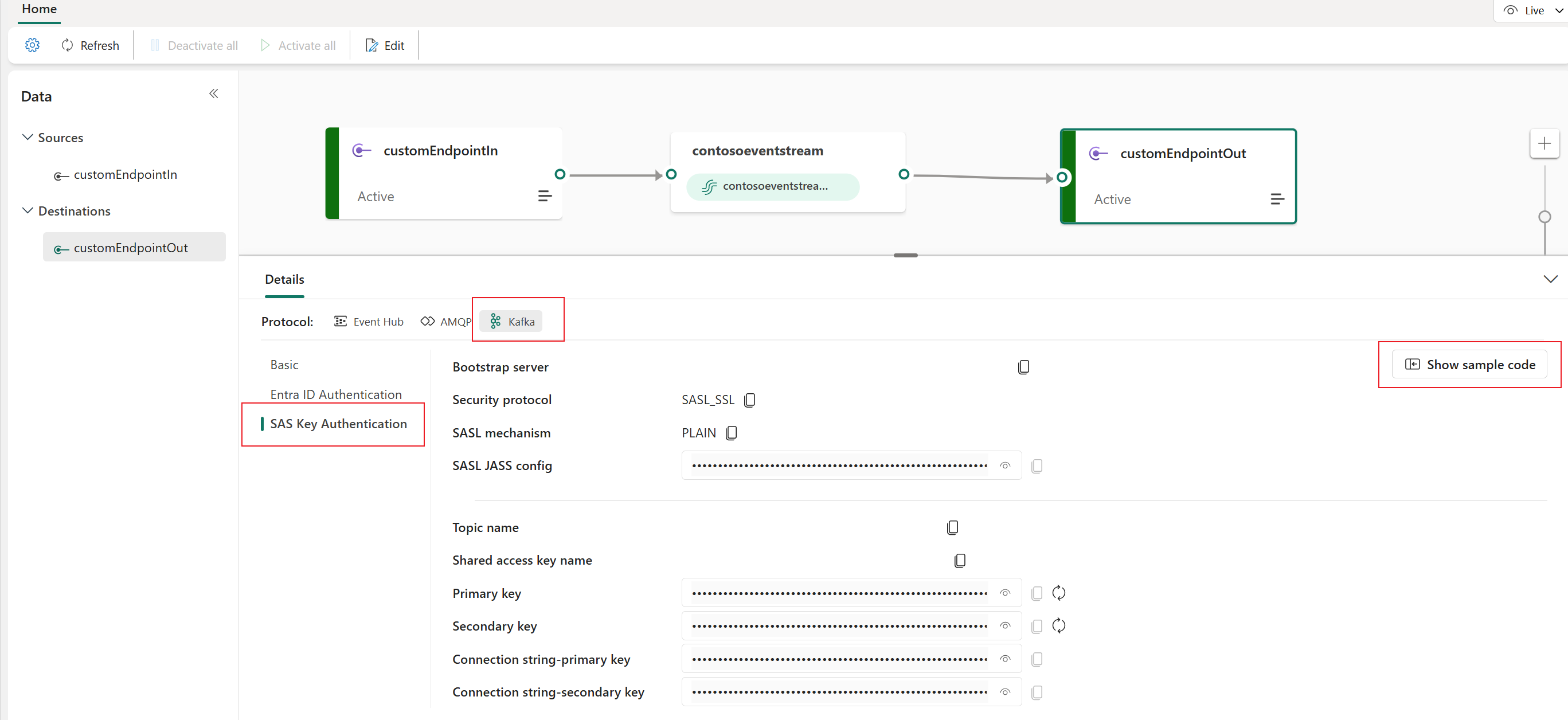
For a clear guide on using the custom endpoint with the Kafka protocol, refer to this tutorial. It provides detailed steps for streaming and consuming events using the custom endpoint with the Kafka protocol.
AMQP
The AMQP format is compatible with the AMQP 1.0 protocol, which is a standard messaging protocol that supports interoperability between various platforms and languages. You can use this format to connect to your eventstream by using the AMQP protocol.
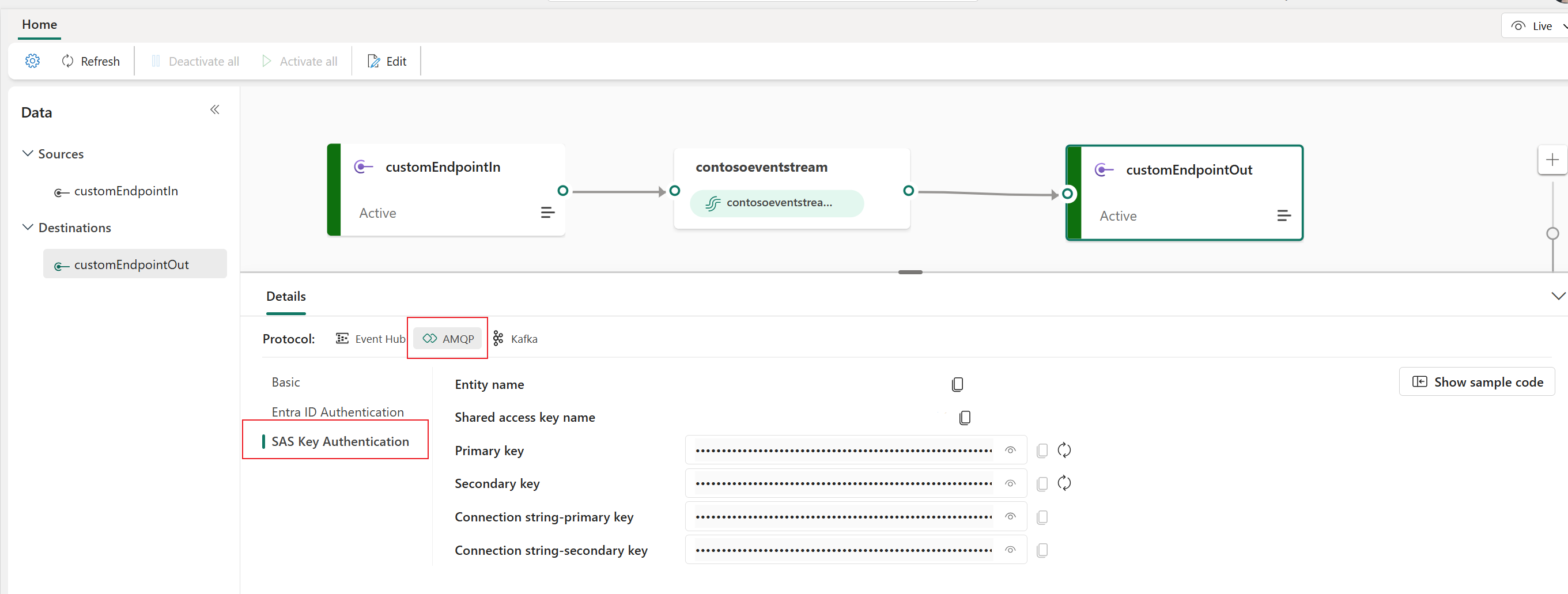
Select Show sample code button on the AMQP page to get provides ready-to-use code with connection key information in AMQP format.

You can choose the protocol format that suits your application needs and preferences, and then copy and paste the connection string into your application. You can also refer to or copy the sample code on the Sample code page, which shows how to send or receive events by using various protocols.
Related content
To learn how to add other destinations to an eventstream, see the following articles: