Note
Access to this page requires authorization. You can try signing in or changing directories.
Access to this page requires authorization. You can try changing directories.
This article shows you how to add a Cribl source to an eventstream.
The Cribl source for Eventstream allows you to stream data from Cribl Stream into Fabric Eventstream. You can add Cribl as a source to your eventstream to capture, transform, and route real-time events to various destinations in Fabric.
Prerequisites
- A Worker Group is set up in Cribl Stream with the required permissions to configure destinations.
- Contributor or higher Fabric workspace permissions are required to edit the eventstream to add a Cribl source.
- If you want to use OAUTHBEARER authentication to connect your Cribl, you need Member or higher Fabric workspace permissions.
- An eventstream in Fabric. If you don’t have one, create an eventstream.
Add Cribl as a source
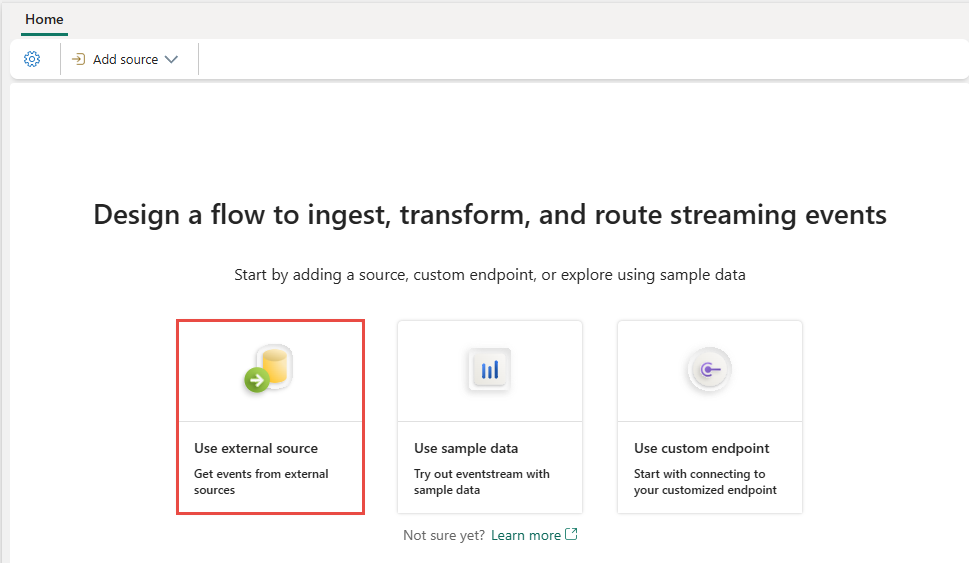
If you haven't added any source to your eventstream yet, select the Use external source tile.
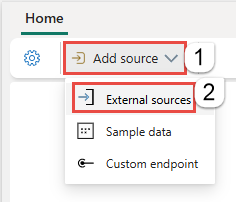
If you're adding the source to an already published eventstream, switch to Edit mode. On the ribbon, select Add source > External sources.
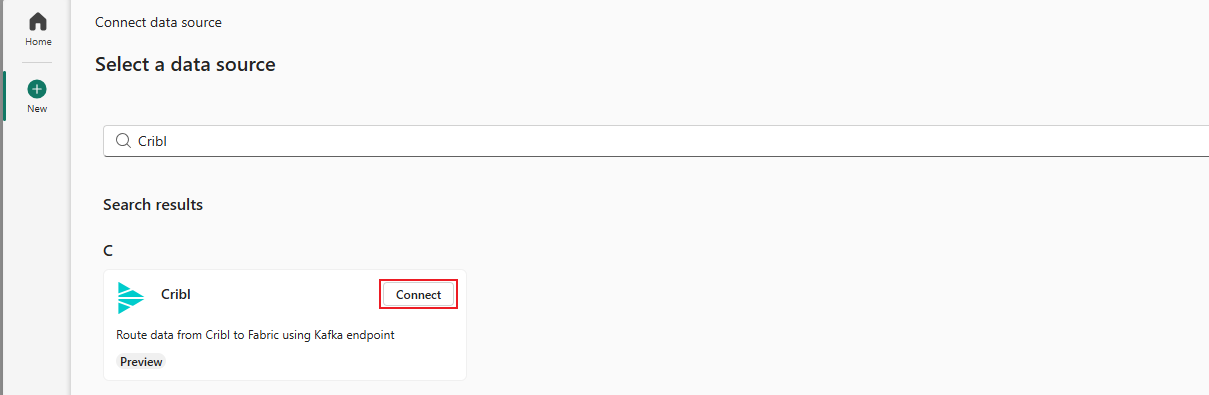
On the Select a data source page, search for and select Connect on the Cribl tile.
Configure and connect to Cribl
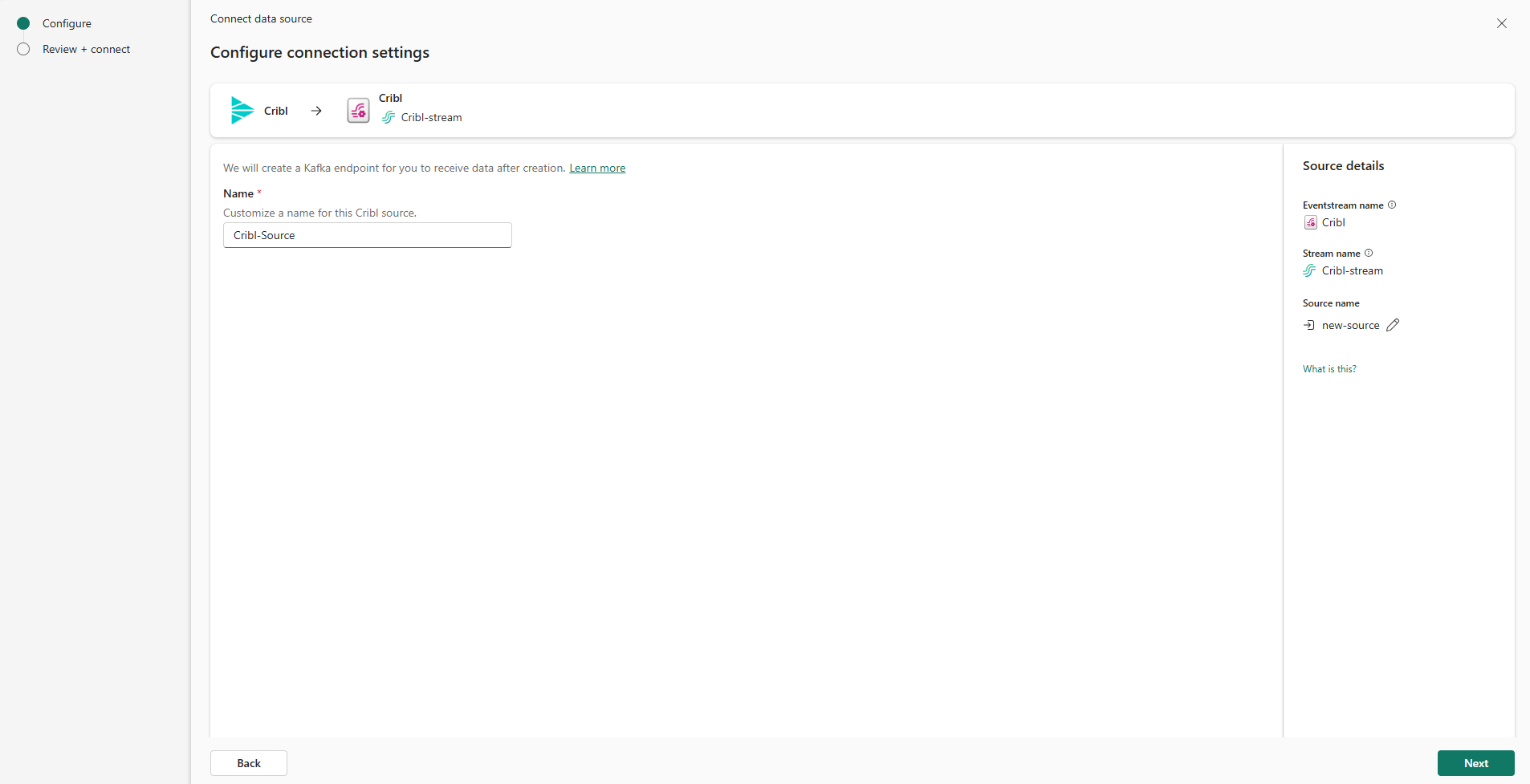
On the Configure connection settings page, enter a Name for the Cribl source. Then select Next.
On the Review + connect page, review the configuration summary for the Cribl source, and select Add to complete the setup.

After you create the Cribl source, it's added to your eventstream on the canvas in edit mode. To implement the newly Cribl data source, select Publish.
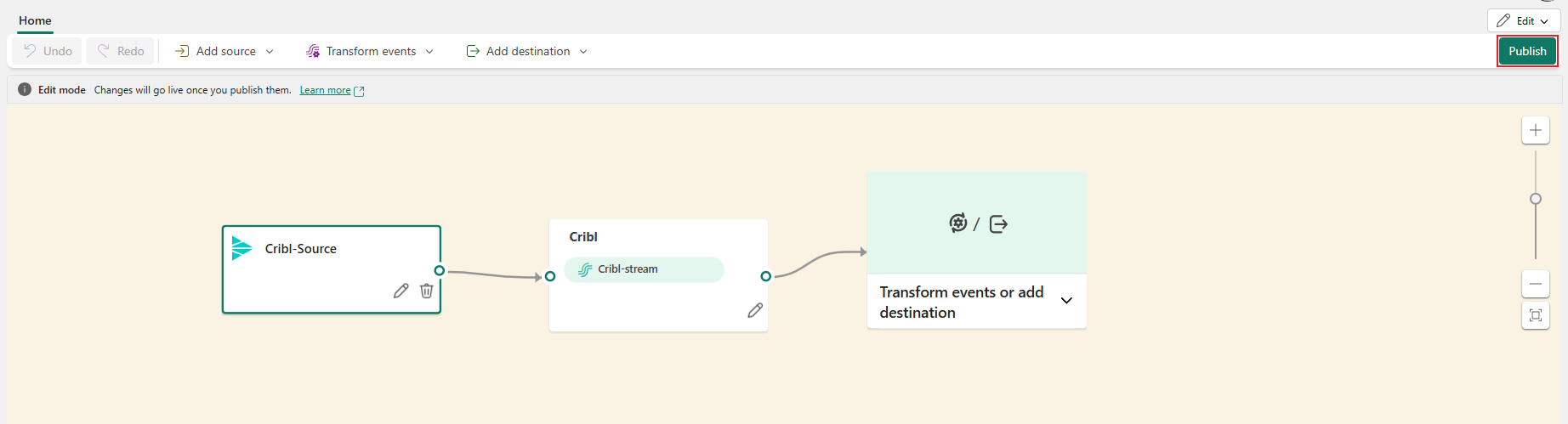
After you successfully publish the eventstream, you can retrieve the details of the Kafka endpoint that is needed in Cribl service portal to set up the connection.

Sign in to Cribl service with your account. On the top bar, select Products, and then select Cribl Stream. Under Worker Groups, select a Worker Group to Add Destination.

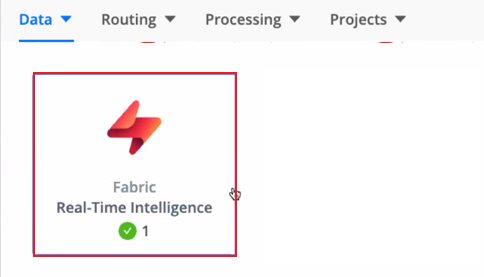
Select Fabric Real-Time Intelligence.
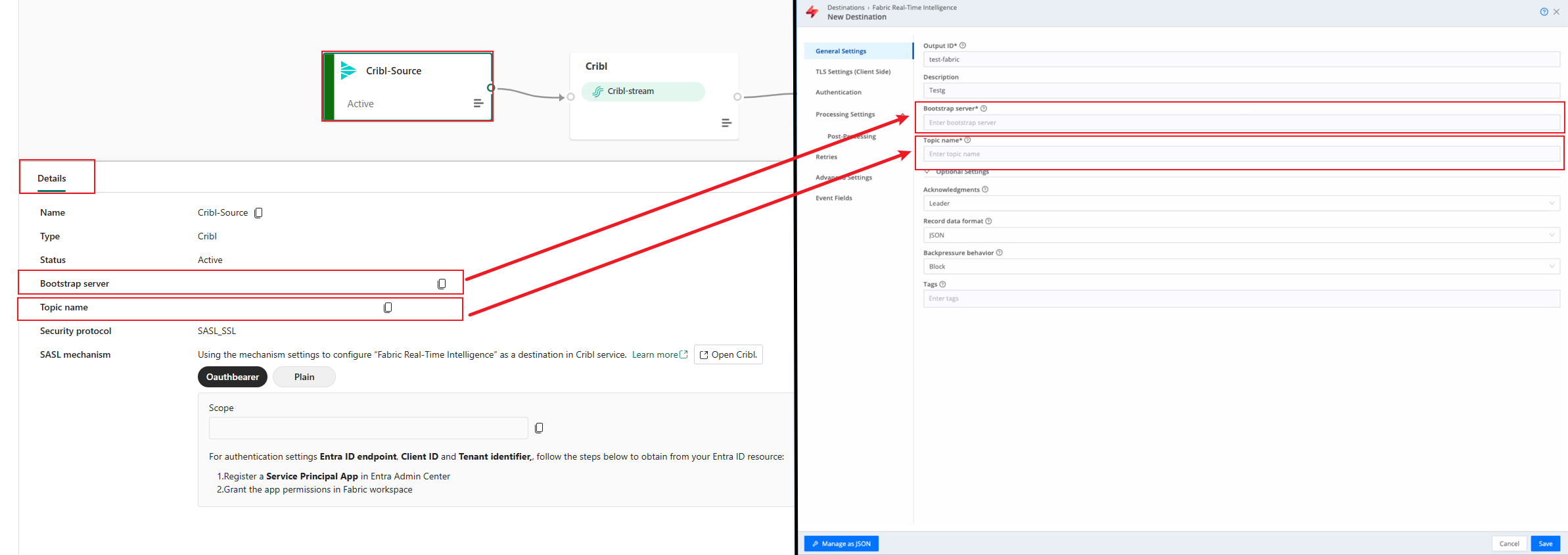
Under General Settings, configure the following under General Settings:
Output ID: Enter a unique name to identify this Fabric Real-Time Intelligence destination.Description: Optionally, enter a description.Bootstrap server: Format it asyourdomain.servicebus.windows.net:9093. You can copy this value from the Eventstream Cribl source's details pane.Topic name: Similarly, you can get it in the Eventstream Cribl source's details pane as below.
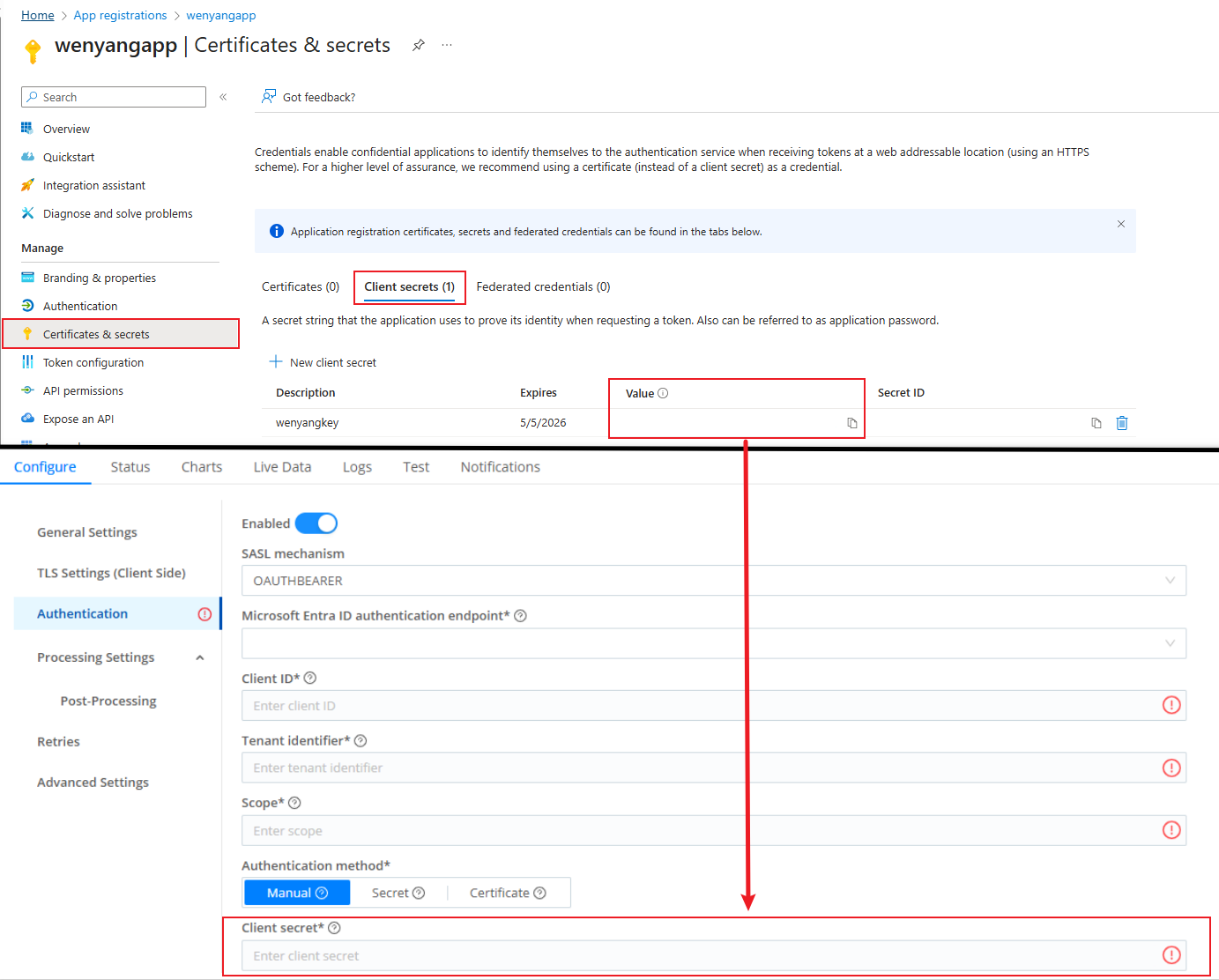
Navigate to Authentication. For SASL mechanism, select either OAUTHBEARER or PLAIN. Expand the section below based on your selection to view detailed steps:
Create a service principal App in Microsoft Entra admin center if you don’t have one.
Go to your Fabric workspace and select Manage access.

Search for your application and assign the Contributor (or higher) to your app.

In Microsoft Entra admin center. Navigate to Identity > Applications > App registrations, and open your application.
Under Overview, copy the Application (client) value into the Client ID field on the Authentication page.
Copy the Directory (tenant) ID value into the Tenant identifier field on the Authentication page.

Go to Certificates & secrets, copy the Client secrets value into the Client secret field on the Authentication page.
In the Eventstream Cribl source's details pane, under SASL mechanism, select the Oauthbearer tab. Then copy the Scope value into the Scope field on the Authentication page.
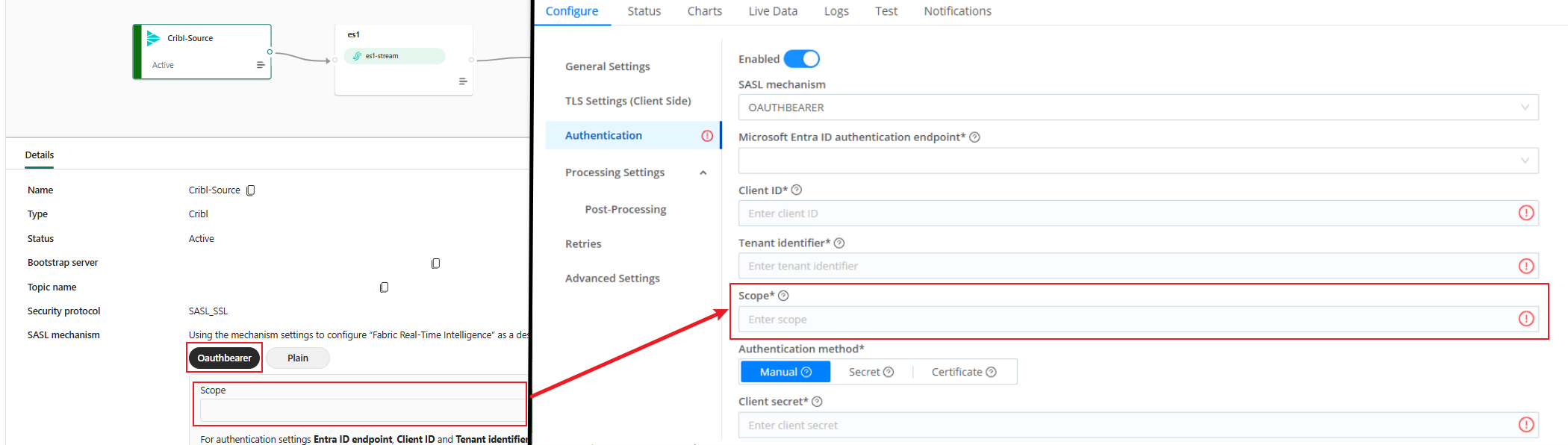
Select Save, and use the Cribl QuickConnect to connect to your Cribl source in Cribl service portal, and then Commit & Deploy.
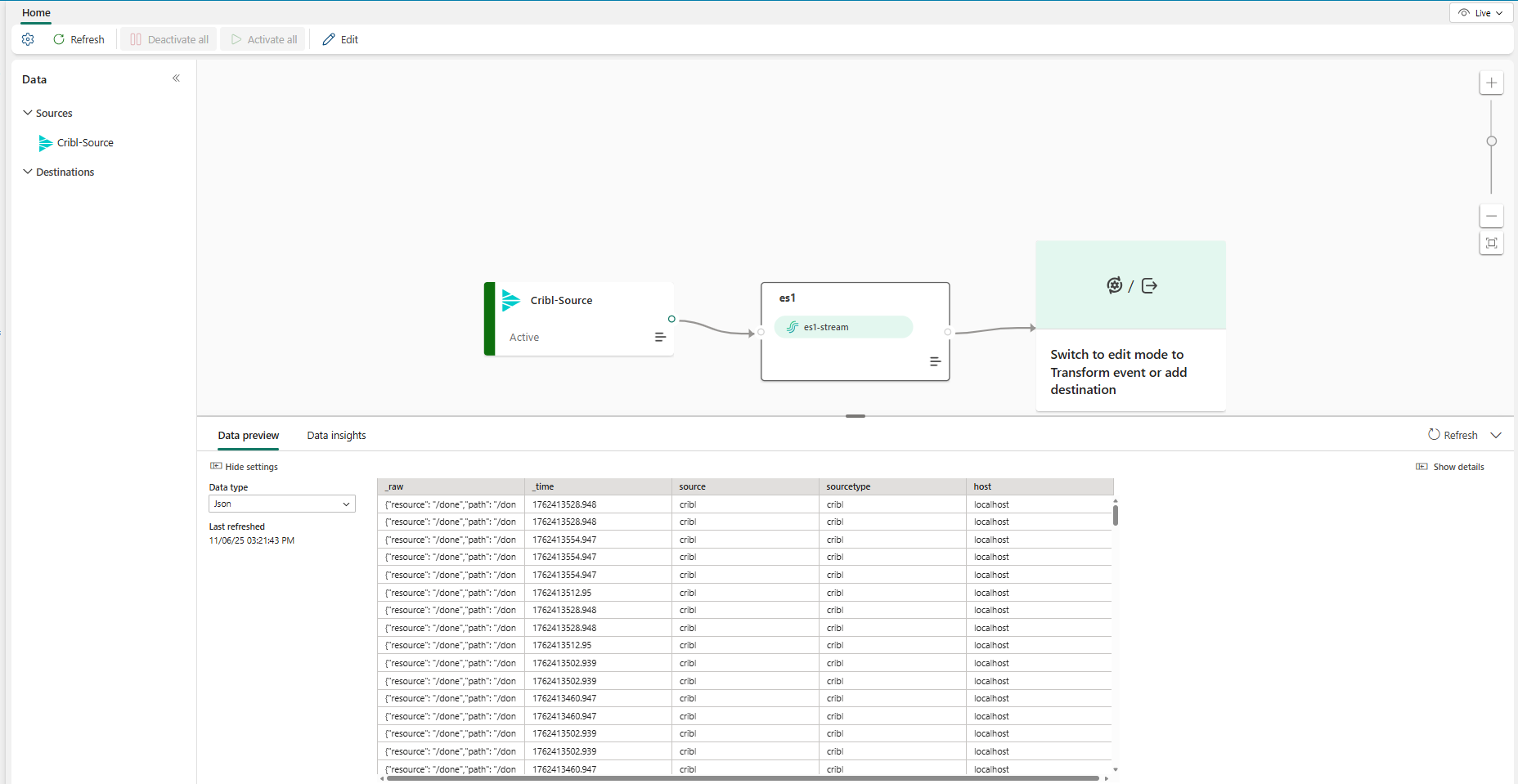
After you complete these steps, you can preview the data in your eventstream that is from your Cribl.


Limitation
- The Cribl source currently doesn't support CI/CD features, including Git Integration and Deployment Pipeline. Attempting to export or import an Eventstream item with this source to a Git repository may result in errors.
Related content
Other connectors: