Note
Access to this page requires authorization. You can try signing in or changing directories.
Access to this page requires authorization. You can try changing directories.
The Eventhouse endpoint is a powerful capability in Microsoft Fabric that lets users query tables with exceptional speed and ease. Use the Eventhouse endpoint to query lakehouse or warehouse data, discover real-time insights across your data estate, and streamline the analysis of structured, semi-structured, and unstructured data.
Benefits
Enable the Eventhouse endpoint to:
- Instant schema sync: The endpoint syncs tables and schema changes within seconds without manual setup. See the list of sync statuses.
- Mirrored schema: Access current and future lakehouse and warehouse data through a mirrored schema in a dedicated KQL database view.
- Rich consumption and visualization options: Use Copilot, NL2KQL, dashboards, embedded queries, and visual data exploration.
- Reflected in Workspace and OneLake catalog trees: The Eventhouse endpoint and database appear as new branches in your lakehouse tree.
- Fast, scalable queries: Run analytics in KQL or SQL using advanced table operators and commands.
- Advanced insights: Run time series analysis, detect anomalies, and use Python for advanced processing.
After you enable the endpoint, it tracks the source data and optimizes it for Eventhouse performance and flexibility. Each lakehouse or warehouse table attaches to a OneLake shortcut in the Eventhouse endpoint with Query acceleration policies that optimize the source data.
Performance and consumption
On initialization, the endpoint is both creating tables and caching data. Within 10 seconds the endpoint is fully synced. During synch, endpoint query performance slows, but as more data is cached, query performance improves.
The eventhouse endpoint uses a limited portion of the available capacity, which could affect the overall preparation time. While the data is available for queries within seconds, the Query runtime may take longer.
The sync status on the System Overview or Databases page of the Eventhouse helps indicate if cache or synch is in progress. Also check the status for each Shortcut. See sync statuses.
Permissions
Users with contributor or owner permission on the parent data source have contributor permission on the Eventhouse endpoint. They manage cache and retention settings.
Prerequisites
- A workspace in a capacity with Microsoft Fabric enabled.
- A lakehouse or data warehouse with tables in your workspace or in your OneLake catalog.
Enable the Eventhouse endpoint
Enable the Eventhouse endpoint from your Fabric workspace, your OneLake catalog, or the Lakehouse/Warehouse ribbon.
Select the Lakehouse or Warehouse to query:
From your Fabric Workspace, browse to the Lakehouse or Warehouse, and from the more options menu ... select Eventhouse endpoint.

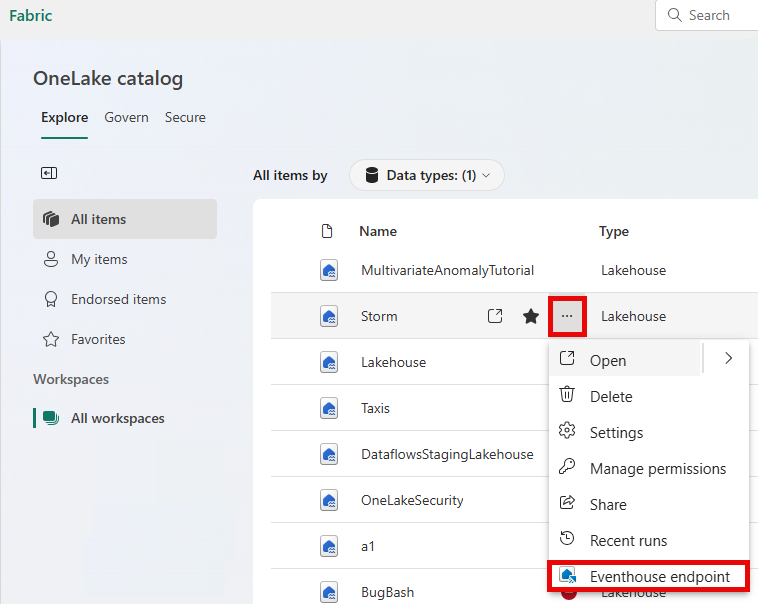
From the OneLake catalog, browse to the Lakehouse or Warehouse, and from the more options menu ... select Eventhouse endpoint.
From the OneLake catalog, select the Lakehouse or Warehouse, and from the Lakehouse toolbar select Analyze Data > Eventhouse endpoint.

The Eventhouse Endpoint opens with a welcome message. Select Close to start querying the Eventhouse.


The Eventhouse endpoint has these characteristics:
- The Eventhouse is named Eventhouse Endpoint and is read-only.
- The KQL database is named <Lakehouse/Warehouse_Name>_EventhouseEndpoint.
- The embedded KQL queryset is named <Lakehouse/Warehouse_Name>_EventhouseEndpoint_queryset.
- Shortcuts reference OneLake tables.
- Query each shortcut directly by using the table function.
- If the source has multiple schemas, the schema name shows in each shortcut name. For example, if the schemas are
salesandmarketingand each has a table namedcustomers, the shortcuts aresales_customersandmarketing_customers.
The workspace and OneLake catalog show the endpoint and KQL database as child items of the Lakehouse.

Query and visualize data
From the Eventhouse endpoint, run KQL queries, create visualizations in a real-time dashboard, and perform advanced analytics with KQL or SQL.

Share the Eventhouse endpoint
To share the endpoint, you need to configure share settings for both the endpoint and the source data.
Configure permissions to share data in the Lakehouse or share data in the Data Warehouse.
Configure permissions to share the Eventhouse endpoint, or to share each KQL database.
Send the link to authorized users.
Disable the Eventhouse endpoint
Remove the Eventhouse endpoint from the workspace or the OneLake catalog. Deleting the Eventhouse endpoint also deletes the KQL database, but the Lakehouse remains unchanged.
Open your Fabric workspace.
Browse to the Eventhouse Endpoint branch of the Lakehouse/Warehouse tree. From the more options menu ..., select Delete.

In the confirmation dialog box, select Delete.
Re-enable the Eventhouse endpoint
If you delete the Eventhouse endpoint, re-enable it at any time. The new endpoint creates a new Eventhouse and KQL database, but the new database doesn't retain previous queries, visualizations, or dashboards. If you try to re-enable the endpoint while the previous one is still being deleted, you see a message to wait a few seconds. After the previous endpoint is deleted, re-enable it.

Sync statuses
The Eventhouse endpoint syncs source tables and schema changes within seconds. The sync status appears in the System Overview, databases page, and each table shortcut. Here's an example of a sync status:

Sync statuses for the Eventhouse endpoint:
| Sync status | Description |
|---|---|
| synced | All OneLake shortcuts are synchronized. Source link: [link] |
| workInProgress | Synchronization in progress. ${syncing} of ${total} OneLake shortcuts are currently syncing. Some OneLake shortcuts are warming up. Source link: {link} |
| warmingUp | Eventhouse endpoint is warming up. More than 50 percent of some OneLake shortcuts are warming up. The system is aligning with the source engine. Source link: {link} |
Sync statuses for shortcut:
| Sync status | Desription |
|---|---|
| synced | This shortcut is fully synchronized. Over 98 percent of the data is in sync with the source. Source link: {link} |
| workInProgress | Synchronization is underway. Between 20 percent and 98 percent of the data is synced with the source. Source link: {link} |
| warmingUp | Synchronization is in progress. Less than 20 percent of the data is synced with the source. Source link: {link} |
Considerations and limitations
- You can't enable the Eventhouse endpoint from within an open Lakehouse.
- The System overview page of the Eventhouse endpoint doesn't show any statistics.
- Updates to the Eventhouse endpoint cache policy aren't supported.
- Changes to the source table schema aren't reflected at the Eventhouse endpoint.