Note
Access to this page requires authorization. You can try signing in or changing directories.
Access to this page requires authorization. You can try changing directories.
Workspace outbound access protection in Microsoft Fabric lets admins secure the outbound data connections from items in their workspaces to external resources. Admins can block all outbound connections, and then allow only approved connections to external resources through secure links between Fabric and virtual networks. Learn more.
This article explains how to configure outbound access protection for your Fabric workspaces to block all outbound connections by default. After completing the steps in this article, you can enable outbound access through managed private endpoints or data connection rules.
Prerequisites
Make sure you have an admin role in the workspace.
Make sure the workspace where you want to set up outbound access protection resides on a Fabric capacity (F SKUs). No other capacity types are supported. You can check assignment by going to the workspace settings and selecting License info.
The tenant setting Configure workspace-level outbound network rules must be enabled by a Fabric tenant administrator. See Manage admin access to outbound access protection settings.
The
Microsoft.Networkfeature must be re-registered for the subscription. From the Azure portal home page, go to Subscriptions > Settings > Resource providers. Select Microsoft.Network and select Re-register.
Enable workspace outbound access protection
Note
The workspace-level setting to block outbound public access can take up to 15 mins to take effect.
To enable workspace outbound access protection by using the Fabric portal, follow these steps:
Sign in to Fabric with an account that has the Admin role in the workspace where you want to set up outbound access protection.
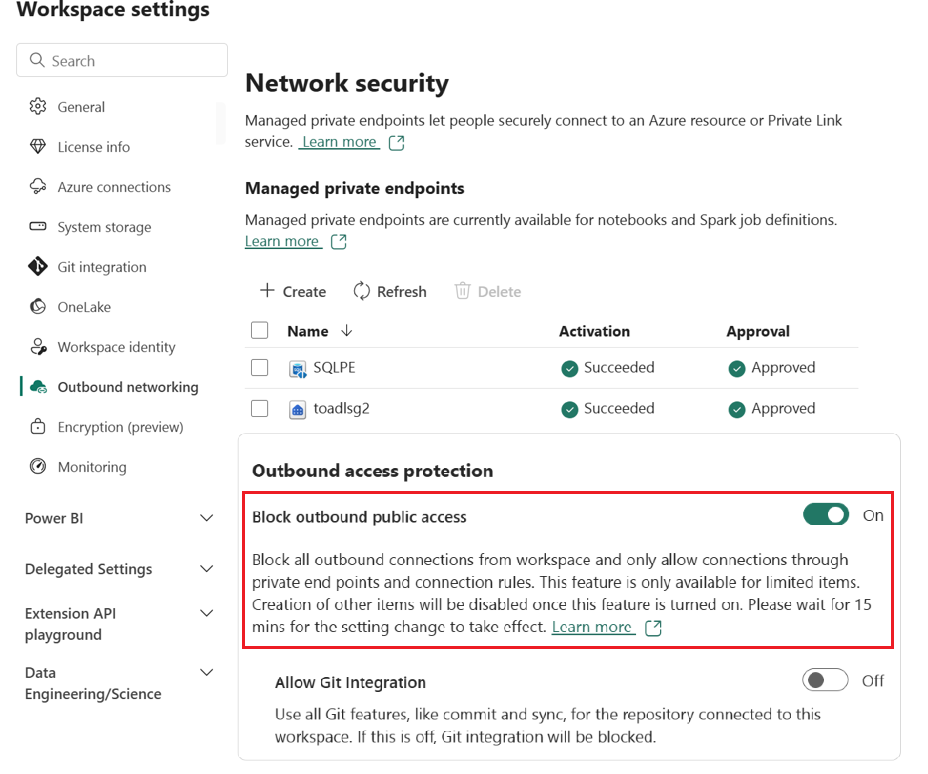
In the workspace where you want to set up outbound access protection, go to Workspace settings > Network Security.
Under Outbound access protection, switch the Block outbound public access toggle to On.
Note
If you want to allow Git integration, turn the Allow Git integration toggle to On. Git integration is blocked by default when Block outbound public access is enabled, but you can enable Git integration for the workspace so its content (like notebooks, dataflows, Power BI reports, etc.) can sync with an external Git repository (GitHub or Azure DevOps). Learn more
After outbound public access is blocked, you can create an allow list of approved connections to external resources using either data connection rules or managed private endpoints.