Note
Access to this page requires authorization. You can try signing in or changing directories.
Access to this page requires authorization. You can try changing directories.
Use Microsoft Intune to configure BitLocker encryption on devices that run Windows, and Personal Data Encryption (PDE) on devices that run Windows 11 Version 22H2 or later. This article covers both standard BitLocker encryption and silent BitLocker encryption scenarios.
Important
On October 14, 2025, Windows 10 reached end of support and won't receive quality and feature updates. Windows 10 is an allowed version in Intune. Devices running this version can still enroll in Intune and use eligible features, but functionality won't be guaranteed and can vary.
Tip
Some settings for BitLocker require the device have a supported TPM.
BitLocker encryption scenarios
Intune supports two primary BitLocker encryption approaches:
Standard BitLocker encryption - Users might see prompts and can interact with the encryption process. Provides flexibility for encryption type selection and user-directed recovery key management.
Silent BitLocker encryption - Automatic encryption without user interaction or administrative privileges required on the device. Ideal for organizations that want to ensure all managed devices are encrypted without depending on end-user action.
Tip
Intune provides a built-in encryption report that presents details about the encryption status of devices across all your managed devices. After Intune encrypts a Windows device with BitLocker, you can view and manage BitLocker recovery keys when you view the encryption report.
Prerequisites
Licensing and Windows editions
For Windows editions that support BitLocker management, see Windows edition and licensing requirements in the Windows documentation.
Role-based access controls
To manage BitLocker in Intune, an account must be assigned an Intune role-based access control (RBAC) role that includes the Remote tasks permission with the Rotate BitLockerKeys (preview) right set to Yes.
You can add this permission to your own custom RBAC roles or use one of the following built-in RBAC roles:
- Help Desk Operator
- Endpoint Security Administrator
Recovery planning
Before enabling BitLocker, understand and plan for recovery options that meet your organization's needs. For more information, see BitLocker recovery overview in the Windows security documentation.
Policy types for BitLocker encryption
Choose from the following Intune policy types to configure BitLocker encryption:
Endpoint security policy (recommended)
Endpoint security > Disk encryption policy provides focused, security-specific BitLocker configuration:
- BitLocker profile - Dedicated settings for configuring BitLocker encryption. For more information, see the BitLocker CSP.
- Personal Data Encryption profile - Configure PDE for file-level encryption that works alongside BitLocker for layered security. For more information, see the PDE CSP.
Device configuration policy
Device configuration > Endpoint protection profile includes BitLocker settings as part of broader endpoint protection configuration. View available settings at BitLocker in endpoint protection profiles.
Note
Settings Catalog limitations: Settings Catalog doesn't include the necessary TPM startup authentication controls required for reliable silent BitLocker enablement. Use endpoint security or device configuration policies for BitLocker scenarios.
Configure standard BitLocker encryption
Standard BitLocker encryption allows user interaction and provides flexibility for encryption configuration.
Create endpoint security policy
Sign in to the Microsoft Intune admin center.
Select Endpoint security > Disk encryption > Create Policy.
Set the following options:
- Platform: Windows
- Profile: Choose BitLocker or Personal Data Encryption

On the Configuration settings page, configure settings for BitLocker to meet your business needs:
- Configure encryption methods for OS, fixed, and removable drives.
- Set recovery options (password and key requirements).
- Configure TPM startup authentication as needed.
Select Next.
On the Scope (Tags) page, choose Select scope tags to open the Select tags pane to assign scope tags to the profile.
Select Next to continue.
On the Assignments page, select the groups that receive this profile. For more information on assigning profiles, see Assign user and device profiles.
Select Next.
On the Review + create page, when you're done, choose Create. The new profile is displayed in the list when you select the policy type for the profile you created.
Create device configuration policy
Tip
The following procedure configures BitLocker through a device configuration template for Endpoint protection. To configure Personal Data Encryption, use the device configuration settings catalog and the PDE category.
Sign in to the Microsoft Intune admin center.
Select Devices > Manage devices > Configuration > On the Policies tab, select Create.
Set the following options:
- Platform: Windows 10 and later
- Profile type: Select Templates > Endpoint protection, and then select Create.

On the Configuration settings page, expand Windows Encryption and configure BitLocker settings to meet your business needs.

If you want to enable BitLocker silently, see Configure silent BitLocker encryption in this article for extra prerequisites and the specific setting configurations you must use.
Select Next to continue.
Complete configuration of other settings as needed for your organization.
Complete the policy creation process by assigning it to appropriate device groups and save the profile.
Configure silent BitLocker encryption
Silent BitLocker encryption automatically encrypts devices without user interaction, providing a seamless encryption experience for managed environments.
Prerequisites for silent encryption
Device requirements
A device must meet the following conditions for silent BitLocker enablement:
Operating System:
- If end users sign in as Administrators: Windows 10 version 1803 or later, or Windows 11
- If end users sign in as Standard Users: Windows 10 version 1809 or later, or Windows 11
Device configuration:
- Microsoft Entra joined or Microsoft Entra hybrid joined
- TPM (Trusted Platform Module) 1.2 or later
- Native UEFI BIOS mode
- Secure Boot enabled
- Windows Recovery Environment (WinRE) configured and available
Note
When BitLocker is enabled silently, the system automatically uses full disk encryption on non-modern standby devices and used space only encryption on modern standby devices. The encryption type depends on hardware capabilities and can't be customized for silent encryption scenarios.
To learn more about modern standby, see What is modern standby in the Windows hardware documentation.
Important
Before deploying silent BitLocker policies, conduct a thorough assessment of your environment:
- Identify existing encryption software - Use device inventory or discovery tools to identify devices with third-party encryption (McAfee, Symantec, Check Point, etc.).
- Plan migration strategy - Develop procedures to safely remove existing encryption before BitLocker deployment.
- Test in pilot groups - Validate silent BitLocker behavior on representative devices before broad deployment.
- Prepare rollback procedures - Have recovery and rollback plans ready in the event of encryption conflicts.
Silent BitLocker policies bypass user warnings about existing encryption, making pre-deployment assessment critical for avoiding data loss.
Required settings for silent encryption
Configure the following settings depending on your chosen policy type:
Endpoint security policy for silent BitLocker
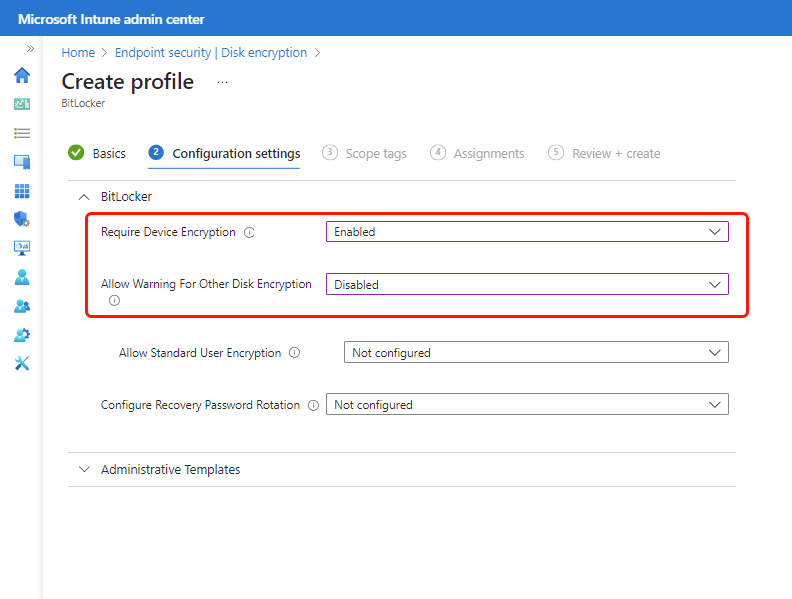
For Endpoint security Disk encryption policy, configure these settings in the BitLocker profile:
Require Device Encryption = Enabled
Allow Warning For Other Disk Encryption = Disabled
Warning
Setting Allow Warning For Other Disk Encryption to Disabled means BitLocker proceeds with encryption even when other disk encryption software is detected. This can lead to:
- Data loss from conflicting encryption methods
- System instability and boot failures
- Complex recovery scenarios with multiple encryption layers
Before deploying silent BitLocker policies, ensure your environment doesn't have third-party encryption software installed. Consider using device inventory reports to identify devices with existing encryption software.
Important
After setting Allow Warning For Other Disk Encryption to Disabled, another setting becomes available:
- Allow Standard User Encryption = Enabled
This setting is required if devices are used by standard (non-administrator) users. It allows the RequireDeviceEncryption policy to work even when the current logged-on user is a standard user.
In addition to the required settings, consider configuring Configure Recovery Password Rotation to enable automatic rotation of recovery passwords.
Device configuration policy for silent BitLocker
For Device configuration Endpoint protection policy, configure these settings in the Endpoint protection template:
- Warning for other disk encryption = Block
- Allow standard users to enable encryption during Microsoft Entra join = Allow
- User creation of recovery key = Allow or Do not allow 256-bit recovery key
- User creation of recovery password = Allow or Require 48-digit recovery password
Warning
Setting Warning for other disk encryption to Block suppresses warnings about existing encryption software and allows BitLocker to proceed automatically. This creates the same risks as described for endpoint security policies. Verify your environment is free of third-party encryption before deployment.
TPM startup authentication for silent encryption
For silent BitLocker to work, devices must not require TPM startup PIN or startup key, as these require user interaction.
Configure TPM settings
Configure TPM startup authentication settings to prevent user interaction:
Endpoint security policy - In the BitLocker profile under Operating System Drives, first set Require additional authentication at startup to Enabled. Once enabled, the following TPM settings become available:
- Configure TPM startup PIN = Do not allow startup PIN with TPM
- Configure TPM startup key = Do not allow startup key with TPM
- Configure TPM startup key and PIN = Do not allow startup key and PIN with TPM
- Configure TPM startup = Allow TPM or Require TPM
Device configuration policy - In the endpoint protection template under Windows Encryption:
- Compatible TPM startup = Allow TPM or Require TPM
- Compatible TPM startup PIN = Do not allow startup PIN with TPM
- Compatible TPM startup key = Do not allow startup key with TPM
- Compatible TPM startup key and PIN = Do not allow startup key and PIN with TPM
Warning
Watch for policies that enable use of a TPM startup PIN or key. For example, the Security baseline for Microsoft Defender can enable TPM startup PIN and key by default, which blocks silent enablement. Review your baseline configurations for conflicts and reconfigure or exclude devices as needed.
Encryption type behavior
The encryption type (full disk vs. used space only) is determined by the following details:
- Hardware capabilities - Whether the device supports modern standby.
- Silent encryption configuration - Whether silent enablement is configured.
- SystemDrivesEncryptionType setting - If explicitly configured.
Default behavior
When SystemDrivesEncryptionType isn't configured:
- Modern standby devices with silent encryption = Used space only encryption.
- Non-modern standby devices with silent encryption = Full disk encryption.
- Standard (non-silent) encryption = User can choose or policy-defined.
Verify device capabilities
To check if a device supports modern standby, run from a command prompt:
powercfg /a
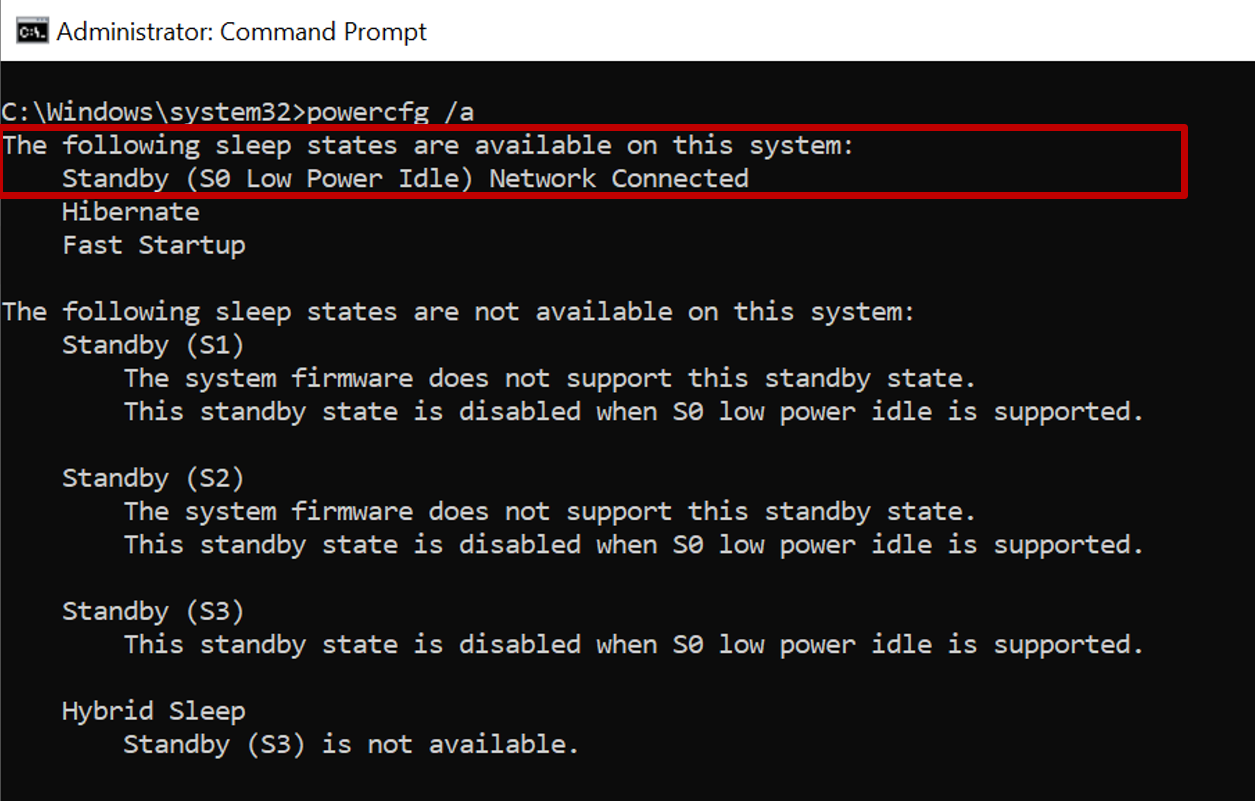
Modern standby capable: Shows Standby (S0 Low Power Idle) Network Connected is available. Not modern standby capable: Shows Standby (S0 Low Power Idle) Network Connected isn't supported.

Verify encryption type
To check the current encryption type, run from an elevated command prompt:
manage-bde -status c:
The 'Conversion Status' field shows either Used Space Only Encrypted or Fully Encrypted.
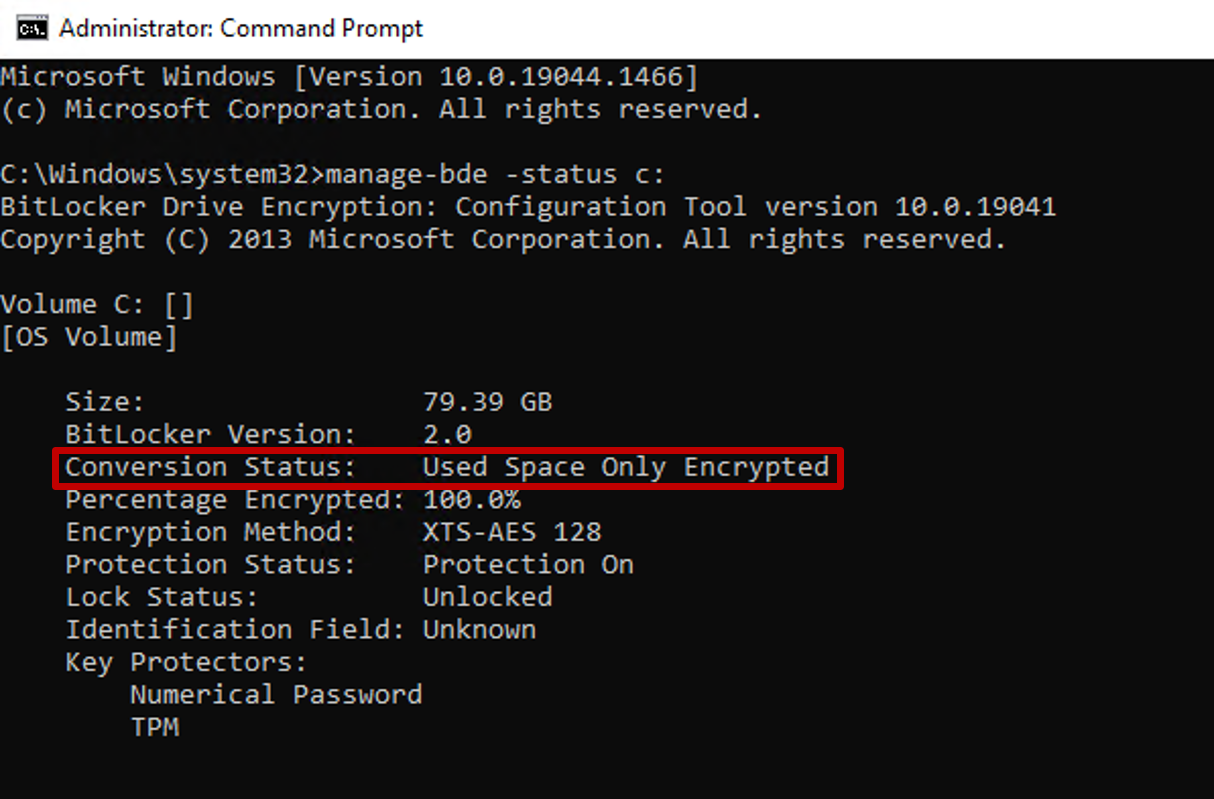

To view information about devices that receive BitLocker policy, see Monitor disk encryption.
Control encryption type with Settings Catalog
To change the disk encryption type between full disk encryption and used space only encryption, use the Enforce drive encryption type on operating system drives setting in Settings Catalog:
- Create a Settings Catalog policy
- Navigate to Windows Components > BitLocker Drive Encryption > Operating System Drives
- Select and set Enforce drive encryption type on operating system drives to Enabled to add Select the encryption type: (Device). Then configure Select the Encryption type: (Device) to either Full encryption or Used Space Only encryption.

Personal Data Encryption (PDE)
Personal Data Encryption (PDE) provides file-level encryption that complements BitLocker:
Personal Data Encryption differs from BitLocker in that it encrypts files instead of whole volumes and disks. PDE occurs in addition to other encryption methods like BitLocker. Unlike BitLocker that releases data encryption keys at boot, PDE doesn't release data encryption keys until a user signs in using Windows Hello for Business.
- PDE encrypts files instead of whole volumes and disks.
- Works alongside BitLocker for layered security - PDE isn't a replacement for BitLocker.
- Requires Windows Hello for Business sign-in to release encryption keys.
- Available on Windows 11 22H2 or later.
For more information, see the PDE CSP.
To configure PDE, use either:
- Endpoint security policy with the Personal Data Encryption profile.
- Settings Catalog with the PDE category.
Monitor and manage BitLocker
View encryption status
In the Microsoft Intune admin center, select Devices > Monitor > Encryption report.
Review the encryption status of devices that received BitLocker policies.
Access BitLocker recovery keys and device compliance information.
Recovery key management
View recovery keys for Intune-managed devices
Intune provides access to the Microsoft Entra node for BitLocker so you can view BitLocker Key IDs and recovery keys for your Windows devices from within the Microsoft Intune admin center.
To view recovery keys:
- Sign in to the Microsoft Intune admin center.
- Select Devices > All devices.
- Select a device from the list, and then under Monitor, select Recovery keys.
- Select Show Recovery Key. This generates an audit log entry under 'KeyManagement' activity.
When keys are available in Microsoft Entra ID, the following information is displayed:
- BitLocker Key ID
- BitLocker Recovery Key
- Drive Type
When keys aren't in Microsoft Entra ID, Intune displays No BitLocker key found for this device.
Note
Microsoft Entra ID supports a maximum of 200 BitLocker recovery keys per device. If you reach this limit, silent encryption fails due to the failing backup of recovery keys before starting encryption on the device.
Required permissions: IT admins need the microsoft.directory/bitlockerKeys/key/read permission within Microsoft Entra ID to view device BitLocker recovery keys. This permission is included in these Microsoft Entra roles:
- Cloud Device Administrator
- Helpdesk Administrator
- Global Administrator
For more information on Microsoft Entra role permissions, see Microsoft Entra built-in roles.
Audit logging: All BitLocker recovery key accesses are audited. For more information, see Azure portal audit logs.
Important
If you delete the Intune object for a Microsoft Entra joined device protected by BitLocker, the deletion triggers an Intune device sync and removes the key protectors for the operating system volume. This leaves BitLocker in a suspended state on that volume.
View recovery keys for tenant-attached devices
When using the tenant attach scenario, Microsoft Intune can display recovery key data for tenant-attached devices.
Requirements:
- Configuration Manager sites must run version 2107 or later
- For sites running 2107, install update rollup KB11121541 for Microsoft Entra joined device support
- Your Intune account must have Intune RBAC permissions to view BitLocker keys
- Must be associated with an on-premises user with Configuration Manager Collection Role and Read BitLocker Recovery Key Permission
For more information, see Configure role-based administration for Configuration Manager.
Rotate BitLocker recovery keys
You can use an Intune device action to remotely rotate the BitLocker recovery key of a device that runs Windows 10 version 1909 or later, and Windows 11.
Prerequisites for key rotation:
Devices must run Windows 10 version 1909 or later, or Windows 11
Microsoft Entra joined and hybrid joined devices must have key rotation enabled via BitLocker policy:
- Client-driven recovery password rotation = Enable rotation on Microsoft Entra joined devices or Enable rotation on Microsoft Entra ID and hybrid joined devices
- Save BitLocker recovery information to Microsoft Entra ID = Enabled
- Store recovery information in Microsoft Entra ID before enabling BitLocker = Required
To rotate the BitLocker recovery key:
Sign in to the Microsoft Intune admin center.
Select Devices > All devices.
Select a device from the list.
Select the BitLocker key rotation remote action. If not visible, select the ellipsis (...) and then select BitLocker key rotation.

For more information about BitLocker deployments and requirements, see the BitLocker deployment comparison chart.
Self-service recovery
To help end users get their recovery keys without calling the helpdesk, Intune enables self-service scenarios through the Company Portal app and other methods.
Self-service access options:
- Company Portal app: Users can access BitLocker recovery keys through the Company Portal app
- My Account portal: Available at account.microsoft.com for Microsoft Entra joined devices
- Microsoft Entra ID: Direct access for Microsoft Entra joined devices
Administrative controls for self-service access:
Tenant-wide toggle: Determines if non-admin users can use self-service to recover BitLocker keys:
- Default: No (allows all users to recover their keys)
- Yes: Restricts non-admin users from seeing BitLocker keys for their own devices
- Configure in Microsoft Entra device settings
Conditional Access integration: Use Conditional Access policies to require compliant devices for BitLocker recovery key access:
- Set up Require compliant device in Conditional Access policy
- Noncompliant devices can't access BitLocker recovery keys
- BitLocker recovery keys are treated as corporate resources subject to Conditional Access
Audit logging for self-service: All user recovery key accesses are logged:
- Logged in Microsoft Entra audit logs under Key Management category
- Activity type: Read BitLocker key
- Includes User Principal Name and key ID
- For more information, see Microsoft Entra audit logs
Troubleshooting
Common issues for silent BitLocker
Issue: BitLocker requires user interaction despite silent configuration
- Solution: Verify TPM startup PIN or key settings aren't enabled. Check for conflicting security baseline policies.
Issue: Devices don't meet prerequisites for silent enablement
- Solution: Verify devices meet all device prerequisites, including TPM version, UEFI mode, and Microsoft Entra join status.
Issue: BitLocker fails to encrypt silently
- Solution: Check Windows event logs for BitLocker-related errors. Verify Secure Boot is enabled and WinRE is properly configured.
Issue: Policy conflicts prevent silent enablement
- Solution: Use policy conflict detection in Intune to identify conflicting settings between policies.
Recovery key troubleshooting
For silent BitLocker enablement, recovery keys are automatically backed up to Microsoft Entra ID when encryption occurs. Verify:
- Devices are successfully Microsoft Entra joined (required for automatic backup)
- No policy conflicts prevent the automatic backup process
- Recovery key escrow is functioning through the encryption report
Next steps
- Manage FileVault policy for macOS devices
- Monitor disk encryption
- Troubleshooting BitLocker policy
- Known issues for BitLocker policies
- BitLocker deployment comparison chart
- BitLocker management for enterprises in the Windows security documentation
- Personal Data Encryption overview
- Self-service scenarios for end users through Company Portal app