Note
Access to this page requires authorization. You can try signing in or changing directories.
Access to this page requires authorization. You can try changing directories.
Use Microsoft Intune to configure and manage FileVault disk encryption on macOS devices. FileVault is a whole-disk encryption program included with macOS that uses XTS-AES 128-bit encryption. This article covers comprehensive FileVault deployment, management, and recovery scenarios for enterprise environments.
FileVault disk encryption is available on devices running macOS 10.13 or later and provides full disk encryption to protect data on lost, stolen, or compromised devices.
Note
FileVault uses XTS-AES 128-bit encryption as implemented by Apple's macOS. This encryption standard is fixed and can't be changed to 256-bit through Intune or macOS settings. Apple considers XTS-AES 128-bit encryption sufficient for enterprise security requirements.
Tip
Intune provides a built-in encryption report that presents details about the encryption status of devices across all your managed devices. After Intune encrypts a macOS device with FileVault, you can view and manage FileVault recovery keys through the encryption report.
FileVault encryption scenarios
Intune supports multiple approaches to deployment of FileVault that can fit different organizational needs:
- Standard FileVault encryption - User-interactive deployment with prompts and deferral options.
- Setup Assistant enforcement - Automatic encryption during initial device setup (macOS 14+).
- Assumption of existing encryption - Take management of user-encrypted devices.
- Recovery key management - Comprehensive key rotation and recovery scenarios.
FileVault deployment process
After you create a policy to encrypt devices with FileVault, the policy is applied to devices in two stages:
- Key escrow preparation - The device is prepared to enable Intune to retrieve and back up the recovery key. This action is referred to as escrow.
- Disk encryption initiation - After the key is escrowed, the disk encryption can start.
When Intune first encrypts a macOS device with FileVault, a personal recovery key is created. Upon encryption, the device displays the personal key a single time to the device user.
Note
The FileVault settings available through Intune cover core macOS encryption features but do not expose every FileVault capability. Only options provided in Intune's templates or settings catalog can be configured through MDM. Advanced FileVault settings available directly in macOS might not be configurable via Intune policies.
Prerequisites
Licensing and macOS versions
FileVault encryption management requires:
- macOS 10.13 or later for basic FileVault functionality.
- macOS 14 or later for Setup Assistant enforcement features.
- User-approved MDM enrollment - Users must manually approve the management profile from System Preferences.
Role-based access controls
To manage FileVault in Intune, an account must be assigned an Intune role-based access control (RBAC) role that includes the Remote tasks permission with the Rotate FileVault key right set to Yes.
You can add this permission to your own custom RBAC roles or use one of the following built-in RBAC roles:
- Help Desk Operator
- Endpoint Security Administrator
Apple Business Manager considerations
For Setup Assistant enforcement scenarios, ensure:
- Devices are enrolled through Apple Business Manager or Apple School Manager.
- Await final configuration is properly configured for automated deployment.
- Enrollment profiles are configured for supervised device management.
Policy types for FileVault encryption
Choose from the following Intune policy types to configure FileVault encryption based on your deployment needs:
Endpoint security policy
Best for: Standard FileVault deployments with streamlined configuration.
The Endpoint security Disk encryption policy provides focused, security-specific FileVault configuration:
- FileVault profile - Dedicated settings for configuring FileVault encryption with comprehensive recovery options.
- Streamlined configuration focused on security requirements.
- Integration with Intune's encryption monitoring and reporting.
- Simplified setup for most FileVault scenarios.
Settings catalog policy
Best for: Advanced deployments requiring Setup Assistant enforcement or comprehensive configuration options.
The settings catalog provides the most comprehensive FileVault configuration options:
- Access to all the settings that are available through Intune for FileVault
- Setup Assistant enforcement capabilities (macOS 14+) - unique to Settings Catalog
- Advanced configuration options that aren't available in templates
- Granular control over user experience and security settings
- Maximum flexibility for complex deployment scenarios
Device configuration policy (deprecated)
The Device configuration > Endpoint protection template includes FileVault as part of broader endpoint protection.
Note
The macOS template for Endpoint Protection is deprecated and no longer supports creating new profiles. Use Endpoint security or Settings Catalog for new FileVault deployments.
Create endpoint security policy
Standard FileVault deployment
Sign in to the Microsoft Intune admin center.
Select Endpoint security > Disk encryption > Create Policy.
Set the following options:
- Platform: macOS
- Profile: MacOS FileVault
On the Configuration settings page, configure core FileVault settings:
Required settings:
- for FileVault: Enable = On (to enable FileVault)
- Use Recovery Key = Enabled
Recovery key management:
- Recovery Key Rotation In Months = Set rotation interval
- Location = Enter some descriptive guidance to guide your users for key retrieval.
User experience settings:
- Allow deferral until sign out = Configure based on organizational needs
- Defer Dont Ask At User Logout = Configure user interaction preferences
- Defer Force At User Login Max Bypass Attempts = Set enforcement strictness
On the Scope (Tags) page, assign appropriate scope tags for your organization's management structure.
On the Assignments page, select the groups that receive this profile. Consider:
- Device groups for company-owned devices
- User groups for BYOD scenarios
- Pilot groups for initial testing
Select Create to deploy the policy.
Escrow location guidance
Configure helpful escrow location descriptions to guide users on how to retrieve their recovery key. This information is useful when you use the setting for Personal recovery key rotation, which can automatically generate a new recovery key for a device periodically.
Message example:
To retrieve a lost or recently rotated recovery key, sign in to the Intune Company Portal website from any device. In the portal, go to Devices and select the device that has FileVault enabled, and then select 'Get recovery key'. The current recovery key is displayed.
Additional configuration considerations:
- Include your organization's support contact information.
- Reference your internal IT procedures for device recovery.
- Provide clear, simple language that nontechnical users can understand.
Create Settings Catalog policy
Settings Catalog provides the most comprehensive FileVault configuration options, including Setup Assistant enforcement.
Standard Settings Catalog deployment
Sign in to the Microsoft Intune admin center.
Select Devices > By platform > macOS > Manage devices > Configuration > Create > New policy.
Select Settings catalog for the Profile type.
On the Configuration settings page, select + Add settings and navigate to Full Disk Encryption.
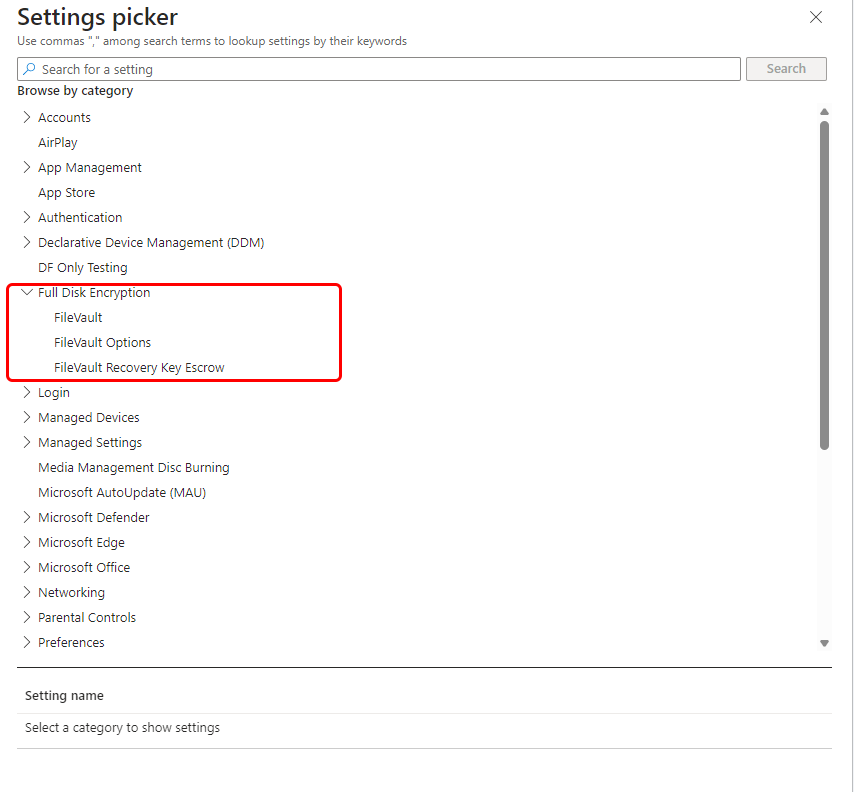
Configure the following core FileVault settings:
FileVault:
- Enable = On
- Defer = Enabled (required for successful FileVault application)
FileVault Recovery Key Escrow:
- Location = Enter some descriptive guidance to guide your users for key retrieval.
Advanced options (as needed): (All are found under FileVault)
- Show Recovery Key = Configure visibility during encryption
- Defer Don't Ask At User Logout = Control prompt timing
- Defer Force At User Login Max Bypass Attempts = Set enforcement limits
- Recovery Key Rotation In Months = Configure automatic rotation
Complete policy assignment and deployment following standard Intune procedures.
Setup Assistant enforcement (macOS 14+)
Important
Setup Assistant enforcement requires specific enrollment and configuration prerequisites. Verify your environment meets these requirements before deployment.
Tip
macOS 14.4 adds refinements that apply to Setup Assistant. Prior to macOS 14.4, Setup Assistant requires the user account created interactively during Setup Assistant to have the role of Administrator.
For automated FileVault enablement during device setup:
Prerequisites for Setup Assistant:
- macOS 14 or later
- Apple Business Manager or Apple School Manager enrollment
- Await final configuration = Yes in enrollment profile
- Device filter using EnrollmentProfileName attribute
Additional Settings Catalog configuration: (Found under FileVault)
FileVault > Force Enable in Setup Assistant = Enabled
FileVault > Defer = Enabled
Important
The Defer setting must be configured to Enabled to successfully enable FileVault in Setup Assistant for devices running macOS 14.4.

Enrollment profile configuration:
- Configure enrollment profile with Await final configuration = Yes.
- Create device filter for targeted deployment.
- Assign Settings Catalog policy to filtered devices.
FileVault encryption process
Understanding the FileVault encryption process helps with deployment planning and troubleshooting:
Encryption stages
FileVault deployment occurs in two distinct phases:
- Key escrow preparation - Intune prepares the device to backup recovery keys to Microsoft cloud services
- Disk encryption initiation - FileVault encryption begins after successful key escrow
User experience considerations
Standard deployment user experience:
- Users might see FileVault enablement prompts (depending on configuration)
- Recovery key is displayed once during encryption process
- Users should be directed to record recovery key information
- Encryption continues in background after initial setup
Setup Assistant user experience:
- Encryption occurs automatically during device setup
- No user interaction required for encryption initiation
- Recovery key is automatically escrowed to Intune
- Users complete setup with encrypted device
Monitor and manage FileVault
View encryption status
To view information about devices that receive FileVault policy, see Monitor disk encryption.
Monitor FileVault deployment through multiple Intune interfaces:
Encryption report - Navigate to Devices > Monitor > Device Encryption status:
- View encryption status across all managed devices
- Access recovery key information for encrypted devices
- Monitor policy deployment and compliance
Device-specific monitoring - Select individual devices to view:
- FileVault enablement status
- Recovery key availability
- Encryption policy assignment details
FileVault key escrow and management
For managed devices, Intune can escrow a copy of the personal recovery key. Escrow of keys enables Intune administrators to rotate keys to help protect devices, and users to recover a lost or rotated personal recovery key.
Intune escrows a recovery key when:
- Intune policy encrypts a device
- A user uploads their recovery key for a device that they manually encrypted
After Intune escrows the personal recovery key:
- Admins can manage and rotate the FileVault recovery keys for any managed macOS device using the Intune encryption report.
- Admins can view the personal recovery key for only managed macOS devices that are marked as Corporate. They can't view the recovery key for Personal devices.
- Users can view and retrieve their personal recovery key from supported locations.
Recovery key management
Intune provides comprehensive recovery key management for FileVault-encrypted devices:
View recovery keys
Important
Administrator Access Restrictions: Administrators can only view and manage FileVault recovery keys for devices marked as Corporate. Recovery keys for Personal (BYOD) devices aren't accessible to administrators, ensuring user privacy. This distinction is critical for admin expectations and troubleshooting.
For administrators:
- Access recovery keys for devices marked as Corporate only
- Cannot view recovery keys for Personal/BYOD devices
- Navigate to device details > Monitor > Recovery keys
- Select Show Recovery Key (generates audit log entry)
Required permissions:
- Intune RBAC role with Remote tasks permission
- Rotate FileVault key right set to Yes
Recovery key access locations
End users can retrieve recovery keys from:
- Company Portal website (portal.manage.microsoft.com) - Primary and most reliable method
- iOS/iPadOS Company Portal app - Shows FileVault recovery key for Mac devices
- Android Company Portal app - Shows FileVault recovery key for Mac devices
- Intune mobile app - Shows FileVault recovery key for Mac devices
Important
The device must be enrolled with Intune and encrypted with FileVault through Intune. While recovery keys are available through mobile Company Portal apps, the Company Portal website is the primary method for reliable recovery key retrieval.
Recovery key retrieval process:
Using Company Portal website (Recommended):
- Sign in to the Company Portal website (https://portal.manage.microsoft.com/) from any device.
- Navigate to Devices and select the macOS device that's encrypted with FileVault.
- Select Get recovery key - The current recovery key is displayed.
Using mobile Company Portal apps:
- Open the iOS/iPadOS Company Portal app, Android Company Portal app, or Intune mobile app.
- Navigate to Devices and select the encrypted and enrolled macOS device.
- Select Get recovery key - The browser shows the Web Company Portal and displays the recovery key.
Recovery key rotation
Intune supports both automatic and manual recovery key rotation:
Automatic rotation
Configure automatic key rotation in FileVault policies:
- Personal recovery key rotation = Set interval (1-12 months)
- New keys are automatically generated and escrowed
- Previous keys become invalid after successful rotation
- Users must retrieve new keys through Company Portal
Manual rotation
Administrators can manually rotate recovery keys:
- Sign in to the Microsoft Intune admin center
- Select Devices > All devices
- Select the encrypted device
- Under Monitor, select Recovery keys
- Select Rotate FileVault recovery key
Note
Manual rotation is only available for Corporate devices. Personal devices use automatic rotation configured in policy.
Assume management of existing FileVault encryption
Intune can assume management of devices that users encrypted before receiving Intune FileVault policy. This scenario enables centralized recovery key management for previously encrypted devices.
Prerequisites for assumption of management
- Device must receive active FileVault policy from Intune
- User must have access to current recovery key or ability to generate new key
Both methods require an active FileVault policy deployed through Intune. Use an endpoint security disk encryption profile for policy delivery.
Method 1: Upload existing recovery key
When to use: User knows their current personal recovery key.
Process:
- Deploy FileVault policy to previously encrypted device.
- Direct user to Company Portal website (portal.manage.microsoft.com).
- User selects encrypted device and chooses Store recovery key.
- User enters current personal recovery key.
- Intune validates key and rotates to new recovery key.
- New key is escrowed and available through Company Portal.
User communication:
Inform users that they must upload their recovery key to enable Intune management. Consider compliance policy enforcement to ensure completion.
Method 2: Generate new recovery key on device
When to use: User doesn't know current recovery key but has device access.
Process:
- Deploy FileVault policy to previously encrypted device.
- User opens Terminal app on encrypted device.
- Execute key rotation commands:
cd /Applications/Utilities sudo fdesetup changerecovery -personal - User provides device password when prompted.
- System generates and displays new recovery key.
- Device checks in with Intune and management is assumed.
Expedite device check-in:
- Admin: Devices > Select device > Sync
- User: Company Portal app > Settings > Sync
Verification of management assumption
After either method, verify successful management assumption:
- Check device encryption status in Intune encryption report.
- Confirm recovery key availability in device details.
- Test recovery key retrieval through Company Portal.
Troubleshooting FileVault deployment
Common deployment issues
| Issue | Solution | Verification |
|---|---|---|
| FileVault enablement fails | Verify user-approved MDM enrollment status | Check System Preferences > Profiles |
| Recovery key escrow fails | Ensure device network connectivity | Check encryption report for escrow status |
| Setup Assistant enforcement not working (macOS 14+) | Verify Defer setting is Enabled in Settings Catalog | Check enrollment profile for Await final configuration |
| Users can't retrieve recovery keys | Check device ownership type and user permissions | Verify Corporate device designation in Intune |
| Administrator can't access recovery keys | Device marked as Personal/BYOD (expected behavior) | Verify device ownership type - Personal devices protect user privacy |
Error code reference
Error -2016341107 / 0x87d1138d: User hasn't accepted FileVault enablement prompt.
- Resolution: User education on accepting FileVault prompts.
- Prevention: Consider Setup Assistant enforcement for automated deployment.
Policy conflict resolution
Use Intune's policy conflict detection to identify:
- Overlapping FileVault policies
- Conflicting endpoint protection settings
- Compliance policy interactions
Security considerations
Recovery key security
Key protection:
- Recovery keys are encrypted in transit and at rest
- Keys are stored securely in Microsoft cloud services
- Access is controlled through Intune RBAC permissions
Audit logging:
- All recovery key access is logged in Microsoft Entra audit logs
- Logs include user identity, timestamp, and key ID
- Review logs regularly for unauthorized access attempts
Corporate vs Personal devices
Note
The device ownership type (Corporate vs Personal) determines administrator access to FileVault recovery keys. This is a fundamental security and privacy design.
Corporate devices:
- Full administrative access: Administrators can view, rotate, and manage recovery keys
- Complete recovery key management capabilities through Intune admin center
- Suitable for company-owned equipment where full IT control is expected
- Audit logging tracks all administrative recovery key access
Personal devices (BYOD):
- No administrative access: Administrators can't view or directly manage recovery keys
- Users maintain complete control through self-service Company Portal access
- Balances organizational security needs with employee privacy requirements
- Keys are still escrowed to Microsoft cloud for user self-service recovery
- Automatic rotation still functions based on policy configuration
Compliance integration
FileVault encryption integrates with Intune compliance policies:
- Set Require encryption of data storage in compliance policy
- Block access to corporate resources until encryption is enabled
- Monitor compliance through device compliance reports