Note
Access to this page requires authorization. You can try signing in or changing directories.
Access to this page requires authorization. You can try changing directories.
Note
This capability is available as an Intune add-on. For more information, see Use Intune Suite add-on capabilities.
With Microsoft Intune Endpoint Privilege Management (EPM) your organization's users can run as a standard user (without administrator rights) and complete tasks that require elevated privileges. For more information, see EPM Overview.
Applies to:
- Windows
Elevation rules policies allow Endpoint Privilege Management (EPM) to identify specific files and scripts and perform the associated elevation action. For elevation rules to take effect, devices must have an elevation settings policy targeted that enables EPM. For more information, see EPM elevation settings.
In addition to the information in this article, remain aware of important security recommendations when managing elevation rules.
About elevation rules policy
An elevation rules policy is used to manage the identification of specific files, and how elevation requests for those files are handled. Each elevation rule policy includes one or more elevation rules. It's with elevation rules that you configure details about the file being managed and requirements for it to be elevated.
The following types of files are supported:
- Executable files with the
.exeor.msiextension. - PowerShell scripts with the
.ps1extension.
Each elevation rule instructs EPM on how to:
Identify the file using:
- File name (including extension). The rule also supports optional conditions like a minimum build version, product name, or internal name. Optional conditions are used to further validate the file when elevation is attempted. The file name (excluding extensions) can include use of variables for single characters through use of a question mark
?or strings through use of an asterisk*. - Certificate. Certificates can be added directly to a rule, or by using a reusable settings group. Certificates must be trusted and valid. We recommend the use of reusable settings groups as they can be more efficient and simplify a future change to the certificate. For more information, see Reusable settings groups.
- File name (including extension). The rule also supports optional conditions like a minimum build version, product name, or internal name. Optional conditions are used to further validate the file when elevation is attempted. The file name (excluding extensions) can include use of variables for single characters through use of a question mark
Validate the file:
- File hash. A file hash is required for automatic rules. For rules with an elevation type of User confirmed or Elevate as current user, you can choose to either use a certificate or a file hash, in which case the file hash becomes optional.
- Certificate. File properties can be validated alongside the publisher certificate used to sign the file. Certificates are validated using Windows APIs that check attributes such as trust, certificate expiry, and revocation status.
- File properties. Any other properties specified in the rules must match.
Configure the files elevation type. Elevation type identifies what happens when an elevation request is made for the file. By default, this option is set to User confirmed. With the exception of Elevate as current user, EPM uses a virtual account to elevate processes. This isolates elevated actions from the user's profile, reducing exposure to user-specific data and lowering the risk of privilege escalation.
Deny: Deny rules prevent the identified file from being run in an elevated context.
Support approved: An administrator must approve the support-required elevation request before the application is allowed to run with elevated privileges.
User confirmed: A user confirmed elevation always requires the user to select on a confirmation prompt to run the file. The confirmation can only be configured to require a user authentication, a business justification (visible in reporting), or both.
Elevate as current user: This type of elevation runs the elevated process under the signed-in user's own account, preserving compatibility with tools and installers that rely on the active user profile. This requires the user to enter their credentials for Windows Authentication. This preserves the user's profile paths, environment variables, and personalized settings. Because the elevated process maintains the same user identity before and after elevation, audit trails remain consistent and accurate.
However, because the elevated process inherits the user's full context, this mode introduces a broader attack surface and reduces isolation from user data.
Key considerations:
- Compatibility need: Use this mode only when virtual account elevation causes application failures.
- Scope tightly: Limit elevation rules to trusted binaries and paths to reduce risk.
- Security tradeoff: Understand that this mode increases exposure to user-specific data.
Tip
When compatibility is not an issue, prefer a method that uses the virtual account elevation for stronger security.
Automatic: An automatic elevation happens invisibly to the user. There's no prompt, and no indication that the file is running in an elevated context.
Manage the behavior of child processes. You can set the elevation behavior that applies to any child processes that the elevated process creates.
- Require rule to elevate - Configure a child processes to require its own rule before that child process can run in an elevated context.
- Deny all - All child processes launch without elevated context.
- Allow child processes to run elevated - Configure a child process to always run elevated.
Note
For more information about creating strong rules, see Defining rules for use with Endpoint Privilege Management.
You can also use the Get-FileAttributes PowerShell cmdlet from the EpmTools PowerShell module. This cmdlet can retrieve file attributes for an .exe file and extract its Publisher and CA certificates to a set location that you can use to populate Elevation Rule Properties for a particular application.
Caution
We recommend automatic elevation be used sparingly, and only for trusted files that are business critical. End users automatically elevate these applications at every launch of that application.
Defining rules for use with Endpoint Privilege Management
Endpoint Privilege Management rules consist of two fundamental elements: a detection and an elevation action.
Detections are defined as the set of attributes used to identify an application or binary. These attributes include file name, file version, and signature properties.
Elevation actions are the resulting elevation that occurs after an application or binary is detected.
It's important when defining detections that they're defined to be as descriptive as possible. To be descriptive, use strong attributes, or multiple attributes to increase the strength of the detection. The goal when defining detections should be to eliminate the ability for multiple files to fall into the same rule, unless that is explicitly the intent.
File hash rules
File hash rules are the strongest rules that can be created with Endpoint Privilege Management. These rules are highly recommended to ensure the file you intend to elevate is the file that's elevated.
File hash can be gathered from the direct binary using the Get-Filehash PowerShell method or directly from the reports for Endpoint Privilege Management.
Certificate rules
Certificate rules are a strong type of attribute and should be paired with other attributes. Pairing a certificate with attributes like product name, internal name, and description, drastically improves the security of the rule. These attributes are protected by a files signature, and often indicate specifics about the signed file.
Caution
Using only a certificate and a file name to identify files isn't recommended. Any standard user with access to a directory where the file resides can change the file name. This issue might not be a concern for files that reside in a write-protected directory.
Rules containing file name
File name is an attribute that can be utilized to detect an application that needs to be elevated. However, file names are easily changed and don't make up part of the hash or attributes signed by the publisher certificate.
This means that file names are highly susceptible to change. Files you don't intentionally target signed by a certificate that you trust can be renamed to be detected and elevated.
Important
Always ensure that rules including a file name include other attributes that provide a strong assertion to the file's identity. Attributes like file hash or properties that are included in the files signature (for example, product name) are good indicators that the file you intend is likely the one being elevated.
Rules based on attributes gathered by PowerShell
To help you build more accurate file detection rules, you can use the Get-FileAttributes PowerShell cmdlet. Available from the EpmTools PowerShell module, Get-FileAttributes can retrieve file attributes and the certificate chain material for a file and you can use the output to populate elevation rule properties for a particular application.
Example module import steps and output from Get-FileAttributes run against msinfo32.exe on Windows 11 version 10.0.22621.2506:
PS C:\Windows\system32> Import-Module 'C:\Program Files\Microsoft EPM Agent\EpmTools\EpmCmdlets.dll'
PS C:\Windows\system32> Get-FileAttributes -FilePath C:\Windows\System32\msinfo32.exe -CertOutputPath C:\CertsForMsInfo\

FileName      : msinfo32.exe
FilePath      : C:\Windows\System32
FileHash      : 18C8442887C36F7DB61E77013AAA5A1A6CDAF73D4648B2210F2D51D8B405191D
HashAlgorithm : Sha256
ProductName   : Microsoft® Windows® Operating System
InternalName  : msinfo.dll
Version       : 10.0.22621.2506
Description   : System Information
CompanyName   : Microsoft Corporation
Note
The certificate chain for msinfo32.exe is output to the C:\CertsForMsInfo directory listed in the command example.
For more information, see EpmTools PowerShell module.
Controlling child process behavior
Child process behavior allows you to control the context when a process elevated with EPM creates a child process. This behavior allows you to control processes that would be automatically delegated the context of its parent process.
Windows automatically delegates the context of a parent to a child, so take special care in controlling the behavior for your allowed applications. Ensure you evaluate what is needed when you create elevation rules, and implement the principle of least privilege.
Note
Changing the child process behavior might have compatibility issues with certain applications that expect the default Windows behavior. Make sure you thoroughly test applications when manipulating the child process behavior.
Deploying rules created with Endpoint Privilege Management
Endpoint Privilege Management rules are deployed like any other policy in Microsoft Intune. This means that rules can be deployed to users or devices, and rules are merged on the client side and selected at run time. Any conflicts are resolved based on the policy conflict behavior.
Rules deployed to a device apply to every user that uses that device. Rules that are deployed to a user apply only to that user on each device that they utilize. When an elevation action occurs, rules deployed to the user are given precedence to rules deployed to a device. This behavior allows you to deploy a set of rules to all users of a device, and a more permissive set of rules to a specific user (such as a support admin). This would allow the support administrator to elevate a broader set of applications when they sign-in to the device.
Default Elevation behavior is used only when no rule match can be found. The default elevation behavior only applies when an elevation is triggered with the Run with elevated access right-click menu.
Create elevation rules policy
Deploy an Elevation rules policy to users or devices to deploy one or more rules for files that are managed for elevation by Endpoint Privilege Management. Each rule you add to this policy:
- Identifies a file by file name and file extension for which you want to manage elevation requests.
- Can include a certificate to help validate the file's integrity. You can also add a reusable group that contains a certificate that you then use with one or more rules or policies.
- Can include one or more manually added file arguments or command line switches. When file arguments are added to a rule, EPM only allows file elevation of requests that include one of the defined command lines. If a defined command line isn't part of the file elevation request, EPM denies that request.
- Specifies if the elevation type of the file is automatic (silently), or if it requires user confirmation. With user confirmation, you can require validation with a credential prompt, or business justification, or both.
Note
In addition to this policy, a device must also be assigned a Windows elevation settings policy that enables Endpoint Privilege Management.
Use either of the following methods to create new elevation rules, which are added to elevation rules policy:
Automatically configure elevation rules – Use this method to save time when creating an elevation rule by adding files details from reporting. Rules can be created using the Elevation report or from a support approved elevation requests record.
With this method, you:
- Select the file for which you want to create an elevation rule from the Elevation report or support approved elevation request.
- Choose to add the new elevation rule to an existing elevation rules policy or create a new elevation rules policy that includes the new rule.
- When added to an existing policy, the new rule is immediately available to that policies list of assigned groups.
- When a new policy is created, you must edit that policy to assign groups before it becomes available for use.
Manually configure elevation rules – This method requires you to identify the file details you want to use for detection and to manually enter them as part of the rule creation workflow. For information about detection criteria, see Defining rules for use with Endpoint Privilege Management.
With this method, you:
- Manually determine the file details to use and then add them to the elevation rule for file identification.
- Configure all aspects of the policy during policy creation, including assigning the policy to groups for use.
- Can add one or more file arguments that must be part of the elevation request before EPM allows file elevation.
Tip
For both automatically configured and manually configured elevation rules, we recommend use of a File path that points to a location that standard users can't modify.
Automatically configure elevation rules for Windows elevation rules policy
Sign in to the Microsoft Intune admin center and go to Endpoint security > Endpoint Privilege Management. To select a file to use for an elevation rule, choose one of the following starting paths:
Start from a Report:
- Select the Reports tab and then the Elevation report tile. Locate the file you want to create a rule for in the File column.
- Select the linked name of the file to open that files Elevation detail pane.
Start from a support approved elevation request:
Select the Elevation request tab.
From the File column, select the file that you want to use for the elevation rule, which opens that files Elevation detail pane.
The status of the elevation request doesn't matter. You can use a pending request or one that was previously approved or denied.
On the Elevation detail pane, review the file details. This information is used by the elevation rule to identify the correct file. When ready, select Create a rule with these file details.

Select a policy option for the new elevation rule you're creating:
Create a new policy: This option creates a new policy that includes an elevation rule for the file you selected.
- For the rule, configure the Type and Child process behavior, and then select OK to create the policy.
- When prompted, provide a Policy name for the new policy and confirm to create it.
- After the policy is created, you can edit the policy to assign it and make any other changes.
Add to an existing policy: With this option, use the drop-down list and select an existing elevation policy to which the new elevation rule is added.
- For the rule, configure the elevation Type and Child process behavior, and then select OK. The policy is updated with the new rule.
- After the rule is added to the policy, you can edit the policy to gain access to the rule and then modify it to make additional configurations if needed.
Require the same file path as this elevation: When you select this checkbox, the File Path field in the rule is set to the file path as seen in the report. If the checkbox isn't selected, the path remains empty.
Tip
While optional, we recommend use of a File path that points to a location that standard users can't modify.


Manually configure elevation rules for Windows elevation rules policy
Sign in to the Microsoft Intune admin center and go to Endpoint security > Endpoint Privilege Management > select the Policies tab > and then select Create Policy. Set the Platform to Windows, Profile to Windows elevation rules policy, and then select Create.
On Basics, enter the following properties:
- Name: Enter a descriptive name for the profile. Name profiles so you can easily identify them later.
- Description: Enter a description for the profile. This setting is optional but recommended.
On Configuration settings, add a rule for each file that this policy manages. When you create a new policy, the policy starts includes a blank rule with an elevation type of User confirmed and no rule name. Start by configuring this rule, and later you can select Add to add more rules to this policy. Each new rule you add has an elevation type of User confirmed, which can be changed when you configure the rule.
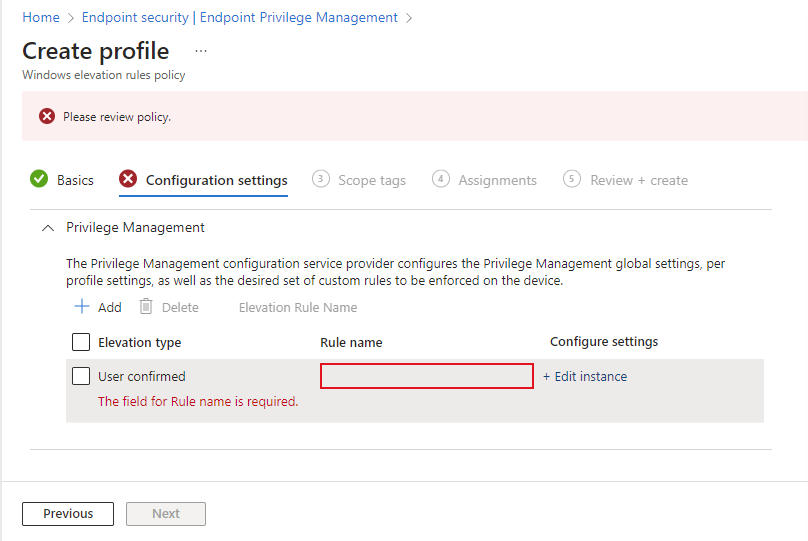
To configure a rule, select Edit instance to open its Rule properties page, and then configure the following:
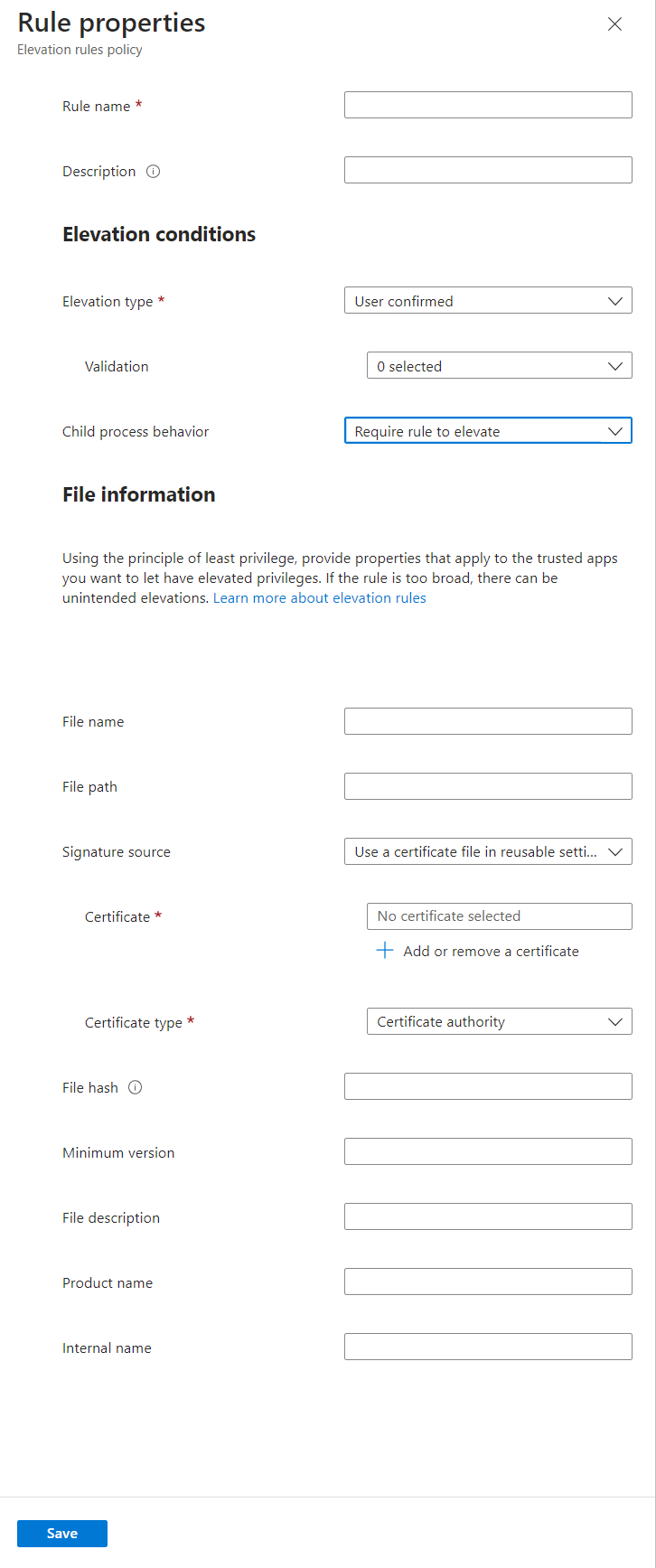
- Rule name: Specify a descriptive name for the rule. Name your rules so you can easily identify them later.
- Description (Optional): Enter a description for the profile.
Elevation conditions are conditions that define how a file runs, and user validations that must be met before the file this rule applies to can be run.
Elevation type: By default, this option is set to User confirmed, which is the elevation type most commonly used as it allows elevation, but requires user acknowledgment.
Deny: A deny rule prevents the identified file from being run in an elevated context. The following behaviors apply:
- Deny rules support the same configuration options as other elevation types except for the child process options. Child process options aren't used from this rule even if configured.
- When a user attempts to elevate a file that matches a deny rule, the elevation fails. EPM displays a message that indicates the app can't be run as administrator. Should that user also be assigned a rule that allows elevation of that same file, the deny rule takes precedence.
- Denied elevations appear in the elevation report as denied, similar to a rejected support approved request.
- EPM doesn't currently support automatic configuration of a deny rule from the evaluation report.
Support approved: This elevation type requires an administrator to approve an elevation request. For more information, see Support approved elevation requests.
Important
Use of support approved elevation for files requires that Admins with additional permissions review and approve each file elevation request before that file on the device with administrator permissions. For information about using the support approved elevation type, see Support approved file elevations for Endpoint Privilege Management.
User confirmed: Most commonly used for files with rules that require elevation because it allows elevation, but requires user acknowledgment. When a file is run, the user receives a simple prompt to confirm their intent to run the file. The rule can also include other prompts that are available from the Validation drop down:
- Business justification: Require the user to enter a justification for running the file. There's no required format for the entry. The user input is saved and can be reviewed through logs if the Reporting scope includes collection of endpoint elevations.
- Windows authentication: This option requires the user to authenticate using their organization credentials.
Automatic: This elevation type automatically runs the file with elevated permissions. Automatic elevation is transparent to the user, without prompting for confirmation or requiring justification or authentication by the user.
Caution
Only use automatic elevation by exception and for files you trust. These files will automatically elevate without user interaction. Rules that aren't well defined could allow unapproved applications to elevate. For more information on creating strong rules, see the guidance for creating rules.
Child process behavior: By default, this option is set to Require rule to elevate, which requires the child process to match the same rule as process that creates it. Other options include:
- Allow all child processes to run elevated: This option should be used with caution as it allows applications to create child processes unconditionally.
- Deny all: This configuration prevents any child process from being created.
File information is where you specify the details that identify a file that this rule applies to.
File name: Specify the file name and its extension. For example:
myapplication.exe. You can also use a variable in the file name.File path (Optional): Specify the location of the file. If the file can be run from any location or is unknown, you can leave this blank. You can also use a variable.
Tip
While optional, we recommend use of a File path that points to a location that standard users can't modify.
Signature source: Choose one of the following options:
Use a certificate file in reusable settings (Default): This option uses a certificate file that was previously added to a reusable settings group for Endpoint Privilege Management. You must create a reusable settings group before you can use this option.
To identify the Certificate, select Add or remove a certificate, and then select the reusable group that contains the correct certificate. Then, specify the Certificate type of Publisher or Certificate authority.
Upload a certificate file: Add a certificate file directly to the elevation rule. For File upload, specify a .cer file that can validate the integrity of the file that this rule applies to. Then, specify the Certificate type of Publisher or Certificate authority.
Not configured: Use this option when you don't want to use a certificate to validate the integrity of the file. When no certificate is used, you must provide a file hash.
File hash: The file hash is required when Signature source is set to Not configured, and optional when set to use a certificate.
Minimum version: (Optional) Use x.x.x.x format to specify a minimum version of the file that is supported by this rule.
File description: (Optional) Provide a description of the file.
Product name: (Optional) Specify the name of the product that the file is from.
Internal name: (Optional) Specify the internal name of the file.
Select Save to save the rule configuration. You can then Add more rules. After adding all the rules this policy requires, select Next to continue.
On the Scope tags page, select any desired scope tags to apply, then select Next.
For Assignments, select the groups that receive the policy. For more information on assigning profiles, see Assign user and device profiles. Select Next.
In Review + create, review your settings, and then select Create. When you select Create, your changes are saved, and the profile is assigned. The policy is also shown in the policy list.
Use variables in elevation rules
When you manually configure file elevation rules, you can use wildcard characters for the following configurations that are available on the Rule properties page of an elevation rule policy:
- File name: Wildcards are supported as part of a file name when configuring the File name field.
- Folder path: Wildcards are supported as part of a folder path when configuring the Folder path field.
Note
Wildcards aren't supported in automatic elevation rules.
Use of wildcards provides flexibility in your rules to support trusted files that have names that might change frequently with subsequent revisions, or for which the file path might also change.
The following wildcard characters are supported:
- Question mark
?- Question marks replace individual characters in a file name. - Asterisk
*- Asterisk replace a string of characters in a file name.
The following are examples of supported wildcard use:
File name for a Visual Studio setup file called
VSCodeSetup-arm64-1.99.2.exe:VSCodeSetup*.exeVSCodeSetup-arm64-*.exeVSCodeSetup-?????-1.??.?.exe
File path for the same file, typically found in
C:\Users\<username>\Downloads\:C:\Users\*\Downloads\
Tip
When using variables in a file name, avoid use of rule properties that might conflict. For example, a File hash would match only a file and so a file name wildcard might be redundant.
Use file arguments for elevation rules
File elevation rule's can also be limited to allow elevation with specific arguments.
For example, dsregcmd can be useful for investigating the state of a device in Microsoft Entra ID, but requires elevation. To help support this files use for investigation, you can configure the rule with a list of arguments for dsregcmd that includes the switches for /status, /listaccounts, and more. However, to prevent a destructive action like unregistering a device you exclude arguments like /leave. With this configuration, the rule only allows elevation if the arguments /status, or /listaccounts are used. dsregcmd with the /leave switch, which removes the device from Microsoft Entra ID, would be denied.
To add one or more arguments to an elevation rule, set Restrict arguments to Allow list. Select Add and configure the allowed command line options. By adding multiple arguments, you provide multiple command lines that are supported by elevation requests.
Important
Considerations for file arguments:
- EPM uses file argument lists as allowlists. When configured, EPM allows elevation when no arguments are used, or only the specified arguments are used. Elevation is blocked if any arguments are used which aren't found in the specified arguments.
- File arguments are case sensitive; users must match the case exactly as defined in the rules.
- Don't define secrets as a file argument.

Reusable settings groups
Endpoint Privilege Management uses reusable settings groups to manage the certificates that validate the files you manage with Endpoint Privilege Management elevation rules. Like all reusable settings groups for Intune, changes to a reusable group are automatically passed to the policies that reference the group. If you must update the certificate you use for file validation, you only need to update it in the reusable settings group a single time. Intune applies the updated certificate to all your elevation rules that use that group.
To create the reusable settings group for Endpoint Privilege Management:
Sign in to the Microsoft Intune admin center and go to Endpoint security > Endpoint Privilege Management > select the Reusable settings (preview) tab > and then select Add.

On Basics, enter the following properties:
- Name: Enter a descriptive name for the reusable group. Name groups so you can easily identify each later.
- Description: Enter a description for the profile. This setting is optional but recommended.
In Configuration settings, select the folder icon for Certificate file, and browse to a .CER file to add it to this reusable group. The Base 64 value field fills in based on the certificate selected.

In Review + create, review your settings, and then select Add. When you select Add, your configuration is saved, and group is then shown in the reusable settings group list for Endpoint Privilege Management.

